1. Ifihan
This manual provides essential information for the proper setup, operation, and maintenance of your Azeyou 10.1-inch Android 14 Tablet, model AT1016U5. Please read this manual thoroughly before using your device to ensure optimal performance and safety.

Aworan 1.1: Iwaju ati sẹhin view of the Azeyou 10.1-inch Android 14 Tablet.
2. Alaye Aabo
To prevent damage to your device or injury to yourself and others, observe the following precautions:
- Má ṣe fi tábìlẹ́ẹ̀tì náà sí ojú ọjọ́ tí ó le koko, oòrùn tààrà, tàbí ọ̀rinrin gíga.
- Yẹra fún fífi tablet náà sílẹ̀ tàbí kí o fi sí ipa líle.
- Use only the charger and accessories provided or approved by Azeyou.
- Pa tabulẹti naa mọ kuro ninu omi ati awọn omi miiran.
- Do not attempt to disassemble or repair the tablet yourself. Contact customer support for assistance.
- Sọ tabulẹti ati batiri rẹ ni ifojusọna ni ibamu si awọn ilana agbegbe.
3. Package Awọn akoonu
Jẹrisi pe gbogbo awọn ohun kan wa ninu package:
- 1x Azeyou Android 14 Tablet
- 1x TYPE C Cable
- 1x Tablet Adaptor
- 1x Itọsọna olumulo

Image 3.1: Contents included in the Azeyou Tablet package.
4. Ọja Ipariview
Familiarize yourself with the physical components and controls of your Azeyou Tablet.
4.1. Physical Layout

Image 4.1: Diagram showing the location of ports and buttons on the Azeyou Tablet.
- Bọtini Agbara/Titiipa: Press to turn on/off the tablet or to lock/unlock the screen.
- Awọn bọtini iwọn didun: Ṣatunṣe iwọn didun ohun.
- Ṣatunkọ Pinhole: Lo pin tinrin kan lati tun ẹrọ naa ṣe ti o ba di alaidahun.
- Ibudo Iru-C USB: Fun gbigba agbara ati gbigbe data.
- Micro SD Kaadi Iho: Insert a Micro SD card for expandable storage (up to 1TB, not included).
- Kamẹra: Front (5MP) and Rear (8MP) cameras for photos and video calls.
- Awọn agbọrọsọ: Dual multimedia box speakers for audio output.
4.2. Key Awọn ẹya ara ẹrọ
- Eto isesise: Android 14
- Olupilẹṣẹ: 2.0 GHz Octa-Core Processor (Allwinner A523)
- Ifihan: 10.1-inch IPS Touch Screen, 1280x800 resolution
- Iranti: 8GB RAM (4GB physical + 4GB virtual)
- Ibi ipamọ: 128GB ROM, expandable up to 1TB via TF card
- Batiri: 6000mAh litiumu polima
- Asopọmọra: Wi-Fi 6 (802.11a/b/g/n/ac), Bluetooth 5.0
- Awọn kamẹra: 5MP Iwaju, 8MP ru
- Afikun: GMS certified, Widevine L1 support

Image 4.2: Visual representation of the tablet's core features including OS, memory, cameras, and connectivity.
5. Eto
5.1. Ngba agbara si Batiri naa
Before first use, fully charge the tablet. Connect the provided USB Type-C cable to the tablet's charging port and the other end to the tablet adaptor. Plug the adaptor into a power outlet. The charging indicator will show the charging status. A full charge typically takes approximately 1.5 hours.
5.2. Agbara lori / Paa
- Lati Fi agbara: Press and hold the Power/Lock button until the Azeyou logo appears on the screen.
- Lati Paarẹ: Press and hold the Power/Lock button until the power options menu appears. Select "Power off" and confirm.
- Lati Tun bẹrẹ: From the power options menu, select "Restart."
5.3. Ni ibẹrẹ Oṣo
Upon first power-on, follow the on-screen prompts to configure your tablet:
- Yan ede rẹ.
- Sopọ si nẹtiwọki Wi-Fi kan.
- Wọlé pẹ̀lú àkọọ́lẹ̀ Google rẹ tàbí ṣẹ̀dá tuntun kan. Èyí ṣe pàtàkì láti gba àwọn àpù láti Google Play Store.
- Review ati ki o gba awọn ofin ati ipo.
- Ṣeto titiipa iboju (PIN, ilana, tabi ọrọ igbaniwọle) fun aabo.
5.4. Fifi Kaadi Micro SD sii
To expand storage, insert a Micro SD card (not included) into the Micro SD card slot. Gently push the card until it clicks into place. Ensure the tablet is powered off before inserting or removing the card.
6. Awọn ilana Iṣiṣẹ
6.1. Lílọ kiri lórí Android 14
Your tablet runs on Android 14, offering enhanced privacy controls and a user-friendly interface. Use touch gestures to navigate:
- Fọwọ ba: Yan nkan kan.
- Ra: Yi lọ nipasẹ awọn iboju tabi awọn akojọ.
- Fun pọ: Sun-un sinu tabi jade lori awọn aworan ati web awọn oju-iwe.
- Long Tẹ: Wọle si awọn akojọ aṣayan ọrọ-ọrọ tabi gbe awọn aami.
6.2. Wi-Fi ati Bluetooth Asopọmọra
Access the Quick Settings panel by swiping down from the top of the screen to enable or disable Wi-Fi and Bluetooth. For detailed settings, go to Eto> Nẹtiwọọki & intanẹẹti or Eto > Awọn ẹrọ ti a ti sopọ.
6.3. Fifi Awọn Ohun elo sori ẹrọ
The Google Play Store is pre-installed. Tap the Play Store icon to browse and download applications. A Google account is required for this process.
6.4. Lilo kamẹra
Open the Camera app to take photos or record videos. The tablet features a 5MP front camera and an 8MP rear camera. Tap the screen to focus and press the shutter button to capture.

Aworan 6.1: Examples of camera usage and dual camera setup on the Azeyou Tablet.
6.5. Display and Eye Protection
The 10.1-inch IPS display offers a 1280x800 resolution. It includes low blue light technology to reduce eye strain. Adjust display settings under Eto > Ifihan.

Image 6.2: The 10.1-inch IPS display of the Azeyou Tablet.
6.6. Iṣakoso batiri
The 6000mAh battery provides approximately 6 hours of mixed usage. To optimize battery life, reduce screen brightness, disable Wi-Fi/Bluetooth when not in use, and close unused applications.

Image 6.3: Battery capacity and estimated usage times for the Azeyou Tablet.
7. Itọju
7.1. Ninu Tablet
Use a soft, lint-free cloth to clean the screen and body of the tablet. Do not use abrasive cleaners or solvents, as they may damage the surfaces.
7.2. Software imudojuiwọn
Lokọọkan ṣayẹwo fun awọn imudojuiwọn eto lati rii daju pe tabulẹti rẹ ni awọn ẹya tuntun ati awọn abulẹ aabo. Lọ si Eto> Eto> Imudojuiwọn eto.
7.3. Ibi ipamọ Management
Nigbagbogbo ko wulo files and uninstall unused apps to maintain optimal performance. You can manage storage under Eto > Ibi ipamọ.
8. Laasigbotitusita
Ti o ba pade awọn ọran pẹlu tabulẹti rẹ, tọka si awọn solusan ti o wọpọ wọnyi:
| Isoro | Ojutu |
|---|---|
| Tabulẹti ko ni agbara lori | Ensure the battery is charged. Connect the charger and wait a few minutes before attempting to power on again. If unresponsive, use a thin pin to press the Reset pinhole. |
| Iboju ko dahun | Restart the tablet by holding the Power/Lock button. If unresponsive, use the Reset pinhole. |
| Ko le sopọ si Wi-Fi | Ensure Wi-Fi is enabled in settings. Check if the router is working correctly. Try forgetting the network and reconnecting. |
| Awọn ohun elo n ṣubu tabi o lọra | Close background applications. Clear app cache (Settings > Apps > [App Name] > Storage & cache). Ensure sufficient storage space. Restart the tablet. |
| Batiri n ṣan ni kiakia | Reduce screen brightness. Disable Wi-Fi, Bluetooth, and GPS when not in use. Close unused apps. Check battery usage in Settings > Battery. |
If the problem persists, please contact Azeyou customer support for further assistance.
9. Awọn pato
Detailed technical specifications for the Azeyou 10.1-inch Android 14 Tablet (Model AT1016U5).
| Ẹya ara ẹrọ | Sipesifikesonu |
|---|---|
| Nọmba awoṣe | AT1016U5 |
| Eto isesise | Android 14 |
| isise | Octa-Core (Allwinner A523), 2 GHz |
| Àgbo | 8 GB (4GB ti ara + 4GB foju) |
| Ibi ipamọ inu | 128 GB |
| Expandable Ibi ipamọ | Up to 1 TB via Micro SD card (not included) |
| Iwon iboju | 10.1 inches |
| Ipinnu iboju | 1280x800 IPS |
| Kamẹra ẹhin | 8 MP |
| Kamẹra iwaju | 5 MP |
| Agbara Batiri | 6000 mAh litiumu polima |
| Apapọ batiri Life | 6 Hours (mixed usage) |
| Alailowaya Asopọmọra | Wi-Fi 6 (802.11a/b/g/n/ac) |
| Bluetooth | Bluetooth 5.0 |
| Awọn iwọn (LxWxH) | 9.5 x 6.3 x 0.32 inches |
| Iwọn Nkan | 1.68 iwon |
| Àwọ̀ | Grẹy |
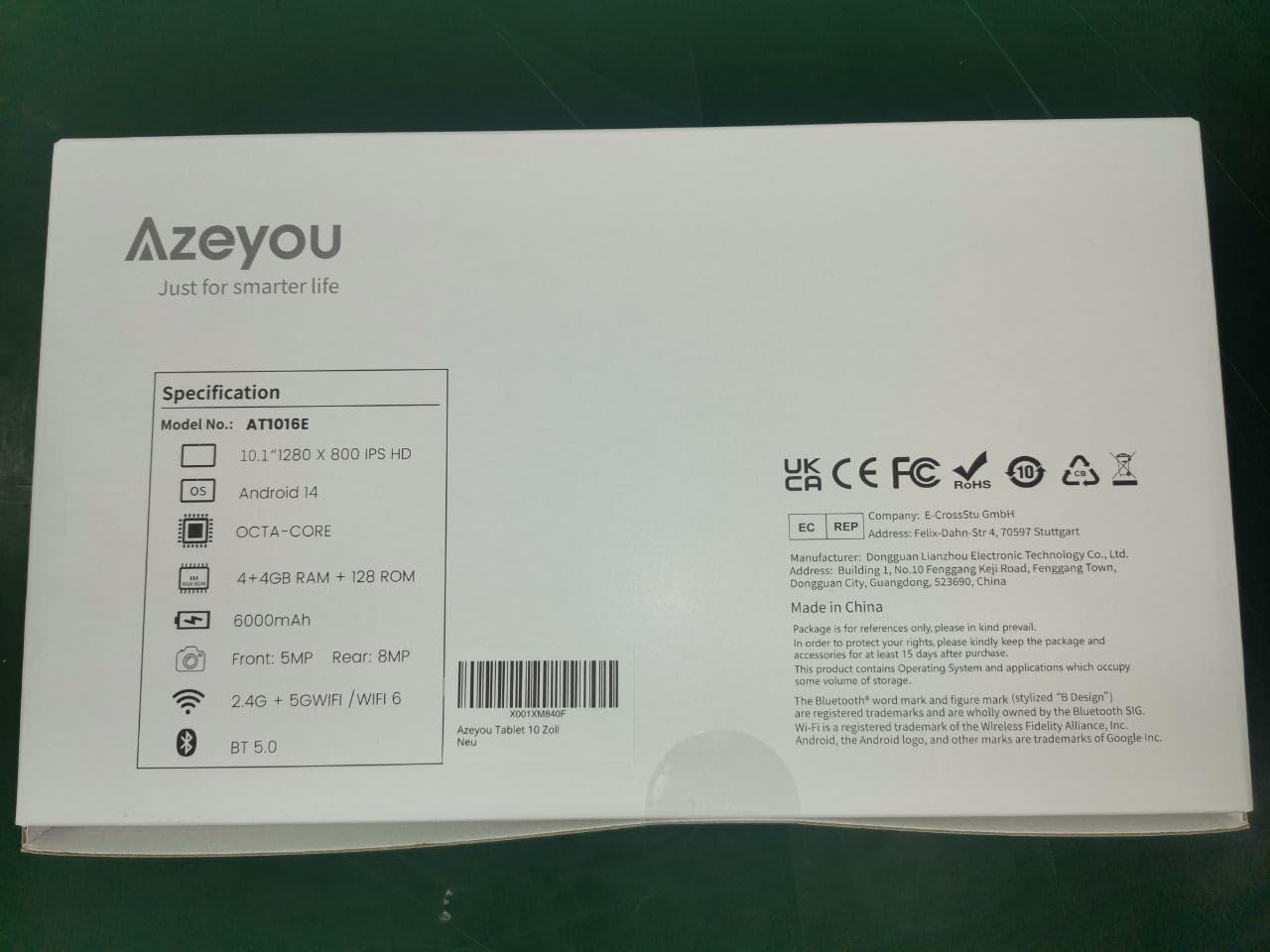
Image 9.1: Back of the product packaging displaying key specifications.
10. Atilẹyin ọja ati Support
Your Azeyou Tablet is covered by a manufacturer's warranty. For specific warranty terms and conditions, please refer to the documentation included with your purchase or visit the official Azeyou website. For technical support, troubleshooting assistance, or warranty claims, please contact Azeyou customer service.
O le wa alaye siwaju sii ati support lori awọn Azeyou Brand Store.


