1. Ọja Ipariview
The DBPOWER Smart WiFi Bluetooth Projector (Model: E2) offers a native 1080P Full HD resolution with 300 ANSI lumens brightness and a 10,000:1 contrast ratio. It features a 6-layer high-refractive lens for enhanced clarity and reduced eye strain. This projector is designed for versatile home and outdoor use, providing a large display experience with integrated smart features.
Awọn ẹya pataki:
- Native 1080P Resolution & 300 ANSI Brightness: Delivers stunning visuals with true Full HD and vibrant clarity.
- Built-in Smart Apps: Stream content directly from Netflix, YouTube, Prime Video, and more without an external TV stick.
- Fast Dual-Band 5G WiFi & Bluetooth 5.2: Ensures stable streaming and wireless audio connectivity with soundbars, headphones, or speakers.
- Large Display & Easy Setup: Projects a 40-200 inch screen with ±15° keystone correction, manual focus, and 50% digital zoom for effortless alignment.
- Dolby Audio: Integrated dual speakers with Dolby Audio support provide immersive sound.
- Ibamu gbooro: Features HDMI, USB, AV, and audio ports for connecting various devices like phones, laptops, and gaming consoles.
2. Package Awọn akoonu
Your DBPOWER Smart WiFi Bluetooth Projector package includes the following items:
- DBPOWER Smart WiFi Bluetooth Projector (Model: E2)
- Isakoṣo latọna jijin
- Okun agbara
- Okun HDMI
- AV Cable
- Lẹnsi fila
- Cleaning Kit (Q-tips)
- Itọsọna olumulo
- Ọran gbigbe

Image 2.1: The DBPOWER Smart WiFi Bluetooth Projector with its included carrying case and a smartphone displaying Bluetooth and WiFi icons.
3. Eto Itọsọna
3.1 Physical Placement and Adjustments
Place the projector on a stable, flat surface. Ensure there is adequate ventilation around the device. The projector can be placed on a table, mounted on a tripod, or ceiling-mounted.
- Siṣàtúnṣe Giga: Use the adjustable screw on the bottom of the projector to fine-tune the projection height.
- Atunse okuta bọtini: Use the keystone adjustment ring/slider on the projector to correct trapezoidal distortion, ensuring a rectangular image. The projector supports ±15° keystone correction.
- Idojukọ Afowoyi: Yi oruka idojukọ lori lẹnsi pirojekito titi ti aworan akanṣe yoo han didasilẹ ati ko o.
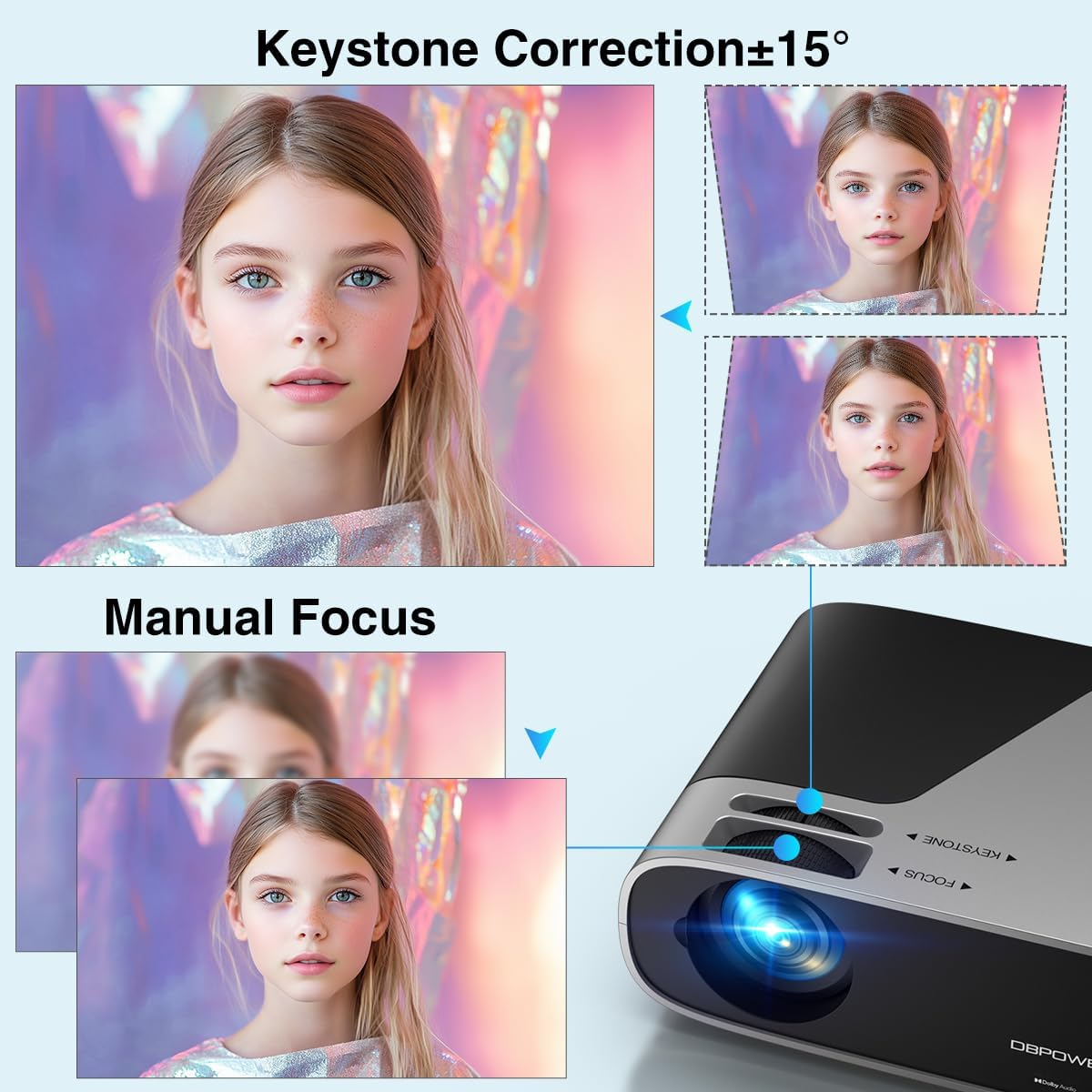
Image 3.1: Visual representation of keystone correction and manual focus adjustments on the projector.
3.2 Agbara Lori ati Iṣeto ni ibẹrẹ
- So okun agbara pọ si pirojekito ati lẹhinna si iṣan agbara kan.
- Tẹ bọtini agbara lori pirojekito tabi isakoṣo latọna jijin lati tan ẹrọ naa.
- Follow the on-screen prompts to select your preferred language and connect to your Wi-Fi network (2.4G/5G Dual-Band supported).
3.3 Nsopọ Awọn ẹrọ ita
Pirojekito naa ni awọn aṣayan asopọpọ pupọ:
- HDMI: Connect devices like laptops, gaming consoles (PS5), or TV sticks using an HDMI cable.
- USB: So awọn awakọ USB pọ mọ fun ṣiṣiṣẹsẹhin media.
- TI: Use the AV port for older devices.
- Ohun Jade: Connect external speakers or headphones via the 3.5mm audio jack or Bluetooth.

Aworan 3.2: Pariview of the projector's input/output ports and various compatible devices.
3.4 Bluetooth Asopọmọra
To connect Bluetooth audio devices:
- Ensure your Bluetooth device (e.g., soundbar, headphones) is in pairing mode.
- On the projector's home screen, navigate to the Bluetooth settings.
- Yan ẹrọ rẹ lati inu akojọ awọn ẹrọ ti o wa lati so pọ.

Image 3.3: The projector demonstrating Bluetooth 5.2 connectivity with various audio devices.
4. Awọn ilana Iṣiṣẹ
4.1 Navigating the User Interface
Use the remote control or the physical buttons on top of the projector to navigate the user interface. The remote control provides direct access to apps like Netflix and YouTube.
4.2 Using Built-in Streaming Apps
The projector comes pre-licensed with popular streaming apps. Simply connect to Wi-Fi, log in to your accounts, and start streaming.

Image 4.1: The projector's smart interface showing various pre-installed streaming applications.
4.3 iboju Mirroring
Mirror your smartphone or tablet screen wirelessly:
- Awọn ẹrọ iOS: Use the ScreenSharer function. Ensure your iOS device and projector are on the same Wi-Fi network.
- Awọn ẹrọ Android: Use the ScreenCast function. Ensure your Android device and projector are on the same Wi-Fi network.
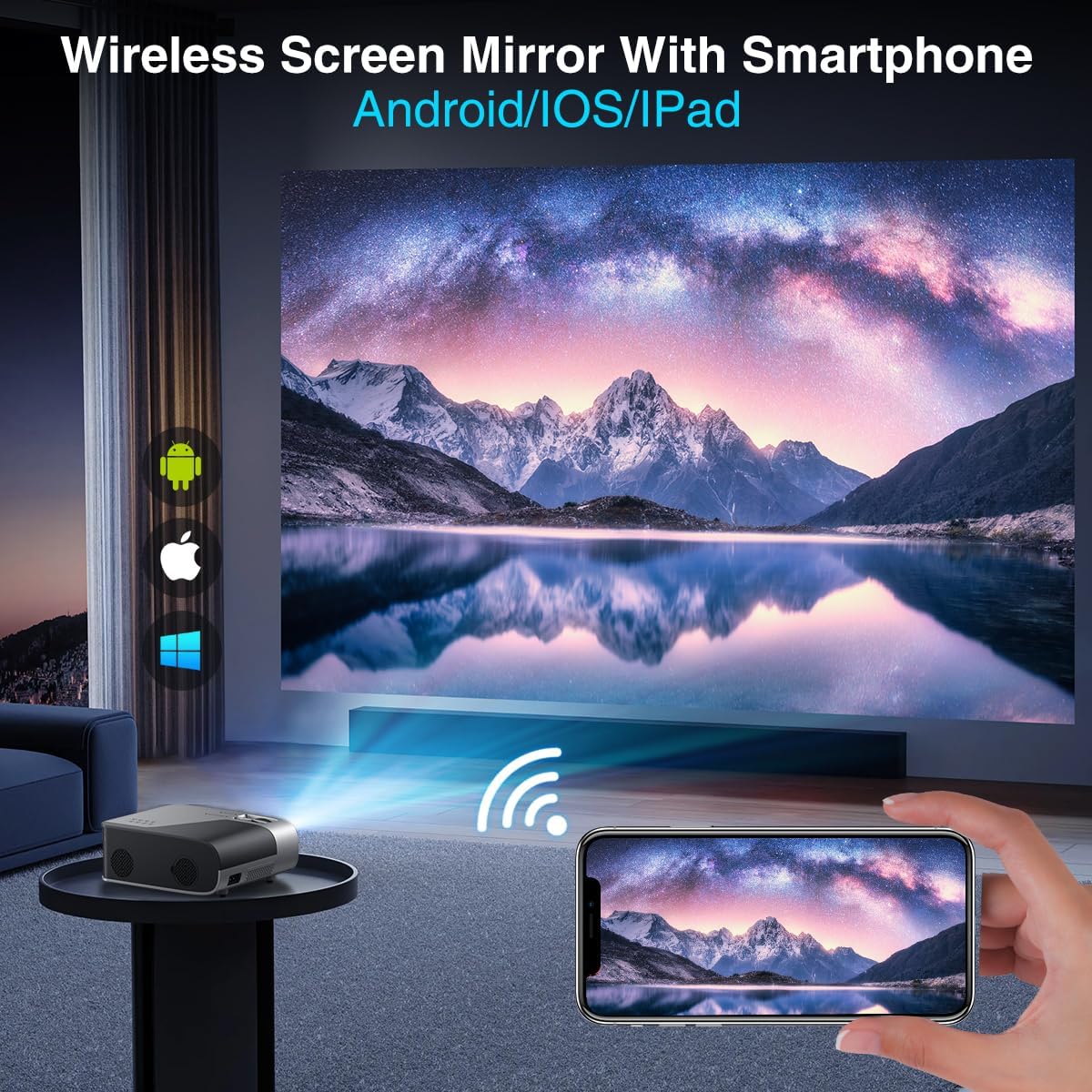
Image 4.2: A smartphone wirelessly mirroring its screen to the projector, compatible with Android and iOS devices.
4.4 Projection Modes
The projector supports multiple installation methods and projection modes:
- Isọtẹlẹ iwaju: Standard setup where the projector is in front of the screen.
- Isọtẹlẹ Tẹhin: Projector is behind a translucent screen.
- Ceiling Mount (Front/Rear): Projector is mounted upside down from the ceiling. Adjust settings in the Projection Settings menu to flip the image.
4.5 Sun Išė
The projector features a 50% digital zoom function, allowing you to adjust the screen size without physically moving the projector. This can be accessed via the remote control or projector settings.

Image 4.3: Illustration of the projector's 50% digital zoom feature, showing various screen sizes from 60 to 200 inches.
4.6 Awọn oju iṣẹlẹ lilo
The DBPOWER projector is suitable for various entertainment and presentation needs:
- Cinema ile: Gbadun awọn fiimu ati awọn ifihan TV lori iboju nla kan.
- Ere: Connect gaming consoles for an immersive experience.
- Idaraya ita gbangba: Perfect for backyard movie nights.
- Awọn ifarahan: Can be used for displaying content from laptops or PCs.
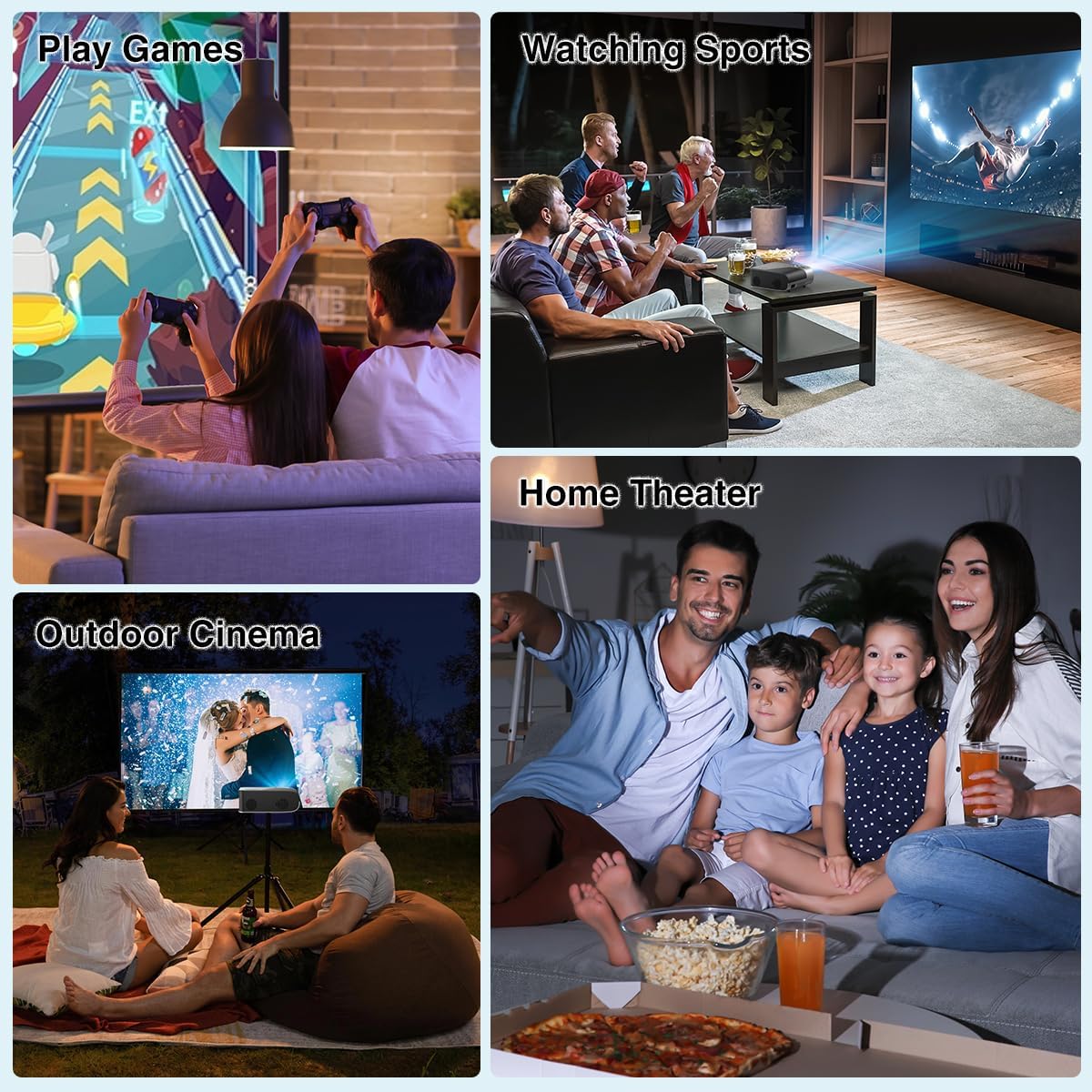
Aworan 4.4: Examples of the projector's use in different settings, such as gaming, sports viewing, home theater, and outdoor cinema.
5. Itọju
5.1 lẹnsi Cleaning
Regularly clean the projector lens to ensure optimal image clarity. Use a soft, lint-free cloth or the provided cleaning kit. Avoid abrasive materials or harsh chemicals.
5.2 eruku Filter Cleaning
The projector has a removable dust filter to prevent dust buildup inside the device. Periodically remove and clean the filter to maintain proper airflow and prevent overheating. Refer to the detailed instructions in the included user manual for specific steps on removing and cleaning the filter.
6. Laasigbotitusita
If you encounter issues with your projector, consider the following common solutions:
- Aworan blurry: Adjust the manual focus ring until the image is sharp. Ensure the projector is placed at an appropriate distance from the screen.
- Trapezoidal Image: Use the keystone correction feature to adjust the image corners until it is rectangular.
- Ko si ifihan agbara: Check all cable connections (HDMI, AV, USB). Ensure the correct input source is selected on the projector.
- Awọn ọran Isopọmọra Wi-Fi/Bluetooth: Ensure the projector is within range of your Wi-Fi router or Bluetooth device. Restart both the projector and the external device.
- Sound Sync Issues: If using external Bluetooth speakers, ensure a stable connection. Sometimes, restarting both devices can resolve minor sync issues.
- Black Spots on Screen: This may indicate dust on the lens or inside the projector. Refer to the maintenance section for cleaning instructions.
7. Awọn pato
| Ẹya ara ẹrọ | Sipesifikesonu |
|---|---|
| Brand | DBPOWER |
| Ipinnu Ifihan | 1920 x 1080 (Native 1080P) |
| Imọlẹ | 300 ANSI Lumens |
| Ipin Itansan | 10,000:1 |
| Asopọmọra Technology | HDMI, USB, AV, Bluetooth 5.2, 5G/2.4G Wi-Fi |
| Pataki Awọn ẹya ara ẹrọ | Built-In Speaker, Built-In Wi-Fi, Dolby Audio, ±15° Keystone Correction, 50% Digital Zoom |
| Niyanju Lilo | Ile sinima ile |
| Iwọn Nkan | 5.17 iwon |
| Package Mefa | 13.07 x 9.92 x 4.76 inches |
| Àwọ̀ | Dudu |
8. Atilẹyin ọja ati Support
Specific warranty details and support contact information are typically provided in the product packaging or on the manufacturer's official website. Please refer to these resources for the most accurate and up-to-date information regarding your DBPOWER Smart WiFi Bluetooth Projector.
9. Official ọja Video
Video 9.1: A alaye review of the DBPOWER E2 Smart Projector, demonstrating its features, setup, and performance in various environments.


