1. Ifihan
The Defender AI Powered Guard Pro 3K Plus Dual Lens PTZ WiFi 6/Bluetooth Security Camera offers advanced surveillance capabilities for your home or business. Featuring dual lenses, Pan-Tilt-Zoom functionality, AI-powered human and vehicle detection, WiFi 6 and Bluetooth connectivity, and vibrant color night vision, this camera system provides comprehensive security monitoring. This manual will guide you through the setup, operation, and maintenance of your new security camera.

Image: Two Defender Guard Pro 3K Plus Dual Lens PTZ WiFi 6/Bluetooth Security Cameras, shown with included 64GB SD cards.
2. Ohun ti o wa ninu Apoti
Ṣaaju ki o to bẹrẹ, rii daju pe gbogbo awọn eroja wa:
- 2x Defender 3K+ Guard Pro PTZ Dual Lens Cameras with 64GB SD Cards
- 2x Camera Power Supply (10ft)
- 2x Camera Power Extension Cable (25ft)
- 2x Ethernet Waterproof Cable Shield
- 2x Camera Mounting Hardware (screws and wall anchors)
- 2x Drilling Template
- Sítíkà Ìkìlọ̀ Fèrèsé (5x3in)
- Iforukọsilẹ Atilẹyin ọja Fi sii
- Quick Bẹrẹ Itọsọna
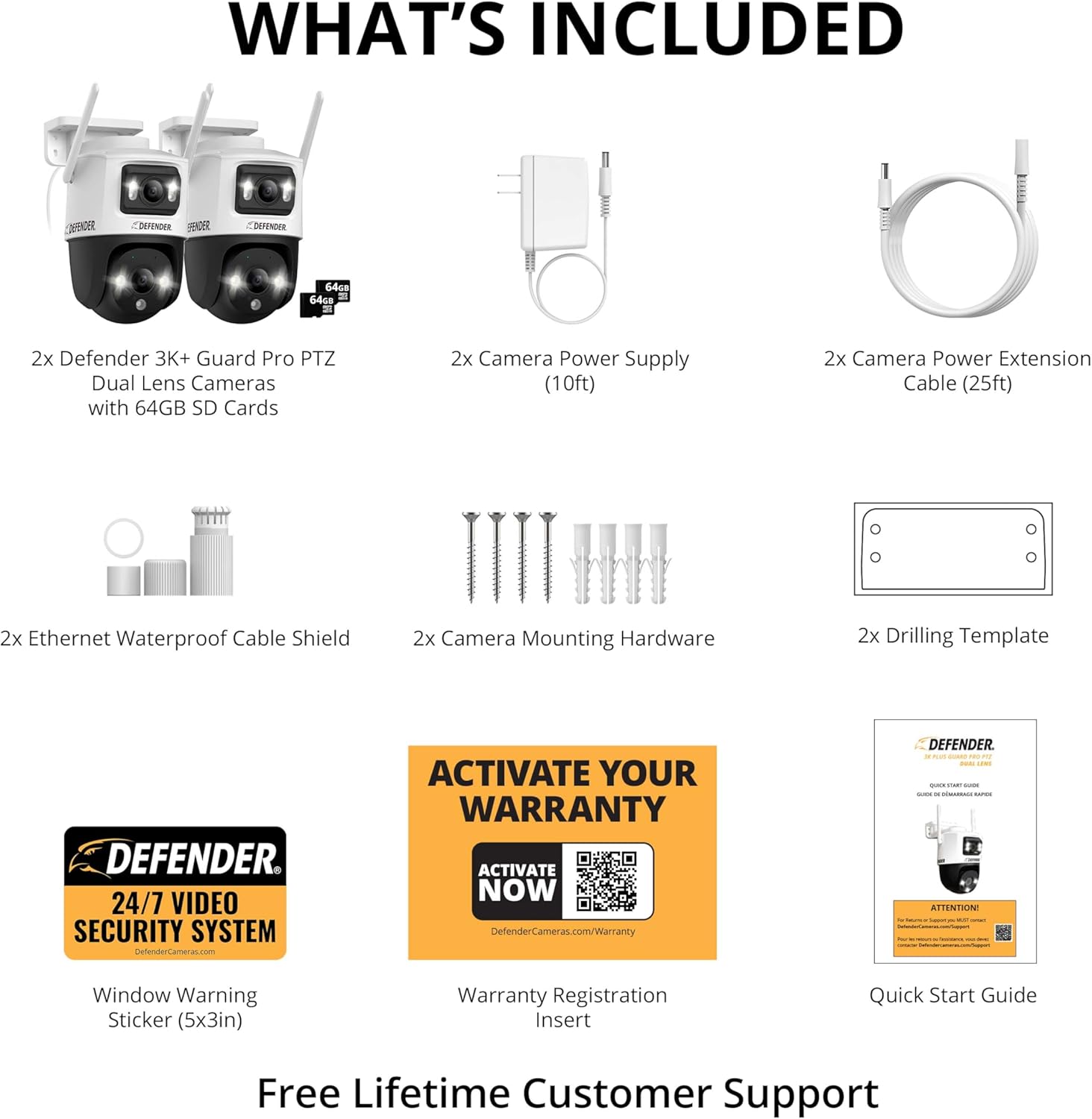
Àwòrán: Gbogbo àwọn èròjà tí a fi sínú àpò ọjà náà.
3. Eto
3.1 SD kaadi sori
The camera comes with 64GB SD cards for local storage. To install, locate the SD card slot on the camera body, typically under a protective cover. Insert the SD card firmly until it clicks into place. Ensure the cover is securely re-fastened to maintain weather resistance.
Video: Demonstrates the installation of the SD card into the camera. This step is crucial for enabling local video recording and storage.
3.2 Fifi sori ti ara
Yan ipo ti o yẹ fun kamẹra rẹ, rii daju pe o ni alaye ti o han gbangba view of the area you wish to monitor and is within reach of a power outlet. The camera is designed for outdoor use with an IP66 weather rating. Use the provided drilling template and mounting hardware to securely attach the camera to a wall or ceiling.

Image: Illustrates the physical installation of the camera on an exterior wall.
3.3 Asopọ agbara
Connect the camera to the power supply using the provided 10ft cable and, if needed, the 25ft extension cable. Ensure the connection is secure and protected from the elements, especially if installed outdoors.
3.4 App fifi sori ati so pọ
Download the free 'Guard' app from your smartphone's app store. Follow the in-app instructions to create an account and add your camera. The camera supports fast Bluetooth pairing and advanced WiFi 6 connectivity for a seamless setup experience. Ensure your phone, modem, and camera are in close proximity during the initial pairing process.

Image: Shows the successful pairing of the camera with the mobile app via WiFi 6 and Bluetooth.
4. Ṣiṣẹ Kamẹra rẹ
4.1 Dual Lens and PTZ Control
The Guard Pro features a dual-lens system, providing both a fixed wide-angle view and a Pan-Tilt-Zoom (PTZ) lens for detailed monitoring. Use the Guard app to remotely control the PTZ lens, allowing you to pan 355 degrees and tilt 90 degrees to cover a wide area. The app interface provides intuitive controls for navigation.

Image: Demonstrates the dual lens functionality, showing both fixed and PTZ views simultaneously on the app.
4.2 Smart AI Tracking
Leverage the camera's advanced AI technology for precise human and vehicle detection and tracking. When motion is detected, the camera can automatically follow the subject, providing continuous surveillance and real-time alerts to your mobile device.
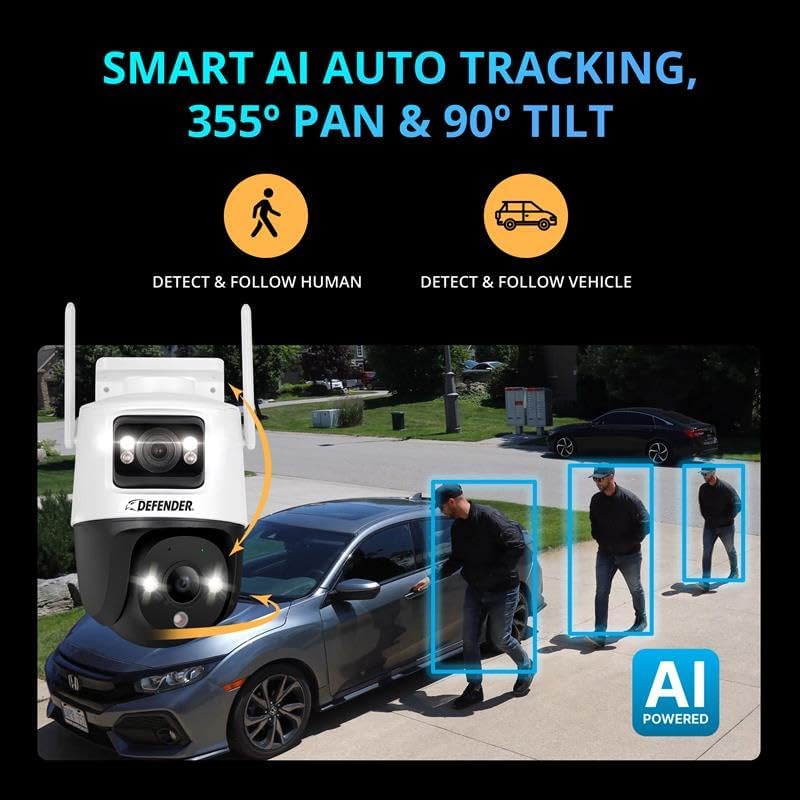
Image: Illustrates the AI auto-tracking feature, showing the camera detecting and following human and vehicle movement.
4.3 Vibrant Color Night Vision
The camera is equipped with laser-sharp image sensors and spotlights that enable vibrant color night vision up to 100 feet, even in low-light conditions. This provides clear, detailed visuals around the clock, enhancing your security.

Image: Demonstrates the camera's color night vision capability, showing a clear, illuminated view ninu okunkun.
4.4 Meji-Ona Audio
Communicate directly through the camera using the built-in microphone and speaker. This two-way audio feature allows you to speak to visitors or deter intruders from your mobile app, providing an additional layer of security.

Image: Illustrates the two-way audio feature, showing a conversation between a user and a delivery person via the camera.
4.5 Alerts and Sirens
Configure motion detection notifications and activate the built-in siren directly from the Guard app. The siren can be used to deter unwanted visitors or alert neighbors to suspicious activity.
Video: Demonstrates the camera's siren feature, showing a prompt to activate the loud siren to deter unwanted visitors.
4.6 Viewing ati Sisisẹsẹhin
Wọle si ifunni laaye kamẹra rẹ ati awọn ohun elo ti a gbasilẹtage anytime, anywhere through the Guard app. You can watch your camera feed, receive instant notifications, save and share your footage, and manage multiple devices. The app also allows you to schedule notifications to suit your lifestyle.

Aworan: Pariview of the Guard app's features for viewing, managing, and scheduling.
5. Itọju
5.1 Ninu
To ensure optimal performance, periodically clean the camera lens and housing with a soft, damp aṣọ. Yẹra fún lílo àwọn kẹ́míkà líle tàbí àwọn ohun èlò ìpalára tí ó lè ba ojú tàbí lẹ́ńsì kámẹ́rà jẹ́.
5.2 Oju ojo Resistance
The camera boasts an IP66 weather-resistant rating, designed to withstand various outdoor conditions, including rain and extreme temperatures (-30°C to 60°C / -22°F to 140°F). Ensure all cable connections are properly sealed using the provided waterproof shields to maintain this protection.

Image: Shows the camera's IP66 weather resistance, capable of operating in various temperatures and rain.
5.3 famuwia imudojuiwọn
Regularly check the Guard app for available firmware updates. Keeping your camera's firmware up-to-date ensures you have the latest features, security enhancements, and bug fixes for optimal performance.
6. Laasigbotitusita
6.1 Asopọmọra Oran
- Kamẹra ko sopọ mọ Wi-Fi: Ensure your Wi-Fi network is 2.4 GHz, as the camera primarily uses this frequency. Verify the Wi-Fi password is correct. Try restarting your router and the camera.
- Camera goes offline: If the internet connection drops, the camera may not automatically reconnect. Try power cycling the camera. Ensure a stable Wi-Fi signal at the camera's location.
6.2 Aworan Didara isoro
- Blurry or unclear image: Clean the camera lens with a soft cloth. Ensure there are no obstructions in the camera's field of view.
- Iriran alẹ ti ko dara: Check if the spotlights or IR LEDs are obstructed. Ensure there is no strong light source directly facing the camera at night, which can interfere with night vision.
6.3 Išipopada erin ati titaniji
- Awọn itaniji eke: Adjust the motion detection sensitivity settings in the Guard app. Consider setting detection zones to exclude areas with frequent irrelevant motion (e.g., moving trees, busy roads).
- No alerts: Ensure notifications are enabled in both the Guard app and your phone's system settings. Check the camera's internet connection.
6.4 PTZ Noise
- Grinding sound during PTZ movement: While some operational noise is normal for PTZ mechanisms, excessive grinding might indicate an issue. Ensure the camera is securely mounted and not vibrating against its mounting surface. If the issue persists, contact customer support.
7. Awọn pato
| Ẹya ara ẹrọ | Ẹ̀kúnrẹ́rẹ́ |
|---|---|
| Orukọ awoṣe | Lẹ́ǹsì Méjì 3K Guard Pro PLU PTZ |
| Nọmba awoṣe | IP10MDCB2-64 |
| inu ile / ita gbangba Lilo | Ita gbangba |
| Ipinnu Yaworan fidio | 3K (2880 x 1620) |
| Ipinnu Iduro ti o munadoko | 8 MP |
| Viewigun igun | 360 Degrees (agbara PTZ) |
| Ibiti Iran Night | 100 Ẹsẹ |
| Imọ-ẹrọ Ibaraẹnisọrọ Alailowaya | WIFI 6, Bluetooth |
| Ilana Asopọmọra | 802.11b/g/n/ax |
| Orisun agbara | Ina onirin ti a fi waya ṣe (12 Volts, 12 watts) |
| Ibi ipamọ Iru | Micro SD (to 256 GB ni atilẹyin) |
| Audio Visual Recording Capabilities | Ohun Ona Meji (Miki ti a ṣe sinu & Agbọrọsọ) |
| Omi Resistance Ipele | IP66 |
| Awọn iwọn otutu ti nṣiṣẹ | -30°C si 60°C (-22°F si 140°F) |
| Awọn iwọn (L x W x H) | 5.22 x 5.07 x 4.33 inches |
| Iwọn Nkan | 13.1 iwon |
8. Atilẹyin ọja ati Support
8.1 atilẹyin ọja Alaye
Defender offers protection plans for your security camera. You may be eligible to purchase a 2-Year or 3-Year Protection Plan. For detailed warranty information and to activate your warranty, please visit the official Defender webojula:

Image: Warranty activation information, including a QR code and webọna asopọ ojula.
8.2 Onibara Support
Defender provides free lifetime customer support for your product. If you encounter any issues or have questions not covered in this manual, please refer to the contact information provided in your Quick Start Guide or visit the Defender support webojula.


