Ọrọ Iṣaaju
This manual provides essential instructions for setting up, operating, maintaining, and troubleshooting your OPPO Reno 12 F 5G CPH2637 smartphone. Please read this guide thoroughly to ensure proper use and to maximize the device's capabilities.
1. Eto
1.1 Unboxing ati Ibẹrẹ ayewo
Fara yọ gbogbo awọn ohun kan kuro ninu apoti. Rii daju pe awọn eroja wọnyi wa:
- Foonuiyara OPPO Reno 12 F 5G CPH2637
- USB Iru-C USB
- Adapter agbara
- SIM Ejector Ọpa
- Itọsọna Ibẹrẹ kiakia (iwe yii)
Ṣayẹwo ẹrọ naa fun eyikeyi ibajẹ ti ara ṣaaju ki o to tẹsiwaju.
1.2 Fifi Awọn Kaadi SIM sii
The OPPO Reno 12 F 5G CPH2637 supports Dual SIM functionality.
- Wa atẹ kaadi SIM ni ẹgbẹ ti ẹrọ naa.
- Fi ohun èlò SIM ejector sínú ihò kékeré tó wà lẹ́gbẹ̀ẹ́ atẹ náà kí o sì tẹ̀ ẹ́ díẹ̀díẹ̀ títí atẹ náà yóò fi jáde.
- Fi awọn kaadi Nano-SIM rẹ sinu awọn iho ti a yan lori atẹ naa, rii daju pe awọn olubasọrọ goolu naa kọju si isalẹ.
- Fi ìṣọ́ra tì atẹ náà padà sínú ẹ̀rọ náà títí tí yóò fi rí bíi ti ẹ̀gbẹ́ rẹ̀.
1.3 Ngba agbara si Ẹrọ
Ṣaaju lilo akọkọ, o niyanju lati gba agbara si ẹrọ naa ni kikun.
- So okun USB Iru-C pọ si ibudo gbigba agbara ni isalẹ foonu naa.
- So opin keji USB pọ mọ oluyipada agbara.
- Pulọọgi ohun ti nmu badọgba agbara sinu iṣan ogiri kan.
- Atọka gbigba agbara yoo han loju iboju.
1.4 Agbara Lori ati Iṣeto ni ibẹrẹ
To power on the device, press and hold the Power button located on the side until the OPPO logo appears. Follow the on-screen instructions to complete the initial setup, including language selection, Wi-Fi connection, Google account setup, and security settings.
2. Awọn ilana Iṣiṣẹ
2.1 Ipilẹ Lilọ kiri
The OPPO Reno 12 F 5G CPH2637 features a touchscreen interface. Use gestures such as tapping, swiping, pinching, and spreading to interact with the device. The navigation bar at the bottom of the screen typically includes Back, Home, and Recent Apps buttons.
2.2 Ṣiṣe Awọn ipe ati Fifiranṣẹ Awọn ifiranṣẹ
Lati ṣe ipe, ṣii Foonu app náà, tẹ nọ́mbà náà, kí o sì tẹ àmì ìpè náà. Láti fi ìránṣẹ́ ránṣẹ́, ṣí i Awọn ifiranṣẹ app, tẹ àmì ìránṣẹ́ tuntun náà, tẹ ẹni tí a gbà àti ìránṣẹ́ rẹ sí, lẹ́yìn náà tẹ “Find”.
2.3 Nsopọ si Awọn nẹtiwọki
Your device supports both Wi-Fi and 5G cellular networks.
- Wi-Fi: Lọ si Eto > Wi-Fi, turn on Wi-Fi, select your desired network, and enter the password if required.
- 5G Cellular Data: Ensure your SIM card has an active 5G plan. Go to Settings > Mobile Network > Data usage to manage your cellular data.
2.4 Lilo Kamẹra
Ṣii awọn Kamẹra app from your home screen or app drawer. Tap the shutter button to take a photo. Swipe left or right to switch between different camera modes such as Photo, Video, Portrait, and Night. Tap on the screen to focus on a specific area.
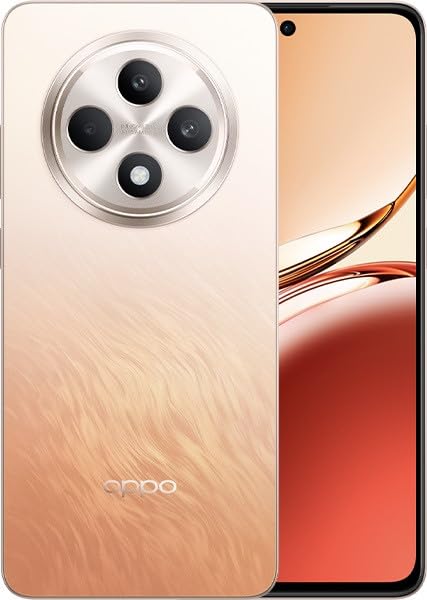
Image: OPPO Reno 12 F 5G CPH2637 smartphone in Amber Orange. This image displays the front and back of the device, highlighting its design and camera module.
2.5 Awọn ẹya Aabo
The device offers various security options to protect your data:
- Ṣii silẹ Atẹtẹ ika: Ṣe ìforúkọsílẹ̀ ìka ọwọ́ rẹ nínú Settings > Password & Biometrics > Fingerprint.
- Ṣii silẹ oju: Ṣeto idanimọ oju ni Settings > Password & Biometrics > Face.
- Titiipa iboju: Choose a PIN, pattern, or password for screen lock in Settings > Password & Biometrics > Lock screen password.
3. Itọju
3.1 Ninu ẹrọ naa
Use a soft, lint-free cloth to clean the screen and body of your phone. Avoid using harsh chemicals, abrasive materials, or aerosol sprays, as these can damage the device's finish and coatings. For stubborn smudges, slightly dampen awọn asọ pẹlu omi.
3.2 Software imudojuiwọn
Ṣayẹwo nigbagbogbo fun ati fi awọn imudojuiwọn sọfitiwia sori ẹrọ lati rii daju iṣẹ ṣiṣe to dara julọ, aabo, ati iraye si awọn ẹya tuntun. Lọ si Ètò > Nípa ẹ̀rọ > Àtúnṣe tuntun lati ṣayẹwo fun awọn imudojuiwọn to wa.
3.3 batiri Itọju
To prolong battery life, avoid exposing the device to extreme temperatures. It is recommended to keep the battery charge between 20% and 80% for daily use. Avoid leaving the phone plugged in for extended periods after it is fully charged.
3.4 Ibi Management
Lorekore tunview ki o si pa kobojumu files, apps, and media to free up storage space. You can check storage usage in Settings > About device > Storage.
4. Laasigbotitusita
4.1 Ẹrọ Ko Titan
If your device does not turn on, ensure it is sufficiently charged. Connect it to the charger for at least 15 minutes, then try pressing and holding the Power button again for 10-15 seconds.
4.2 Network Asopọmọra Oran
If you experience issues with cellular data or Wi-Fi:
- Yipada Ipo ofurufu tan ati pa.
- Tun ẹrọ naa bẹrẹ.
- For cellular issues, ensure your SIM card is properly inserted and your plan is active.
- For Wi-Fi issues, restart your router and ensure you are within range.
4.3 Apps jamba tabi didi
If an app is not responding, try force-closing it from the Recent Apps screen. If the issue persists, clear the app's cache and data in Settings > Apps > [App Name] > Storage usage. Bi ohun asegbeyin ti, aifi si po ki o si tun awọn app.
4.4 Atunto ile-iṣẹ
Atunto ile-iṣẹ yoo nu gbogbo data lori ẹrọ rẹ ki o mu pada si awọn eto ile-iṣẹ atilẹba rẹ. Back up all important data before performing a factory reset. Lọ si Ètò > Ètò ètò > Ṣe àtìlẹ́yìn àti túnṣe > Tún foonu ṣe > Pa gbogbo ìwífún rẹ́.
5. Awọn pato
| Ẹya ara ẹrọ | Sipesifikesonu |
|---|---|
| Brand | OPPO |
| Orukọ awoṣe | Reno 12 F 5G |
| Nọmba awoṣe | CPH2637 |
| Agbara Ibi ipamọ Iranti | 256 GB |
| Ramu Memory sori iwọn | 12 GB |
| Cellular Technology | 5G |
| Asopọmọra Technology | 5G |
| Iho kaadi SIM kika | SIM meji |
| Àwọ̀ | Amber Orange |
| Human Interface Input | Afi ika te |
| Fọọmù ifosiwewe | Sileti |
6. Atilẹyin ọja ati Support
Your OPPO Reno 12 F 5G CPH2637 is covered by a limited warranty. Please refer to the warranty card included in your product packaging for specific terms and conditions, including warranty period and coverage details. For technical support, service inquiries, or further assistance, please visit the official OPPO support website or contact their customer service hotline in your region.


