1. Ifihan
This manual provides detailed instructions for the installation, operation, and maintenance of your Luowice Solar Security Camera. This wireless outdoor camera features a 3W solar panel for continuous power, 360° pan and tilt functionality, 3MP color night vision, and is designed to be weatherproof for reliable outdoor use. Please read this manual thoroughly before use to ensure proper setup and functionality.

Image 1.1: Luowice Solar Security Camera with integrated solar panel.
2. Ọja Ipariview
2.1 Key Awọn ẹya ara ẹrọ
- 100% Wire-Free Setup: Operates on WiFi and powered by a 3W solar panel, eliminating the need for frequent battery charging and complex wiring.
- Ibori Igun Gige: Offers 355° horizontal and 90° vertical rotation for comprehensive area monitoring via the O-KAM PRO app.
- Ìran Aláwọ̀ 3MP Aláwọ̀: Provides clear, high-resolution video day and night, including full-color night vision with floodlights.
- Motion-Triggered Floodlights & Auto Tracking: Automatically activates floodlights and tracks human-shaped objects upon detection, enhancing security.
- Audio Ọna Meji: Allows real-time communication with visitors or deterrence of intruders.
- Ibi ipamọ & Awọsanma: Supports micro SD card (up to 128GB, not included) for 24/7 loop recording and optional cloud storage services.
- Apẹrẹ oju ojo: IP66 rated, ensuring reliable performance in various severe weather conditions.
- Multi-User Sharing & Data Encryption: Securely share camera access with family members with advanced encryption.
2.2 irinše
Ni igbagbogbo package naa pẹlu:
- Luowice Solar Security Camera
- 3W Solar Panel (integrated or separate with mounting bracket)
- Iṣagbesori akọmọ ati skru
- Okun Ngba agbara USB
- Itọsọna olumulo
3. Awọn ilana iṣeto
3.1 Ngba agbara si Batiri naa
Before initial use, fully charge the camera's internal battery using the provided USB cable. Connect the cable to the camera's charging port and a standard 5V USB power adapter (not included). The indicator light will show charging status.
3.2 Fifi sori ẹrọ ati Ṣiṣẹda Akọọlẹ
- Gba awọn O-KAM PRO app lati ile itaja ohun elo foonuiyara rẹ (iOS tabi Android).
- Ṣí àpù náà kí o sì tẹ̀lé àwọn ìtọ́ni tó wà lójú ìbòjú láti ṣẹ̀dá àkọọ́lẹ̀ tuntun tàbí wọlé tí o bá ti ní ọ̀kan tẹ́lẹ̀.
3.3 Connecting the Camera to Wi-Fi
- In the O-KAM PRO app, tap the "+" icon to add a new device.
- Yan awoṣe kamẹra rẹ tabi ṣe ayẹwo koodu QR lori kamẹra ti o ba beere lọwọ rẹ.
- Follow the app's instructions to connect the camera to your 2.4 GHz Wi-Fi network. Ensure your phone is connected to the same 2.4 GHz network during setup.
- Nígbà tí a bá ti so mọ́ ọn, ìmọ́lẹ̀ àfihàn kámẹ́rà náà yóò yípadà, ìwọ yóò sì gba ìjẹ́rìí nínú àpù náà.

Image 3.1: The camera supports 2.4 GHz Wi-Fi for stable data transmission.
3.4 Iṣagbesori Kamẹra
Yan ipo kan pẹlu ifihan imọlẹ oorun to dara julọ fun panẹli oorun ati mimọ view of the area you wish to monitor. Ensure the camera is within range of your Wi-Fi network.
- Ṣe àmì sí àwọn ibi tí a ti ń lu nǹkan nípa lílo àkọlé ìfìkọ́lé gẹ́gẹ́ bí àpẹẹrẹ.
- Lu ihò ki o si fi odi oran ti o ba wulo.
- Fi àwọn skru so àkọlé ìfìkọ́lé mọ́ ògiri.
- Attach the camera to the mounting bracket. Adjust the angle of the solar panel to maximize sunlight exposure.

Image 3.2: Camera mounted outdoors, demonstrating continuous solar power.
4. Awọn ilana Iṣiṣẹ
4.1 Live View ati Pan / Pulọọgi Iṣakoso
Open the O-KAM PRO app and select your camera to access the live view. Use the on-screen controls to pan (355° horizontal) and tilt (90° vertical) the camera to adjust its viewigun igun.

Image 4.1: Remote pan and tilt control via the O-KAM PRO app.
4.2 Meji-Ona Audio
Lati igbesi aye view, tap the microphone icon to speak through the camera's speaker. Tap the speaker icon to listen to audio from the camera's vicinity.

Image 4.2: Demonstrating two-way audio communication.
4.3 Išipopada erin ati titaniji
The camera features advanced motion detection with human shape recognition. When motion is detected, the camera can automatically turn on floodlights, track the object, and send instant alerts to your phone.
- Setting Detection Sensitivity: In the app settings, adjust the detection sensitivity to minimize false alarms.
- Defining Detection Zones: Create specific detection zones to focus monitoring on critical areas and ignore irrelevant movements.
- Awọn itaniji: Receive instant app notifications and email alerts when motion is detected.

Image 4.3: Motion detection with intelligent recognition for humans, vehicles, and pets.

Image 4.4: Configuring custom motion detection zones.
4.4 Gbigbasilẹ ati Ibi ipamọ
The camera supports two primary storage methods:
- Kaadi SD Micro: Insert a micro SD card (up to 128GB, not included) into the designated slot for continuous 24/7 loop recording, even without network access.
- Ibi ipamọ awọsanma: Optional cloud storage services are available through the O-KAM PRO app for secure, remote access to your footage.

Image 4.5: Micro SD card slot for local storage.
5. Itọju
5.1 Ninu
- Regularly wipe the camera lens and solar panel with a soft, damp cloth to remove dust and debris. This ensures optimal image clarity and solar charging efficiency.
- Maṣe lo awọn kemikali lile tabi awọn afọmọ abrasive.
5.2 Oju ojo Idaabobo
The camera is IP66 weatherproof, designed to withstand rain, snow, and dust. However, extreme weather conditions may temporarily affect performance. Ensure all ports are securely sealed.
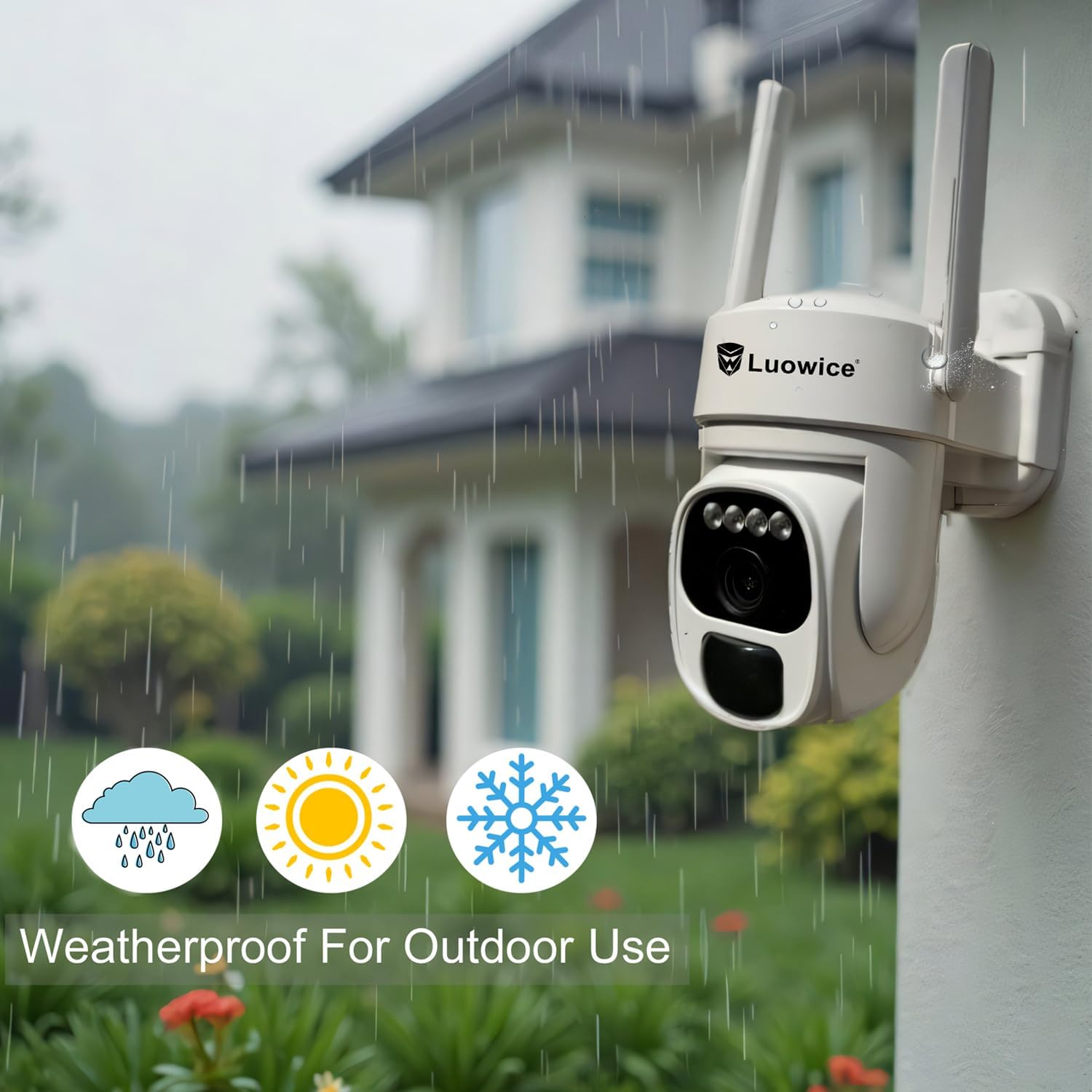
Image 5.1: The camera's weatherproof design for outdoor use.
6. Laasigbotitusita
- Kamẹra ko sopọ mọ Wi-Fi: Ensure your Wi-Fi is 2.4 GHz. Check Wi-Fi signal strength at the camera's location. Restart your router and the camera.
- Batiri ko gba agbara: Verify the solar panel is clean and receiving direct sunlight. Check the USB charging cable connection. Ensure the ambient temperature is within the operating range for charging.
- Didara fidio ti ko dara: Clean the camera lens. Ensure adequate lighting. Check your internet connection speed.
- False motion alerts: Adjust motion detection sensitivity in the app. Define specific detection zones to exclude irrelevant areas.
- Pan/Tilt not responding: Check app connectivity. Ensure there are no physical obstructions. Restart the camera.
7. Awọn pato
| Ẹya ara ẹrọ | Sipesifikesonu |
|---|---|
| Ipinnu Yaworan fidio | 3 MP |
| Orisun agbara | Agbara Oorun (Panẹli Oorun 3W) |
| Ilana Asopọmọra | Wi-Fi (2.4 GHz) |
| Pan / Tẹ Range | 355° Petele, 90° inaro |
| Alẹ Iranran | Color Night Vision with Floodlights |
| Awọn aṣayan ipamọ | Micro SD Kaadi (to 128GB), Ibi ipamọ awọsanma |
| Iyipada oju ojo | IP66 |
| Awọn batiri ti a beere | 1 batiri litiumu ion (pẹlu) |
| Iwọn Nkan | 1.85 iwon |
| Awọn iwọn | 7.87 x 6.18 x 5.55 inches (Apapọ) |
| Awọn ẹrọ ibaramu | Àwọn fóònù alágbèéká, Tábìlẹ́ẹ̀tì, Kọ̀mpútà |
8. Atilẹyin ọja ati Support
8.1 atilẹyin ọja Alaye
Luowice products typically come with a manufacturer's warranty. Please refer to the product packaging or the official Luowice website for specific warranty terms and conditions. Optional extended protection plans may be available for purchase.
8.2 Onibara Support
For technical assistance, troubleshooting, or warranty claims, please contact Luowice customer support through their official website or the contact information provided with your product. When contacting support, please have your product model (B0DF4TVZ7Z) and purchase details ready.