1. Ifihan
The H3C Magic NX15 is a high-performance Gigabit Wi-Fi 6 router designed to provide a fast and reliable internet experience. Featuring a vertical design, full gigabit network ports, and Wi-Fi 6 (802.11ax) technology on the 5GHz band, it ensures high-speed connectivity. Equipped with four high-gain external antennas and EasyMesh compatibility, it offers wide and flexible network signal coverage. Enhanced security is provided through WPA3 encryption. This manual provides essential information for setting up, operating, and maintaining your H3C Magic NX15 router.
2. Package Awọn akoonu
Jọwọ ṣe àyẹ̀wò ohun tó wà nínú àpótí náà dáadáa. Tí àwọn nǹkan kan bá sọnù tàbí tí wọ́n bá bàjẹ́, jọ̀wọ́ pe olùtajà rẹ.
- H3C Magic NX15 AX1500 Dual Band Gigabit Wi-Fi 6 Router
- Adapter agbara
- àjọlò Cable
- Quick Installation Guide (this manual)
3. Ọja Ipariview
Familiarize yourself with the components and interfaces of your H3C Magic NX15 router.
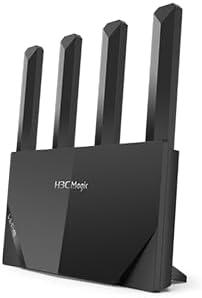
Nọmba 3.1: Iwaju view of the H3C Magic NX15 router, showcasing its vertical design and four external antennas.
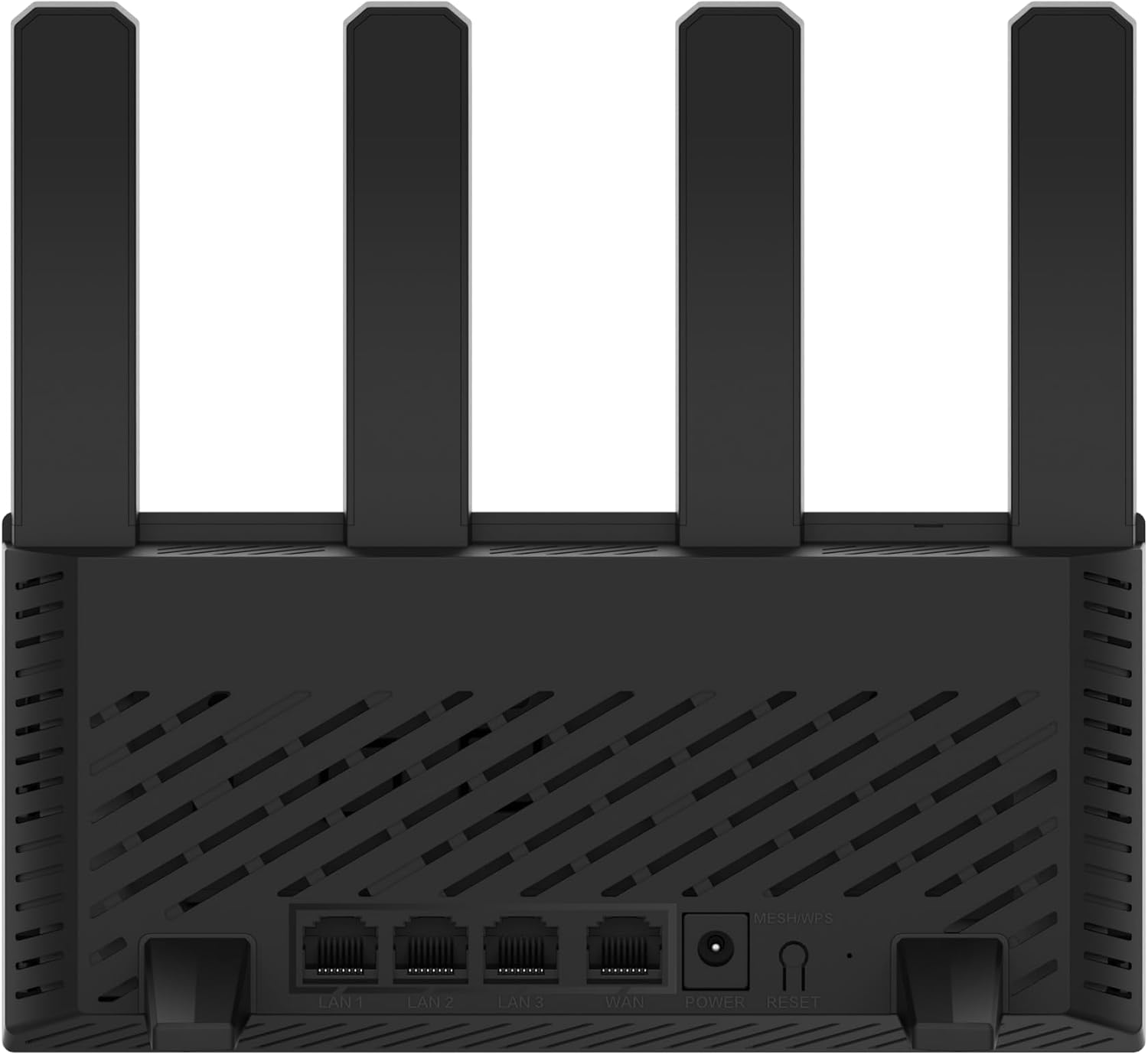
Nọmba 3.2: Ẹyìn view of the H3C Magic NX15 router, displaying the LAN ports, WAN port, power input, and Reset/WPS button.

Nọmba 3.3: Oke view of the H3C Magic NX15 router, highlighting the ventilation design for heat dissipation.

Nọmba 3.4: Apa view of the H3C Magic NX15 router, showing the sleek profile and additional ventilation slots.
Àpèjúwe Ibudo àti Bọ́tìnì:
- Ibudo WAN: Ó so mọ́ nẹ́tíwọ́ọ̀kì modem tàbí olùpèsè iṣẹ́ ìkànnì ayélujára (ISP) rẹ.
- Àwọn Ibudo LAN (LAN1, LAN2, LAN3): Sopọ̀ mọ́ àwọn ẹ̀rọ onírin bíi kọ̀ǹpútà, àwọn kọ́ǹpútà eré, tàbí àwọn tẹlifíṣọ̀n onímọ̀.
- Ibudo Agbara: Sopọ si ohun ti nmu badọgba agbara to wa.
- Bọtini Tunto/WPS:
- Press briefly to activate WPS (Wi-Fi Protected Setup) for easy connection of compatible devices.
- Press and hold for approximately 5-10 seconds to restore the router to factory default settings.
- Eriali: Four high-gain external antennas for optimal Wi-Fi signal coverage.
4. Eto Itọsọna
Follow these steps to set up your H3C Magic NX15 router for the first time.
- Yọ olulana kuro: Fara yọ olulana kuro ati gbogbo awọn ẹya ẹrọ lati apoti.
- Gbe olulana naa: Gbé rédíò náà sí àárín gbùngbùn ilé tàbí ọ́fíìsì rẹ, jìnnà sí àwọn ìdènà àti àwọn ohun tí ń fa ìdènà (fún àpẹẹrẹ, máìkrówéfù, àwọn fóònù aláìlókùn). Rí i dájú pé afẹ́fẹ́ ń yọ́ dáadáa.
- Sopọ si Agbara: Connect the included power adapter to the router's power port and then plug the adapter into a power outlet. Wait for the router to power on and its indicator lights to stabilize.
- Sopọ si Modẹmu: Connect one end of the provided Ethernet cable to the WAN port on your H3C Magic NX15 router and the other end to your modem's LAN port.
- Awọn ẹrọ Sopọ (Aṣayan): For wired connections, connect an Ethernet cable from one of the router's LAN ports to your computer or other network device.
- Sopọ si Wi-Fi:
- Lórí kọ̀mpútà tàbí ẹ̀rọ alágbèéká rẹ, wá àwọn nẹ́tíwọ́ọ̀kì Wi-Fi tó wà.
- Select the Wi-Fi network name (SSID) printed on the label at the bottom of your router.
- Enter the Wi-Fi password (also printed on the router's label) when prompted.
- Access Router Management Page:
- Ṣii a web ẹrọ aṣawakiri (fun apẹẹrẹ, Chrome, Firefox, Edge).
- Tẹ adiresi IP aiyipada (nigbagbogbo
192.168.1.1orh3cmagic.com) into the address bar and press Enter. Refer to the router's label for the exact address. - Follow the on-screen instructions to complete the initial setup, including setting a new administrator password and configuring your internet connection type (e.g., PPPoE, DHCP, Static IP).
5. Awọn ilana Iṣiṣẹ
This section details the key features and how to operate your H3C Magic NX15 router.
5.1 Dual-Band Wi-Fi Operation
The H3C Magic NX15 supports dual-band Wi-Fi (2.4GHz and 5GHz) for optimal performance. It features intelligent band steering, which automatically directs your devices to the best available band (2.4GHz for wider coverage, 5GHz for higher speeds) without manual selection.
- Iwọn 2.4GHz: Provides wider coverage and better penetration through walls, suitable for general browsing and devices further from the router.
- Iwọn 5GHz: Offers higher speeds and lower latency, ideal for streaming 4K video, online gaming, and high-bandwidth applications, typically for devices closer to the router.
5.2 Intelligent Management via Mobile App
Manage your router conveniently using the dedicated H3C mobile application. The app allows for easy network settings configuration, network speed optimization, and various other operations.
- Ṣe igbasilẹ ohun elo naa: Wa fun the "H3C Magic" app in your device's app store (Google Play Store for Android or Apple App Store for iOS).
- Fi sori ẹrọ ati Lọlẹ: Fi sori ẹrọ ni app ki o si ṣi o.
- Wo ile: Use your router's administrator credentials to log in to the app.
- Ṣakoso awọn Eto: Lati app, o le:
- Change Wi-Fi names and passwords.
- Bojuto awọn ẹrọ ti a sopọ mọ.
- Ṣeto awọn iṣakoso obi.
- Configure guest Wi-Fi networks.
- Optimize network performance.
5.3 EasyMesh for Whole-Home Wi-Fi
The H3C Magic NX15 supports EasyMesh technology, allowing you to expand your Wi-Fi coverage by adding additional compatible H3C mesh units. This creates a seamless whole-home Wi-Fi network, eliminating dead zones in large or complex house types.
- Refer to the EasyMesh setup guide provided with your additional mesh units for detailed instructions on expanding your network.
- Ensure all mesh units are compatible with the EasyMesh standard.
5.4 Network Aabo Awọn ẹya ara ẹrọ
The router includes multiple functions to enhance your private network's security:
- WPA3 fifi ẹnọ kọ nkan: Provides the latest and strongest Wi-Fi security protocol.
- Access Allowlist/Denylist: Control which devices can connect to your network based on their MAC addresses.
- Wi-Fi alejo: Create a separate Wi-Fi network for guests, keeping your main network secure and private.
- Iṣakoso obi: Manage internet access times and block inappropriate content for specific devices.
These security features can be configured via the router's web management interface or the H3C mobile app.
6. Itọju
Proper maintenance ensures the longevity and optimal performance of your H3C Magic NX15 router.
- Ibi: Keep the router in a well-ventilated area, away from direct sunlight, heat sources, and moisture. The stereoscopic heat dissipation design with a large metal heat sink helps maintain stable operation.
- Ninu: Regularly dust the router's exterior and ventilation slots with a soft, dry cloth. Do not use liquid cleaners or aerosols.
- Awọn imudojuiwọn famuwia: Ṣayẹwo nigbagbogbo fun ati fi awọn imudojuiwọn famuwia sori ẹrọ nipasẹ olulana naa web management interface or the mobile app. Firmware updates often include performance improvements, new features, and security patches.
- Atunbere: Tí o bá ní ìṣòro nẹ́tíwọ́ọ̀kì, gbìyànjú láti tún ráítì náà bẹ̀rẹ̀ nípa yíyọ adaptà agbára náà fún ìṣẹ́jú-àáyá mẹ́wàá lẹ́yìn náà kí o sì tún so ó pọ̀ mọ́ ara rẹ̀.
- Aabo: Regularly change your Wi-Fi password and router administrator password to strong, unique combinations.
7. Laasigbotitusita
Abala yii n ṣalaye awọn ọran ti o wọpọ ti o le ba pade ati pese awọn ojutu.
| Isoro | Owun to le Fa | Ojutu |
|---|---|---|
| Ko si Wiwọle Ayelujara |
|
|
| Wi-Fi Signal Weak or Unstable |
|
|
| Cannot Access Router Management Page |
|
|
| Forgot Router Administrator Password | Ọrọigbaniwọle sọnu | Press and hold the Reset/WPS button on the router for 5-10 seconds to restore factory default settings. You will then need to reconfigure the router. |
8. Awọn pato
Detailed technical specifications for the H3C Magic NX15 router.
| Ẹya ara ẹrọ | Ẹ̀kúnrẹ́rẹ́ |
|---|---|
| Orukọ awoṣe | H3C Magic NX15 |
| Nọmba Awoṣe Nkan | H3C Magic NX15-UK |
| Brand | H3C |
| Boṣewa alailowaya | 802.11ax (Wi-Fi 6) |
| Igbohunsafẹfẹ Band Class | Ẹgbẹ-meji (2.4GHz & 5GHz) |
| Eriali | 4 Ga-Gain Ita Eriali |
| Awọn ibudo | Gigabit WAN, Gigabit LAN (x3) |
| Pataki Awọn ẹya ara ẹrọ | Access Point Mode, EasyMesh, WPA3 Security, Parental Control, Guest Wi-Fi, App Management |
| Awọn iwọn (Apapọ) | 21 x 19.4 x 6.3 cm |
| Ìwúwo (Apapọ) | 500 g |
| Olupese | H3C |
| Ilu isenbale | China |
| Akọkọ Wa Ọjọ | Oṣu Kẹjọ Ọjọ 24, Ọdun 2024 |
9. Atilẹyin ọja ati Support
The H3C Magic NX15 router comes with a standard manufacturer's warranty. For specific warranty terms and conditions, please refer to the warranty card included in your product packaging or visit the official H3C webojula.
Oluranlowo lati tun nkan se:
If you encounter any issues or have questions regarding your H3C Magic NX15 router, please contact H3C technical support.
- Atilẹyin Ayelujara: Visit the official H3C support website for FAQs, troubleshooting guides, and driver/firmware downloads.
- Ibi iwifunni: Refer to the H3C website or your product documentation for regional contact numbers and email support.
Please have your product model number (H3C Magic NX15-UK) and serial number ready when contacting support.


