1. Ifihan
This user manual provides comprehensive instructions for the installation, operation, and maintenance of your NVIDIA RTX 5000 Ada Generation GPU. Designed for professional workflows, this GPU leverages the NVIDIA Ada Lovelace architecture to deliver exceptional performance for rendering, AI, graphics, and compute workloads. Please read this manual carefully before installing and using the product to ensure optimal performance and longevity.
2. Ọja Ipariview
The NVIDIA RTX 5000 Ada Generation GPU is a high-performance graphics card built for demanding professional applications. It features 100 third-generation RT Cores, 400 fourth-generation Tensor Cores, and 12,800 CUDA cores, coupled with 32 GB of GDDR6 graphics memory. This combination enables advanced AI graphics and petaFLOPS inferencing performance.
Awọn ẹya pataki:
- NVIDIA GPUDirect isakoṣo latọna jijin wiwọle si iranti (RDMA) support
- NVIDIA Quadro Sync II ibamu
- Atilẹyin sitẹrio 3D pẹlu asopo sitẹrio
- NVIDIA GPUDirect fun atilẹyin fidio
- NVIDIA Moseiki ọna ẹrọ
Kini o wa ninu apoti:
- NVIDIA 900-5G132-2540-000 RTX 5000 Ada Graphic Card - 32 GB GDDR6
Awọn aworan ọja:

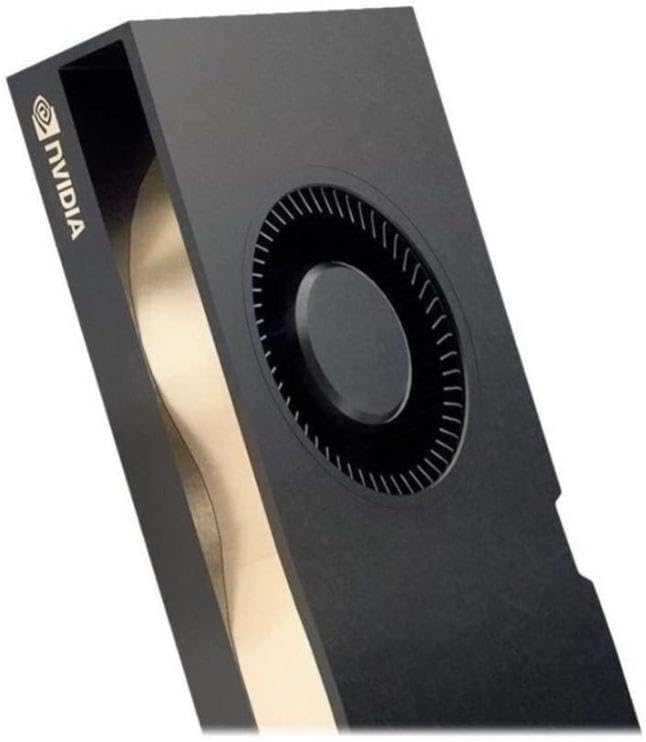
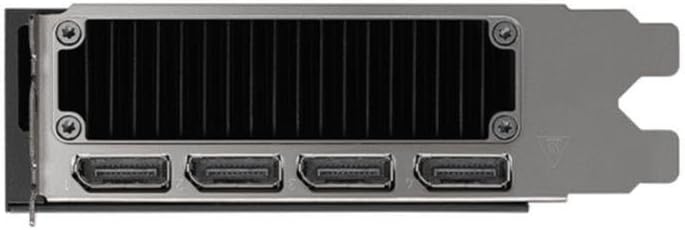
3. Eto ati fifi sori
Proper installation is crucial for the performance and stability of your NVIDIA RTX 5000 Ada GPU. Ensure your system meets the minimum requirements before proceeding.
Awọn ibeere eto:
- PCI Express x16 Iho lori modaboudu
- Adequate power supply unit (PSU) with required PCIe power connectors (refer to GPU specifications for exact wattage)
- Compatible operating system (Windows, Linux)
- Minimum 8GB system memory (RAM)
Awọn igbesẹ fifi sori ẹrọ:
- Mura Eto Rẹ: Pa kọmputa rẹ kuro ki o ge gbogbo awọn kebulu kuro. Ṣii apoti kọnputa.
- Wa PCIe Iho: Identify an available PCI Express x16 slot on your motherboard. Remove any expansion slot covers if necessary.
- Insert the GPU: Carefully align the GPU with the PCIe slot and press down firmly until it is securely seated. Ensure the retention clip locks into place.
- So agbara: Connect the required PCIe power cables from your power supply to the GPU's power connectors.
- Secure the GPU: Secure the GPU to the computer case using the screw or latch mechanism provided by your case.
- Ti apoti naa pa ki o si tun so pọ mọ: Pa apoti kọnputa rẹ, tun gbogbo awọn kebulu so pọ, ati agbara lori ẹrọ rẹ.
- Fi Awọn awakọ sii: Once the operating system loads, download and install the latest NVIDIA Quadro drivers from the official NVIDIA webAaye (www.nvidia.com/drivers). Follow the on-screen instructions for driver installation.
4. Awọn ilana Iṣiṣẹ
After successful installation, your NVIDIA RTX 5000 Ada GPU is ready for operation. This section covers general usage and specific features.
Igbimọ Iṣakoso NVIDIA:
The NVIDIA Control Panel provides extensive options for configuring your GPU settings, including display resolution, refresh rates, 3D settings, and multi-display configurations. Access it by right-clicking on your desktop and selecting "NVIDIA Control Panel."
Multi-Display Setup (NVIDIA Mosaic Technology):
The NVIDIA RTX 5000 Ada supports multiple displays. Utilize NVIDIA Mosaic technology to seamlessly span applications across multiple high-resolution displays, creating a single large desktop. Refer to the NVIDIA Control Panel for Mosaic configuration options.
Professional Application Optimization:
For optimal performance in professional design, rendering, and simulation applications, ensure you are using the latest certified drivers. Many applications have specific GPU acceleration settings that can be configured within the application itself or via the NVIDIA Control Panel.
GPUDirect and Quadro Sync II:
Leverage NVIDIA GPUDirect for direct data transfer between GPUs and third-party devices, reducing CPU overhead. For advanced synchronization across multiple GPUs and displays, the RTX 5000 Ada is compatible with NVIDIA Quadro Sync II (sold separately).
5. Itọju
Regular maintenance helps ensure the longevity and optimal performance of your GPU.
Awọn imudojuiwọn Awakọ:
Periodically check the official NVIDIA website for the latest driver updates. Keeping your drivers current can improve performance, add new features, and resolve compatibility issues.
Ninu:
- Yiyọ eruku kuro: Over time, dust can accumulate on the GPU's heatsink and fan, impeding cooling. With the system powered off and unplugged, use compressed air to gently clear dust from the fan blades and heatsink fins.
- Isọdanu Oju: Use a soft, dry, lint-free cloth to wipe the exterior surfaces of the GPU. Avoid using liquid cleaners directly on the card.
6. Laasigbotitusita
This section addresses common issues you might encounter with your NVIDIA RTX 5000 Ada GPU.
Ko si Abajade Ifihan:
- Ensure the monitor cable is securely connected to both the GPU and the monitor.
- Verify that the GPU is fully seated in the PCIe slot and that all power connectors are properly attached.
- Ṣe idanwo pẹlu okun ifihan ti o yatọ tabi atẹle ti o ba ṣeeṣe.
- Check your BIOS/UEFI settings to ensure the correct primary display adapter is selected (PCIe/Discrete GPU).
Awọn ọran fifi sori awakọ:
- Download the latest drivers directly from the official NVIDIA webojula.
- Má ṣe dáwọ́ sọ́fítíwọ́ọ̀kì àjẹ́sára dúró fún ìgbà díẹ̀ nígbà tí o bá ń fi àwọn awakọ̀ sílò.
- Use Display Driver Uninstaller (DDU) in Safe Mode to completely remove previous driver versions before attempting a clean installation.
Performance Problems or Crashes:
- Ensure your system's power supply unit (PSU) meets the recommended wattage for the GPU.
- Monitor GPU temperatures using monitoring software. Excessive heat can lead to throttling or instability. Ensure adequate case airflow.
- Verify that your operating system and applications are up to date.
- Run diagnostic tools (e.g., NVIDIA's built-in diagnostics or third-party stress tests) to identify potential hardware issues.
7. Awọn pato
The following table details the technical specifications of the NVIDIA RTX 5000 Ada Generation GPU.
| Ẹya ara ẹrọ | Sipesifikesonu |
|---|---|
| Brand | NVIDIA |
| Nọmba awoṣe | 900-5G132-2540-000 |
| Olupilẹṣẹ Graphics | NVIDIA Quadro RTX 5000 |
| Eya Kaadi Ram Iwon | 32 GB GDDR6 |
| Iyara Iranti | 2000 MHz |
| GPU Aago Iyara | 2550 MHz |
| Ipinnu Iboju ti o pọju | 3840x2160 |
| Video o wu Interface | DisplayPort, HDMI |
| Iwọn Nkan | 1.32 iwon |
| Àwọ̀ | Dudu |
| Ọjọ Akọkọ Wa | Oṣu kejila ọjọ 1, ọdun 2024 |
8. Atilẹyin ọja ati Support
NVIDIA provides support for its products. For detailed warranty information and technical assistance, please refer to the official NVIDIA support resources.
Atilẹyin osise:
- NVIDIA atilẹyin Webojula: For drivers, FAQs, and troubleshooting guides, visit www.nvidia.com/support.
- Iforukọsilẹ Ọja: Register your product on the NVIDIA webAaye lati gba awọn imudojuiwọn ati irọrun awọn ẹtọ atilẹyin ọja.
Awọn Eto Idabobo ti o gbooro:
Extended protection plans may be available for purchase to provide additional coverage beyond the standard manufacturer's warranty. Please check with your retailer or NVIDIA for details on available plans.
- 3-odun Idaabobo Eto
- 4-odun Idaabobo Eto
- Idaabobo pipe (ètò oṣooṣu)


