1. Ọja Ipariview
The Intel Wi-Fi 7 BE200.NGWG.NV is an advanced wireless network adapter designed to provide high-speed internet connectivity and Bluetooth capabilities for compatible desktop and laptop systems. Utilizing the latest Wi-Fi 7 (802.11be) standard, this module offers enhanced performance, lower latency, and improved efficiency, making it ideal for demanding applications such as online gaming, 4K/8K video streaming, and large file transfers. It supports dual-band (2.4 GHz, 5 GHz) and tri-band (6 GHz) operation, along with Bluetooth 5.4 for seamless peripheral connectivity.
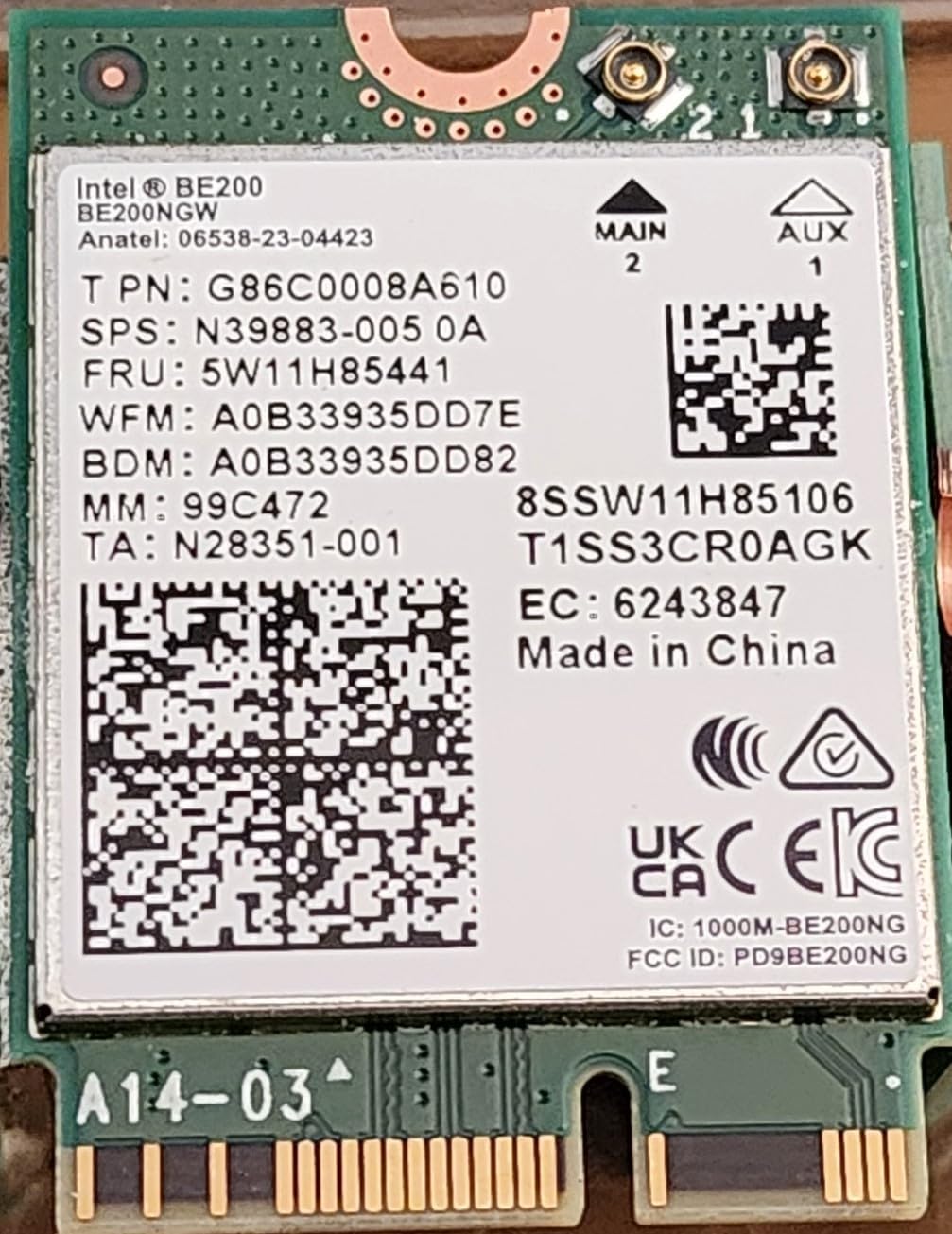
olusin 1.1: Iwaju view of the Intel Wi-Fi 7 BE200 network card, showing the Intel branding, model number, and various regulatory markings.
2. Key Awọn ẹya ara ẹrọ
- Wi-Fi 7 (802.11be) Standard: Supports the latest Wi-Fi standard for next-generation wireless performance.
- Gbigbawọle giga: Achieves a maximum speed of 5.8 Gbps across 2.4, 5, and 6 GHz bands.
- 2x2 TX/RX Streams: Features two transmit and two receive streams for robust and efficient data transfer.
- Ìwọ̀n Ìkànnì 320 MHz: Utilizes wider channels for increased data capacity.
- 4K QAM: Employs higher-order modulation for greater data density per signal.
- Bluetooth 5.4: Provides advanced Bluetooth connectivity for peripherals and accessories.
- MU-MIMO (Olumulo-pupọ, Iṣawọle-ọpọ, Ijade-Ọpọ): Enhances network efficiency by allowing the router to communicate with multiple devices simultaneously.
- OFDMA (Ìwọ̀lé sí Ìpele Ìgbohùn-Ẹ̀ka Onípele-Ẹ̀ka Púpọ̀): Improves spectral efficiency and reduces latency in dense environments.
- Iwọn iwọn otutu ti nṣiṣẹ: Designed to operate reliably from 0°C to 80°C.
- Compact M.2 2230 Form Factor: Suitable for integration into a wide range of compatible devices.

olusin 2.1: Isunmọ view of the Intel BE200 network card's label, displaying the model number (BE200NGW), Anatel certification, TPN, SPS, FRU, WFM, BDM, MM, TA, and QR codes.

Figure 2.2: Diagram explaining Intel Wi-Fi 7's Multi-link Operation, showcasing Enhanced Multi-Link Single-Radio (eMLSR) and Multi-Link Multi-Radio (MLMR) for more reliable connections and low latency applications.
3. Eto & Fifi sori
3.1. Awọn iṣọra aabo
- Always disconnect the power cable and turn off your computer before opening the case.
- Discharge any static electricity by touching a grounded metal object (e.g., the computer chassis) before handling components. Consider using an anti-static wrist strap.
- Handle the network card by its edges to avoid touching the gold connectors or sensitive components.
- Ensure proper ventilation and a clean workspace.
3.2. System Awọn ibeere
- Available M.2 slot (Key E) on your motherboard or laptop.
- Supported Operating Systems: Windows 11, Windows 10, Linux (specific kernel versions may be required for full functionality).
- Compatible Wi-Fi 7 router/access point for optimal performance.
3.3. Installation Steps (Desktop PC)
- Mura Eto Rẹ: Pa kọ̀ǹpútà rẹ kí o sì yọ gbogbo okùn kúrò. Ṣí àpótí kọ̀ǹpútà náà.
- Wa M.2 Iho: Identify an available M.2 slot on your motherboard. It is typically labeled and may have a pre-installed standoff screw.
- Fi kaadi sii: Gently align the Intel BE200 network card with the M.2 slot's keying notch. Insert the card at a slight angle (approximately 30 degrees) into the slot until the gold contacts are fully seated.
- Ṣe aabo kaadi naa: Press the card down towards the motherboard. Secure it with the small screw provided with your motherboard or the network card, fastening it to the standoff.
- Connect Antennas (if applicable): If your system uses external antennas, carefully connect the antenna cables to the corresponding connectors on the network card (usually labeled MAIN and AUX).
- Ti apoti naa pa ki o si tan ina: Pa apoti kọnputa rẹ, tun gbogbo awọn kebulu so pọ, ati agbara lori ẹrọ rẹ.

olusin 3.1: Pada view of the Intel BE200 network card, showing the PCB and additional markings.

Figure 3.2: Multiple Intel BE200 network cards, illustrating their compact M.2 form factor.
4. Awọn ilana Iṣiṣẹ
4.1. Fifi sori awakọ
After physical installation, you will need to install the appropriate drivers for the Intel Wi-Fi 7 BE200 to function correctly. Your operating system may automatically detect and install generic drivers, but for optimal performance and full feature support, it is recommended to install the latest drivers directly from Intel's official webojula.
- Ṣe igbasilẹ Awọn Awakọ: Visit the official Intel Download Center (www.intel.com/downloadcenter). Wa fun "Intel Wi-Fi 7 BE200" or navigate to the wireless adapters section. Download the latest Wi-Fi and Bluetooth drivers compatible with your operating system (Windows 11, Windows 10, or Linux).
- Fi Awọn awakọ sii: Run the downloaded installer executable. Follow the on-screen prompts to complete the installation. You may need to restart your computer after installation.
- Jẹrisi fifi sori ẹrọ: Open Device Manager (Windows) and check under "Network adapters" and "Bluetooth" to ensure the Intel Wi-Fi 7 BE200 and its Bluetooth component are listed and functioning without errors.
4.2. Nsopọ si Wi-Fi nẹtiwọki
Once drivers are installed, your system will be able to detect available Wi-Fi networks.
- Wọlé sí Àwọn Ètò Nẹ́tíwọ́ọ̀kì: Click on the Wi-Fi icon in your system tray (Windows) or navigate to network settings (Linux).
- Yan Nẹtiwọọki: Yan nẹtiwọki Wi-Fi ti o fẹ lati atokọ ti awọn nẹtiwọki ti o wa.
- Tẹ ọrọ igbaniwọle sii: If prompted, enter the network security key (password) and click "Connect".
- Jẹrisi Asopọmọra: Confirm that your device is connected to the internet.
4.3. Sisopọ Bluetooth
Lati so awọn ẹrọ Bluetooth pọ:
- Mu Bluetooth ṣiṣẹ: Ensure Bluetooth is enabled on your computer and the device you wish to pair.
- Tẹ Ipo Sisopọ: Fi ẹ̀rọ Bluetooth rẹ sí ipò ìsopọ̀ (wo ìwé ìtọ́ni ẹ̀rọ náà).
- Fi ẹrọ kun: On your computer, go to Bluetooth settings (e.g., Settings > Bluetooth & devices on Windows) and click "Add device" or "Pair new device".
- Yan ati So pọ: Select your Bluetooth device from the list and follow any on-screen prompts to complete the pairing process.
5. Itọju
To ensure optimal performance and longevity of your Intel Wi-Fi 7 BE200 network card, consider the following maintenance practices:
- Jeki imudojuiwọn Awakọ: Regularly check Intel's official website for the latest Wi-Fi and Bluetooth drivers. Driver updates often include performance improvements, bug fixes, and security enhancements.
- Awọn imudojuiwọn Eto Iṣiṣẹ: Ensure your operating system (Windows, Linux) is kept up-to-date. OS updates can include network stack improvements and compatibility fixes that benefit your wireless adapter.
- Ṣe itọju Afẹfẹ to dara: Ensure your computer's cooling system is functioning correctly to prevent overheating, which can affect the performance and lifespan of internal components.
- Mimọ: Periodically clean the interior of your computer case to prevent dust buildup, which can impede airflow and lead to overheating. Use compressed air for this purpose.
6. Laasigbotitusita
If you encounter issues with your Intel Wi-Fi 7 BE200 network card, try the following troubleshooting steps:
6.1. No Wi-Fi or Bluetooth Connectivity
- Ṣayẹwo fifi sori ẹrọ ti ara: Ensure the card is securely seated in the M.2 slot and any antenna cables are properly connected.
- Ṣe àyẹ̀wò àwọn awakọ̀: Open Device Manager (Windows) and check if the Intel Wi-Fi 7 BE200 and Bluetooth devices are listed without yellow exclamation marks or red 'X's. If not, reinstall the drivers.
- Enable Wireless/Bluetooth: Ensure Wi-Fi and Bluetooth are enabled in your operating system settings and/or via any physical switches or keyboard shortcuts on your laptop.
- Eto BIOS/UEFI: Some motherboards have options to enable/disable M.2 slots or integrated wireless. Check your system's BIOS/UEFI settings.
6.2. Slow Wi-Fi Speed or Intermittent Connection
- Awọn Awakọ imudojuiwọn: Ensure you have the latest Wi-Fi drivers from Intel's webojula.
- Router/Access Point: Verify your router supports Wi-Fi 7 (802.11be) and is configured for optimal performance (e.g., using 6 GHz band if available, appropriate channel width).
- Agbara ifihan agbara: Check your Wi-Fi signal strength. Move closer to the router or consider using a Wi-Fi extender if the signal is weak.
- Ìjánu: Other wireless devices (cordless phones, microwaves, other Wi-Fi networks) can cause interference. Try changing the Wi-Fi channel on your router.
- Atunto nẹtiwọki: On Windows, try using the "Network Reset" feature (Settings > Network & Internet > Advanced network settings > Network reset).
6.3. Ẹ̀rọ Bluetooth Kò Sopọ̀
- Ipo Isopọmọ Ẹrọ: Ensure the Bluetooth device you are trying to pair is in discoverable/pairing mode.
- Remove Existing Pairings: If the device was previously paired with another system, remove that pairing first.
- Tun Iṣẹ Bluetooth bẹrẹ: On Windows, you can restart the Bluetooth Support Service via Services (services.msc).
7. Imọ ni pato
| Ẹya ara ẹrọ | Apejuwe |
|---|---|
| Brand | Intel |
| Nọmba awoṣe | BE200.NGWG.NV |
| Ọja Mefa | 1.15 x 0.84 x 0.92 inches (29.2 x 21.3 x 23.4 mm) |
| Iwọn Nkan | 0.106 iwon (3 Giramu) |
| Ni wiwo Hardware | M.2 (Kọtini E) |
| Boṣewa alailowaya | Wi-Fi 7 (802.11be) |
| Data Link Ilana | IEEE 802.11, Bluetooth 5.4 |
| Data Gbigbe Oṣuwọn | Titi di 5.8 Gbps |
| Awọn ẹgbẹ Igbohunsafẹfẹ | 2.4 GHz, 5 GHz, 6 GHz |
| Iṣeto ni eriali | 2x2 TX/RX Streams |
| Awọn ọna ṣiṣe atilẹyin | Windows 11, Windows 10, Linux |
| Awọn ẹrọ ibaramu | Desktop, Laptop, Server (with compatible M.2 slot) |
| Awọn iwọn otutu ti nṣiṣẹ | 0°C si 80°C |
| UPC | 735858547307 |
8. Atilẹyin ọja ati Support
8.1. atilẹyin ọja Information
Intel products are typically covered by a limited warranty. The specific terms and duration of the warranty for your Intel Wi-Fi 7 BE200 network card may vary based on your region and the retailer from whom you purchased the product. Please retain your proof of purchase for warranty claims.
For detailed warranty information, please refer to Intel's official warranty policy available on their webaaye tabi kan si aaye rira rẹ.
8.2. Imọ Support
For further technical assistance, driver downloads, or product information, please visit the official Intel Support webojula:
You can also find community forums and knowledge base articles that may help resolve common issues.


