1. Ifihan
The QCOQ Air Tracker Tags are Bluetooth item finders designed to help you locate your valuable belongings using the Apple Find My network. These tags are compatible exclusively with iOS devices and offer features such as nearby finding, far-away tracking, left-behind alerts, and a lost mode. Each tag is IP68 waterproof and powered by a replaceable CR2032 battery, providing over a year of battery life.
2. Kini To wa
Your QCOQ Air Tracker Tags package contains the following items:
- 3 x QCOQ Air Tracker Tags
- 3 x Protective Silicone Cases
- 3 x Key Rings
- 1 x Itọsọna olumulo

Image: Package contents including three tracker tags, three key rings, three protective cases, and a user manual.
3. Ọja Ipariview
The QCOQ Air Tracker Tag is a compact and versatile device designed for item tracking. Key features include:
- Apple Find My Compatibility: Seamlessly integrates with the Apple Find My network for precise location tracking.
- Loud Sound Alert: Emits a sound of up to 100 dB to help locate items nearby.
- Batiri Ayipada: Powered by a standard CR2032 button battery, offering over 1 year of usage.
- IP68 Mabomire: Designed to withstand splashes and temporary immersion, ensuring stable performance in various environments.
- Asiri ati Aabo: Location data is anonymous and encrypted, ensuring user privacy.
- Apẹrẹ iwuwo fẹẹrẹ: Weighs approximately 7.2 grams, making it easy to attach to various items without added bulk.
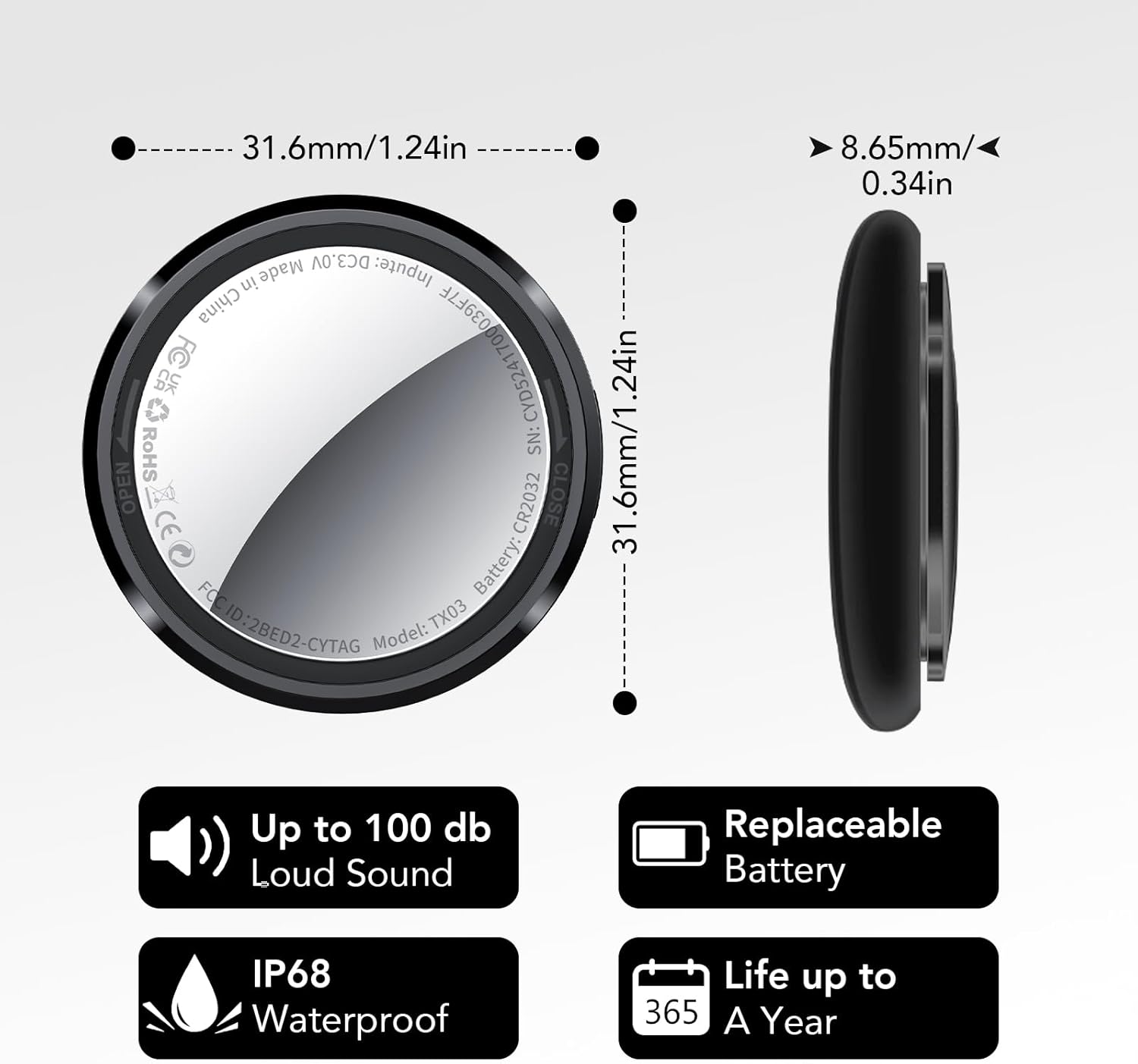
Image: Product specifications highlighting dimensions, 100dB sound, IP68 waterproof, and replaceable battery with 1-year life.

Image: Lightweight design of the tracker tag, weighing 7.2 grams.
4. Awọn ilana iṣeto
Follow these steps to set up your QCOQ Air Tracker Tag with your iOS device:
- Ṣetan Ẹrọ Rẹ: Ensure Bluetooth is enabled on your iOS device (iPhone, iPad, or iPod touch).
- Ṣii Wa Ohun elo Mi: Launch the Apple "Find My" application on your iOS device.
- Ṣafikun Nkan Tuntun: In the "Find My" app, navigate to the "Items" tab and tap "Add New Item" or the '+' icon. Then select "Other Supported Item".
- Activate Tracker: Press and hold the button on your QCOQ Air Tracker Tag for approximately 10 seconds until you hear a beep. This indicates the tracker is in pairing mode.
- Sopọ: Your iOS device should detect the tracker, appearing as "ANNN Tag" or similar. Select it to connect. Follow any on-screen prompts to complete the pairing process.

Image: Visual guide for connecting the tracker tag si Wa ohun elo Mi.
5. Awọn ilana Iṣiṣẹ
5.1 Finding Items Nearby
When your item is within Bluetooth range, you can use the Find My app to make the tracker emit a sound. Alternatively, you can ask Siri to locate your item.
- Ṣii awọn Wa Mi app.
- Lọ si awọn Awọn nkan taabu.
- Select your QCOQ Air Tracker Tag.
- Fọwọ ba Mu Ohun ṣiṣẹ to make the tracker ring.

Image: Using the Find My app to play a sound on the tracker tag.

Image: The tracker tag can emit a loud 100dB sound for nearby finding.
5.2 Far Away Tracking
Leverage the global Apple Find My network to locate your items even when they are out of your personal Bluetooth range. The Find My app will display the real-time location on a map and provide navigation to guide you to your item.

Image: Tracking an item over long distances using the Find My app map.

Image: The Find My app provides real-time location and navigation for far-away items.
5.3 Left-Behind Alert
Receive notifications on your iOS device if you leave an item with a QCOQ Air Tracker Tag behind. This feature helps prevent accidental loss.
- Enable "Notify When Left Behind" in the Find My app settings for your tracker.

Image: A smartphone displaying a 'left behind' notification for a tracker tag.

Aworan: Example of a 'Left-Behind Alarm' notification on an iPhone.
5.4 Ipo ti o sọnu
If your QCOQ Air Tracker Tag is lost, activate "Lost Mode" in the Find My app. When another user within the Find My network comes into range of your lost device, you will automatically receive a location notification. You can also set up a message and contact information for anyone who finds your tag.

Image: Activating Lost Mode in the Find My app to locate a lost tracker tag.

Aworan: Example of contact information displayed when a tracker tag is found in Lost Mode.
5.5 Asiri ati Aabo
The QCOQ Air Tracker Tags are designed with privacy in mind. Location data is anonymous, encrypted at every step, and neither location data nor history is stored on the tracker itself.

Image: Privacy protection features of the QCOQ Air Tracker Tag.
6. Itọju
6.1 Batiri Rirọpo
The QCOQ Air Tracker Tag uses a replaceable CR2032 button battery. When the battery level is low, the Find My app will notify you. To replace the battery:
- Carefully open the tracker tag casing. Refer to the product's physical design for the opening mechanism (e.g., twisting the back cover).
- Yọ batiri CR2032 atijọ kuro.
- Fi batiri CR2032 titun sii pẹlu ẹgbẹ rere (+) ti nkọju si oke.
- Pa casing securely, ensuring a tight seal to maintain its waterproof rating.
Akiyesi: If you experience difficulty opening the casing, apply gentle, firm pressure and twist. Avoid using excessive force or sharp objects that could damage the device.
6.2 Itọju ati Itọju
The QCOQ Air Tracker Tag has an IP68 waterproof rating, making it resistant to dust and water. To clean, wipe the device with a soft, damp asọ. Yago fun lilo awọn kẹmika lile tabi awọn ohun elo abrasive.

Image: The IP68 waterproof rating ensures durability against water exposure.
7. Laasigbotitusita
If you encounter issues with your QCOQ Air Tracker Tag, ro nkan wọnyi:
- Tracker Not Connecting:
- Rii daju pe Bluetooth ti ṣiṣẹ lori ẹrọ iOS rẹ.
- Make sure the tracker's battery is not depleted. Replace if necessary.
- Try restarting your iOS device and the tracker (by removing and reinserting the battery).
- Attempt to re-pair the tracker by following the setup instructions.
- Ibi ti ko pe:
- Location accuracy depends on the density of Apple devices in the Find My network. In areas with fewer devices, location updates may be less frequent or precise.
- Ensure your iOS device has a stable internet connection for map updates.
- Sound Alert is Low:
- Check for any obstructions covering the tracker's speaker.
- The sound level may vary based on environmental noise.
- Batiri Sisan Ni kiakia:
- Rí i dájú pé o ń lo bátìrì CR2032 tuntun tó ní agbára gíga.
- Awọn iwọn otutu to gaju le ni ipa lori iṣẹ batiri.
- If the issue persists with a new battery, contact customer support.
8. Awọn pato
| Nọmba awoṣe | TX03 |
| Asopọmọra | Bluetooth |
| Ibamu | Apple Find My (iOS Only) |
| Batiri Iru | CR2032 (rọpo) |
| Igbesi aye batiri | O fẹrẹ to ọdun 1 |
| Mabomire Rating | IP68 |
| Iwọn Nkan | 2.08 iwon (nipa 59 giramu) |
| Awọn iwọn | 31.6mm x 8.65mm (1.24 x 0.34 inches) |
| Ohun elo | Acrylonitrile Butadiene Styrene (ABS) |
9. Atilẹyin ọja ati Support
QCOQ provides friendly customer service for its products. For any questions, technical assistance, or warranty inquiries, please contact QCOQ customer support through the retailer where you purchased the product or visit the official QCOQ webojula fun alaye olubasọrọ.

Image: QCOQ customer service commitment, including 24-hour online support.


