1. Ifihan ati Loriview
The FLYINGVOICE FIP12WP is a Voice over Internet Protocol (VoIP) phone specifically designed to be user-friendly for seniors, including those in nursing homes, hospitals, or living independently. It features large, easy-to-read buttons, adjustable volume, and dedicated quick-dial keys to ensure reliable and accessible communication.

2. Key Awọn ẹya ara ẹrọ
- Customized ABC Keys for Quick Dialing: Easily program the A, B, and C keys to store emergency contacts or frequently called numbers, providing instant access during urgent situations.
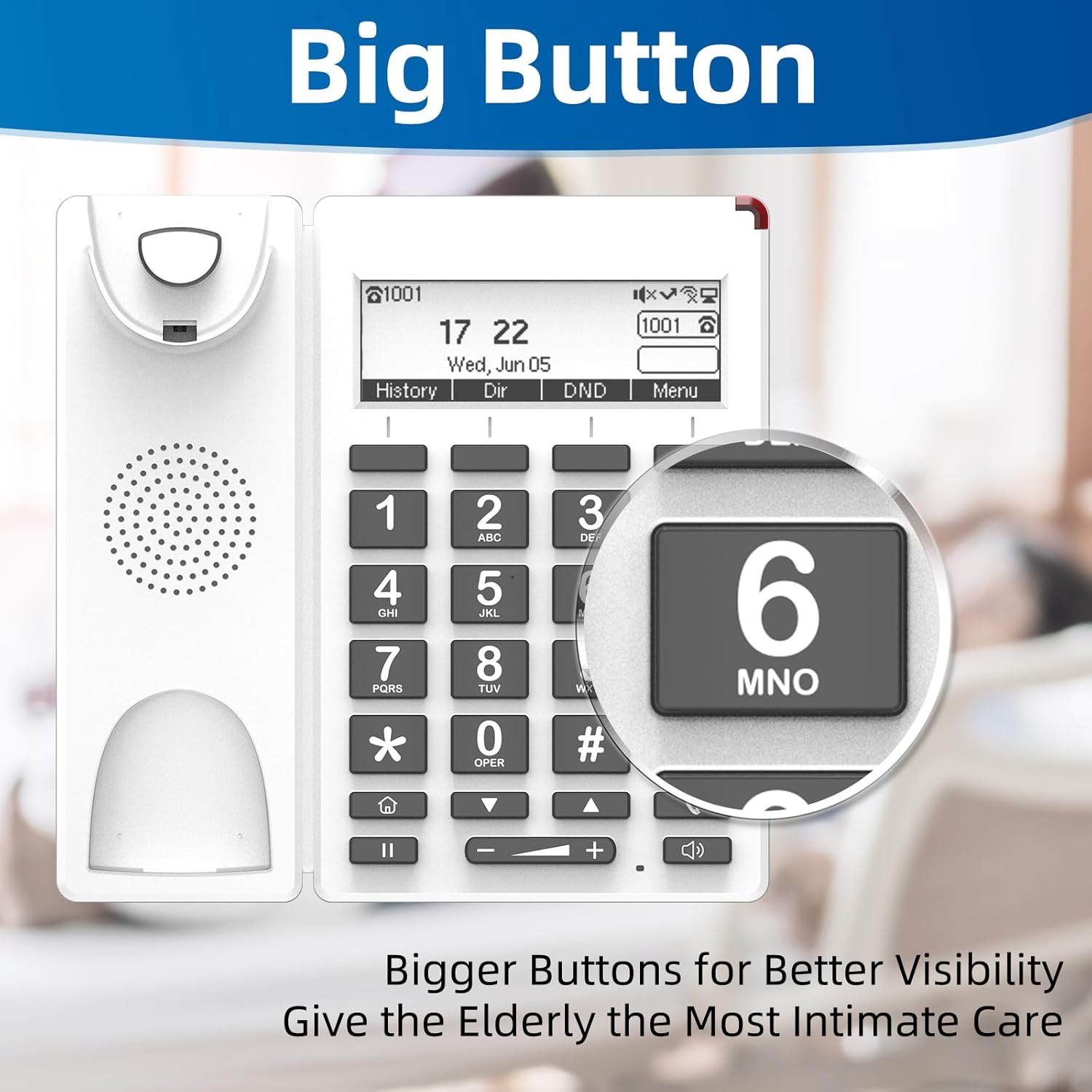
- Big Buttons & HELP Key: Large, easy-to-see buttons are designed for users with reduced vision. A dedicated HELP key provides immediate access to emergency assistance.
- Adjustable Enhanced Volume: Handset volume exceeds 90dB and speakerphone volume exceeds 110dB, ensuring clear calls even for users with hearing loss. Volume adjustments are conveniently made via on-phone buttons.
- Red Indication Light: A bright red light on top alerts users to incoming calls or missed messages, beneficial for those with hearing impairments.
- Odi-Mountable Apẹrẹ: The phone can be easily wall-mounted to save space and prevent accidental knock-overs.
- Ifihan LCD Backlit: Provides clear visibility of time, date, and call information.
- HD Voice Quality: Supports G.722, G.711 WB, Opus, and AMR-WB codecs for superior audio clarity.
- Wi-Fi and PoE Support: Offers flexible connectivity options, including 2.4G Wi-Fi and Power over Ethernet (PoE) for simultaneous data and power transmission.


3. Eto
Follow these steps to set up your FIP12WP VoIP Phone:
- So foonu pọ: Plug one end of the coiled handset cord into the handset and the other end into the designated port on the phone base. Ensure it clicks securely into place.
- Attach the Stand (for Desktop Use): If using the phone on a desktop, align the stand with the slots on the back of the phone and push firmly until it snaps into place. This allows for a 45-degree desktop angle.
- Iṣagbesori Odi (Aṣayan): For wall mounting, use the provided screws to secure the phone to a wall. The phone is designed for a 15-degree wall-mount angle.
- Asopọ Agbara ati Nẹtiwọọki: Connect the phone to your network and power source. The FIP12WP supports both Wi-Fi (2.4G) and Power over Ethernet (PoE) for simplified cabling. If using PoE, connect an Ethernet cable from a PoE-enabled switch or injector to the phone's LAN port. If not using PoE, connect the power adapter (not included) to the phone and a standard power outlet, then connect an Ethernet cable to the LAN port for network access.


4. Awọn ilana Iṣiṣẹ
Ṣiṣe ati Gbigba Awọn ipe
- Lati Ṣe Ipe: Lift the handset or press the speakerphone button. Dial the desired number using the large numeric keypad. Press the dial key (often represented by a phone icon) to initiate the call.
- Using Quick Dial Keys (A, B, C): Press and hold one of the pre-programmed A, B, or C keys to automatically dial the assigned contact. These keys are ideal for frequently called family members or caregivers.
- Emergency Calls with HELP Button: In an emergency, press the dedicated HELP button. This will automatically dial a pre-configured emergency number, providing quick access to assistance.
- Lati Gba Ipe kan: When the phone rings, lift the handset or press the speakerphone button to answer. The red indication light will also flash for incoming calls.
- Adjusting Volume During a Call: Use the volume up (+) and volume down (-) buttons located below the keypad to adjust the handset or speakerphone volume during an active call.
Àpapọ ati Atọka
- The backlit LCD display shows the current time, date, and call status.
- The red indication light on top of the phone will illuminate for missed calls or new messages.
5. Itọju
To ensure the longevity and optimal performance of your FIP12WP phone, follow these maintenance guidelines:
- Ninu: Use a soft, dry cloth to wipe down the phone's surface. For stubborn marks, a slightly damp cloth with mild soap can be used, but ensure no liquid enters the phone's openings. Do not use harsh chemicals or abrasive cleaners.
- Handset Cord: Periodically check the coiled handset cord for any kinks or damage. Replace if necessary to maintain clear audio.
- Ibi: Place the phone in a stable location, away from direct sunlight, excessive heat, moisture, and strong electromagnetic fields.
- Ibi ti ina elekitiriki ti nwa: Ensure the power supply (if used) is securely connected and not damaged.
6. Laasigbotitusita
If you encounter issues with your FIP12WP phone, try the following solutions:
| Isoro | Owun to le Fa | Ojutu |
|---|---|---|
| No dial tone / Cannot make calls | Network connection issue, power issue, or VoIP service not registered. | Check Ethernet cable connection or Wi-Fi status. Ensure power adapter is connected (if not using PoE). Verify VoIP service registration status on the phone's display. Restart the phone and your network router. |
| Ko le gbo olupe / Olupe ko le gbo temi | Volume too low, handset not properly connected, or network quality issue. | Adjust volume using the +/- buttons. Ensure handset cord is securely plugged in. Check network stability. |
| Red indication light is on constantly | Missed calls or new voicemail messages. | Check your call history or voicemail. The light should turn off once messages are cleared. |
| Phone not connecting to Wi-Fi | Incorrect Wi-Fi password, out of range, or router issue. | Double-check Wi-Fi password. Move phone closer to the router. Restart router. |
If the problem persists after trying these steps, please contact FLYINGVOICE customer support for further assistance.
7. Awọn pato
- Nọmba awoṣe: FIP12WP
- Awọn iwọn ọja: 7.72 x 3.07 x 10.63 inches
- Àwọ̀: Funfun
- Ohun elo: Ṣiṣu
- Iru foonu: Foonu VoIP ti okun
- Orisun Agbara: Corded Electric (ṣe atilẹyin PoE)
- Idahun Iru eto: Oni-nọmba
- Awọn ẹrọ ibaramu: VoIP services, PSTN/ISDN networks, Caller ID services, Conference call-capable devices
- Agbara Ipe Alapejọ: 3-ọna
- Isẹ-pupọ: Nikan-Laini Isẹ
- Iwọn foonu: Ju 90dB lọ
- Speakerphone Volume: Ju 110dB lọ
- Wi-Fi: 2.4G WiFi
- DSS Keys: 4 (A/B/C/HELP)

8. Atilẹyin ọja ati Support
FLYINGVOICE is committed to providing high-quality products and customer satisfaction. For any technical assistance or inquiries regarding your FIP12WP phone, please utilize the following resources:
- 1-to-1 Tech Support: Contact FLYINGVOICE directly for personalized technical support.
- Awọn Irinṣẹ Iṣakoso Latọna jijin: The phone can be centrally managed via FLYINGVOICE FACS (Cloud-based) and FDC (Local Network) management tools, which may be utilized by your service provider or IT administrator for remote configuration and troubleshooting.
- Alaye Atilẹyin ọja: Please refer to the warranty card included with your product or visit the official FLYINGVOICE webAaye fun alaye atilẹyin ọja ofin ati ipo.


