1. Ifihan
O ṣeun fun riraasing the SHIDU F8 Portable FM Radio with Bluetooth Speaker. This device offers versatile audio playback options including FM radio, Bluetooth connectivity, and support for TF cards, USB flash drives, and AUX input. Designed for ease of use, this manual provides detailed instructions to help you get the most out of your new device.
2. Alaye Aabo
- Ka gbogbo awọn ilana ni pẹkipẹki ṣaaju lilo.
- Jeki ẹrọ naa kuro ni omi, ọrinrin, ati awọn iwọn otutu to gaju.
- Ma ṣe gbiyanju lati tunto tabi tun ẹrọ naa funrararẹ. Tọkasi awọn oṣiṣẹ iṣẹ ti o peye.
- Use only the specified charging cable and power adapter to avoid damage.
- Avoid prolonged exposure to loud volumes to prevent hearing damage.
3. Package Awọn akoonu
Jọwọ ṣayẹwo package fun awọn nkan wọnyi:
- SHIDU F8 Portable FM Radio with Bluetooth Speaker
- Afowoyi eni
4. Ọja Ipariview
The SHIDU F8 is a compact and portable device featuring an intuitive control layout. It includes a retractable antenna for enhanced FM reception, a clear display, and various input ports for media playback.
4.1. Device Diagram and Controls
Below is a visual representation of the SHIDU F8, highlighting its key components and controls. Please refer to this diagram for button and port identification.

The device features a speaker on the front, a digital display, control buttons for playback and mode selection, and a rotary knob for power and volume. On the side, you will find ports for USB, TF card, and AUX input, along with the USB-C charging port.
5. Eto
5.1. Gbigba agbara akọkọ
Before first use, fully charge your SHIDU F8 radio. The device is equipped with a 1000mAh battery that provides 4-5 hours of continuous playtime and charges fully in approximately 2 hours via USB-C.
- Connect the provided USB-C cable to the charging port on the side of the radio.
- So opin keji okun USB-C sinu adapter agbara USB ti o baamu (ko si ninu rẹ) tabi ibudo USB ti kọnputa kan.
- The charging indicator on the display will show the charging status. Once fully charged, the indicator will change or turn off.
5.2. Agbara Tan / Paa
To power on the device, rotate the volume knob clockwise. To power off, rotate the volume knob counter-clockwise until it clicks.
6. Awọn ilana Iṣiṣẹ
6.1. FM Radio isẹ
The SHIDU F8 features strong FM reception. Extend the telescopic antenna for optimal signal quality.

6.1.1. Auto Scan and Save Stations
The auto-scan function automatically finds and saves available FM stations.
Video 1: Demonstrates auto station search and saving presets on a similar portable radio. Long press the scan button to initiate auto-scan, which automatically finds and stores available FM stations. Short press M- or M+ to recall previous or next stored stations.
6.1.2. Manual Station Search and Presets
You can manually tune to specific stations or save them as presets.
Video 2: Illustrates manual station search and manual station preset. Long press the tuning buttons to skip to previous or next available stations. To manually preset a station, tune to the desired frequency, then short press 'MEM/SCAN' to start the preset process. Use M- or M+ to select a preset number, then press 'MEM/SCAN' again to store.
6.2. Ipo Bluetooth
Connect your smartphone or tablet wirelessly via Bluetooth to play music through the SHIDU F8 speaker.
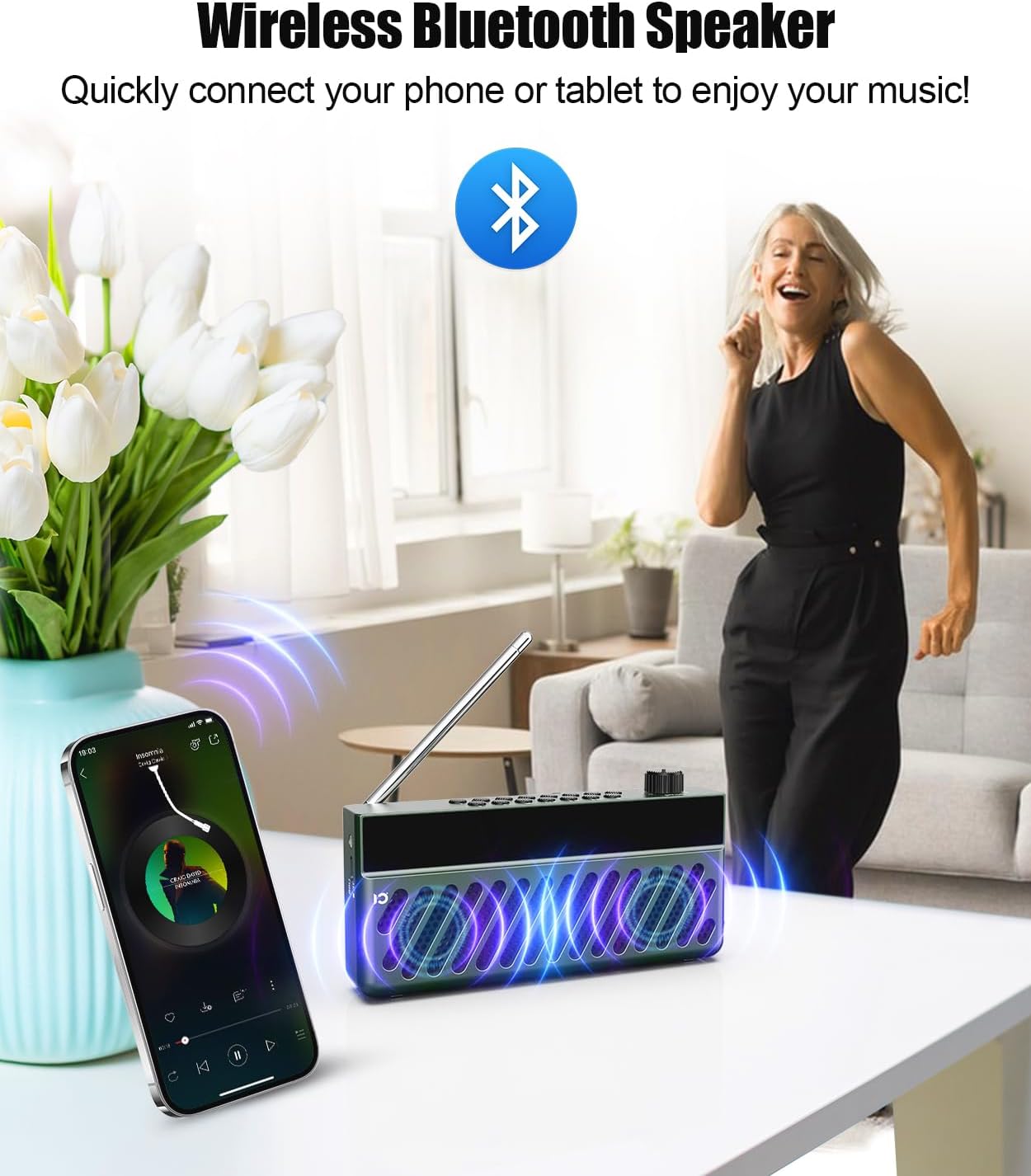
- Power on the radio. It will automatically enter Bluetooth pairing mode.
- Lori ẹrọ alagbeka rẹ, mu Bluetooth ṣiṣẹ ki o wa awọn ẹrọ to wa.
- Select "SHIDU F8" (or similar name) from the list to pair. A voice prompt will confirm successful connection.
- Play audio from your device, and it will stream through the SHIDU F8.
Video 3: Demonstrates switching to Bluetooth mode and connecting a smartphone. The radio displays 'bt' and a voice prompt confirms 'Bluetooth connected'. Music playback from the phone is then shown, with options to skip tracks using the radio's buttons.
6.3. Kaadi TF / Sisisẹsẹhin USB
The radio supports playing MP3 files from a TF (Micro SD) card or USB flash drive.
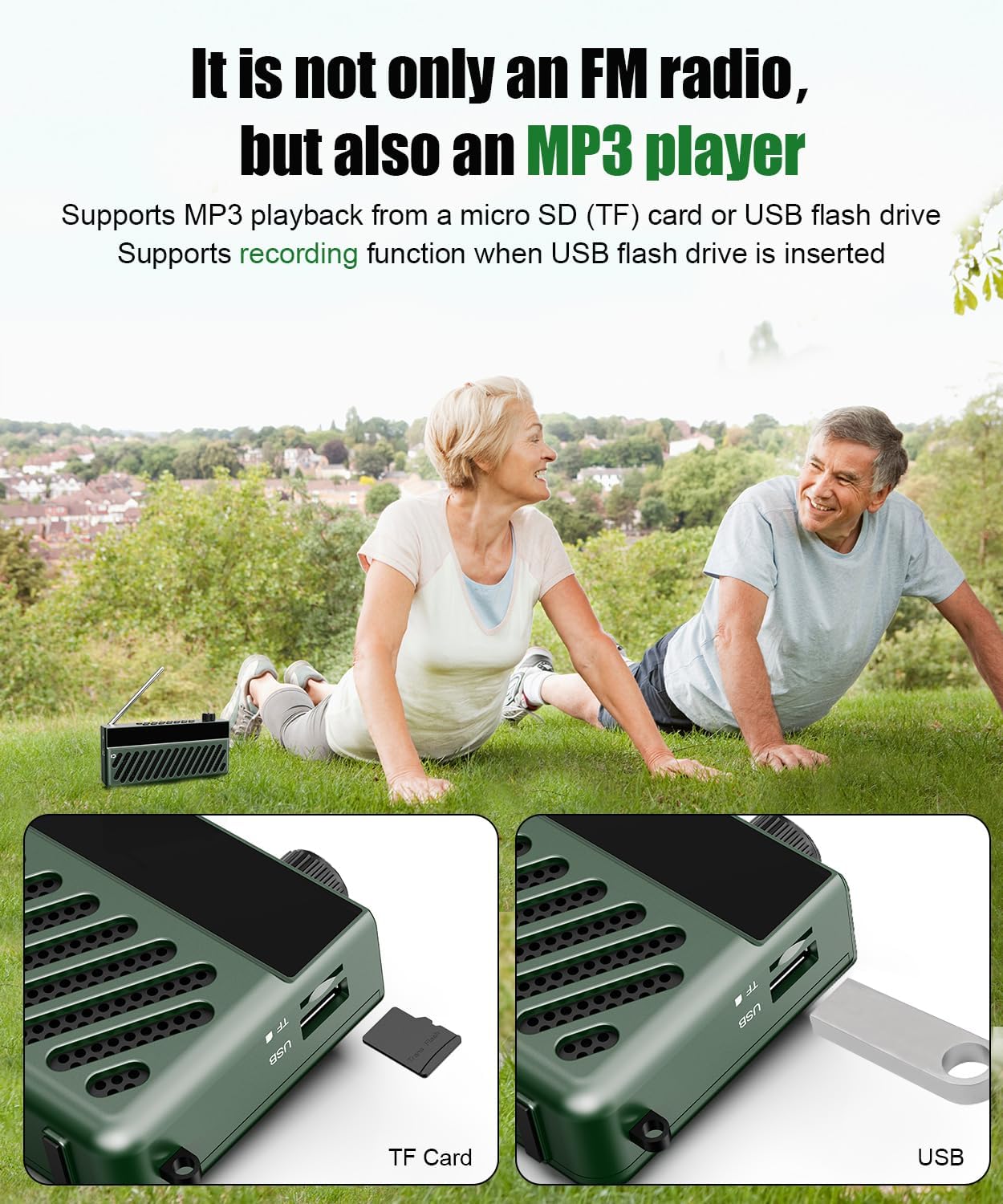
- Insert a TF card or USB flash drive containing MP3 audio files into the corresponding slot on the side of the radio.
- The radio will automatically switch to TF Card or USB mode and begin playing the audio files.
- Use the playback control buttons (Play/Pause, Next/Previous Track) on the radio to manage your music.
Video 4: Demonstrates inserting a TF card into a portable radio. The radio automatically switches to 'TF Card Mode' and a voice prompt confirms the mode change.
6.4. Apọju AX
Connect external audio devices using the AUX input port.
- Connect a 3.5mm audio cable (not included) from your external device's audio output to the AUX input port on the radio.
- The radio will automatically switch to AUX mode.
- Ṣàkóso ìṣiṣẹ́ orin láti inú ẹ̀rọ ohùn rẹ láti òde.
6.5. Iṣakoso iwọn didun
Adjust the volume by rotating the power/volume knob. Rotate clockwise to increase volume and counter-clockwise to decrease.
6.6. Eto Akoko
Set the current time on your radio's display.
Video 5: Demonstrates how to set the time on a portable radio. Short press the power button to switch to Clock Mode. Long press 'TIME/AL' to enter time settings. Use the '<<' and '>>' buttons to adjust hours and minutes, then press 'TIME/AL' to confirm. You can also switch between 12/24-hour format.
6.7. Alarm Clock Setting
Configure the alarm function to wake up to your favorite station or a buzzer.
Video 6: Shows how to set the alarm clock. Short press 'TIME/AL' to toggle the alarm on/off. Long press 'MODE' to enter alarm settings. Use '<<' and '>>' to set the alarm hour and minute, then press 'MODE' to confirm. You can choose between a buzzer (bUZ Mode) or scheduled power-on (PON Mode) with adjustable duration.
7. Itọju
- Nu ẹrọ naa pẹlu asọ ti o tutu, ti o gbẹ. Ma ṣe lo abrasive ose tabi epo.
- Jeki ẹrọ naa ni itura, aye gbigbẹ nigbati o ko ba wa ni lilo.
- Avoid dropping the device or exposing it to strong impacts.
8. Laasigbotitusita
| Isoro | Owun to le Fa | Ojutu |
|---|---|---|
| Ko si agbara | Batiri ti dinku. | Gba agbara si ẹrọ naa nipa lilo okun USB-C. |
| Gbigba FM ti ko dara | Antenna kìí ṣe agbègbè àmì tí ó gbòòrò tàbí tí kò lágbára. | Fully extend the telescopic antenna and try repositioning the radio. |
| Bluetooth ko sopọ | Ẹrọ ko si ni ipo sisopọ tabi jina si orisun. | Ensure radio is in Bluetooth mode and within 10 meters of your device. Re-enable Bluetooth on your mobile device. |
| No sound from FM mode after switching | Volume set to zero or temporary software glitch. | Increase volume. If issue persists, power off and on the radio, then switch to FM mode and ensure volume is above zero. |
9. Awọn pato
- Awoṣe: F8
- Awọn iwọn ọja: 6.61 x 1.54 x 3.31 inches
- Ìwọ̀n Nkan: 13.1 iwon (0.37 kilo)
- Imọ-ẹrọ Asopọmọra: Bluetooth
- Imọ-ẹrọ Tuner: FM (AM not supported)
- Orisun Agbara: Battery Powered (1000mAh rechargeable battery)
- Gbigba agbara: USB-C (approx. 2 hours for full charge)
- Àkókò eré: 4-5 hours (continuous)
- Awọn aṣayan titẹ sii: TF Card, USB Flash Drive, AUX Input
10. Atilẹyin ọja & Atilẹyin
SHIDU is committed to delivering high-quality products. If you encounter any issues or have questions regarding your SHIDU F8 Portable FM Radio with Bluetooth Speaker, please contact our customer support team for assistance.
For warranty information and support, please refer to the contact details provided on the product packaging or visit the official SHIDU webojula.