1. Ifihan
The MakeID L1-C is a lightweight, portable, and user-friendly label printer designed for both home and business applications. This thermal printer eliminates the need for ink, offering a cost-effective and versatile labeling solution. It connects seamlessly via Bluetooth to a dedicated mobile application, allowing for creative and efficient label design and printing.
Key features include automatic label size recognition via an RFID chip, preventing tape waste, and a wide variety of design options within the app. The device is powered by a rechargeable Li-ion battery and charges conveniently via USB Type-C.
2. Package Awọn akoonu
Ṣaaju ki o to bẹrẹ, jọwọ rii daju pe gbogbo awọn nkan wa ninu package:
- MakeID L1-C Label Printer Unit
- LC Series Label Tape (pre-installed in the unit)
- Okun Ngba agbara USB (Iru-C)
- Instruction Manual (Japanese version included)

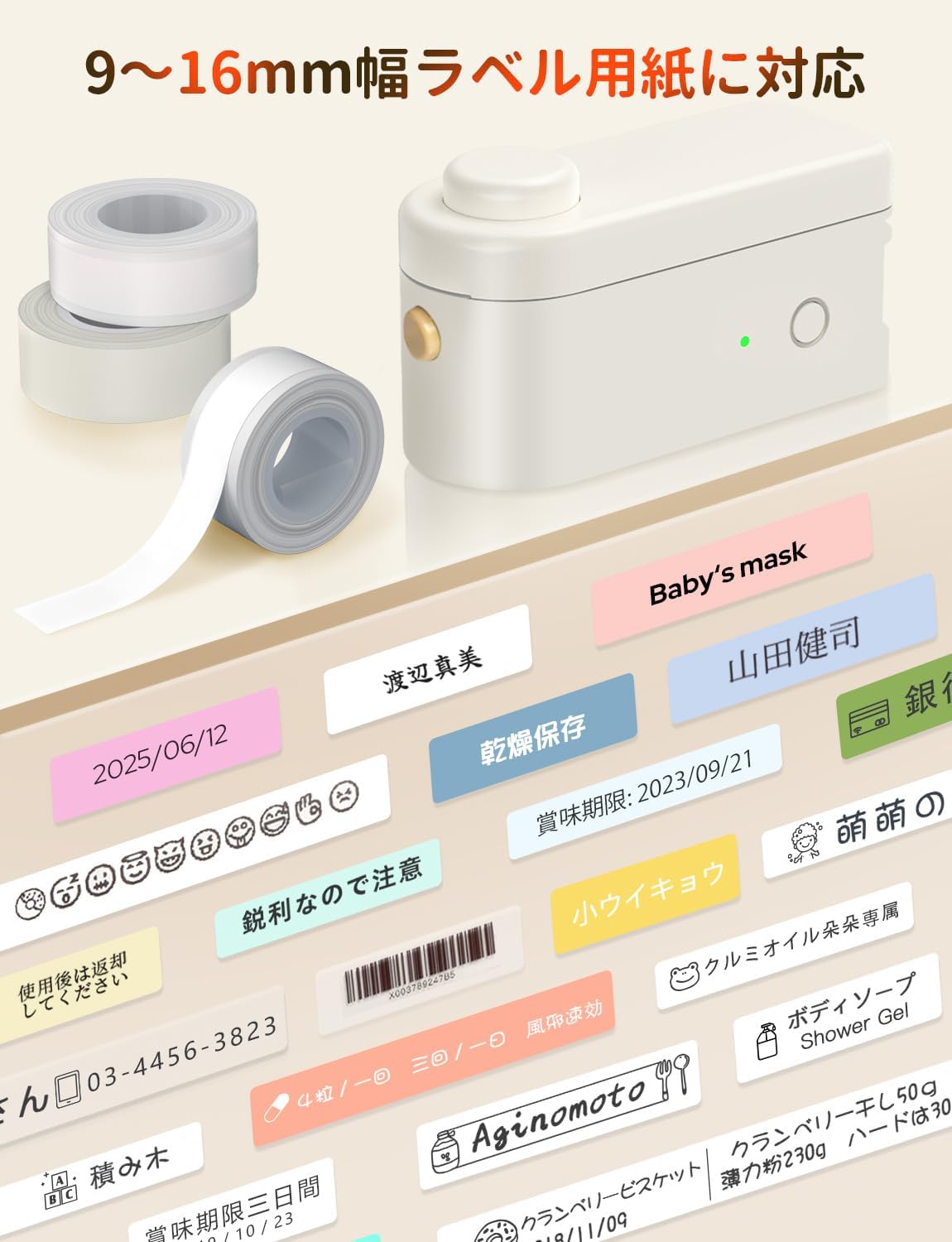
Figure 2.1: MakeID L1-C Label Printer and its included accessories.
3. Eto
3.1 Ngba agbara si Ẹrọ
The MakeID L1-C printer is equipped with a built-in rechargeable Li-ion battery. To charge, connect the provided USB Type-C cable to the printer and a compatible power source (e.g., computer USB port or a mobile device charger). A Type-C adapter is not included.
3.2 Fifi teepu aami sii
For optimal performance and stability, use only genuine LC series label tapes designed for the L1-C model. Q1 HD consumables are not compatible.
- Open the printer's tape compartment cover.
- Place the label tape roll into the designated slot.
- Pull the transparent lead tape firmly until it extends past the tape exit slot of the label maker.
- Close the tape compartment cover securely.

Figure 3.1: Correct label tape installation procedure.
3.3 App Installation and Bluetooth Connection
Download the dedicated 'Make ID-Life' app (free) from your device's app store (Android or iOS). Upon first use, grant the app Bluetooth permissions.
- Turn on the MakeID L1-C printer by pressing and holding the power button.
- Mu Bluetooth ṣiṣẹ lori foonuiyara tabi tabulẹti rẹ.
- Open the 'Make ID-Life' app. The app will automatically detect and connect to the printer.
- The app will automatically recognize the size of the installed label tape via its RFID chip.

Figure 3.2: App interface and Bluetooth connection process.

Figure 3.3: Automatic label size detection.
4. Awọn ilana Iṣiṣẹ
4.1 Ṣíṣẹ̀dá àti títẹ̀ àwọn àmì
The 'Make ID-Life' app provides a rich library of printing data, including over 60 frames, 300 stickers, 20 fonts, and numerous symbols and QR code templates. You can easily create custom labels with minimal editing.
- In the app, select a template or start a new design.
- Enter your desired text, add frames, stickers, or other elements.
- Ṣaajuview your label design.
- Tap the print button to send the design to the MakeID L1-C printer.
Olusin 4.1: Example of printing a date label for kitchen organization.

Figure 4.2: Diverse creative templates available in the app.
4.2 Ige-gige ti a ṣe sinu rẹ
The printer features a built-in cutter for easy and precise cutting of both continuous and fixed-length labels. After printing, simply press the cutter button to cleanly separate your label.

Figure 4.3: Using the built-in cutter for labels.
5. Itọju
5.1 Itọju Gbogbogbo
To ensure the longevity and optimal performance of your MakeID L1-C printer, keep it clean and free from dust. Use a soft, dry cloth to wipe the exterior. Avoid using abrasive cleaners or solvents.
5.2 Label Durability
MakeID labels are designed to be durable. They are waterproof, oil-proof, easy to peel without leaving residue, and scratch-resistant. This makes them suitable for various environments, including kitchens and bathrooms.

Figure 5.1: Demonstration of label durability and water resistance.
6. Laasigbotitusita
If you encounter any issues with your MakeID L1-C printer, please refer to the following common troubleshooting steps:
- Ẹ̀rọ ìtẹ̀wé kò sopọ̀ mọ́ra nípasẹ̀ Bluetooth: Ensure the printer is powered on and within range of your mobile device. Verify that Bluetooth is enabled on your device and that the 'Make ID-Life' app has the necessary permissions. Try restarting both the printer and your mobile device.
- Didara titẹ ti ko dara: Check if the label tape is correctly installed and not jammed. Ensure the tape is genuine MakeID LC series tape. The print head might be dirty; gently clean it with a soft, lint-free cloth.
- Labels not cutting properly: Ensure the label tape is properly aligned in the printer. If the issue persists, the cutter might need cleaning or inspection.
- App not recognizing tape size: Confirm that you are using genuine MakeID LC series label tape, which contains the RFID chip for automatic recognition. Reinstall the tape to ensure proper contact with the RFID reader.
For further assistance, please contact MakeID customer support.
7. Awọn pato
| Ẹya ara ẹrọ | Sipesifikesonu |
|---|---|
| Adarí Iru | Android, iOS |
| Max Media (Iwe) Iwon | 16 milimita |
| Awọn irinše to wa | L1-C Label Printer Body, LC Series Label Tape (pre-installed), USB Charging Cable (Type-C), Instruction Manual (Japanese version included) |
| Media titẹ sita | Aami |
| Scanner Iru | Gbigbe |
| Iyara Daakọ ti o pọju (Dudu & Funfun) | 15 ojúewé / iseju |
| Awọn ẹrọ ibaramu | Foonuiyara |
| Iwon dì | 9, 12, 16 millimeters |
| Ipinnu Titẹjade ti o pọju (Monochrome) | 300 dots per inch |
| Ile oloke meji Printing | Rara |
| Olupese | MakeID |
| Iwọn ọja | 6.8 x 12.8 x 6.2 cm; 230g |
| Batiri | 1 batiri litiumu ion (pẹlu) |
| Nọmba awoṣe Ọja | L1-C |
| Àwọ̀ | Main Unit: Beige 1 Unit |
| Fọọmù ifosiwewe | Itẹwe |
| Ilana ibaraẹnisọrọ | Bluetooth |
| Batiri litiumu | Awọn wakati 3.7 Watt |
| Litiumu Batiri Pack | Battery built-in |
| Number of Lithium Ion Batteries | 1 |
| Iwọn Ọja | 230 g |
| Asopọmọra Technology | Bluetooth |
| Imọ-ẹrọ titẹ sita | Gbona |
| Pataki Awọn ẹya ara ẹrọ | E gbe, Fẹyẹ |
| Ijade itẹwe | Monochrome |
| Iyara Titẹjade ti o pọju (Awọ) | 15 ojúewé / iseju |
| Iyara Titẹjade ti o pọju (Monochrome) | 15 ojúewé / iseju |
8. Atilẹyin ọja ati Support
For warranty information and customer support, please refer to the documentation included with your product or visit the official MakeID webojula. Jeki ẹri rira rẹ fun eyikeyi awọn ibeere atilẹyin ọja.
9. Afikun Resources
9.1 Label Paper Introduction Video
Video 9.1: An introduction to MakeID L1/L1-C label paper, showcasing its features and versatility.


