1. Ifihan
This manual provides detailed instructions for the proper installation, operation, and maintenance of the Novastar Taurus TB30 LED Display Controller. The TB30 is a powerful multimedia player designed for LED display applications, offering robust processing capabilities and versatile control options. Please read this manual thoroughly before using the device to ensure optimal performance and safety.
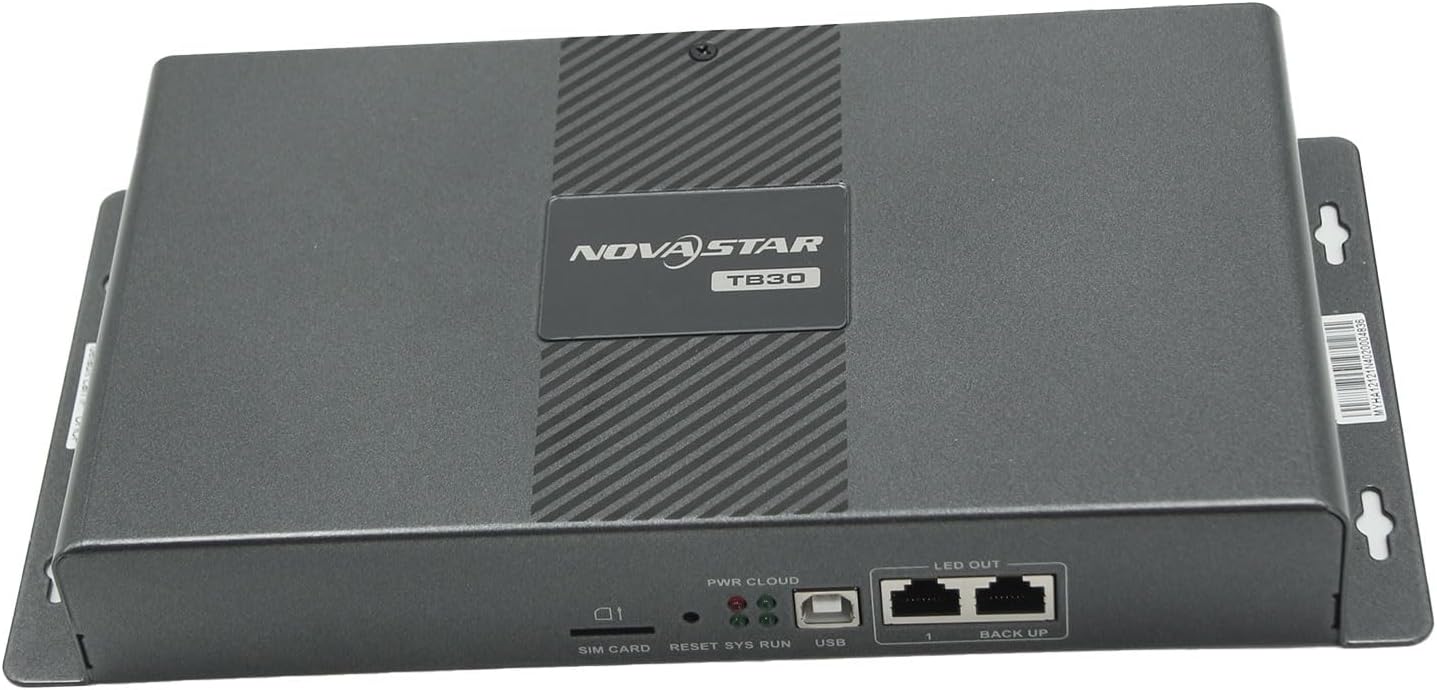
Nọmba 1.1: Iwaju view of the Novastar Taurus TB30 LED Display Controller. This image shows the compact design and the Novastar branding on the top panel.
2. Awọn ẹya Ọja
The Novastar Taurus TB30 is engineered with advanced features to deliver high-quality LED display management:
- Powerful Processing Capacity: Equipped with a quad-core ARM A55 processor clocked at 1.8 GHz, supporting H.264/H.265 4K@60Hz video decoding. It includes 1 GB of onboard RAM and 16 GB of internal storage.
- Sisisẹsẹhin Aláìlábùkù: Capable of 1x 4K video playback or 2x 1080p video playback, ensuring smooth content delivery.
- Versatile Control Plans: Enables content publishing and screen control from various devices, including computers, mobile phones, and tablets. Users can manage screens remotely from any location at any time.
- Wi-Fi Asopọmọra: Supports switching between Wi-Fi AP (Access Point) and Wi-Fi STA (Station) modes. In Wi-Fi STA mode, the device connects to an existing Wi-Fi hotspot.
- Sisisẹsẹhin Amuṣiṣẹpọ: Achieves synchronized playback across multiple screens using NTP (Network Time Protocol) time synchronization. GPS time synchronization is also supported with an optional 4G module.
- Atilẹyin Modulu 4G: The TB30 is compatible with 4G modules (sold separately) for enhanced connectivity and GPS time synchronization capabilities.
- High Pixel Loading Capacity: Supports a maximum loading capacity of 650,000 pixels, with a maximum width of 4096 pixels and a maximum height of 4096 pixels.
3. Package Awọn akoonu
Please verify that all items listed below are present in your package. If any items are missing or damaged, contact your vendor immediately.
- Novastar Taurus TB30 LED Display Controller Unit
- Okun agbara
- Wi-Fi Eriali
- Quick Start Guide / Documentation (may vary by region)

Nọmba 3.1: The Novastar Taurus TB30 unit alongside its power cable and Wi-Fi antenna. These are the primary components included in the product package.
4. Awọn ilana iṣeto
Follow these steps to set up your Novastar Taurus TB30 controller:
- So Antenna Wi-Fi pọ mọ: Screw the provided Wi-Fi antenna into the designated Wi-Fi connector on the back panel of the TB30.
- Asopọ agbara: Connect the power cable to the AC power input on the TB30 and then plug it into a suitable power outlet. Ensure the power switch is in the OFF position before connecting.
- Asopọ Nẹtiwọọki (Aṣayan): For wired network connectivity, connect an Ethernet cable from your network router or switch to the Ethernet port on the TB30.
- Asopọ Ifihan LED: Connect the LED display to the "LED OUT" port(s) on the TB30 using appropriate network cables.
- Ijade Olohun (Aṣayan): If audio is required, connect speakers or an audio system to the "AUDIO OUT" port.
- Agbara Tan: Flip the power switch on the back panel to the ON position. The device will begin its startup sequence.

Nọmba 4.1: Ẹyìn view of the Novastar Taurus TB30, highlighting the various input/output ports including power, Ethernet, Wi-Fi antenna connector, USB, and audio out.
5. Awọn ilana Iṣiṣẹ
The Novastar Taurus TB30 can be controlled and managed through various methods.
5.1. Software fifi sori
To fully utilize the features of the TB30, you will need to install the relevant Novastar control software on your computer, mobile phone, or tablet. This software allows for content creation, scheduling, and device management.
For detailed software configuration and instructions, please refer to the official Novastar documentation available at: Novastar TB30 Documentation.
5.2. Content Publishing and Control
- Iṣakoso Agbegbe: Connect your computer to the same local network as the TB30 (via Wi-Fi STA mode or Ethernet) and use the Novastar software to publish content directly.
- Isakoṣo latọna jijin: For remote management, ensure the TB30 has internet access (via Wi-Fi or 4G module). Use the Novastar cloud platform or mobile application to publish content, schedule playback, and monitor the display status from anywhere.
- Sisisẹsẹhin USB: Content can also be loaded onto a USB drive and inserted into the USB port on the TB30 for direct playback.
5.3. Wi-Fi Modes
- Wi-Fi AP Mode: The TB30 acts as an access point, allowing direct connection from a computer or mobile device for configuration and control.
- Wi-Fi STA Mode: The TB30 connects to an existing Wi-Fi network, integrating into your local network infrastructure.
6. Awọn pato
| Ẹya ara ẹrọ | Ẹ̀kúnrẹ́rẹ́ |
|---|---|
| Orukọ awoṣe | TB30 |
| isise | Quad-mojuto ARM A55 @ 1.8 GHz |
| Àgbo | 1 GB |
| Ibi ipamọ inu | 16 GB |
| Iyipada fidio | H.264/H.265 4K @ 60Hz |
| Sisisẹsẹhin fidio | 1x 4K or 2x 1080p |
| Pixel Loading Capacity | 650,000 pixels (Max. 4096 width, 4096 height) |
| Asopọmọra Technology | Ethernet, Wi-Fi, Optional 4G |
| Asopọmọra Iru | Ethernet, USB, Audio Out, SIM Card Slot |
| Atilẹyin Audio kika | MP3, AAC, WAV |
| Ipo Ijade Ohun | Sitẹrio |
| Pataki Awọn ẹya ara ẹrọ | Multi-Format Playback, High Definition, 3D Streaming (with compatible content) |
| Iwọn Nkan | Isunmọ 3.25 poun (1.47 kg) |
| Package Mefa | Isunmọ 15 x 11 x 3 inches (38.1 x 27.9 x 7.6 cm) |
7. Itọju
Regular maintenance helps ensure the longevity and reliable operation of your TB30 controller.
- Ninu: Use a soft, dry cloth to clean the exterior of the device. Do not use liquid cleaners or aerosols directly on the unit. Ensure the device is powered off before cleaning.
- Afẹfẹ: Rii daju pe awọn ṣiṣi atẹgun ko ni dina. Ṣiṣan afẹfẹ to dara jẹ pataki lati ṣe idiwọ igbona.
- Awọn imudojuiwọn famuwia: Periodically check the Novastar official website or software for available firmware updates. Keeping the firmware updated can improve performance, add new features, and fix bugs.
- Awọn ipo Ayika: Ṣiṣẹ ẹrọ naa laarin iwọn otutu pato ati awọn sakani ọriniinitutu lati yago fun ibajẹ.
8. Laasigbotitusita
If you encounter issues with your Novastar Taurus TB30, refer to the following common problems and solutions:
| Isoro | Owun to le Fa / Solusan |
|---|---|
| Ẹrọ naa ko ṣiṣẹ |
|
| Ko si ifihan loju iboju LED |
|
| Ko le sopọ si Wi-Fi |
|
| Content not updating remotely |
|
9. Atilẹyin ọja ati Support
For warranty information and technical support, please contact your authorized Novastar dealer or the point of purchase. Keep your purchase receipt as proof of purchase.
Olupese: Novastar
Distributed by: ARTPIXEL (Shenzhen Artpixel Technology Co., Limited)
10. Alaye Aabo pataki
- Ma ṣe fi ẹrọ naa han si ojo, ọrinrin, tabi awọn iwọn otutu to gaju.
- Maṣe ṣii casing of the device. Servicing should only be performed by qualified personnel.
- Rii daju pe fentilesonu to dara lati ṣe idiwọ igbona.
- Use only the power adapter supplied with the device or a compatible replacement.
- Jeki ẹrọ naa kuro ni awọn aaye oofa ti o lagbara.
- Pa awọn ohun elo itanna run ni ọna ti o tọ gẹgẹbi awọn ofin agbegbe.


