1. Ifihan
This manual provides comprehensive instructions for the safe and effective use of your Artfone Smart_500 Smartphone. Please read this manual thoroughly before operating the device and retain it for future reference. The Artfone Smart_500 is designed with ease of use in mind, featuring large icons, a clear display, and essential functions for communication.
2. Ẹrọ Loriview
Familiarize yourself with the components of your Artfone Smart_500 smartphone.

Aworan 2.1: Iwaju ati sẹhin view of the Artfone Smart_500 smartphone placed in its charging dock. The front displays a simplified interface with large icons for Phone, Contacts, Camera, and Photos. The back shows the camera module and the SOS button.

Image 2.2: Multiple views of the Artfone Smart_500 smartphone, illustrating its front, back, and side profiles. This provides a comprehensive look at the device's physical design and button placement.
Awọn eroja pataki:
- Ifihan iwaju: 5-inch IPS screen for clear viewing ati ibaraenisepo.
- Awọn bọtini Ti ara: Dedicated buttons for call answer/end, volume control, and power.
- Bọtini SOS: Located on the rear for emergency alerts.
- Awọn kamẹra: Rear 13MP camera with LED flash, Front 5MP camera.
- Ibudo gbigba agbara: USB-C ibudo ni isalẹ.
- Ibudo gbigba agbara: Included for convenient desktop charging.
3. Eto
3.1 Fifi sori ẹrọ Kaadi SIM ati Kaadi Micro SD
- Pa ẹrọ naa kuro patapata.
- Locate the SIM/Micro SD card tray on the side of the phone.
- Lo ohun elo ejector SIM ti a pese lati ṣii atẹ.
- Carefully place your Nano-SIM card(s) and/or Micro SD card into the designated slots. Ensure correct orientation.
- Rọra Titari atẹ naa pada sinu foonu titi ti o fi tẹ sinu aaye.
3.2 Ibẹrẹ Agbara Lori
- Press and hold the Power button (usually on the right side) until the screen lights up.
- Tẹle awọn itọsọna loju iboju lati pari iṣeto akọkọ, pẹlu yiyan ede, asopọ Wi-Fi, ati iṣeto akọọlẹ Google.
3.3 Ngba agbara si Ẹrọ
The Artfone Smart_500 can be charged using the included USB-C cable or the charging station.
- Lilo Ibusọ Gbigba agbara: Place the phone into the charging station, ensuring the charging contacts align. The phone will indicate that it is charging.
- Lilo okun USB-C: Connect the USB-C cable to the phone's charging port and the other end to a compatible power adapter.
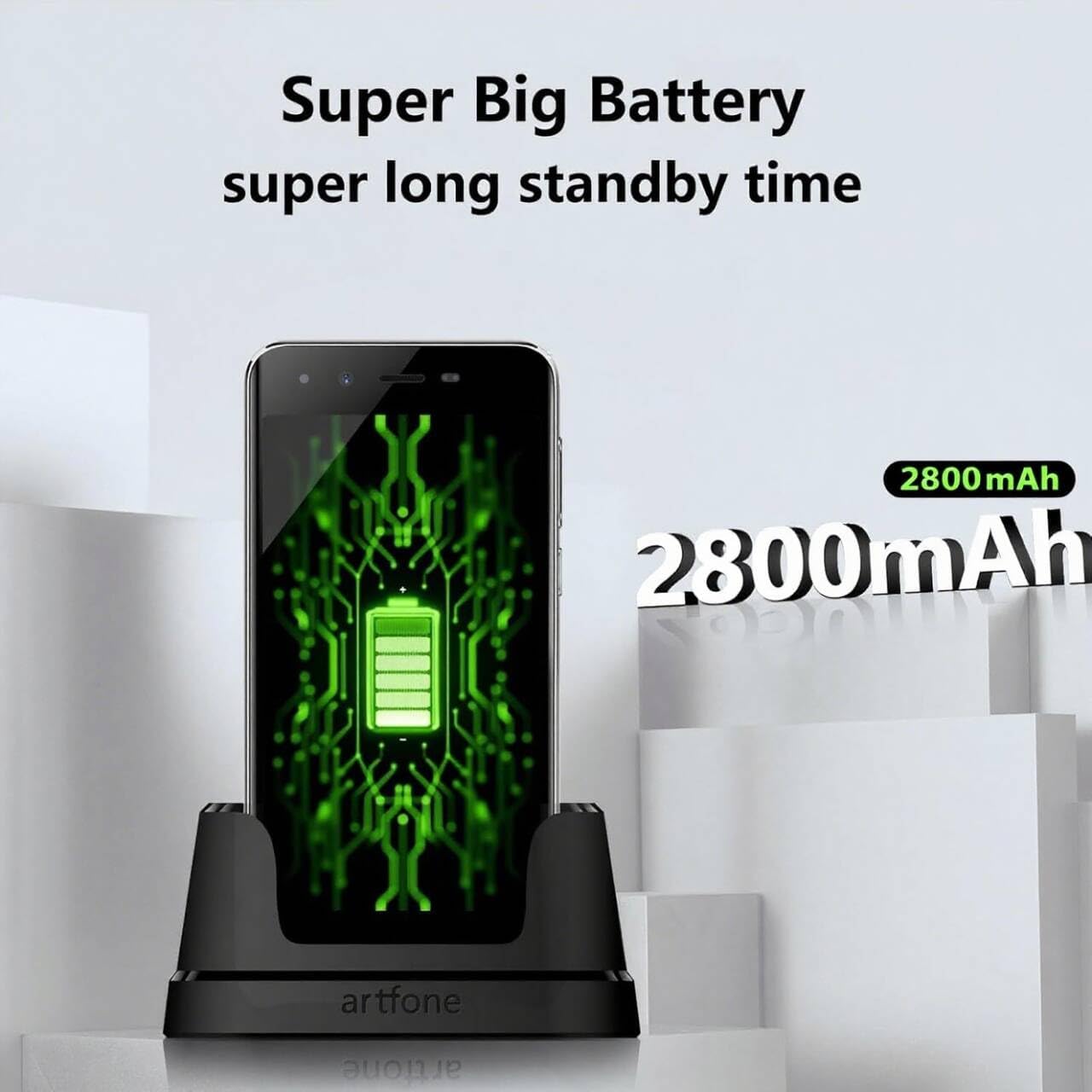
Image 3.1: The Artfone Smart_500 smartphone in its charging dock, displaying a battery icon on the screen. Text indicates 'Super Big Battery' and 'super long standby time', highlighting the device's 2550mAh battery capacity.
4. Ipilẹ isẹ
4.1 Lilọ kiri
- Afi ika te: Tap icons to open applications, swipe to navigate between screens.
- Iboju ile: Features large, easy-to-identify icons for common functions like Phone, Contacts, Camera, and Photos.
- Bọtini Pada: Pada si iboju ti tẹlẹ.
- Bọtini Awọn ohun elo aipẹ: Ṣe afihan awọn ohun elo ti a lo laipẹ.
4.2 Ṣiṣe ati gbigba awọn ipe
- Npe Ipe: Tap the 'Phone' icon, enter the number using the large keypad, then tap the green call button.
- Gbigba Ipe kan: When a call comes in, tap the green 'Answer' button on the screen or press the dedicated answer button.
- Pari ipe kan: Tap the red 'End Call' button on the screen or press the dedicated end call button.
4.3 Awọn olubasọrọ
- Fifi Olubasọrọ kan kun: Tap the 'Contacts' icon, then tap the '+' or 'Add New Contact' button. Enter the contact's name and phone number, then save.
- Calling a Contact: Tap the 'Contacts' icon, select the desired contact, then tap the phone icon next to their name.
4.4 Fifiranṣẹ
- Tap the 'Messages' icon (if available on home screen, otherwise find in app drawer).
- Tap 'Start new chat' or the '+' icon.
- Enter the recipient's number or select from contacts, then type your message and tap 'Send'.
4.5 Kamẹra
The Artfone Smart_500 features a 13MP rear camera and a 5MP front camera.

Image 4.1: A hand holding the Artfone Smart_500 smartphone, with text emphasizing its 13-megapixel camera for high-definition photography.
- Tap the 'Camera' icon on the home screen.
- Tọka kamẹra si koko-ọrọ rẹ.
- Tap the shutter button on the screen to take a photo.
- Use the LED flash in low-light conditions.
4.6 Iṣẹ́ Pajawiri SOS
The SOS button is a critical safety feature for emergencies.

Image 4.2: A visual representation of the SOS button located on the back of the Artfone Smart_500 smartphone. The diagram illustrates how pressing this button can alert pre-set emergency contacts such as family members (daughter, son, spouse), a doctor, or first responders.
- Ṣiṣeto Awọn olubasọrọ SOS: Lọ sí ètò SOS nínú àkójọ oúnjẹ fóònù láti fi àwọn nọ́mbà olùbáṣepọ̀ pajawiri márùn-ún kún un.
- Ṣiṣẹ SOS: In an emergency, press and hold the SOS button on the back of the phone.
- The phone will automatically call the pre-set emergency numbers one by one until a connection is made.
- Simultaneously, an emergency SMS message, including your location, will be sent to these contacts.
5. Awọn ẹya ara ẹrọ ti ilọsiwaju
5.1 Android 12 Eto iṣẹ
Your Artfone Smart_500 runs on Android 12, providing access to a wide range of applications and features.
- Google Play itaja: Access the Play Store to download additional applications such as WhatsApp, social media, and utility tools.
- Lilọ kiri Ayelujara: Use the pre-installed browser to access the internet.
- Multimedia: View videos, photos, and listen to music.
5.2 Asopọmọra

Image 5.1: A prominent 4G logo positioned above the Artfone Smart_500 smartphone, which displays a strong 4G signal indicator. This highlights the device's 4G connectivity for high-definition voice calls and faster internet.
- 4G/3G/2G: Supports various cellular networks for reliable communication.
- 4G VoLTE: Ensures high-quality voice calls with reduced background noise.
- Wi-Fi: Sopọ si awọn nẹtiwọki alailowaya fun iraye si intanẹẹti.
- Bluetooth: Pair with wireless headphones or other Bluetooth devices.
6. Itọju
6.1 batiri Itọju
- Lati pẹ aye batiri, yago fun ṣiṣafihan foonu si awọn iwọn otutu to gaju.
- Charge the battery regularly, but avoid leaving it fully charged or fully depleted for extended periods.
- Use only the original charger and charging station provided with the device.
6.2 Ninu
- Pa iboju ati ara rẹ pẹlu asọ ti ko ni lint.
- Yago fun lilo awọn kẹmika lile tabi awọn ohun elo abrasive.
7. Laasigbotitusita
Awọn oran ti o wọpọ ati Awọn ojutu:
- Foonu ko tan: Rí i dájú pé batiri náà ti gba agbára. So mọ́ ẹ̀rọ amúṣẹ́ náà kí o sì tún gbìyànjú lẹ́ẹ̀kan sí i.
- Didara ipe ti ko dara: Check network signal strength. Ensure VoLTE is enabled in settings if available.
- Awọn ohun elo didi: Close background applications. Restart the phone.
- Batiri mimu yarayara: Reduce screen brightness. Close unused apps. Check battery usage in settings to identify power-hungry apps.
- SOS button not working: Verify that emergency contacts are correctly set up in the SOS settings.
Ti awọn iṣoro ba wa, jọwọ kan si atilẹyin alabara.
8. Awọn pato
| Ẹya ara ẹrọ | Sipesifikesonu |
|---|---|
| Orukọ awoṣe | SMART_500 |
| Eto isesise | Android 12.0 |
| Ifihan | 5-inch IPS Touchscreen |
| isise | 1.5 GHz Quad-Core (MTK 6739WW) |
| Àgbo | 3 GB |
| Ibi ipamọ inu | 32 GB (Expandable via Micro SD) |
| Kamẹra ẹhin | 13 MP pẹlu Flash LED |
| Kamẹra iwaju | 5 MP |
| Agbara Batiri | 2550 mAh Litiumu-dẹlẹ |
| Akoko Iduro | 50-80 hours (average) |
| Aago Ọrọ | 5-6 hours (average) |
| Asopọmọra | 4G, 3G, 2G (4G VoLTE) |
| Gbigba agbara Port | USB Iru-C |
| Pataki Awọn ẹya ara ẹrọ | SOS Button, Charging Station, Large Icons, High Volume |

Image 8.1: A visual representation of the phone's internal platform, highlighting the MTK 6739WW processor, 32GB of ROM (internal storage), and 3GB of RAM.
9. Atilẹyin ọja ati Support
For warranty information and customer support, please refer to the documentation included in your product packaging or visit the official Artfone website. Information regarding spare parts availability and software updates is not available at this time.
Olupese: artfone


