Ọrọ Iṣaaju
This user manual provides comprehensive instructions for setting up, operating, and maintaining your IFYOO G18 Tri-Mode 8K Wireless Gaming Mouse. Designed for competitive gaming, this mouse features a PAW3395 sensor, 8K polling rate, and tri-mode connectivity for a versatile and high-performance experience.
Ohun ti o wa ninu Apoti
Upon unboxing your IFYOO G18 Gaming Mouse, you should find the following items:
- IFYOO G18 Tri-Mode Wireless Gaming Mouse
- USB-A si USB-C Ngba agbara/Okun data
- 8K Nano Wireless Receiver (USB-A Dongle)
- USB-A to USB-C Adapter
- Replacement Mouse Skates/Slides
- Anti-slip Grip Tapes
- Afowoyi Olumulo (iwe-ipamọ yii)

Image: All components included in the IFYOO G18 Gaming Mouse package, laid out on a dark surface. This includes the white gaming mouse, a black braided USB-C cable, a small black USB-A adapter, a user manual, a sheet of black grip tapes, and a small packet of blue replacement mouse skates.
Ṣeto
Awọn aṣayan Asopọmọra
The IFYOO G18 mouse offers three versatile connectivity modes:
- Ipo Alailowaya 2.4G: For optimal gaming performance with an 8K polling rate.
- Locate the 8K Nano Wireless Receiver (USB-A dongle) stored in the compartment on the underside of the mouse.
- So olugba naa pọ mọ ibudo USB-A ti o wa lori kọmputa rẹ.
- Turn on the mouse using the switch on the bottom. The mouse will automatically connect.
- Ipo Bluetooth 5.0: For general use and compatibility with various devices.
- Switch the mode selector on the bottom of the mouse to BT.
- On your device, search for Bluetooth devices and select "IFYOO G18" to pair.
- Ipo Firanṣẹ: For a stable connection and charging.
- Connect the provided USB-A to USB-C cable to the front of the mouse and an available USB-A port on your computer.
- Asin yoo ṣiṣẹ bi asin ti a firanṣẹ ati gba agbara ni nigbakannaa.

Image: A white IFYOO G18 gaming mouse connected via its USB-C cable to a laptop, with a 2.4GHz wireless receiver shown next to another laptop, and a Bluetooth symbol indicating wireless connectivity to a tablet. This illustrates the tri-mode connectivity options.
DPI Atunṣe
The G18 mouse features a dedicated DPI button on its underside, allowing for quick adjustments to sensitivity. The PAW3395 sensor supports up to 26,000 DPI. Default settings include 6-level DPI adjustment. For precise customization and to achieve the maximum 26,000 DPI, utilize the official driver software.

Image: A graphic illustrating the ultra-high DPI capabilities of the IFYOO G18 mouse with its PAW3395 sensor. It shows a range of DPI settings from 400 to 5200, with a note indicating that 26000 DPI can be achieved through driver customization.
Software/Driver Installation
To unlock the full customization potential of your IFYOO G18 mouse, including macro programming, button remapping, polling rate adjustment, and advanced DPI settings, download and install the official driver software from the IFYOO website. A beta web driver is also available for certain functionalities.
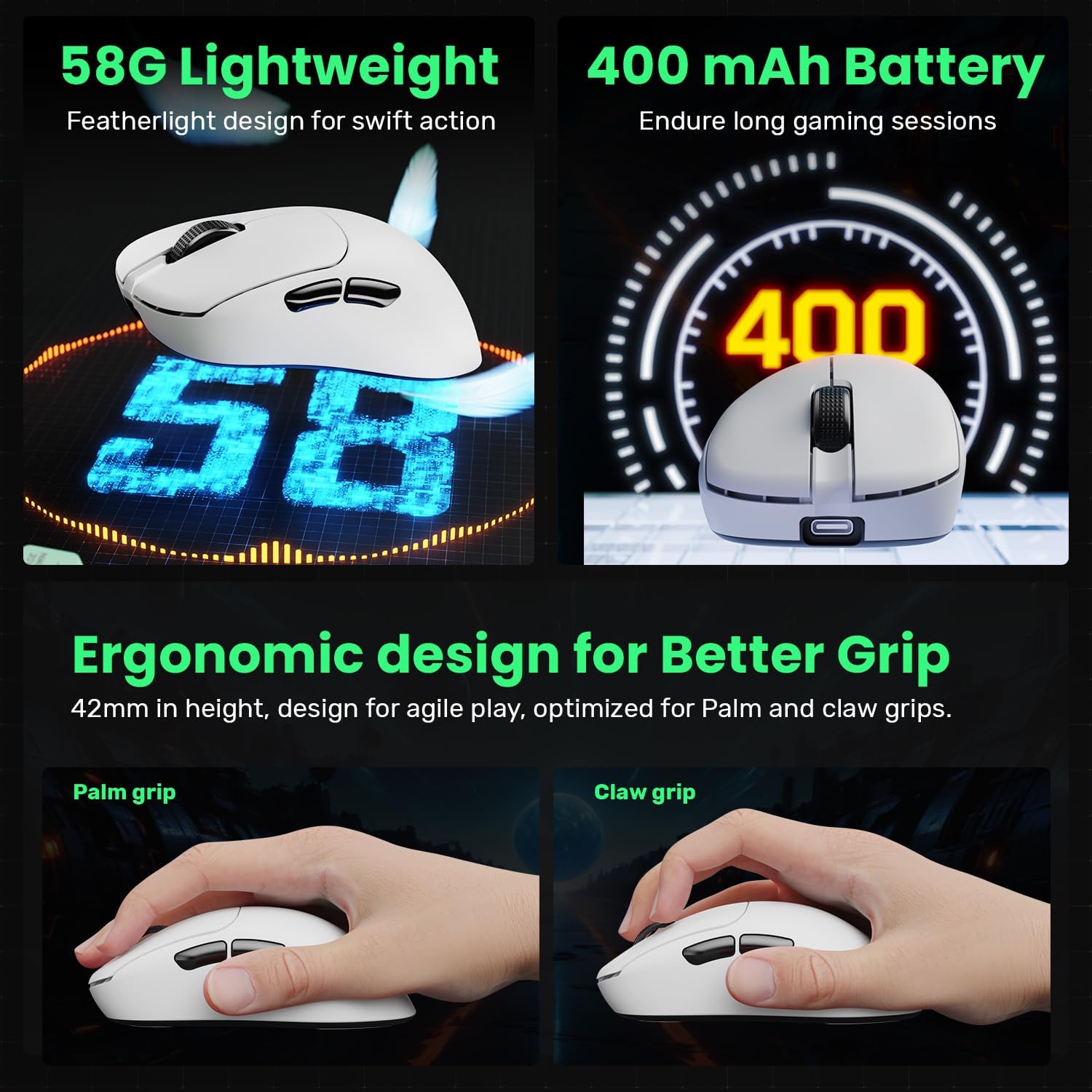
Image: A screenshot of the IFYOO G18 mouse customization driver interface, showing options for key mapping, macros, shake elimination, and DPI settings. The software allows users to tailor their gaming experience by adjusting various mouse parameters.
Awọn ilana Iṣiṣẹ
Awọn iṣẹ Asin Ipilẹ
The IFYOO G18 features standard mouse buttons and a scroll wheel for intuitive control:
- Tẹ osi: Bọtini igbese akọkọ.
- Tẹ-ọtun: Bọtini igbese alakeji, ni deede fun awọn akojọ aṣayan ọrọ-ọrọ.
- Yi lọ Kẹkẹ: Scrolls content vertically. Also functions as a clickable middle button.
- Awọn bọtini ẹgbẹ: Two programmable buttons on the left side, typically for forward/backward navigation in browsers or custom in-game actions.
Ergonomics ati Dimu
The G18 mouse is designed with a right-handed ergonomic shape, weighing only 58g for swift and agile movements. Its smaller size is optimized for both palm grip and claw grip styles, ensuring comfort during extended gaming sessions. Included grip tapes can be applied for enhanced control and feel.

Àwòrán: Ìfihàn àwòrán alápapọ̀asing the IFYOO G18 mouse's features: its 58g lightweight design, 400mAh battery capacity, and ergonomic design optimized for both palm grip and claw grip, with illustrations of hands demonstrating each grip style.
Igbesi aye batiri
The mouse is equipped with a 400mAh battery, providing long-lasting power for your gaming sessions. When the battery is low, the indicator light will signal, and you can charge it using the provided USB-C cable. Charging typically takes 3-4 hours.
Itoju
Ninu
Láti lè máa ṣiṣẹ́ dáadáa àti ìmọ́tótó, máa fọ àṣán rẹ déédéé. Lo aṣọ rírọ̀ tí ó gbẹ láti nu ojú ilẹ̀ náà. Fún ìdọ̀tí líle, fi díẹ̀ sí i.amp A le lo aṣọ, kí ó má baà wọ inú àwọn ohun èlò inú. Yẹra fún àwọn kẹ́míkà líle tàbí àwọn ohun èlò ìfọ́.
Replacing Mouse Skates
Over time, the mouse skates (also known as mouse feet or glide pads) on the underside of your mouse may wear out, affecting its glide performance. Your IFYOO G18 comes with replacement skates. To replace them:
- Carefully peel off the old mouse skates.
- Clean the surface where the skates were attached to ensure it's free of residue.
- Peel the backing from the new replacement skates and carefully align them with the designated areas on the mouse's underside.
- Tẹ ṣinṣin lati rii daju ifaramọ to dara.
Laasigbotitusita
| Isoro | Owun to le Solusan |
|---|---|
| Mouse not responding in 2.4G Wireless Mode. | Ensure the 8K Nano Wireless Receiver is securely plugged into a USB-A port. Check if the mouse is switched to 2.4G mode. Try a different USB port. |
| Awọn oran asopọ Bluetooth. | Ensure the mouse is in Bluetooth mode and discoverable. Remove previous pairings on your device and re-pair. Ensure your device's Bluetooth is enabled. |
| Asin kọsọ asise tabi dásí. | Clean the optical sensor on the underside of the mouse. Ensure the mouse is used on a suitable surface (not highly reflective or transparent). Check battery level. |
| Awọn eto DPI ko yipada. | Ensure you are pressing the correct DPI button. If using custom settings, verify the driver software is running and configured correctly. |
| Asin ko gba agbara. | Verify the USB-C cable is properly connected to both the mouse and a power source/USB port. Try a different cable or USB port. |
Awọn pato
| Ẹya ara ẹrọ | Ẹ̀kúnrẹ́rẹ́ |
|---|---|
| Brand | IFYOO |
| Nọmba awoṣe | IFYOO-G18-3395-WhiteBlack |
| Asopọmọra Technology | Tri-Mode: 2.4G Wireless, Bluetooth 5.0, Wired (USB-C) |
| Sensọ | Sensọ Opitika PAW3395 |
| Iwọn DPI | 50-26000 DPI (Atunṣe nipasẹ awakọ) |
| Idibo Oṣuwọn | 2.4G Wireless: Max 8K Hz; Wired: Max 1K Hz |
| Awọn bọtini | 5 Awọn bọtini siseto |
| Micro-Switches | 100 Million Clicks Lifespan |
| Agbara Batiri | 400 mAh (Litiumu polima) |
| Akoko gbigba agbara | Approx. 3-4 Hours (Input: 5V / 0.5A) |
| Iwọn | Isunmọ. 58g |
| Awọn iwọn (L x W x H) | 118 x 66 x 42 mm |
| Ibamu | Windows, Mac, Linux, Android, iOS |
Atilẹyin ọja ati Support
For warranty information, technical support, or further assistance with your IFYOO G18 Gaming Mouse, please refer to the official IFYOO webojula tabi kan si wọn onibara iṣẹ taara. Tọju iwe-ẹri rira rẹ fun awọn ẹtọ atilẹyin ọja.


