1. Ifihan
The abxylute C8 Wireless Gaming Controller is a multi-platform gamepad designed for enhanced gaming experiences across various devices. It features Hall Effect joysticks and triggers, RGB backlighting, a 1000Hz polling rate, dual vibration, and macro programmable buttons. This manual provides detailed instructions for setting up, operating, and maintaining your controller.

Figure 1: abxylute C8 Wireless Gaming Controller with its charging dock.
2. Package Awọn akoonu
Daju pe gbogbo awọn nkan wa ninu apo rẹ:
- C8 Controller x1
- Okun USB x1
- Ilana olumulo x1
- Ibi iduro gbigba agbara x1
- Bluetooth Receiver x1
- Joystick Cap x2 (longer ones inside the box, short ones pre-equipped)

Figure 2: Included items: C8 controller, charging dock, USB cable, Bluetooth receiver, and extra joystick caps.
3. Ọja Ipariview
The abxylute C8 controller features a semi-transparent magnetic shell, allowing for customization and showcasing its internal components. Key features include Hall Effect joysticks and triggers, micro-switch ABXY buttons, macro programmable buttons, and asymmetric motors for vibration feedback.

olusin 3: exploded view highlighting key components like Hall Effect joysticks, micro-switches, and macro buttons.
4. Eto ati Asopọ
The abxylute C8 controller supports multiple connection modes for wide compatibility. The USB dongle mode is recommended for ultra-low latency.
4.1. Awọn ọna asopọ

Figure 4: The C8 controller offers Wired, Bluetooth Wireless, and Bluetooth Dongle connection modes.
4.2. Connecting to PC/Laptop (Windows/Mac)
The controller can connect to PC/Laptop via Bluetooth Dongle, Bluetooth Wireless, or USB Wired.
- Bluetooth Dongle (Recommended for Xinput mode):
- Plug the Bluetooth dongle into an available USB port on your PC/Laptop.
- The controller should automatically pair. LED 2 + LED 4 will light up for Xinput mode (Xbox 360 Controller for Windows).
- For Dinput mode, turn off the controller, then press and hold VIEW + MENU for 3 seconds. LED 2 + LED 3 will flash.
- For PC Switch mode, turn off the controller, then press and hold the Right joystick (R3) while connecting the USB cable. LED 1 will flash.
- Alailowaya Bluetooth:
- On the controller, press and hold the HOME button and X button simultaneously for 3 seconds until the LEDs flash rapidly.
- On your PC/Laptop, go to Bluetooth settings and search for new devices.
- Select "Xbox Wireless Controller" or "Gamepad" from the list to pair. LED 1 + LED 4 will light up for Xinput mode.
- Okun USB:
- Connect the controller to your PC/Laptop using the provided USB-C cable.
- The controller will automatically connect. LED 1 + LED 4 will light up for Xinput mode.
- To switch modes (Dinput or PC Switch), follow the instructions for Bluetooth Dongle mode while the USB cable is connected.
Video 1: Demonstrates how to connect the abxylute C8 controller to a PC/laptop/Mac and exchange connection modes using a USB cable.
4.3. Nsopọ mọ Nintendo Switch
- Bluetooth Wireless / USB Wired:
- On the controller, press and hold the HOME button for 3 seconds until the LEDs flash rapidly.
- On your Nintendo Switch, go to "Controllers" -> "Change Grip/Order".
- The controller should appear and pair. LED 1 to LED 4 will flash sequentially, then light up for paired status.
- For USB Wired connection, connect the controller to the Switch dock via a USB-C to USB-A adapter (not included).
Video 2: Instructions on how to pair the C8 Game controller with a Nintendo Switch console.
4.4. Connecting to Android/iOS Devices & Tesla
- Alailowaya Bluetooth:
- For Android, press and hold HOME + A for 3 seconds. LED 2 + LED 3 will light up for Gamepad mode.
- For iOS, press and hold HOME + Y for 3 seconds. LED 1 + LED 4 will light up for Xbox Wireless Controller mode.
- Lori ẹrọ rẹ, lọ si awọn eto Bluetooth ki o wa awọn ẹrọ titun.
- Select "Gamepad" (for Android) or "Xbox Wireless Controller" (for iOS/Tesla) from the list to pair.
5. Awọn ilana Iṣiṣẹ
5.1. Atunṣe Imọlẹ RGB
The controller features personalized RGB lighting with 8 colors and 3 light modes (Fixed, Breathing, Dynamic), and adjustable brightness.
- Turn ON/OFF RGB: Tẹ VIEW + MENU + A.
- Select RGB Mode: Tẹ VIEW + D-Pad Up/Down.
- Change RGB Color: Tẹ VIEW + D-Pad Left/Right.
- Ṣatunṣe Imọlẹ: Tẹ VIEW + Left Joystick Up/Down.

Figure 5: Steps to customize the RGB lighting on your C8 controller.
Video 3: A step-by-step guide on how to adjust the RGB lighting of the abxylute C8 controller.
5.2. Ṣíṣeto Àwọn Ohun Èlò Macro
The MR and ML buttons on the back of the controller are macro programmable, allowing you to create shortcuts for complex actions.
- Macro Default Key: ML & MR.
- Awọn bọtini eto: Left Joystick (↑ ↓ ← →), Right Joystick (↑ ↓ ← →), A, B, X, Y, LB, LT, RB, RT, L3, R3, D-Pad, VIEW, Akojọ aṣyn.
- Steps to Program:
- Press TURBO + ML/MR. LED 2 & LED 3 will light up.
- Input the desired programmable keys.
- Save and Launch by pressing ML/MR.
- To clear memories, press TURBO + ML/MR until LED 2 & LED 3 indicate.

Figure 6: Macro programming allows for custom button sequences.
5.3. Iṣẹ́ Turbo
The controller features 3 adjustable Turbo settings (5, 15, or 25 shots per second) for rapid-fire actions.

Figure 7: Adjustable Turbo function for rapid inputs.
5.4. Ṣíṣe àtúnṣe gbígbìjìn
The asymmetric dual motors provide 4-level adjustable vibration feedback (0%, 30%, 70%, 100%) for enhanced game immersion.

Figure 8: Customize vibration intensity for different gaming scenarios.
5.5. Joystick and Trigger Customization
The C8 controller features Hall Effect joysticks and linear Hall triggers for precise control, eliminating drift and dead zones. It also includes replaceable joysticks (long and short) and swappable ABXY button layouts.
- Àwọn Joysticks Ìparí Gbọ̀ngàn: Offer 0-100 dead zone customization and circular & square edge switch.
- Hall Linear Triggers: Provide 0.1mm precision for accurate actuation and 255-step linear travel.
- Replaceable Joysticks: Choose between long joysticks for fine control or short joysticks for fast speed.
- ABXY Layout Exchangeable: Switch between NS layout and XBOX layout based on user preference.

Figure 9: Hall Effect technology ensures precision and durability for joysticks and triggers.
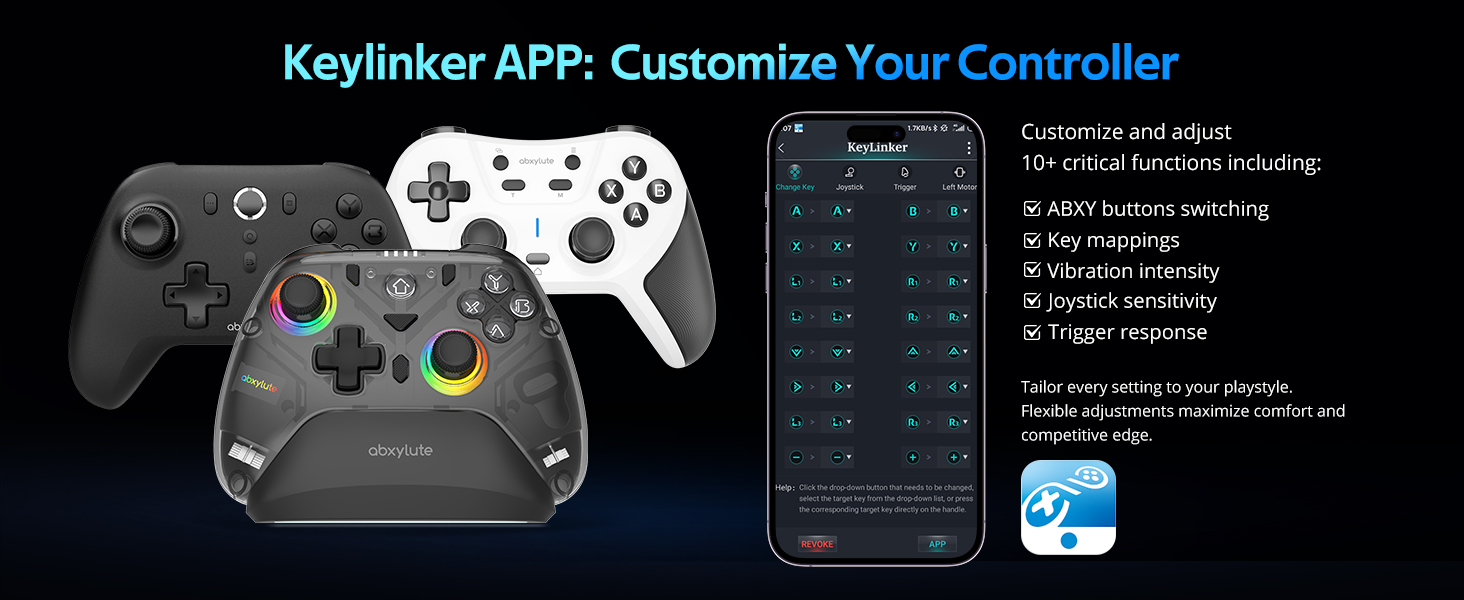
Figure 10: Replaceable joysticks allow for personalized control.

Figure 11: Linear Hall triggers provide accurate and smooth acceleration control.
5.6. Gyroscope mẹfa-Axis
The controller includes a high-precision six-axis gyroscope, primarily for motion control in Nintendo Switch games (e.g., steering in racing games, controlling aircraft, adjusting camera perspective).

Figure 12: Six-axis gyroscope for motion control in compatible games.
5.7. KeyLinker App Customization
The KeyLinker mobile app allows for advanced customization of your controller, including key mappings, vibration intensity, joystick sensitivity, and trigger response. This enables tailoring settings to your playstyle for maximum comfort and competitive advantage.
Video 4: Demonstrates how to customize the abxylute C8 controller using the KeyLinker app.
6. Gbigba agbara
The abxylute C8 controller comes with a smart charging dock that provides convenient power replenishment.
- Smart Wake Up & Quick Reconnection: When the gamepad is placed on the dock, it enters sleep mode and begins charging. When picked up, it automatically wakes up and reconnects wirelessly.
- Akoko gbigba agbara: The rechargeable controller takes approximately 3 hours to be fully charged. All indicators will light up when charging is complete.
- Agbara Batiri: The controller is equipped with a 600mAh battery.

Figure 13: The smart charging dock provides convenient charging and auto-reconnection.
7. Itọju
- Keep the controller and charging dock clean and dry. Use a soft, dry cloth for cleaning.
- Yago fun ṣiṣafihan ẹrọ naa si awọn iwọn otutu to gaju tabi oorun taara.
- Fi ohun èlò ìdarí náà sí ibi ààbò láti dènà ìbàjẹ́ ara.
- Do not attempt to disassemble or repair the controller yourself, as this may void the warranty.
8. Laasigbotitusita
8.1. Device Cannot Connect
If your device (PC/Laptop/Mac) cannot connect to the controller:
- For the first-time use, ensure you activate or connect Bluetooth between the C8 controller and the dongle by long-pressing the Home button for 3 seconds. Refer to the specific connection methods in Section 4.
- If already connected but experiencing issues, try the following:
- Perform a factory reset by pressing the bottom-most hole on the device's back.
- Disconnect the Bluetooth connection on your device, then confirm your operation steps are correct, and follow the instructions to operate step by step again. Ensure the Bluetooth connection on the hardware is successful and in the correct connectivity mode.
8.2. Games Unresponsive or Slow
If some games cannot be played, or the controller is unresponsive/slow, while there are no problems with other games:
- This is likely a game compatibility issue rather than a problem with the gamepad.
- It could be due to the game's own configuration.
- Fun example, if the game has a large memory requirement, the computer device may not be powerful enough to run it smoothly. It is recommended that you play games that operate normally on other computers.

Figure 14: Common troubleshooting scenarios and solutions.
9. Awọn pato
| Ẹya ara ẹrọ | Ẹ̀kúnrẹ́rẹ́ |
|---|---|
| Nọmba awoṣe | C8 |
| Brand | abxylute |
| Asopọmọra | USB Wired, Bluetooth Wireless (5.3), Bluetooth Dongle |
| Ibamu | PC (Windows 7/8/10/11), Android (8.0+), Nintendo Switch/Lite/OLED, Switch 2, Steam, Steam Deck, Android Tablet (8.0+), iOS (13+), iPhone, iPad, Mac, macOS, Tesla Car, Android TV. (Not compatible with all Xbox and PlayStation series) |
| Joysticks & Triggers | Hall Effect (no-drift, zero dead zones, 0.1mm precision) |
| Awọn bọtini | Macro Programmable (MR/ML), Micro-switch (LB/RB), ABXY layout exchangeable |
| Idibo Oṣuwọn | 1000Hz (Wired & Dongle mode) |
| Gyroscope | 6-Axis Gyroscope (motion control in Switch Games) |
| Gbigbọn | Asymmetric Dual Motors, 4-level adjustable |
| Batiri | 600mAh, 3 hours full charge |
| Imọlẹ RGB | 8 Colors, 3 Light Modes, Adjustable Brightness |
| Iwọn | 1.1 iwon |
| Package Mefa | 8.11 x 7.32 x 2.6 inches |
10. Atilẹyin ọja ati Support
- Atilẹyin ọja: All abxylute products come with a 1-year service warranty.
- Atilẹyin: For any issues or operational questions, please contact abxylute through their official channels.
- Agbegbe: An official forum is available on Discord for global player communication and support.


