1. Ifihan
This manual provides detailed instructions for the installation, operation, and maintenance of your Xigmatek Aqua V AIR Arctic Mid-Tower PC Case. Please read this manual thoroughly before beginning any installation to ensure proper setup and safe operation. Retain this manual for future reference.
2. Alaye Aabo
Ṣe akiyesi awọn iṣọra ailewu atẹle lakoko fifi sori ẹrọ ati iṣẹ:
- Nigbagbogbo ge asopọ ipese agbara lati inu iṣan ogiri ṣaaju fifi sori ẹrọ tabi yiyọ awọn paati eyikeyi kuro.
- Wọ okun ọwọ-atako-aimi lati ṣe idiwọ isọjade elekitirotatiki (ESD) ibajẹ si awọn paati ifura.
- Handle components carefully. Avoid touching pins or circuit boards directly.
- Rii daju pe fentilesonu to dara ni ayika ọran PC lati ṣe idiwọ igbona.
- Pa awọn ẹya kekere ati awọn irinṣẹ kuro lọdọ awọn ọmọde.
- Do not attempt to modify the case or its components, as this may void your warranty and pose safety risks.
3. Package Awọn akoonu
Jẹrisi pe gbogbo awọn ohun kan wa ninu package:
- Xigmatek Aqua V AIR Arctic Mid-Tower PC Case
- Accessory kit (screws, standoffs, cable ties)
- Afowoyi Olumulo (iwe-ipamọ yii)
If any items are missing or damaged, contact your retailer or Xigmatek support.
4. Ọja Ipariview
The Xigmatek Aqua V AIR Arctic is a mid-tower PC case designed for high-performance gaming configurations. It features tempered glass panels for component visibility and optimized airflow with pre-installed ARGB fans.

olusin 4.1: Iwaju-osi view of the Xigmatek Aqua V AIR Arctic PC case, showcasing the tempered glass front and side panels, and the pre-installed ARGB fans.

olusin 4.2: Ẹyìn view of the PC case, showing the I/O shield cutout, expansion slots, and rear fan mount.
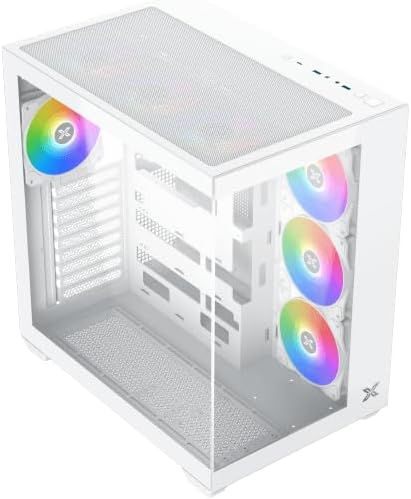
Àwòrán 4.3: Apá òkè-ìsàlẹ̀ view, highlighting the top mesh panel for additional cooling and the internal layout.
5. Eto ati fifi sori
Follow these steps to install your PC components into the Xigmatek Aqua V AIR Arctic case.
5.1. Ngbaradi Ọran naa
- Gbe ọran naa sori alapin, dada iduroṣinṣin.
- Remove the tempered glass side panel by unscrewing the thumb screws at the rear and carefully sliding it off. Place it on a soft, non-abrasive surface to prevent scratches.
- Remove the opposite steel side panel by unscrewing the thumb screws and sliding it off.
5.2. Modaboudu fifi sori
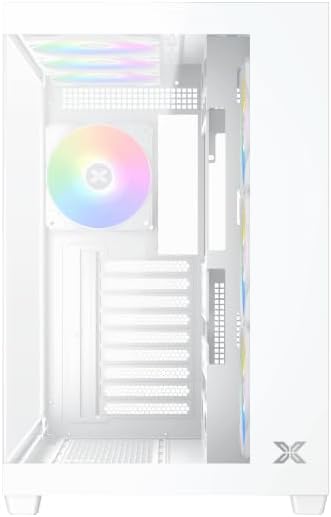
olusin 5.1: inu ilohunsoke view of the case, illustrating the motherboard mounting area and cable routing cutouts.
- Fi sori ẹrọ I/O shield sinu cutout ni ru ti awọn irú.
- Align your motherboard with the pre-installed standoffs. Ensure the standoffs match your motherboard's form factor (ATX, Micro ATX).
- Secure the motherboard using the provided screws from the accessory kit. Do not overtighten.
5.3. Agbara Ipese Unit (PSU) fifi sori
- Locate the PSU mounting bracket at the bottom rear of the case.
- Slide your PSU into the designated compartment from the rear of the case.
- Secure the PSU to the case using the screws provided with your power supply.
5.4. Fifi sori ẹrọ Awakọ Ibi ipamọ
The case supports multiple storage drives:
- 2.5" SSDs: Mount directly to the SSD trays located behind the motherboard tray. Secure with screws.
- Awọn HDD 3.5": Install into the drive cage located beneath the PSU shroud. Slide the drive into the tray and secure with screws.
5.5. Fifi Kaadi Aworan (GPU) ati Kaadi Imugboroosi sori ẹrọ
- Remove the necessary expansion slot covers at the rear of the case.
- Fi kaadi eya aworan rẹ tabi awọn kaadi imugboroosi miiran sinu awọn iho PCIe ti o yẹ lori modaboudu.
- Secure the cards with the provided screws.
5.6. Iṣakoso USB
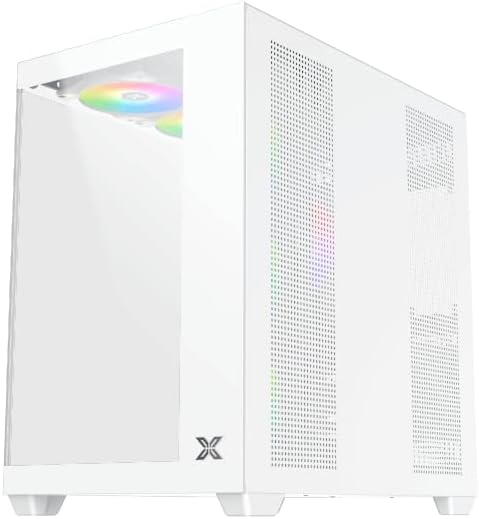
Nọmba 5.2: View behind the motherboard tray, illustrating the ample space and tie-down points for effective cable management.
Lo àwọn ohun tí a gé síta àti àwọn ibi tí a ti so mọ́ ara wọn lẹ́yìn àwo módàbù láti ṣètò àwọn wáyà. Èyí mú kí afẹ́fẹ́ àti ẹwà wọn sunwọ̀n síi.
- Connect all necessary power cables from the PSU to the motherboard, GPU, and storage drives.
- Connect front panel cables (USB, audio, power/reset switches, LED indicators) to the corresponding headers on your motherboard. Refer to your motherboard manual for specific header locations.
- Connect the ARGB fan cables to the integrated fan controller or directly to your motherboard's ARGB headers if available.
5.7. Fan and Radiator Support
The Xigmatek Aqua V AIR Arctic comes with 7 pre-installed 120mm ARGB fans. Additional cooling options are available:
- Iwaju: Supports up to 3 x 120mm or 2 x 140mm fans / 240mm, 280mm, 360mm radiators.
- Oke: Supports up to 3 x 120mm or 2 x 140mm fans / 240mm, 280mm, 360mm radiators.
- Ẹyìn: Ṣe atilẹyin fun 1 x 120mm àìpẹ.
- Isalẹ: Supports up to 3 x 120mm fans.
Ensure proper fan orientation for optimal airflow (intake at front/bottom, exhaust at rear/top).
6. Ṣiṣẹ
Once all components are installed and cables are connected, replace the side panels. Connect your monitor, keyboard, mouse, and power cable. Press the power button on the front panel to start your system.
The pre-installed ARGB fans can be controlled via the integrated controller (if present) or through compatible motherboard software, allowing customization of lighting effects and fan speeds.
7. Itọju
Itọju deedee n ṣe iranlọwọ lati rii daju pe iṣẹ ṣiṣe to dara julọ ati igba pipẹ ti awọn paati PC rẹ.
- Pipa eruku: Periodically clean dust filters (top, front, bottom) to maintain good airflow. Use compressed air to remove dust from inside the case and components.
- Ode Ninu: Mu ese ita gbangba pẹlu asọ, damp asọ. Yago fun abrasive ose tabi epo.
- Ṣíṣàyẹ̀wò Ìṣàkóso Okùn: Occasionally check cable routing to ensure no cables are obstructing fans or airflow.
8. Laasigbotitusita
Ti o ba pade awọn ọran, tọka si awọn igbesẹ laasigbotitusita ti o wọpọ wọnyi:
- Ètò kò ṣiṣẹ́:
- Rí i dájú pé PSU ti tan-an àti pé a so mọ́ ibi tí a ti ń ta ohun èlò náà dáadáa.
- Verify all power cables (24-pin ATX, 8-pin CPU, PCIe, SATA) are securely connected.
- Ṣayẹwo awọn asopọ iyipada agbara iwaju nronu si modaboudu.
- Ko si ifihan ti o wu jade:
- Ensure the monitor cable is connected to the graphics card (not the motherboard I/O if using a dedicated GPU).
- Tun awọn eya kaadi ati Ramu modulu.
- Fans not spinning or ARGB not working:
- Ṣayẹwo àìpẹ agbara awọn isopọ si awọn modaboudu tabi àìpẹ oludari.
- Verify ARGB connections to the controller or motherboard headers.
- Ensure any fan control software or BIOS settings are correctly configured.
For more complex issues, consult your component manuals or contact Xigmatek technical support.
9. Awọn pato
| Ẹya ara ẹrọ | Ẹ̀kúnrẹ́rẹ́ |
|---|---|
| Orukọ awoṣe | Aqua V AIR Arctic |
| Nọmba awoṣe | EN45837 |
| Iru Irú | Aarin-Tower |
| Modaboudu Ibamu | ATX, Micro ATX |
| Ohun elo | Steel Alloy, Tempered Glass |
| Àwọ̀ | Funfun |
| Awọn onijakidijagan ti a ti fi sii tẹlẹ | 7 x 120mm ARGB egeb |
| Max GPU Ipari | 410 mm |
| Awọn ibudo USB | 3 |
| Iwọn | 8.8 kilo |
10. Atilẹyin ọja ati Support
Xigmatek products are manufactured to high quality standards. For warranty information, please refer to the warranty card included with your product or visit the official Xigmatek website. For technical support or inquiries, please contact Xigmatek customer service through their official channels.
Osise Webojula: www.xigmatek.com


