1. Ifihan
Welcome to the MAXHUB E21 Series 86-inch Digital Board user manual. This document provides essential information for the safe and efficient operation of your new interactive display. The MAXHUB E21 Series is designed to enhance collaboration, presentations, and interactive learning environments with its advanced features and intuitive interface. Please read this manual thoroughly before using the product and retain it for future reference.
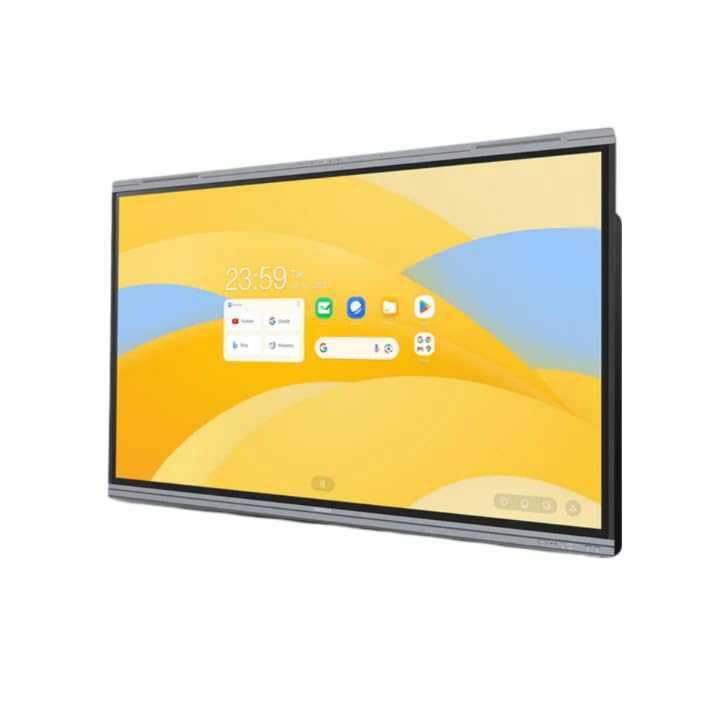
Figure 1: MAXHUB E21 Series 86-inch Digital Board in a classroom environment.
2. Alaye Aabo
To ensure safe operation and prevent damage to the device, please observe the following safety precautions:
- Ibi ti ina elekitiriki ti nwa: Use only the specified power adapter and ensure the power outlet is properly grounded.
- Afẹfẹ: Do not block ventilation openings. Ensure adequate space around the device for proper airflow.
- Ibi: Install the digital board on a stable surface or mount it securely to a wall using appropriate hardware. Avoid placing it in direct sunlight, near heat sources, or in areas with high humidity or dust.
- Ninu: Ge asopọ agbara ṣaaju ṣiṣe mimọ. Lo asọ asọ ti o gbẹ. Ma ṣe lo olomi tabi awọn olutọpa aerosol.
- Mimu: Handle the display with care. Avoid strong impacts or pressure on the screen.
- Ṣiṣẹ: Maṣe gbiyanju lati ṣe iṣẹ ọja funrararẹ. Tọkasi gbogbo iṣẹ si awọn oṣiṣẹ iṣẹ ti o peye.
3. Package Awọn akoonu
Please check the package contents upon unboxing. If any items are missing or damaged, contact your dealer immediately.
- MAXHUB E21 Series 86-inch Digital Board
- Okun agbara
- Stylus Pen(s)
- Isakoṣo latọna jijin
- Wall Mount Bracket (optional, may vary by region/package)
- Afowoyi Olumulo (iwe-ipamọ yii)
4. Eto
4.1 Fifi sori ti ara
The MAXHUB Digital Board can be installed on a mobile stand or wall-mounted. Follow the instructions provided with your specific stand or wall mount kit. Ensure the installation is secure and level.
4.2 Nsopọ Agbara
- Connect the power cable to the AC IN port on the digital board.
- Pulọọgi opin miiran ti okun agbara sinu iṣan itanna ti ilẹ.
- Press the power button, usually located on the side or bottom of the display, to turn on the device.
4.3 Iṣeto akọkọ ati Asopọ Nẹtiwọọki
Upon first power-on, the system will guide you through the initial setup process, including language selection, time zone, and network configuration.
- Wi-Fi: Yan nẹtiwọọki Wi-Fi rẹ lati inu atokọ naa ki o tẹ ọrọ igbaniwọle sii.
- Àjọlò: Connect an Ethernet cable to the LAN port for a wired network connection.

Figure 2: Main interface of the MAXHUB E21 Series Digital Board.
5. Awọn ilana Iṣiṣẹ
5.1 Ipilẹ Lilọ kiri
The MAXHUB E21 Series runs on Android 13.0. Navigate the interface using touch gestures or the remote control.
- Fọwọ ba: Yan ohun kan tabi ṣii ohun elo kan.
- Ra: Scroll through menus or pages.
- Fun pọ/ Itan kaakiri: Sun-un sinu tabi jade lori akoonu.
- Long Tẹ: Wọle si awọn akojọ aṣayan ọrọ-ọrọ tabi gbe awọn aami.
5.2 Intelligent Touch Functionality
The digital board supports up to 40 touch points, allowing multiple users to interact simultaneously.
- Use your finger or the provided stylus for precise interaction.
- The system can differentiate between finger touch and stylus input for various functions (e.g., writing vs. erasing).
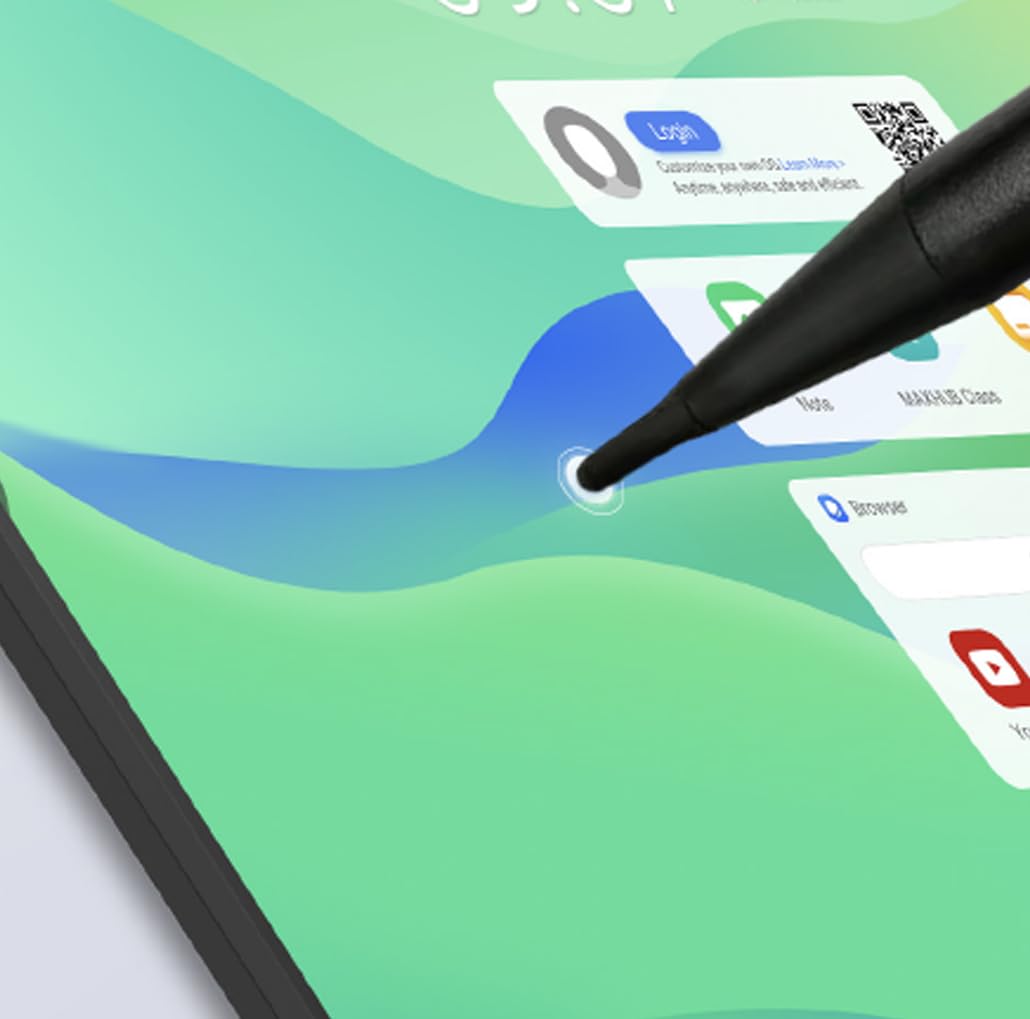
Figure 3: Stylus interaction on the digital board.
5.3 Using the Whiteboard Application
Access the built-in whiteboard application for interactive writing, drawing, and annotation.
- Select different pen colors, thicknesses, and tools from the toolbar.
- Use multi-touch gestures for zooming and panning the canvas.
- Save your whiteboard sessions for later review tabi pinpin.
5.4 Connectivity (Type-C)
The Type-C port offers versatile connectivity for various peripherals.
- Gbigbe Data: Connect external storage devices.
- Iṣafihan Afihan: Connect to external monitors (if supported by specific port).
- Ifijiṣẹ Agbara: Charge compatible devices.
- Ohun/Fidio: Connect compatible audio/video devices.

Figure 4: Type-C connectivity options.
6. Key Awọn ẹya ara ẹrọ
The MAXHUB E21 Series 86-inch Digital Board is equipped with advanced features for superior performance and user experience:
- Expansive Ultra-HD Display: An 86-inch screen with 3840x2160 (4K) resolution delivers stunning visuals and vibrant colors, ideal for large meeting spaces and classrooms.
- Eyes Care Technology: Features TÜV-certified Low Blue Light and Flicker-Free technology to ensure a comfortable viewing experience during extended use, reducing eye strain.
- Precision Touch Features: Intelligent touchscreen technology supports up to 40 simultaneous touch points, enabling seamless multi-user collaboration and precise interaction.
- Ètò Ìṣiṣẹ́ Tó Tẹ̀síwájú: Powered by Android 13.0 OS, combined with 8GB RAM and 64GB ROM, for fast, smooth operations, enhanced processing capabilities, and ample ipamọ.
- Powerful Audio System: Integrated dual 20W speakers provide rich, clear, and impactful sound, enhancing multimedia presentations and video conferencing.
- Ti o tọ ati Gbẹkẹle: Engineered for long-lasting performance with a 50,000-hour backlight life, ensuring consistent brightness and reliability over time.
7. Itọju
7.1 Ninu iboju
To clean the screen, first power off the device and unplug the power cable. Use a soft, lint-free cloth slightly dampened with water or a screen-specific cleaning solution. Do not spray liquid directly onto the screen.
7.2 Gbogbogbo Cleaning
Wipe the frame and back panel with a soft, dry cloth. Avoid using abrasive cleaners or solvents.
7.3 Software imudojuiwọn
Periodically check for system software updates through the device's settings menu to ensure optimal performance and access to the latest features and security patches.
8. Laasigbotitusita
If you encounter issues with your MAXHUB Digital Board, refer to the following common problems and solutions:
| Isoro | Owun to le Fa | Ojutu |
|---|---|---|
| Ko si agbara | Power cable not connected; Power outlet faulty; Device off | Ensure power cable is securely connected; Test power outlet; Press power button |
| Ko si ifihan | Device in standby mode; Input source incorrect | Wake up the device; Check input source settings |
| Iboju ifọwọkan ko dahun | Screen dirty; Software glitch; Calibration issue | Clean the screen; Restart the device; Recalibrate touch (if option available) |
| Ko si ohun | Volume too low; Muted; External audio device connected | Increase volume; Unmute; Disconnect external audio or select internal speakers |
| Awọn oran asopọ Wi-Fi | Incorrect password; Router issue; Signal interference | Verify password; Restart router; Move closer to router or reduce interference |
If the problem persists, please contact MAXHUB customer support for assistance.
9. Awọn pato
Detailed technical specifications for the MAXHUB E21 Series 86-inch Digital Board:
| Ẹya ara ẹrọ | Sipesifikesonu |
|---|---|
| Brand | MAXHUB |
| Nọmba awoṣe | E21 jara |
| Iwon iboju | 86 inches |
| Ipinnu | 3840x2160 (4K UHD) |
| Eto isesise | Android 13.0 |
| Àgbo | 8GB |
| Ibi ipamọ (ROM) | 64GB |
| Fọwọkan Points | Titi di 40 |
| Ijade ohun | 2 x 20W Agbọrọsọ |
| Backlight Life | wakati meji 50,000 |
| Human Interface Input | Afi ika te |
| Àwọ̀ | Grẹy |
10. Atilẹyin ọja ati Support
Your MAXHUB E21 Series Digital Board comes with a standard manufacturer's warranty. Please refer to the warranty card included in your package or visit the official MAXHUB webAaye fun alaye atilẹyin ọja ofin ati ipo.
For technical support, service, or inquiries, please contact MAXHUB customer service through their official channels. Have your product model and serial number ready when contacting support.


