1. Ifihan
This manual provides detailed instructions for the installation, operation, and maintenance of your ZUMIMALL BK05 3MP Outdoor Security Camera. Please read this manual thoroughly before using the product to ensure proper functionality and safety.
Package Awọn akoonu
Daju pe gbogbo awọn nkan ti a ṣe akojọ rẹ si isalẹ wa ninu package rẹ:
- BK05 Camera x1
- Ilana olumulo x1
- Charging Set (10ft USB-C Cable & Adapter) x1
- Skru Ṣeto x1
- Warning Card x1
- Sitika ipo ipo x1

Image: Contents of the ZUMIMALL BK05 Security Camera package.
2. Ọja Ipariview
The ZUMIMALL BK05 is a 3MP outdoor security camera designed for comprehensive surveillance. It features 360° PTZ (Pan-Tilt-Zoom) auto-tracking, 24/7 continuous recording, dual-band 2.4G/5G WiFi connectivity, color night vision with a built-in floodlight, and two-way audio communication. The camera is also compatible with Alexa for voice control.
Key Awọn ẹya ara ẹrọ
- Ipinnu 3MP: Provides clear and sharp video footage.
- 360° PTZ Auto-Tracking: Automatically follows moving targets with 355° horizontal and 90° vertical rotation.
- 24/7 Gbigbasilẹ Tesiwaju: Wired power ensures constant surveillance.
- WiFi-Band Meji: Supports both 2.4GHz and 5GHz networks for flexible connectivity.
- Oju Alẹ Awọ: Built-in floodlight enables full-color video even in low-light conditions.
- Audio Ọna Meji: Integrated microphone and speaker for real-time communication.
- Motion & Noise Detection: Sends real-time alerts upon detecting activity.
- IP66 Oju ojo: Ti ṣe apẹrẹ lati koju ọpọlọpọ awọn ipo oju ojo ita gbangba.

Image: Visual comparison highlighting the detail captured by the ZUMIMALL 3MP camera.
3. Eto ati fifi sori
3.1 Fifi sori ti ara
The camera supports both ceiling and wall mounting. Use the included positioning sticker and screw set to mark and secure the installation location.
- Choose an ideal spot for mounting, ensuring a clear view ati wiwọle si a agbara iṣan.
- Use the positioning sticker to mark drill holes.
- Lu ihò ki o si fi odi oran ti o ba wulo.
- Secure the camera base with the provided screws.
- Connect the camera to the power adapter using the 10ft USB-C cable and plug it into a power outlet. Ensure the Type-C cable connector is waterproofed.

Image: Illustration of the two-step installation process for wall or ceiling mounting.
3.2 Ìsopọ̀ Àpù àti Ìṣètò Wi-Fi
The ZUMIMALL BK05 camera connects via dual-band 2.4GHz or 5GHz Wi-Fi. For optimal performance, check signal stability via the ZUMIMALL app before setup.
- Download the ZUMIMALL app from your device's app store.
- Ṣẹda iroyin tabi wọle.
- Tap 'Add Device' and select your camera model (BK05).
- Follow the in-app instructions to connect the camera to your Wi-Fi network. You will be prompted to select either a 2.4GHz or 5GHz network and enter the password.
- Ṣe ìwòye koodu QR ti a fihan lori foonu rẹ pẹlu lẹnsi kamẹra.
- Once connected, the camera will indicate successful pairing, and you can begin live viewing.
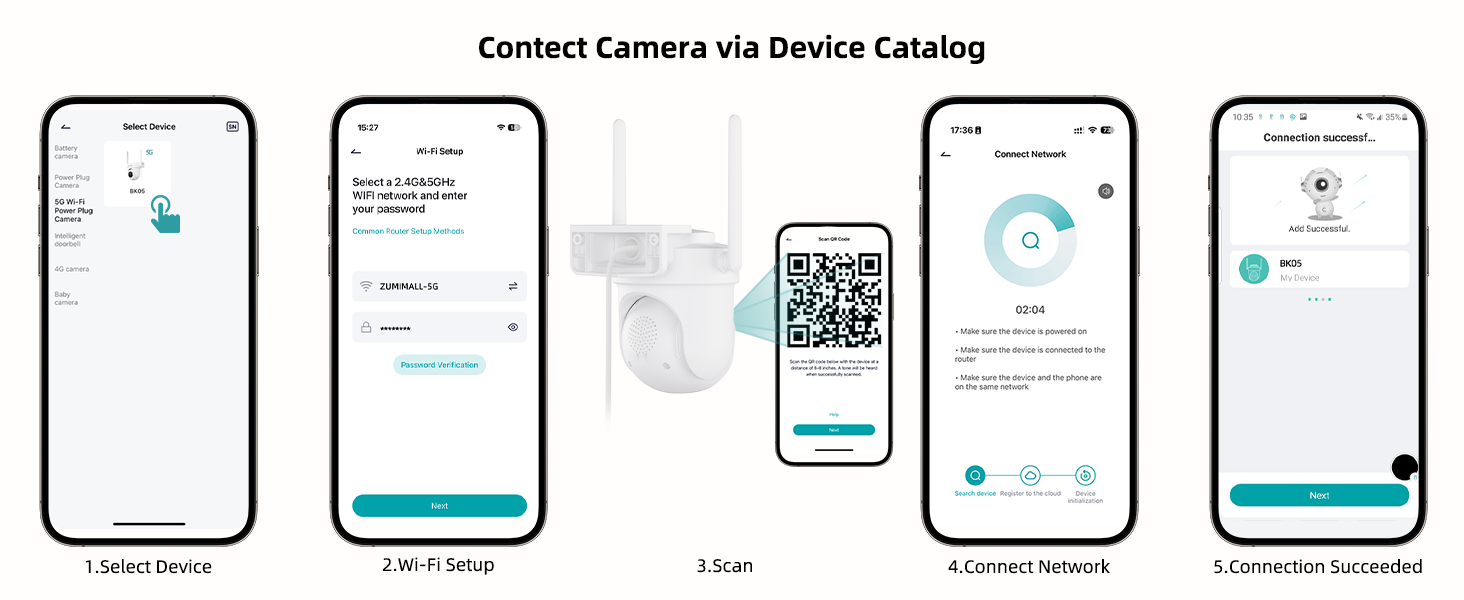
Image: Step-by-step guide for connecting the camera to the ZUMIMALL app.

Image: Explanation of dual-band Wi-Fi support (2.4GHz and 5GHz).
4. Awọn ilana Iṣiṣẹ
4.1 Live View ati PTZ Iṣakoso
Access the live feed through the ZUMIMALL app. You can remotely control the camera's pan (horizontal) and tilt (vertical) movements to adjust the viewigun igun.
- From the app's home screen, tap on your camera to view kikọ sii ifiwe.
- Use the on-screen controls to pan (355°) and tilt (90°) the camera.

Image: PTZ control in action, showing the camera tracking movement.
4.2 Auto-Tracking and Motion Detection
The camera can automatically detect and track moving objects, sending alerts to your smartphone.
- Enable 'Motion Detection' and 'Auto-Tracking' in the camera settings within the app.
- Customize detection sensitivity (Low, Medium, High) to reduce false notifications.
- Set specific detection zones to monitor critical areas and ignore irrelevant ones.

Image: Demonstration of 360° motion tracking.

Image: Accurate detection settings within the app.

Image: Setting up a custom detection zone.
4.3 Gbigbasilẹ ati Ibi ipamọ
The camera supports 24/7 continuous recording and offers flexible storage options.
- Kaadi SD Micro: Insert a Micro SD card (up to 128GB, not included) for local storage. The camera will automatically overwrite old footage nígbà tí káàdì náà bá kún.
- Ibi ipamọ awọsanma: Optional cloud storage plans are available for event recordings (6-second clips, saved for 7 days free). Premium cloud storage offers additional features.

Image: 24/7 continuous recording feature.

Image: Non-subscription storage options with Micro SD card and cloud.
4.4 Night Vision and Floodlight
The camera provides clear night vision, including full-color options with its built-in floodlight.
- The built-in floodlight provides 33ft (10 meters) of color night vision.
- Adjust night vision settings in the app to choose between infrared (black and white) or color night vision.

Image: 2K Color Night Vision with spotlight functionality.
4.5 Meji-Ona Audio
Communicate with visitors or deter intruders using the camera's two-way audio feature.
- Tẹ àmì gbohùngbohùn nínú ìtàkùn ayélujára view wiwo lati sọrọ nipasẹ agbọrọsọ kamẹra.
- The camera's microphone captures audio from the surveillance area.

Image: Two-way audio communication feature.
4.6 Smart AI Analysis and Audible Alarm
The camera utilizes AI for intelligent detection and can trigger audible alarms.
- The camera can differentiate between humans, pets, cars, and packages (some features may require premium cloud plans).
- An audible alarm can be triggered when noise exceeds 65 decibels, providing proactive protection.
- When motion or humanoids are detected, the camera can trigger both audio and strobe light alarms.

Image: Smart AI analysis detecting different objects.

Image: Audible alarm feature with noise sensitivity settings.

Image: Audio warning and strobe light feature.
4.7 Ìṣọ̀kan Alexa
Connect your ZUMIMALL camera with Amazon Alexa for convenient voice control.
- Ensure the camera is already added to the ZUMIMALL app.
- Ṣii ohun elo Alexa.
- Tap the "More" button in the bottom left corner.
- Select "Skills & Games" and search for "Zumimall."
- Click on the "Zumimall" skill, then tap "ENABLE TO USE."
- Log in to your Zumimall account and click "Authorize."

Image: Voice assistant integration with Alexa and Google Assistant.
4.8 Device Pipin
Share access to your camera with family members or trusted individuals.
- The ZUMIMALL app allows sharing with up to 5 online devices.
- There is no limit to the number of users you can share access with.

Image: Device sharing feature for multiple users and devices.
5. Itọju
5.1 Oju ojo Resistance
The ZUMIMALL BK05 camera is IP66-rated, ensuring protection against dust and water jets. It is designed to function in temperatures ranging from -20°C to 50°C.
- Ensure the camera is installed correctly, following the instructions, especially regarding the waterproof Type-C cable connector.
- Do not install the camera upside down to maintain waterproof performance and proper feed display.
5.2 Itọju Gbogbogbo
- Regularly check the camera lens for dirt or obstructions and clean gently with a soft, dry cloth.
- Ensure the power adapter remains dry for optimal performance.
- Periodically check the mounting for stability.
6. Laasigbotitusita
6.1 Wọpọ Oran ati Solusan
- Kamẹra ko sopọ mọ Wi-Fi:
Ensure your Wi-Fi network is 2.4GHz or 5GHz. Check Wi-Fi signal strength at the camera's location using the ZUMIMALL app. Verify the Wi-Fi password is correct. Try restarting your router and the camera. - Awọn isopọpọ loorekoore:
Improve Wi-Fi signal strength by moving the camera closer to the router or using a Wi-Fi extender. Ensure there are no major obstructions (e.g., thick walls) between the camera and the router. - Awọn itaniji wiwa išipopada jẹ loorekoore / loorekoore:
Adjust the detection sensitivity settings in the app. Configure specific detection zones to focus on relevant areas. - Night vision is unclear:
Ensure the camera lens is clean. Check if the floodlight is enabled for color night vision. Ensure there are no reflective surfaces close to the camera that could interfere with infrared or floodlight illumination. - Awọn oran ohun afetigbọ ọna meji:
Check the volume settings in the app. Ensure there are no obstructions blocking the microphone or speaker on the camera. Verify your phone's microphone permissions for the ZUMIMALL app. - Camera not recording 24/7:
Ensure the camera is continuously powered via the included adapter. If using an SD card, verify it is inserted correctly, formatted, and has sufficient storage capacity.
7. Awọn pato
| Ẹya ara ẹrọ | Sipesifikesonu |
|---|---|
| Orukọ awoṣe | BK05 |
| Ipinnu Yaworan fidio | 3MP (2K) |
| Asopọmọra Technology | Wireless (2.4G & 5G Wi-Fi), Plug-in Power |
| Viewigun igun | 360 Degrees (355° Pan, 90° Tilt) |
| Ibiti Iran Night | 10 Mita (33ft) |
| Awọn aṣayan ipamọ | Micro SD (to 128GB), Ibi ipamọ awọsanma |
| Resistance Oju ojo | IP66 |
| Awọn iwọn otutu ti nṣiṣẹ | -20°C si 50°C |
| Awọn ẹrọ ibaramu | Alexa, Smartphone (Android, iOS) |
| Orisun agbara | Okun Itanna |
| Awọn Iwọn Nkan (L x W x H) | 5.9 x 5 x 5 inches |
| Iwọn Nkan | 16 iwon (0.45 kilo) |
8. Atilẹyin ọja ati Support
ZUMIMALL is committed to providing quality products and customer support.
8.1 Onibara Support
For any technical queries or assistance, please contact ZUMIMALL customer support. The brand offers one-on-one online support to ensure you receive the help you need.
8.2 Idaabobo Eto
Extended protection plans are available for purchase to cover your device beyond the standard warranty period:
- 2-odun Idaabobo Eto
- 3-odun Idaabobo Eto
- Idaabobo pipe (ero oṣooṣu ti o bo awọn rira ti o yẹ)
For details on these plans, please refer to the product listing or contact ZUMIMALL directly.


