Ọrọ Iṣaaju
Thank you for choosing the ATTACK SHARK G500 Wireless Over-ear Noise Canceling Headphones. This manual provides detailed instructions for setting up, operating, maintaining, and troubleshooting your new headphones. Please read this manual thoroughly before use to ensure optimal performance and longevity of your device.
Ọja Pariview
The ATTACK SHARK G500 headphones are designed to deliver a superior audio experience with advanced Active Noise Cancellation (ANC) technology. They offer versatile connectivity options, comfortable wear, and long-lasting battery life, making them suitable for various activities from gaming to travel.

Figure 1: ATTACK SHARK G500 Wireless Over-ear Noise Canceling Headphones (Beige)
The image displays the ATTACK SHARK G500 headphones in a beige color, highlighting their over-ear design and cushioned earcups.
Package Awọn akoonu
- ATTACK SHARK G500 Wireless Over-ear Headphones
- USB Iru-C Ngba agbara USB
- 3.5mm Audio USB
- Itọsọna olumulo
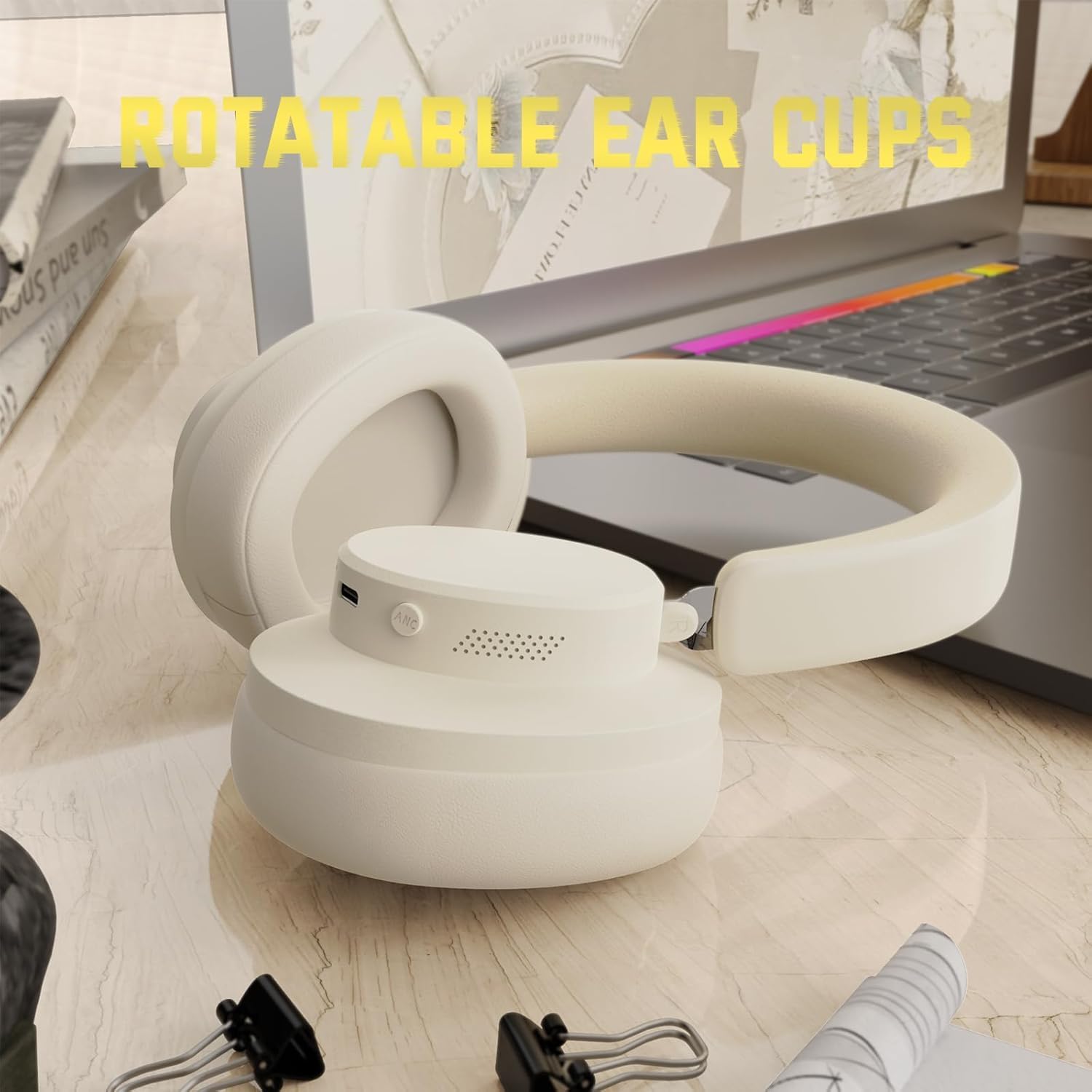
Figure 2: Included accessories with the G500 headphones
This image shows the complete package contents, including the headphones, charging cable, 3.5mm audio cable, and the user manual.
Ṣeto
1. Ngba agbara si awọn Agbekọri
- Locate the USB Type-C charging port on the headphone earcup.
- Connect the provided USB Type-C charging cable to the headphones and a compatible USB power source (e.g., computer, wall adapter).
- The LED indicator will illuminate during charging. A full charge typically takes approximately 2 hours.
- The LED indicator will change color or turn off once charging is complete.
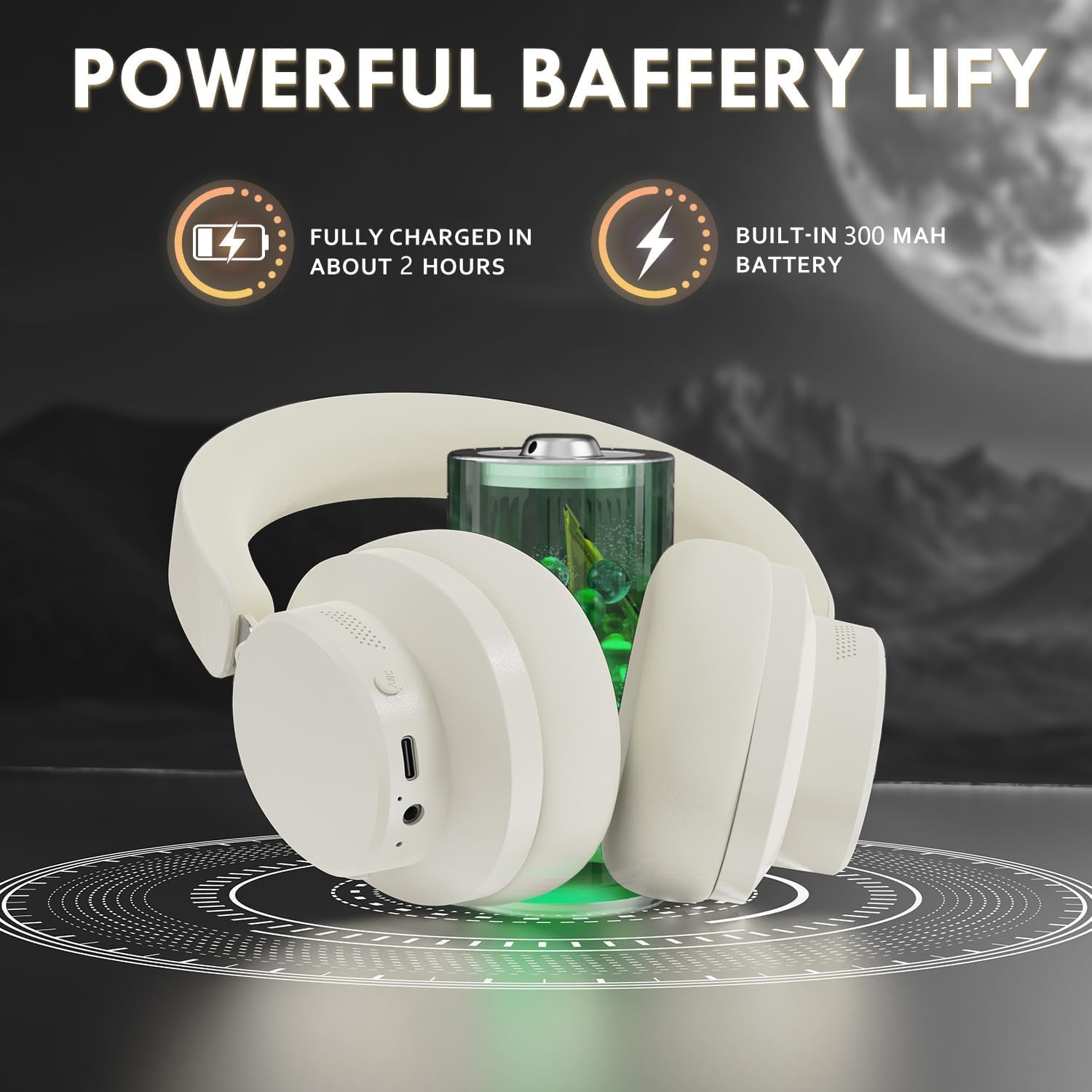
Figure 3: Location of the charging port and LED indicator
This image highlights the USB Type-C charging port and the LED indicator on the headphone earcup, essential for monitoring charging status.
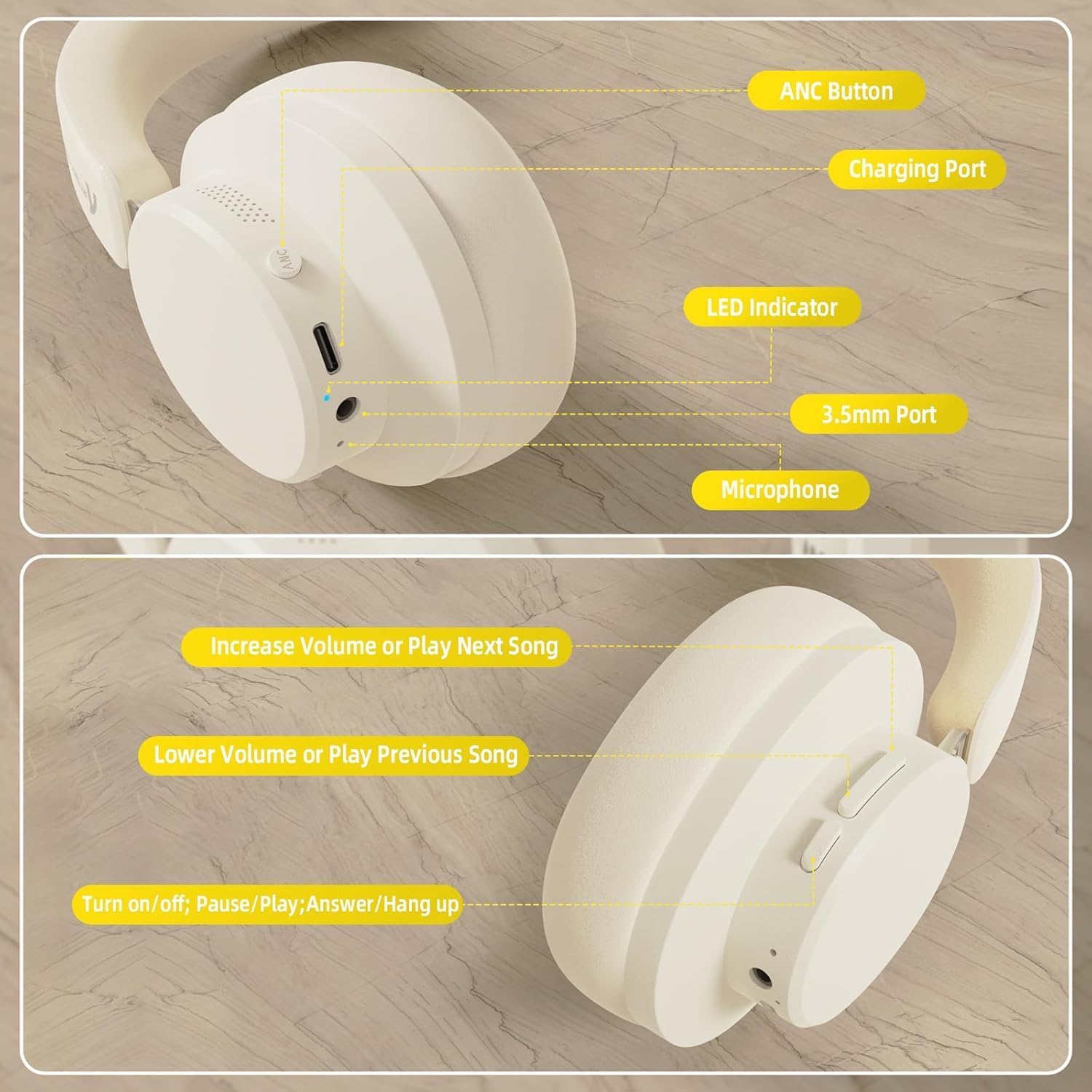
Figure 4: Visual representation of headphones charging
The image illustrates the headphones connected to a power source, with a battery icon indicating the charging process.
2. Sisopọ Bluetooth
- Rii daju pe awọn agbekọri ti gba agbara ni kikun ati agbara ni pipa.
- Press and hold the Power/Multi-function button until the LED indicator flashes, indicating pairing mode.
- Lori ẹrọ rẹ (foonuiyara, tabulẹti, kọǹpútà alágbèéká), mu Bluetooth ṣiṣẹ ki o wa awọn ẹrọ to wa.
- Select "ATTACK SHARK G500" from the list of devices to pair.
- The LED indicator will stop flashing and remain solid once successfully paired.
Video 1: ATTACK SHARK G300 Wireless Over-Ear Headphones (demonstrates general headphone features, including connectivity)
Yi fidio pese kan gbogboogbo loriview of ATTACK SHARK wireless over-ear headphones, showcasing their design and some features, which can be helpful for understanding the physical aspects and basic operation of the G500 model.
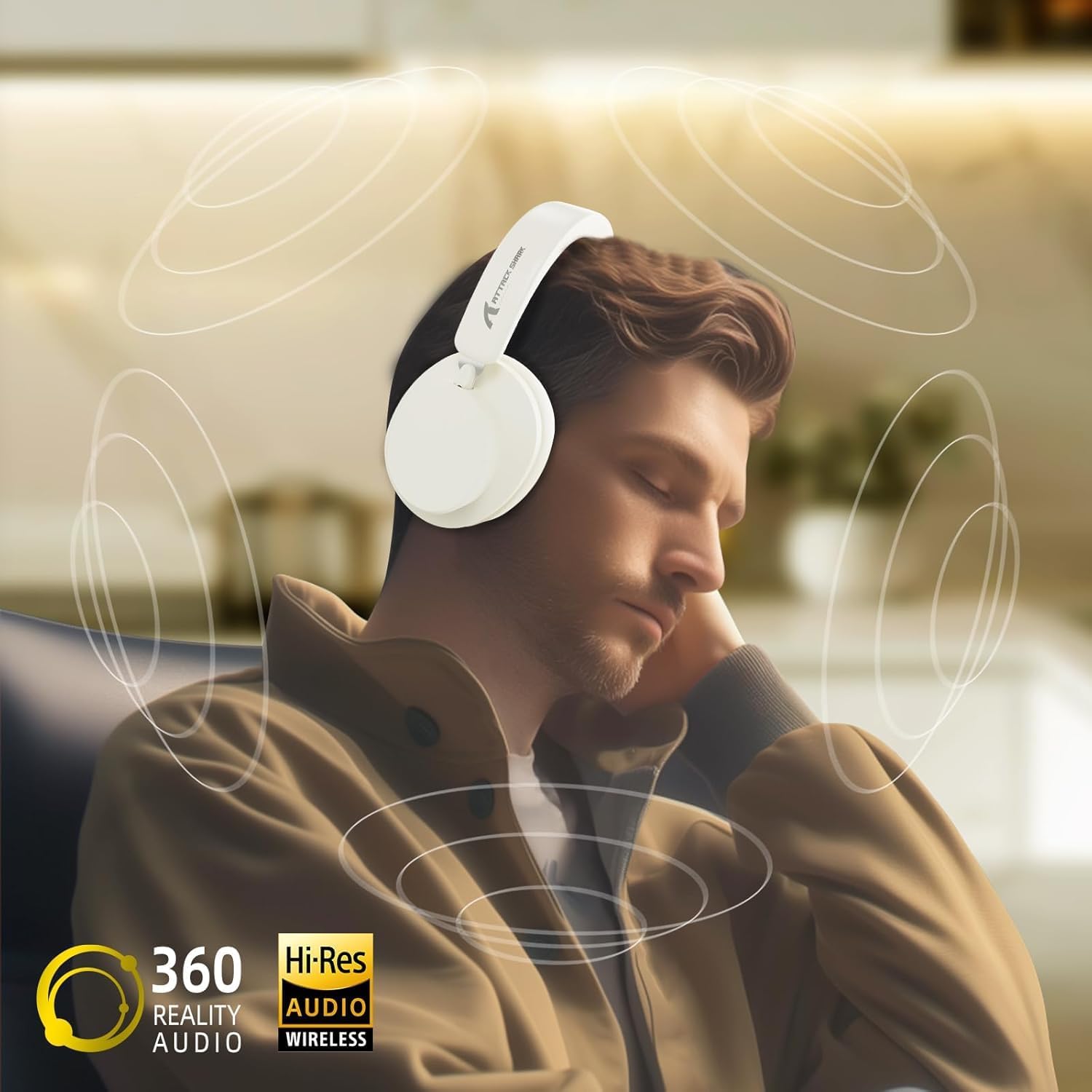
Figure 5: Dual mode connection example
The image illustrates the headphones connected wirelessly to both a smartphone and a laptop, demonstrating the dual-mode connectivity.
3. Ti firanṣẹ Asopọ
- Insert one end of the 3.5mm audio cable into the 3.5mm port on the headphone earcup.
- Connect the other end of the 3.5mm audio cable to the audio output jack of your device.
- Awọn agbekọri yoo yipada laifọwọyi si ipo ti firanṣẹ.
Awọn ilana Iṣiṣẹ
Awọn Iṣakoso Loriview
Nọmba 6: Alaye view àwọn ìṣàkóso agbekọri
This image provides a clear diagram of all control buttons and ports on the headphones, including the ANC button, charging port, LED indicator, 3.5mm port, and microphone.
Titan / Paa
- To Power On: Press and hold the Multi-function button for 3 seconds.
- To Power Off: Press and hold the Multi-function button for 3 seconds.
Fagilee Ariwo Ti nṣiṣe lọwọ (ANC)
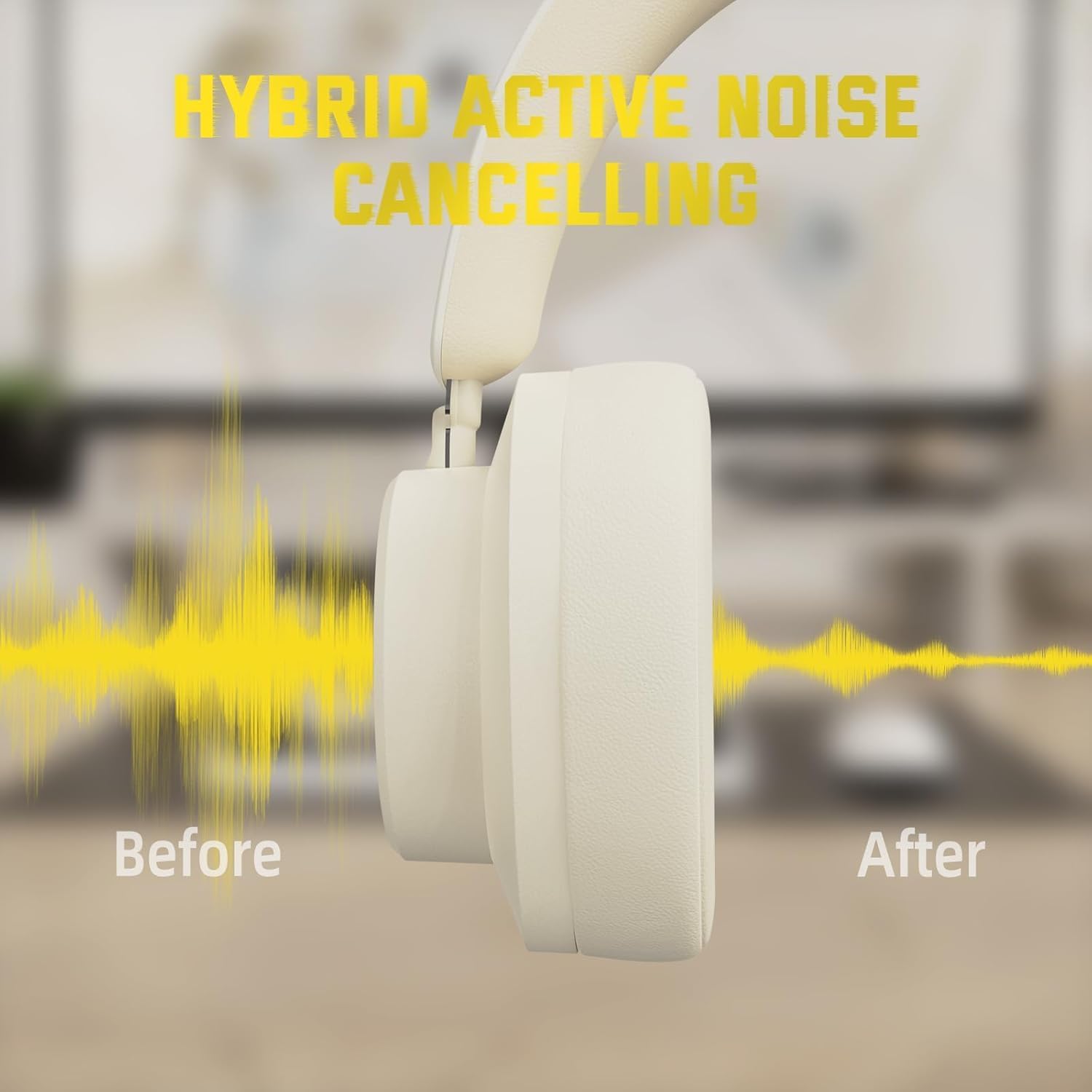
- Press the ANC button to toggle Active Noise Cancellation on/off.
- When ANC is active, ambient noise will be significantly reduced.
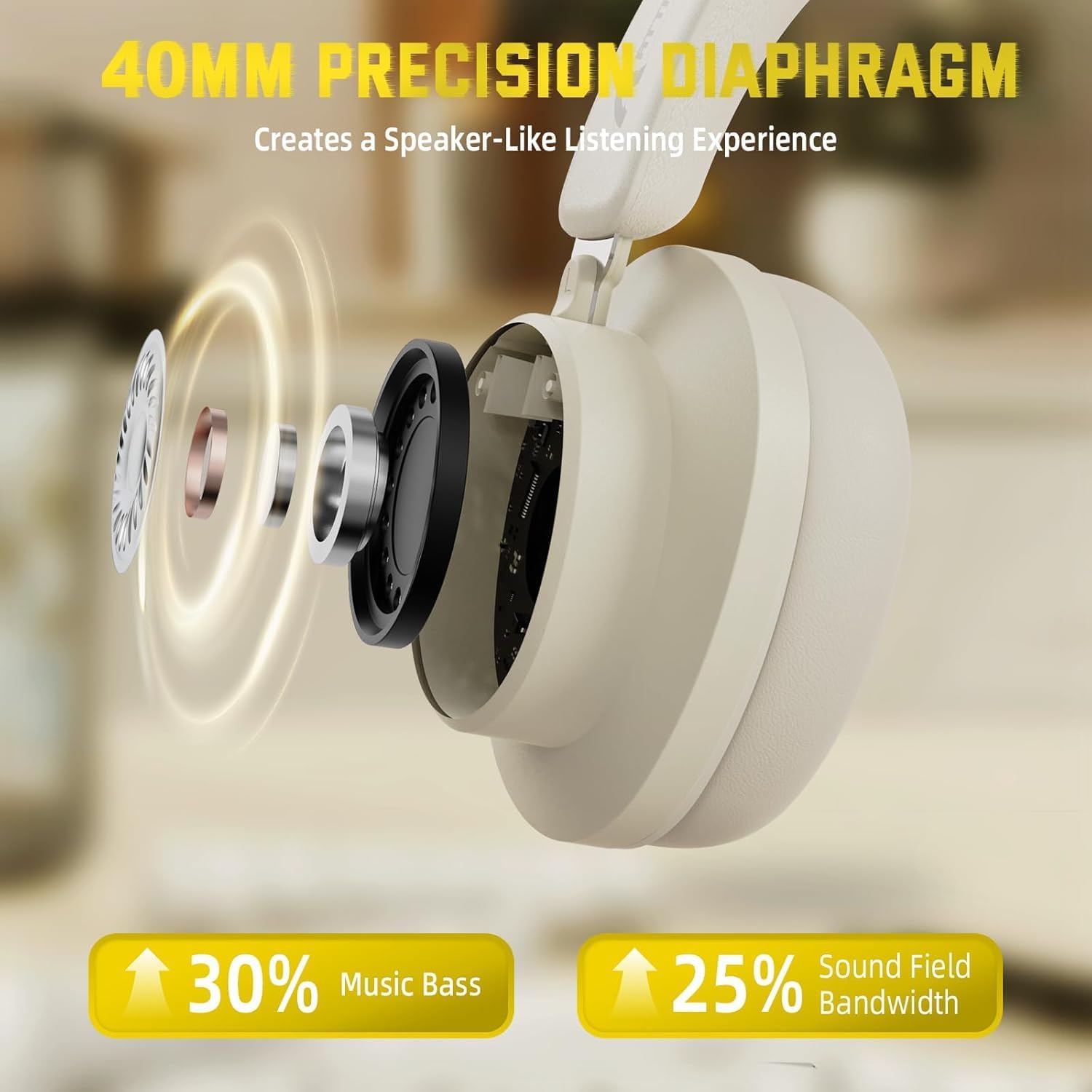
Figure 7: Hybrid Active Noise Cancelling in action
This diagram visually represents the effect of Hybrid Active Noise Cancelling, showing how external noise is reduced when the feature is activated.
Music Playback & Calls
- Play/Pause: Short press the Multi-function button.
- Next Song: Long press the Volume + button.
- Previous Song: Long press the Volume - button.
- Volume Up: Short press the Volume + button.
- Volume Down: Short press the Volume - button.
- Answer/End Call: Short press the Multi-function button.
- Reject Call: Long press the Multi-function button.
Itoju
- Nu agbekọri nigbagbogbo pẹlu asọ ti o gbẹ.
- Yago fun ṣiṣafihan agbekọri si awọn iwọn otutu to gaju, ọriniinitutu, tabi awọn olomi.
- Store the headphones in a cool, dry place when not in use. The rotatable earcups allow for compact storage.
- Ma ṣe gbiyanju lati ṣajọ tabi tun awọn agbekọri naa funrararẹ, nitori eyi yoo sọ atilẹyin ọja di ofo.

Figure 8: Rotatable earcups for easy storage
This image demonstrates the rotatable earcups, which allow the headphones to be folded flat for convenient storage and portability.
Laasigbotitusita
| Isoro | Owun to le Solusan |
|---|---|
| Awọn agbekọri ti ko tan | Ensure the headphones are fully charged. Press and hold the Multi-function button for 3-5 seconds. |
| Kò le sopọ̀ mọ́ra nípasẹ̀ Bluetooth | Make sure the headphones are in pairing mode (flashing LED). Turn off and on Bluetooth on your device. Ensure the headphones are not connected to another device. |
| Ko si ohun ni ipo alailowaya | Check device volume and headphone volume. Ensure headphones are successfully paired. Try re-pairing. |
| Ko si ohun ni ipo onirin | Ensure the 3.5mm audio cable is securely connected to both the headphones and the device. Check device volume. |
| ANC ko ṣiṣẹ daradara | Ensure the ANC button is pressed and the feature is active. Adjust headphone fit to ensure a good seal around your ears. |
Awọn pato
| Ẹya ara ẹrọ | Ẹ̀kúnrẹ́rẹ́ |
|---|---|
| Orukọ awoṣe | G500 |
| Asopọmọra Technology | Ti firanṣẹ, Ailokun (Bluetooth 5.0) |
| Awọn agbekọri Jack | 3.5 mm Jack |
| Ariwo Iṣakoso | Active Noise Cancellation (21±2DB reduction) |
| Audio Driver Type | 40mm Neodymium Driver Yiyi |
| Igbesi aye batiri | Up to 20 Hours (300 mAh battery) |
| Ohun elo | Memory Foam, Plastic/Other Lightweight Polymer |
| Iwọn Nkan | 10.8 iwon (isunmọ 210g) |
| Pataki Awọn ẹya ara ẹrọ | Microphone Included, Rechargeable Battery, Rotatable Earcups |
| Awọn ẹrọ ibaramu | Laptops, Desktops, Tablets, Telephones, Gaming Consoles, Cellphones |
Atilẹyin ọja ati Support
For warranty information and customer support, please refer to the official ATTACK SHARK webojula tabi kan si alagbata rẹ. Tọju iwe-ẹri rira rẹ bi ẹri rira fun awọn iṣeduro atilẹyin ọja.


