1. Ifihan
This manual provides comprehensive instructions for the installation, operation, maintenance, and troubleshooting of your Sapphire Pulse AMD Radeon RX 9070 Gaming graphics card. Please read this manual thoroughly before installing and using your new graphics card to ensure proper functionality and to maximize its performance and lifespan.
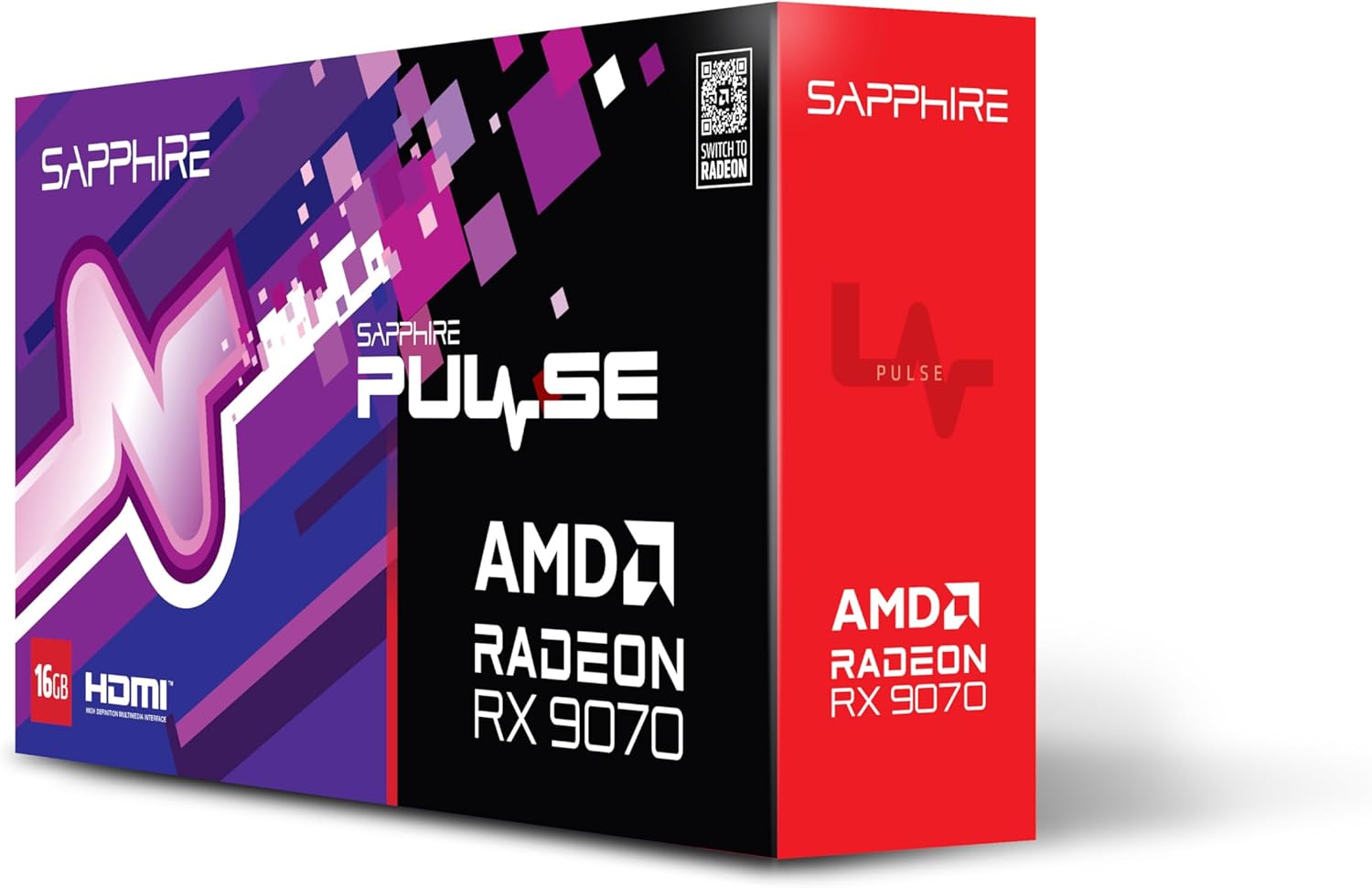
Aworan 1.1: Iwaju view of the Sapphire Pulse AMD Radeon RX 9070 Gaming graphics card packaging, showcasing the product branding and model.
2. Package Awọn akoonu
Verify that all items are present in your package. If any items are missing or damaged, please contact your retailer or Sapphire support.
- Sapphire Pulse AMD Radeon RX 9070 Gaming Graphics Card
- Quick Installation Guide or Documentation
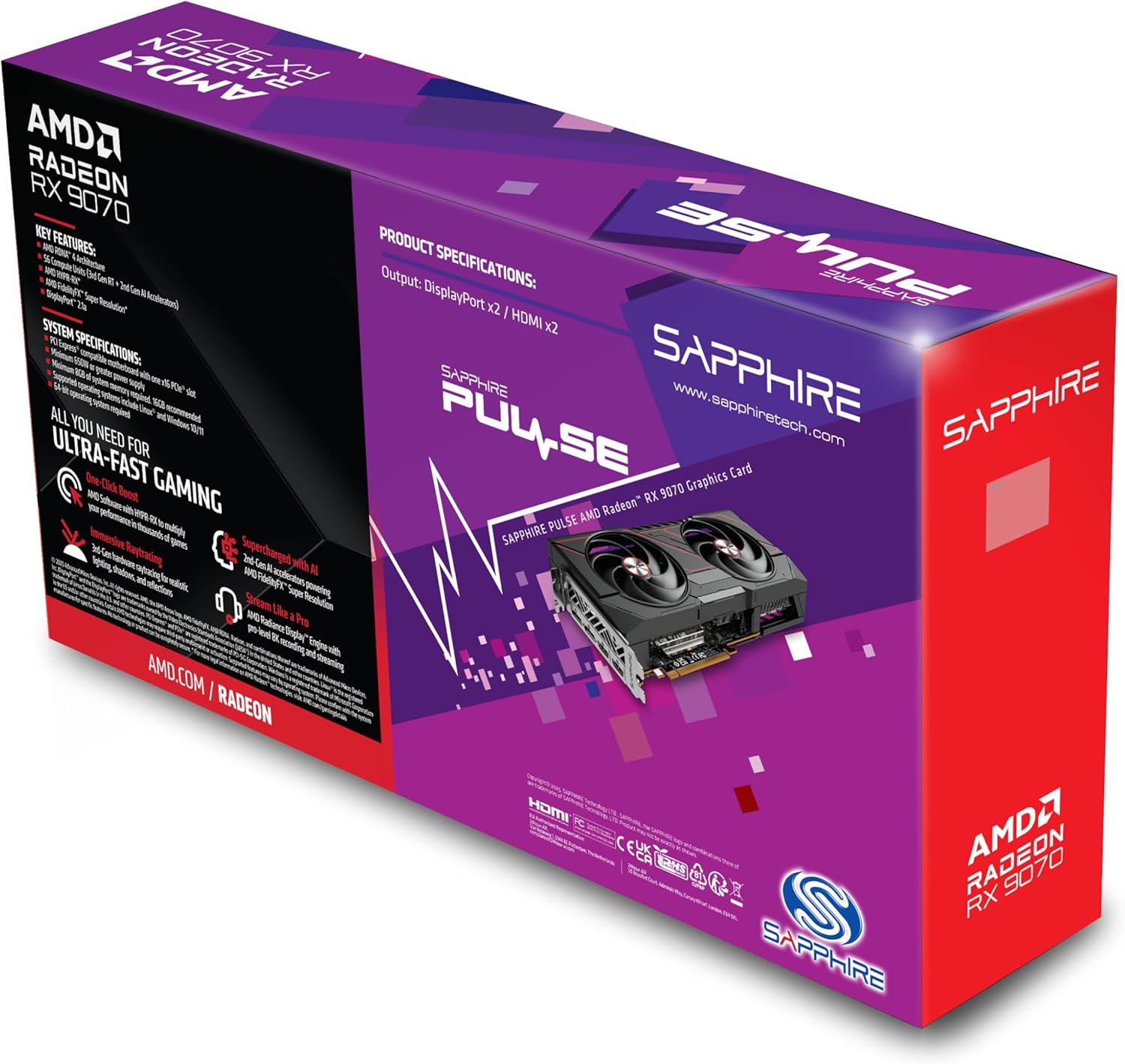
Aworan 2.1: Ẹyin view of the Sapphire Pulse AMD Radeon RX 9070 Gaming graphics card packaging, displaying key features and specifications.
3. System Awọn ibeere
Ṣaaju ki o to fi kaadi eya aworan sori ẹrọ, rii daju pe eto rẹ pade awọn ibeere ti o kere julọ wọnyi:
- PCI Express-compliant motherboard with one X16 graphics slot.
- Minimum 650W Power Supply Unit (PSU) with appropriate PCIe power connectors (e.g., 8-pin + 6-pin or dual 8-pin, depending on specific model). Refer to your PSU manual for details.
- Minimum 8GB System Memory (RAM); 16GB or more recommended for optimal performance.
- Eto isesise: Windows 10/11 64-bit or Linux 64-bit.
- Isopọ Ayelujara for driver installation and updates.
- Atẹle ifihan with DisplayPort or HDMI input.
4. fifi sori
Follow these steps to install your Sapphire Pulse AMD Radeon RX 9070 Gaming graphics card:
- Mura Eto Rẹ:
- Pa kọmputa rẹ kuro ki o ge asopọ okun agbara lati inu iṣan ogiri.
- Ṣii apoti kọnputa rẹ.
- Ground yourself by touching a metal part of the case to discharge static electricity.
- Yọ Kaadi Awọn aworan ti o wa tẹlẹ (ti o ba wulo):
- Disconnect any power cables from the old graphics card.
- Unscrew the retaining screw(s) holding the card to the case.
- Carefully unlatch the PCIe slot retention clip and gently pull the old card straight out of the slot.
- Install the New Graphics Card:
- Wa iho PCI Express x16 kan ti o wa lori modaboudu rẹ.
- Remove the metal bracket cover(s) from the back of your computer case corresponding to the slot.
- Align the graphics card with the PCIe slot and press it firmly until it is fully seated and the retention clip locks into place.
- Secure the graphics card to the case with the retaining screw(s).
- Pataki: This graphics card is substantial in weight. It is highly recommended to use a GPU support bracket to prevent sag and potential damage to the PCIe slot over time.
- So awọn okun agbara pọ:
- Connect the appropriate PCIe power cables from your power supply to the power connectors on the graphics card. Ensure all connectors are securely attached.
- Pade Ọran ati Awọn Agbeegbe Sopọ:
- Pa ọran kọmputa rẹ.
- Connect your monitor(s) to the DisplayPort or HDMI outputs on the graphics card.
- Reconnect the power cable to your computer and turn it on.
5. Fifi sori awakọ
Lẹhin fifi sori ẹrọ ti ara, o nilo lati fi sori ẹrọ awọn awakọ tuntun fun kaadi awọn aworan rẹ:
- Ṣe igbasilẹ Awọn Awakọ:
- Ṣabẹwo si AMD osise webAaye (www.amd.com/en/support) or the Sapphire support page (www.sapphiretech.com/en/support).
- Navigate to the driver download section and select your graphics card model (AMD Radeon RX 9070).
- Download the latest recommended drivers for your operating system.
- Fi Awọn awakọ sii:
- Run the downloaded driver installer.
- Follow the on-screen prompts to complete the installation. It is generally recommended to perform a "Clean Installation" to remove any previous driver remnants.
- Your screen may flicker or go black temporarily during the installation process. This is normal.
- Eto atunbere:
- Ni kete ti fifi sori ẹrọ ti pari, tun bẹrẹ kọmputa rẹ.
- After restarting, your graphics card should be fully functional.
6. Ṣiṣẹ Kaadi Graphics
Once installed and drivers are updated, your graphics card will automatically handle graphics processing for your system. You can further optimize its performance and settings using the AMD Radeon Software.
- AMD Radeon Software: This utility allows you to monitor performance, adjust game settings, manage display configurations (including FreeSync), and update drivers. Access it via the system tray icon or by right-clicking on your desktop.
- Ifihan Awọn isopọ: The card supports Dual HDMI and Dual DisplayPort outputs. Connect your monitors to the available ports. For multi-monitor setups, configure display arrangements within Windows Display Settings or AMD Radeon Software.
- Ipinnu: The card supports a maximum screen resolution of 7680x4320. Ensure your monitor and cables support the desired resolution and refresh rate.
7. Itọju
Proper maintenance helps ensure the longevity and optimal performance of your graphics card.
- Yiyọ eruku kuro: Periodically clean dust from the graphics card heatsink and fans using compressed air. Ensure the computer is powered off and unplugged before cleaning. Hold the fan blades gently to prevent over-spinning during cleaning.
- Fife ategun: Ensure your computer case has adequate airflow to prevent overheating. Keep cables tidy and ensure intake and exhaust fans are clear.
- Awọn imudojuiwọn Awakọ: Regularly check for and install the latest graphics drivers from AMD or Sapphire to benefit from performance improvements, bug fixes, and new features.
8. Laasigbotitusita
Ti o ba pade awọn ọran pẹlu kaadi eya aworan rẹ, tọka si awọn igbesẹ laasigbotitusita ti o wọpọ wọnyi:
- Ko si Abajade Ifihan:
- Ensure the monitor is connected to the graphics card, not the motherboard's integrated graphics port.
- Verify all power cables are securely connected to the graphics card and power supply.
- Tun awọn eya kaadi ninu awọn oniwe-PCIe Iho.
- Ṣe idanwo pẹlu okun ifihan ti o yatọ tabi atẹle ti o ba ṣeeṣe.
- Aisedeede eto tabi jamba:
- Rí i dájú pé ẹ̀rọ ìpèsè agbára rẹ (PSU) ní ìwọ̀n watt tó kéré jùlọtage ibeere.
- Perform a clean installation of the latest graphics drivers.
- Monitor GPU temperatures using AMD Radeon Software to check for overheating.
- Check for BIOS/UEFI updates for your motherboard.
- Iṣẹ́ tí kò dára nínú Àwọn eré/Àwọn ohun èlò ìṣiṣẹ́:
- Rii daju pe awọn awakọ eya aworan tuntun ti fi sori ẹrọ.
- Rí i dájú pé eré/ohun èlò náà ń lo káàdì àwòrán tí a yà sọ́tọ̀ fún un, kì í ṣe àwòrán tí a fi sínú rẹ̀ (tí ó bá yẹ).
- Ṣayẹwo awọn eto inu-ere; dinku ipinnu tabi didara eya ti o ba jẹ dandan.
- Monitor GPU utilization and temperatures to identify bottlenecks or thermal throttling.
- Ariwo Fan
- Awọn iyara àìpẹ giga jẹ deede labẹ ẹru iwuwo lati ṣetọju awọn iwọn otutu to dara julọ.
- If fans are excessively loud at idle, check fan profiles in AMD Radeon Software.
- Ensure no cables or obstructions are interfering with fan rotation.
9. Awọn pato
Key technical specifications for the Sapphire Pulse AMD Radeon RX 9070 Gaming graphics card:
| Ẹya ara ẹrọ | Ẹ̀kúnrẹ́rẹ́ |
|---|---|
| Nọmba awoṣe | 11349-03-20G |
| Olupilẹṣẹ Graphics | AMD Radeon RX 9070 |
| Video Memory (RAM) | 16 GB GDDR6 |
| Iyara Iranti | 950 MHz |
| Aago igbohunsafẹfẹ | 2520 MHz (as per card description) |
| Ipinnu Iboju ti o pọju | 7680x4320 |
| Video o wu Interface | Dual DisplayPort, Dual HDMI |
| Awọn iwọn Nkan (LxWxH) | 11.81 x 11.81 x 0.04 inches |
| Iwọn Nkan | 2.99 iwon |
| Olupese | oniyebiye |
10. Atilẹyin ọja ati Support
For warranty information, technical support, or service inquiries, please refer to the official Sapphire webaaye tabi kan si atilẹyin alabara wọn taara.
- Sapphire Official Webojula: www.sapphiretech.com
- Oju-iwe atilẹyin: www.sapphiretech.com/en/support
- Jeki ẹri rira rẹ fun awọn iṣeduro atilẹyin ọja.


