1. Ifihan
Thank you for choosing the Taiahiro Bk6301 Wireless Mechanical Gaming Keyboard and Mouse Combo. This manual provides detailed instructions for setting up, operating, and maintaining your new peripheral devices. This combo offers versatile connectivity options including 2.4G wireless, Bluetooth 5.0, and wired USB-C, ensuring compatibility with various devices.
2. Package Awọn akoonu
Jọwọ rii daju pe gbogbo awọn ohun kan wa ninu apo rẹ:
- Taiahiro Bk6301 Wireless Mechanical Gaming Keyboard
- Taiahiro Wireless Gaming Mouse
- USB 2.4G Receiver (stored in mouse battery compartment)
- USB-C si USB-A Ngba agbara/Okun data
- Itọsọna olumulo
- 1 AA Battery (for mouse, may be pre-installed or included separately)

Image 2.1: Contents of the Taiahiro Bk6301 Keyboard and Mouse Combo package, including the keyboard, mouse, USB receiver, and USB-C cable.
3. Ọja Ipariview
3.1 Keyboard Awọn ẹya ara ẹrọ
- 98-Ipele bọtini: Compact design with a full numeric keypad.
- Mechanical Blue Switches: Provide tactile and audible feedback for typing.
- Imọlẹ afẹyinti RGB: Àwọn ipa ìmọ́lẹ̀ tí a lè ṣe àtúnṣe.
- Adjustable Keyboard Stand: Allows for ergonomic positioning.
- Asopọmọra Ipo-pupọ: Supports 2.4G wireless, Bluetooth 5.0, and wired USB-C.
- Batiri gbigba agbara: Built-in 2000mAh battery for wireless operation.
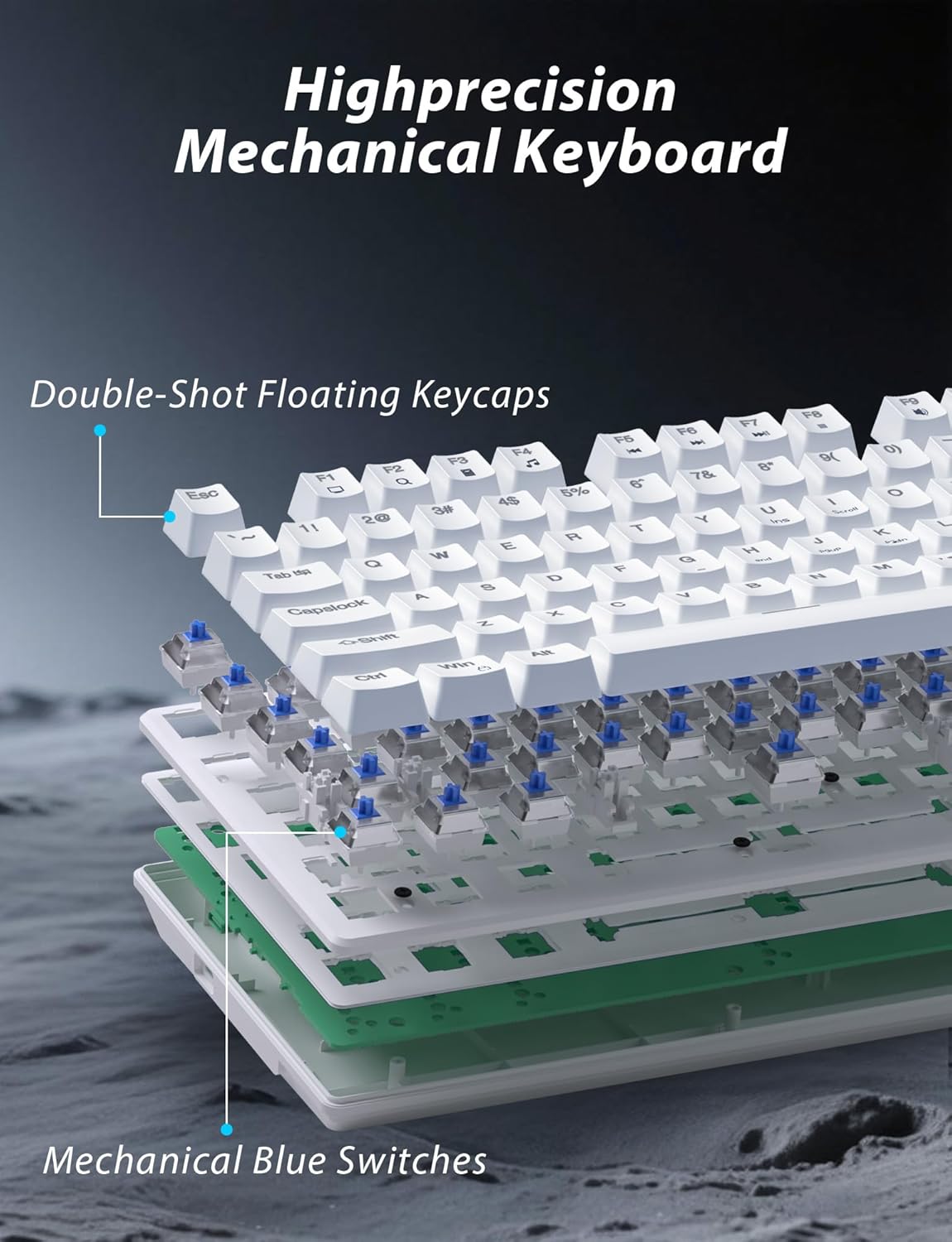
Aworan 3.1: exploded view illustrating the internal structure of the mechanical keyboard, highlighting the double-shot floating keycaps and mechanical blue switches.

Aworan 3.2: Apa view of the keyboard demonstrating its ergonomic design and adjustable stand for comfortable use.
3.2 Mouse Awọn ẹya ara ẹrọ
- Apẹrẹ Ergonomic: Shaped for comfortable grip.
- DPI ti o le ṣatunṣe: Four levels (800/1600/2400/3200) for precision control.
- Awọn bọtini Iwaju/Sẹhin: Convenient side buttons for navigation.
- Asopọmọra-Ipo Meji: Supports 2.4G wireless and Bluetooth.
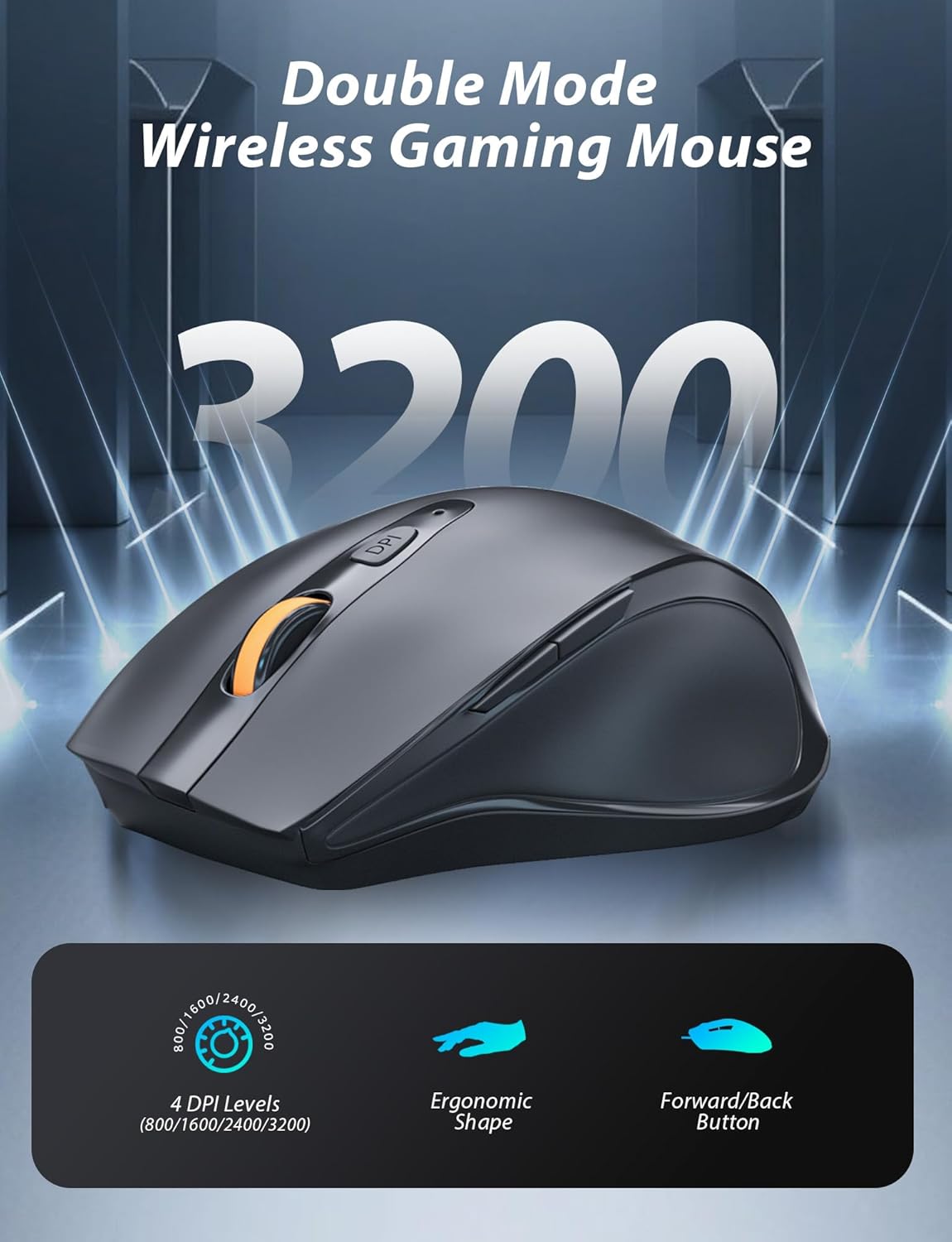
Image 3.3: The wireless gaming mouse, highlighting its ergonomic shape and four adjustable DPI levels.
4. Awọn ilana iṣeto
4.1 Ìsopọ̀ Kííbọọ̀dù
The keyboard supports three connection modes: 2.4G wireless, Bluetooth, and wired USB-C.

Image 4.1: The keyboard displaying its three connectivity options: Bluetooth, 2.4GHz wireless, and USB-C wired connection.
Ipo Alailowaya 2.4G:
- Locate the USB 2.4G receiver, typically stored in the mouse's battery compartment.
- Fi olugba USB sii sinu ibudo USB ti o wa lori kọnputa rẹ.
- On the keyboard, slide the mode switch (usually located on the top edge or bottom) to the '2.4G' position.
- Awọn keyboard yẹ ki o sopọ laifọwọyi.
Ipo Bluetooth:
- Slide the mode switch on the keyboard to the 'BT' (Bluetooth) position.
- The keyboard's indicator light will flash, indicating it is in pairing mode.
- On your device (computer, laptop, smartphone), open Bluetooth settings and search for new devices.
- Select "Taiahiro Bk6301" or a similar name from the list of available devices to pair.
- Nígbà tí a bá so wọ́n pọ̀, ìmọ́lẹ̀ àfihàn náà yóò di líle.
Ipo USB-C onirin waya:
- So okùn USB-C tí a pèsè mọ́ ibudo USB-C ti keyboard.
- Connect the other end (USB-A) to an available USB port on your computer.
- The keyboard will function as a wired device and will charge simultaneously.
4.2 Mouse Connection
The mouse supports 2.4G wireless and Bluetooth connectivity.

Image 4.2: The underside of the mouse, illustrating the battery compartment for one AA battery and the storage slot for the tiny USB receiver.
Fifi sori batiri:
- Ṣii yara batiri ni apa isalẹ ti Asin.
- Insert one AA battery, ensuring correct polarity.
- Pa abala batiri naa.
Ipo Alailowaya 2.4G:
- Ensure the USB 2.4G receiver is plugged into your computer.
- Gbe iyipada ipo ti o wa ni isalẹ ti asin naa si ipo '2.4G'.
- Asin yẹ ki o sopọ laifọwọyi.
Ipo Bluetooth:
- Slide the mode switch on the underside of the mouse to the 'BT' (Bluetooth) position.
- The mouse will enter pairing mode.
- On your device, open Bluetooth settings and search for new devices.
- Select "Taiahiro Mouse" or a similar name from the list to pair.
5. Awọn ilana Iṣiṣẹ
5.1 Keyboard Awọn iṣẹ
Iṣakoso ina Back:
The keyboard features customizable RGB backlighting.
- Yi Ipò Atẹyin pada: Tẹ Fn + Ile láti yípo nípasẹ̀ àwọn ipa ìmọ́lẹ̀ mẹ́rìndínlógún tó yàtọ̀ síra.
- Ṣatunṣe Imọlẹ: Tẹ Fn + ↑ (Up Arrow) or Fn + ↓ (Down Arrow) to adjust between 5 brightness levels.
- Ṣatunṣe Iyara: Tẹ Fn + ← (Left Arrow) or Fn + → (Right Arrow) to adjust between 5 lighting speed levels.

Image 5.1: Keyboard layout highlighting the function key combinations for controlling backlight modes, brightness, and speed.
Awọn iṣẹ Multimedia:
Access multimedia controls by pressing the Fn key in combination with the designated F-keys (F1-F12).
- Fn+F1: Media Player
- Fn+F2: Iwọn didun isalẹ
- Fn+F3: Iwọn didun soke
- Fn+F4: Pa ẹnu mọ́
- Fn+F5: Duro
- Fn+F6: Ti tẹlẹ Track
- Fn+F7: Ṣiṣẹ / Sinmi
- Fn+F8: Next Track
- Fn+F9: Imeeli
- Fn+F10: Web Aṣàwákiri
- Fn+F11: Kọmputa mi
- Fn+F12: Ẹrọ iṣiro
5.2 Mouse Awọn iṣẹ
Atunse DPI:
Tẹ awọn DPI bọtini (located behind the scroll wheel) to cycle through the four DPI settings: 800, 1600, 2400, and 3200. Each press changes the sensitivity, allowing you to adjust cursor speed to your preference.
6. Itọju
6.1 Ninu
- Àtẹ bọ́tìnnì Use a soft, dry cloth to wipe the surface. For deeper cleaning, use compressed air to remove debris from between keys. Avoid using harsh chemicals or abrasive materials.
- Asin: Nu oju eku naa pẹlu asọ ti o rọ diẹ, damp cloth. Ensure no liquid enters the internal components.
6.2 batiri Management
- Àtẹ bọ́tìnnì The keyboard has a built-in rechargeable battery. Connect the USB-C cable to a power source (e.g., computer USB port, USB wall adapter) to charge. The indicator light will show charging status.
- Asin: The mouse uses one AA battery. Replace the battery when the mouse performance degrades or it stops responding. Ensure proper polarity when inserting a new battery.
7. Laasigbotitusita
If you encounter issues with your Taiahiro keyboard and mouse combo, please refer to the following solutions:
| Isoro | Owun to le Solusan |
|---|---|
| Keyboard/Mouse not responding (2.4G) |
|
| Keyboard/Mouse not connecting (Bluetooth) |
|
| Keyboard backlight not working or stuck |
|
| Awọn bọtini ko dahun tabi titẹ-meji |
|
8. Awọn pato
| Ẹya ara ẹrọ | Ẹ̀kúnrẹ́rẹ́ |
|---|---|
| Nọmba awoṣe | Bk6301 |
| Asopọmọra | Bluetooth 5.0, Alailowaya 2.4G, Okùn USB-C |
| Keyboard Iru | Ẹrọ Kokoro Ẹrọ |
| Ifilelẹ bọtini | 98 Keys (with Numeric Keypad) |
| Yipada Iru | Darí Blue Yipada |
| Keyboard Backlight | RGB (18 modes, 5 brightness, 5 speed levels) |
| Batiri Keyboard | 2000mAh Gbigba agbara |
| Asin DPI Awọn ipele | 800/1600/2400/3200 |
| Batiri Asin | 1 x AA Batiri |
| Awọn ẹrọ ibaramu | Personal Computer, Laptop, Smartphone |
| Iwọn Nkan | 2.72 poun (konbo) |
| Package Mefa | 15 x 5.59 x 3.11 inches |
9. Atilẹyin ọja ati Support
9.1 atilẹyin ọja Alaye
Taiahiro products are covered by a limited warranty from the date of purchase. Please refer to the warranty card included in your package or visit the official Taiahiro website for detailed warranty terms and conditions. This warranty typically covers manufacturing defects and material faults under normal use.
9.2 Onibara Support
For technical assistance, troubleshooting, or any questions regarding your Taiahiro Bk6301 combo, please contact our customer support team. You can find contact information on the Taiahiro official website or through your purchase platform. When contacting support, please have your product model number (Bk6301) and purchase details ready.


