Ọrọ Iṣaaju
Thank you for choosing the SOAR NBA Wireless Mouse and Mouse Pad. This product combines reliable wireless technology with ergonomic design and your favorite NBA team's spirit, providing a comfortable and efficient experience for work or leisure. This manual provides essential information for setting up, operating, maintaining, and troubleshooting your new device.

Image: The SOAR NBA Wireless Mouse and Mouse Pad featuring the Philadelphia 76ers logo and colors, shown together on a white background.
Package Awọn akoonu
Jọwọ rii daju pe gbogbo awọn ohun kan wa ninu apo rẹ:
- 1 x SOAR Wireless Mouse
- 1 x SOAR Mouse Pad with Wrist Rest
- 1 x USB Wireless Receiver (stored inside the mouse battery compartment)
- Note: 1 AA battery required for the mouse (not included).

Image: The SOAR NBA Wireless Mouse and Mouse Pad displayed in its clear retail packaging, showing both components.
Ṣeto
-
Fi Batiri sii: Locate the battery compartment on the underside of the wireless mouse. Slide open the cover. Insert one AA battery (not included) ensuring correct polarity (+/-). Close the battery compartment cover.
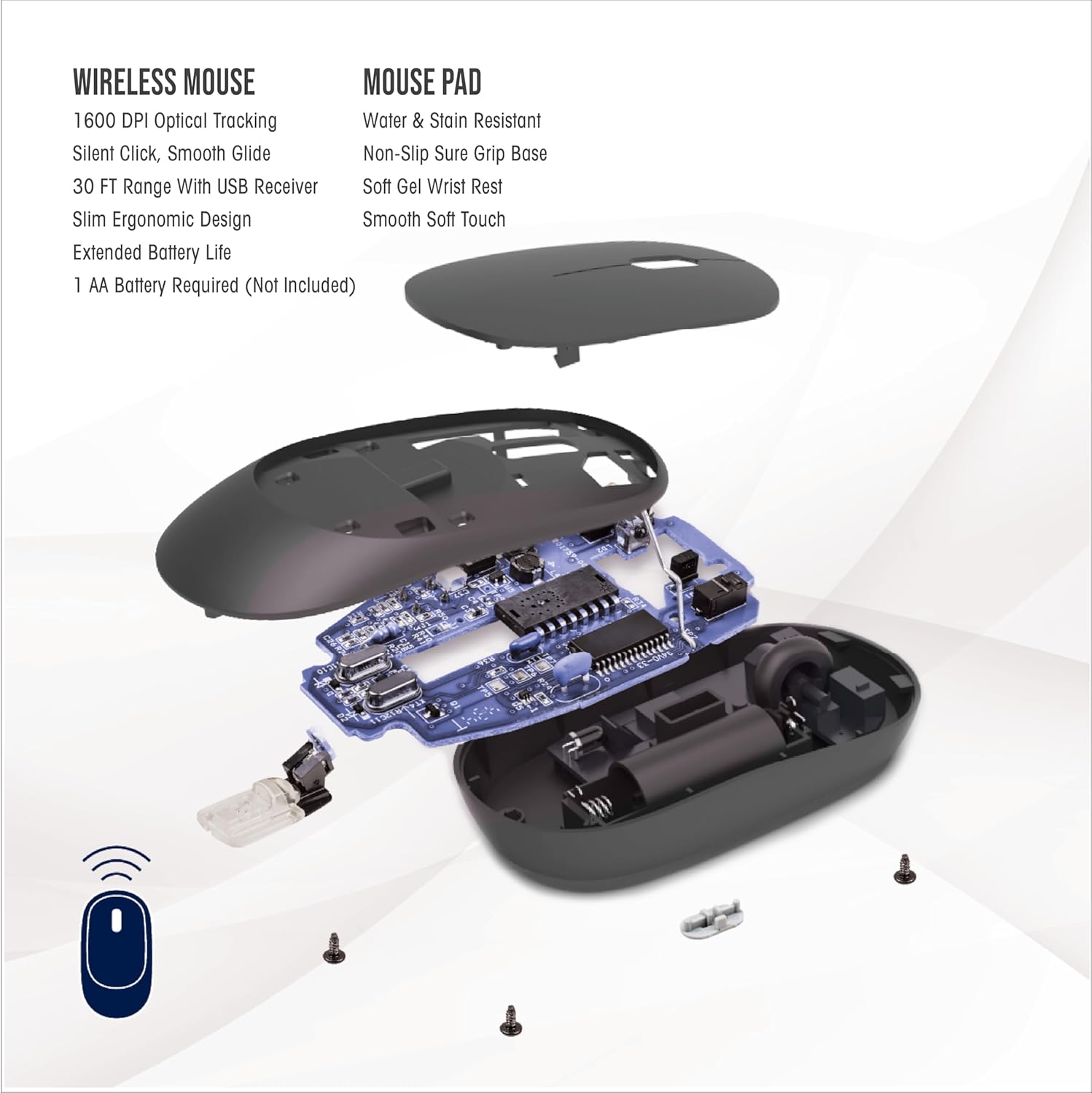
Image: An exploded diagram of the wireless mouse, illustrating the internal components, including the battery slot and the location of the USB receiver.
- Mu olugba USB pada: The small USB wireless receiver is typically stored inside the mouse's battery compartment for safe keeping during transit. Gently remove it.
- Olugba Sopọ: Plug the USB wireless receiver into an available USB-A port on your computer (desktop, laptop, etc.). Your computer should automatically detect and install the necessary drivers. No special software installation is required.
-
Pádì Asin Ipò: Place the mouse pad on a flat, stable surface. The anti-slip base will help keep it firmly in place during use. Position the wrist rest to comfortably support your wrist.

Image: A hand positioned on the wireless mouse, with the wrist comfortably supported by the mouse pad's gel wrist rest, illustrating optimal wrist alignment.
Awọn ilana Iṣiṣẹ
Wireless Mouse Functionality:
- Lilọ kiri ipilẹ: The mouse features standard left-click and right-click buttons for primary and secondary functions.
- Yi lọ Kẹkẹ: Use the scroll wheel for vertical scrolling through documents and web pages. Pressing down on the scroll wheel can activate an auto-scroll function in some applications.
- Atunse DPI: The "DPI" button, located near the scroll wheel, allows you to cycle through three different sensitivity settings (low, medium, high). This adjusts the cursor speed to suit your preference and task.
- Tẹ ipalọlọ: The mouse is designed with silent click technology, reducing noise during use.
- Iwọn Alailowaya: The mouse operates using advanced 2.4GHz technology, providing a stable and reliable connection within a 30-foot range from the USB receiver.
Mouse Pad Benefits:
- Atilẹyin Ergonomic: The soft gel wrist rest provides ergonomic support, helping to reduce wrist fatigue and discomfort during extended use.
- Ilẹ Iduroṣinṣin: The anti-slip base ensures the mouse pad remains securely in place on your desk, providing a consistent and smooth gliding surface for the mouse.

Image: A user's hands operating the wireless mouse and mouse pad alongside a laptop, demonstrating a typical desk setup.
Itoju
- Rirọpo Batiri: When the mouse performance degrades or stops responding, it is likely time to replace the AA battery. Follow the steps in the "Setup" section to open the battery compartment and insert a new AA battery.
- Ninu Asin naa: Use a soft, dry cloth to wipe the exterior of the mouse. For stubborn dirt, a slightly damp A le lo aṣọ, ṣugbọn rii daju pe ọrinrin ko wọ inu ẹrọ naa. Yẹra fun awọn kemikali lile tabi awọn afọmọ fifọ.
- Ninu paadi Asin naa: The mouse pad is water and stain resistant. For minor spills, wipe immediately with a damp cloth. For general cleaning, a mild soap solution and a soft cloth can be used. Allow the mouse pad to air dry completely before reuse.
Laasigbotitusita
-
Asin Ko Dahun:
- Rii daju pe batiri AA ti fi sori ẹrọ daradara ati pe o ni idiyele ti o to. Rọpo ti o ba wulo.
- Rí i dájú pé olugba alailowaya USB ti so mọ ibudo USB ti n ṣiṣẹ lailewu lori kọmputa rẹ. Gbiyanju ibudo USB miiran.
- Gbe eku naa sunmọ olugba USB lati yọkuro awọn iṣoro agbegbe tabi idilọwọ.
- Tun kọmputa rẹ bẹrẹ.
-
Asopọ tabi Idinku Alailowaya:
- Ensure there are no large metallic objects or other wireless devices (like Wi-Fi routers, cordless phones) directly between the mouse and the receiver that could cause interference.
- The effective range is 30 feet; operating beyond this distance may cause connection issues.
-
Cursor Movement is Erratic or Too Slow/Fast:
- Press the "DPI" button on the mouse to cycle through the sensitivity settings.
- Rí i dájú pé sensọ opitika tó wà ní ìsàlẹ̀ àwo náà mọ́ tónítóní, kò sì ní ìdọ̀tí kankan.
- Ensure the mouse pad surface is clean and free from obstructions.
-
USB Receiver Hard to Remove:
- Grip the receiver firmly and pull straight out. Avoid twisting or bending.
Awọn pato
| Ẹya ara ẹrọ | Ẹ̀kúnrẹ́rẹ́ |
|---|---|
| Orukọ awoṣe | Alailowaya Asin ati Asin paadi |
| Nọmba apakan | NBA-MMP-PHI |
| Brand | SOAR |
| Àwọ̀ | Team Color (Philadelphia 76ers) |
| Ohun elo | Neoprene (Mouse Pad) |
| Asopọmọra | Alailowaya 2.4GHz (olugba USB) |
| Alailowaya Ibiti | Titi di 30 ẹsẹ |
| Asin Awọn ẹya ara ẹrọ | 1600 DPI Optical Tracking, Silent Click, Smooth Glide, Ergonomic Design |
| Mouse paadi Awọn ẹya ara ẹrọ | Water & Stain Resistant, Non-Slip Sure Grip Base, Soft Gel Wrist Rest, Smooth Soft Touch |
| Orisun agbara | 1 x AA Batiri (ko si) |
| Awọn iwọn Package Nkan | 11.69 x 8.98 x 3.5 inches |
| Package iwuwo | 0.2 kilo |
| Olupese | Prime Brands Group Inc. |
| UPC | 192129180531 |
Atilẹyin ọja ati Support
This SOAR product comes with a 1 Odun Atilẹyin ọja Lopin from the date of purchase. This warranty covers defects in materials and workmanship under normal use. It does not cover damage caused by accident, misuse, abuse, neglect, improper installation, or unauthorized repair.
For warranty claims or technical support, please contact the manufacturer, Prime Brands Group Inc., through their official support channels. Please retain your proof of purchase for warranty validation.


