1. Ifihan
Thank you for choosing the AYANEO AM01 Retro Mini PC. This manual provides essential information for setting up, operating, maintaining, and troubleshooting your device. Please read this manual thoroughly before use to ensure optimal performance and longevity of your Mini PC.
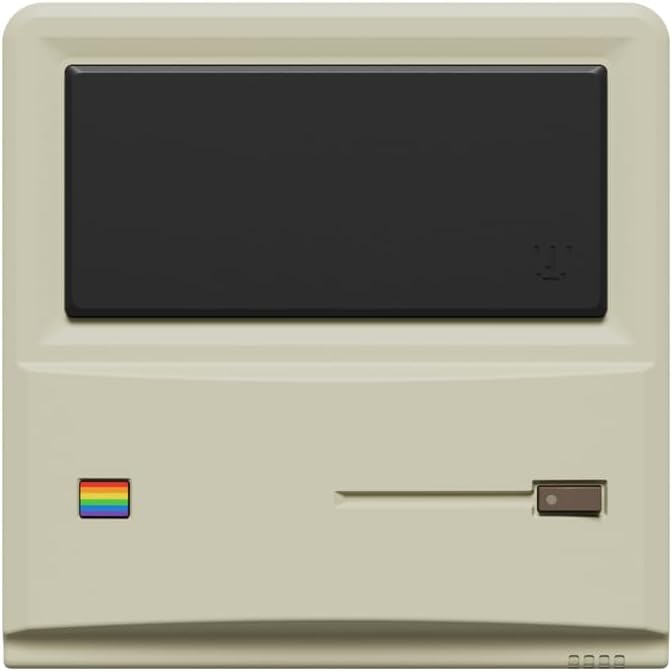
olusin 1: Iwaju view of the AYANEO AM01 Retro Mini PC.
2. Alaye Aabo
To prevent damage to the device or injury to yourself and others, please observe the following safety precautions:
- Ma ṣe fi ẹrọ naa han si omi, ọrinrin, tabi awọn iwọn otutu to gaju.
- Yago fun gbigbe ẹrọ naa si nitosi awọn orisun ooru tabi ni imọlẹ orun taara.
- Lo oluyipada agbara ti a pese nikan.
- Ma ṣe gbiyanju lati ṣii tabi tun ẹrọ naa funrararẹ. Tọkasi awọn oṣiṣẹ iṣẹ ti o peye.
- Rii daju pe fentilesonu to dara ni ayika ẹrọ lati ṣe idiwọ igbona.
3. Package Awọn akoonu
Jẹrisi pe gbogbo awọn ohun kan wa ninu package:
- 1 x AYANEO AM01 Mini PC
- 1 x Oluyipada agbara
- 1 x 2.5-inch hard drive bracket with Screws
- 1 x HDMI Okun
- 1 x 2.5-inch hard SATA cable
- 2 x Itọsọna olumulo
4. Ọja Ipariview
The AYANEO AM01 Mini PC features a compact design with various ports for connectivity.
4.1 Igbimọ iwaju
The front panel includes decorative elements and a power indicator.

Figure 2: Close-up of the AM01 front panel, highlighting the retro design and decorative elements. The virtual screen is for decoration only.
4.2 Rear and Side Panels
The rear and side panels house the primary connectivity ports and ventilation.
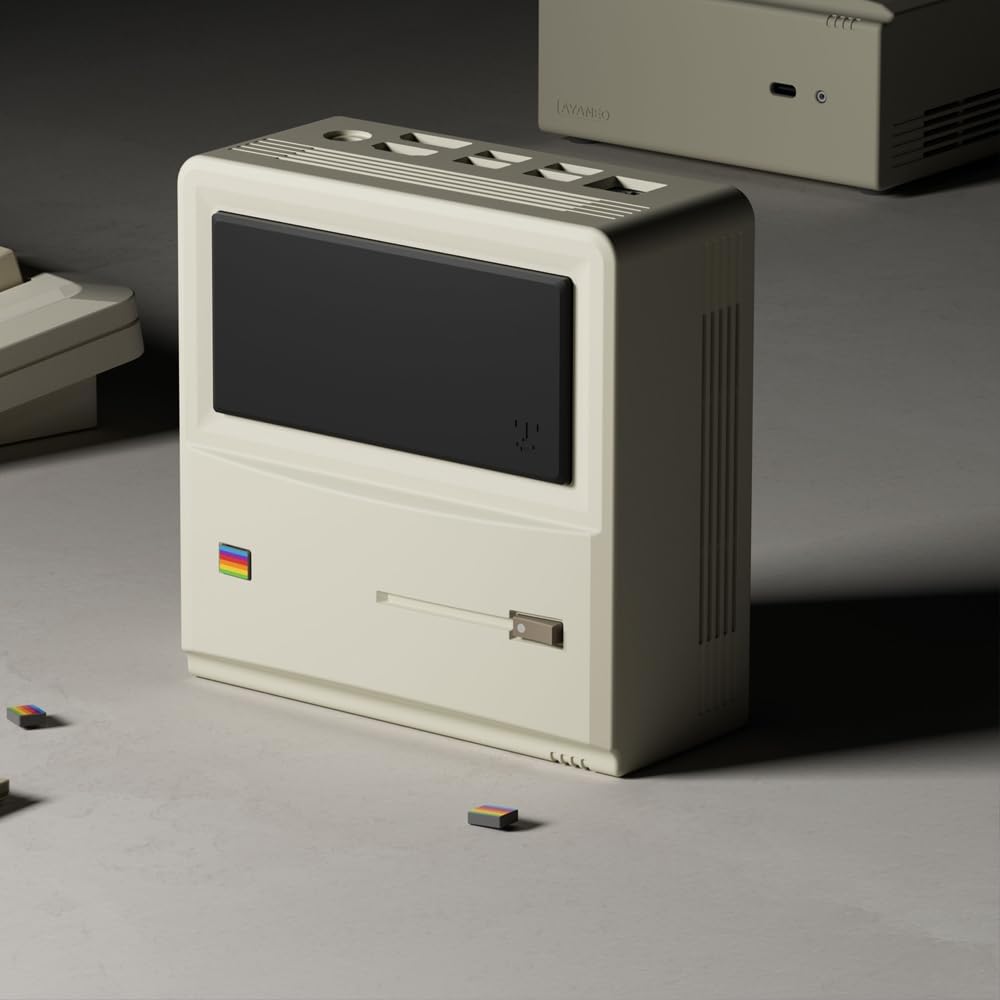
Àwòrán 3: Ẹ̀yìn àti ẹ̀gbẹ́ view of the AM01, illustrating the various input/output ports and ventilation grilles.
Awọn ibudo bọtini pẹlu:
- Awọn ibudo USB 3.2 Gen 2
- HDMI 2.0 ibudo
- DisplayPort 1.4
- Gigabit àjọlò ibudo
- 3.5mm iwe Jack
- Iṣagbewọle agbara
5. Eto
5.1 Nsopọ Peripherals
- Connect your monitor(s) to the HDMI and/or DisplayPort outputs.
- Connect your keyboard and mouse to the available USB ports.
- If using a wired network, connect an Ethernet cable to the Gigabit Ethernet port.
5.2 Agbara Lori
- Connect the power adapter to the Mini PC's power input and then to a power outlet.
- Press the power button located on the device. The power indicator will illuminate.
5.3 Eto Windows 11 Ibẹrẹ
Upon first boot, you will be guided through the Windows 11 Home setup process. Follow the on-screen instructions to configure your language, region, network, and user account.
5.4 Network Asopọmọra
- Wi-Fi: During Windows setup or via Windows Settings, select your Wi-Fi network and enter the password. The AM01 supports Wi-Fi 6.
- Àjọlò: If an Ethernet cable is connected, the system will automatically detect and connect to the wired network.
6. Awọn ilana Iṣiṣẹ
6.1 Ipilẹ Lilo
The AYANEO AM01 runs on Windows 11 Home, providing a familiar desktop environment. You can install applications, browse the web, and perform various computing tasks.

Figure 4: The AM01 Mini PC integrated into an office workspace, demonstrating its use for productivity tasks.
6.2 AYASpace Software
The AM01 is compatible with AYASpace, a Windows management software developed by AYANEO. This software offers features such as game library management, real-time performance monitoring (FPS Thunder), and fan control strategies.

Olusin 5: Pariview of the AYASpace software interface, showing features like game library search, FPS monitoring, and fan scheduling.
For barebone versions, AYASpace can be downloaded and installed from the AYANEO website after Windows installation.
6.3 Storage and Memory Expansion
The AM01 offers flexibility for upgrades:
- Ramu: Dual DDR4 memory slots support up to 64GB RAM.
- Ibi ipamọ: Includes a 512GB PCIe 3.0 SSD and a 2.5-inch SATA 3.0 slot for additional SSDs or HDDs.
Consult a qualified technician for hardware upgrades to avoid voiding your warranty or damaging the device.
7. Itọju
7.1 Ninu
- Use a soft, dry cloth to clean the exterior of the Mini PC.
- For dust accumulation in vents, use compressed air. Ensure the device is powered off before cleaning.
- Ma ṣe lo awọn olutọpa omi tabi awọn ohun elo abrasive.
7.2 Software imudojuiwọn
Regularly update your Windows operating system and device drivers to ensure optimal performance and security. Windows Update can be accessed via the Settings menu.
7.3 itutu System
The AM01 features a 35W high-pressure turbo fan and a four-copper-pipe cooling module for efficient heat dissipation. Ensure that the ventilation grilles are not obstructed to maintain proper airflow.

olusin 6: Ti abẹnu view illustrating the AM01's cooling system components, including the fan and copper pipes.
8. Laasigbotitusita
If you encounter issues with your AYANEO AM01, refer to the following common solutions:
- Ko si Agbara: Ensure the power adapter is securely connected to both the Mini PC and a working power outlet. Try a different outlet.
- Ko si Ifihan: Verify that the monitor is powered on and correctly connected to the Mini PC via HDMI or DisplayPort. Try a different cable or monitor.
- Ko si Asopọ Ayelujara: Check Wi-Fi settings or ensure the Ethernet cable is properly connected. Restart your router/modem.
- Iṣẹ ṣiṣe ti o lọra: Close unnecessary applications. Check for background updates. Ensure adequate ventilation.
- Eto Didi: Press and hold the power button for 10 seconds to force a shutdown, then restart the device.
For persistent issues, contact AYANEO customer support or visit their official webaaye fun iranlọwọ siwaju sii.
9. Awọn pato
Detailed technical specifications for the AYANEO AM01 Mini PC:
| Ẹya ara ẹrọ | Sipesifikesonu |
|---|---|
| Awoṣe | AM01 |
| isise | AMD Ryzen 7 5825U |
| Àgbo | 32GB DDR4 (Ṣe faagun to 64GB) |
| Ibi ipamọ | 512GB SSD (PCIe 3.0), 2.5-inch SATA 3.0 slot available |
| Eto isesise | Windows 11 Ile |
| Awọn aworan | Ese Eya |
| Ipinnu Iboju ti o pọju | 3840x2160 (4K) |
| Asopọmọra | Wi-Fi 6, Bluetooth 5.2, Gigabit Ethernet |
| Awọn ibudo | USB 3.2 Gen 2 (x3), USB 2.0 (x1), HDMI 2.0 (x1), DisplayPort 1.4 (x1), 3.5mm Audio Jack (x1) |
| Awọn iwọn | 132 × 132 × 60.5mm (approx.) |
| Iwọn Nkan | 1.1 poun (isunmọ.) |
10. Atilẹyin ọja ati Support
The AYANEO AM01 Retro Mini PC comes with a manufacturer's warranty. Please refer to the warranty card included in your package or visit the official AYANEO webAaye fun alaye atilẹyin ọja ofin ati ipo.
For technical support, product inquiries, or service requests, please contact AYANEO customer support through their official channels. Keep your purchase receipt and product serial number handy when contacting support.


