Ọrọ Iṣaaju
PowerA Advantage Plus Wired Controller is an officially licensed gaming controller designed for Xbox Series X|S, Xbox One, and Windows 10/11 PC. It features advanced functionalities such as adjustable height thumbsticks, Hall Effect modules for precision, mappable advanced gaming buttons, dual rumble motors, and immersive impulse triggers. This manual provides comprehensive instructions for setting up, operating, and maintaining your controller to ensure optimal performance and longevity.
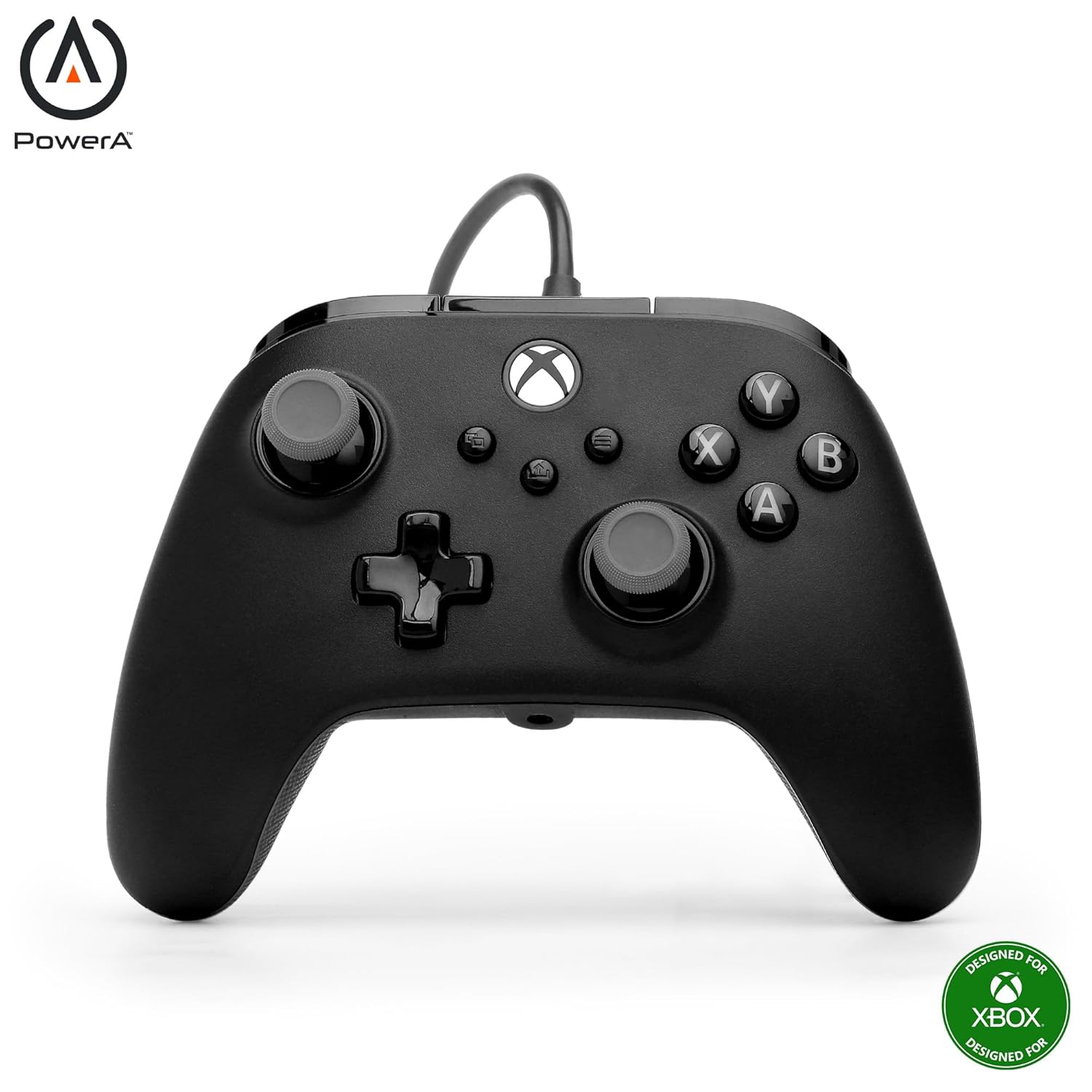
olusin 1: Iwaju view of the PowerA Advantage Plus Wired Controller.
Key Awọn ẹya ara ẹrọ
- Quick-Twist Thumbsticks: Easily adjust the height of each thumbstick to 3 different positions (Standard, Medium, Tall) with a simple twist, eliminating the need to swap out parts during gameplay.
- Hall Effect Modules: Contact-free magnetic sensors in the thumbsticks provide a more fluid, pro-level feel, enhancing precision and extending the lifespan of the thumbsticks.
- Advanced Gaming Buttons: Two mappable buttons on the back of the controller can be programmed on-the-fly, mid-game, without needing to access system settings.
- Awọn mọto Rumble Meji: Experience enhanced immersion with tactile feedback and sensations that bring your virtual worlds to life.
- Immersive Impulse Triggers: Built-in motors provide reactive rumble sensations in the triggers, allowing you to feel the action of the game.
- Extra-Long USB-C Cable: A 10 ft. USB-C cable provides ample distance for comfortable and flexible gaming, eliminating the need for batteries.
- Apẹrẹ Ergonomic: Lightweight and comfortable with a textured grip, designed for extended gaming sessions.
- Headset Compatible: Features a 3.5 mm stereo headset jack for connecting your favorite gaming headset.
- Ti gba iwe-aṣẹ ni ifowosi: Fully compatible with Xbox Series X|S, Xbox One, and Windows 10/11 PC.
- PowerA Gamer HQ App: Customize audio, triggers, rumble, dead zones, and more using the free official Xbox and Windows 10/11 app.
Ṣeto
- Yọ Alakoso kuro: Carefully remove the PowerA Advantage Plus Wired Controller and its USB-C cable from the packaging.
- Sopọ mọ console/PC:
- Insert the USB-C end of the cable into the port on the top of the controller.
- Insert the USB-A end of the cable into an available USB port on your Xbox Series X|S, Xbox One console, or Windows 10/11 PC.
- Idanimọ eto: Your console or PC should automatically detect the controller. The Xbox button on the controller will illuminate to indicate a successful connection.
- Install Drivers (PC Only): For Windows 10/11 PC, drivers are typically installed automatically. If prompted, follow the on-screen instructions. For advanced customization, download the PowerA Gamer HQ App from the Microsoft Store.

Figure 2: Connecting the extra-long USB-C cable to the controller.
Awọn ilana Iṣiṣẹ
Quick-Twist Thumbsticks
The Quick-Twist Thumbsticks allow for on-the-fly height adjustment without needing to remove or replace parts. Simply twist the thumbstick cap to cycle through three distinct height settings: Standard, Medium, and Tall. This feature provides customizable control for different game genres and personal preferences.
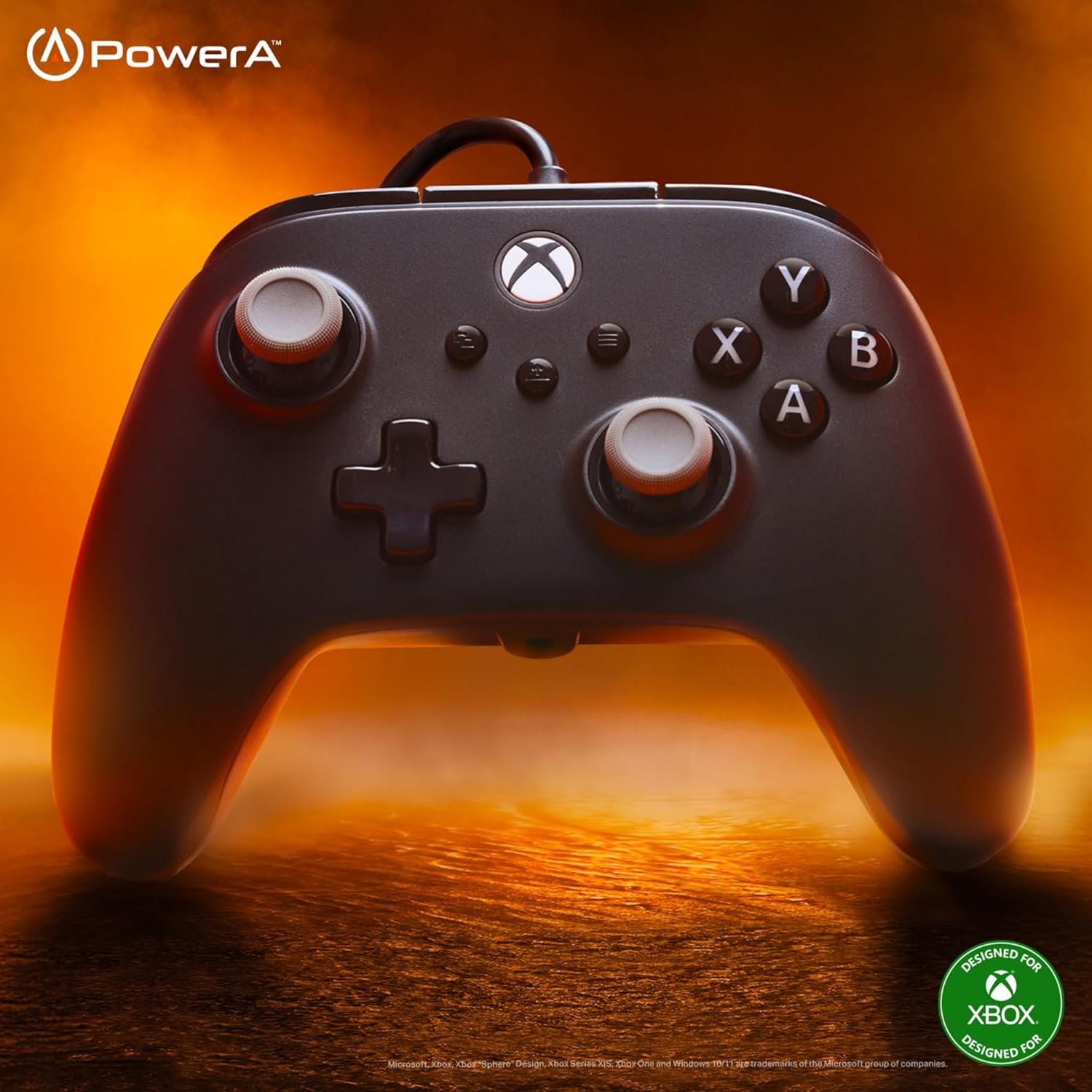
Figure 3: Quick-Twist Thumbsticks with three adjustable height settings.
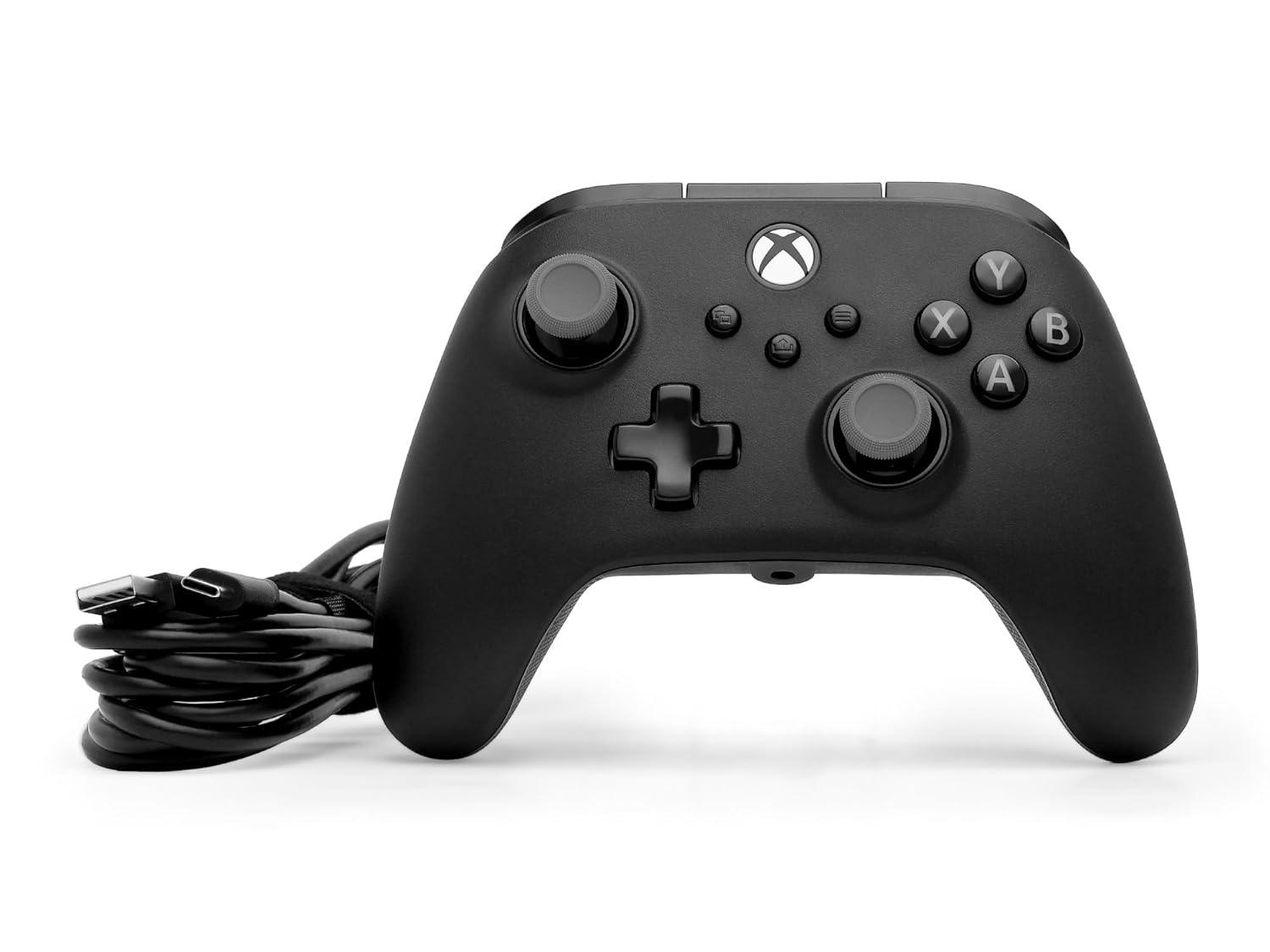
Figure 4: Illustration of Hall Effect Modules providing precise, contact-free input.
Advanced Gaming Buttons (AGB)
The controller features two mappable Advanced Gaming Buttons (AGR and AGL) located on the back. These buttons can be assigned to any standard controller button (A, B, X, Y, LB, RB, LT, RT, Left Stick Click, Right Stick Click, D-pad Up/Down/Left/Right) for quick access during gameplay.
- To Map an AGB:
- Press and hold the Program Button (small button on the back, near the top) for 2 seconds. The Program LED will flash.
- Press the Advanced Gaming Button (AGR or AGL) you wish to map. The Program LED will begin to flash rapidly.
- Press the standard button you want to map to the AGB (e.g., A, B, X, Y, etc.). The Program LED will stop flashing, indicating the AGB has been successfully mapped.
- To Reset AGBs: Press and hold the Program Button for 5 seconds. The Program LED will flash slowly, then turn off, indicating all AGBs have been reset to their default (unmapped) state.

Figure 5: Location and mapping options for Advanced Gaming Buttons.
Dual Rumble Motors and Impulse Triggers
The controller is equipped with dual rumble motors in the grips and impulse triggers to provide immersive haptic feedback. These motors activate during gameplay to simulate in-game actions like explosions, impacts, or engine vibrations, enhancing your gaming experience.

Figure 6: Visual representation of the immersive impulse triggers.

Figure 7: Visual representation of the dual rumble motors in the controller grips.
PowerA Gamer HQ App
For advanced customization and fine-tuning of your controller, download the free PowerA Gamer HQ App from the Microsoft Store on your Xbox or Windows 10/11 PC. This app allows you to:
- Ṣatunṣe awọn eto ohun.
- Remap buttons.
- Ṣeto awọn agbegbe oku ti o nfa.
- Configure stick dead zones.
- Adjust vibration settings.
- Create and manage multiple controller profiles.
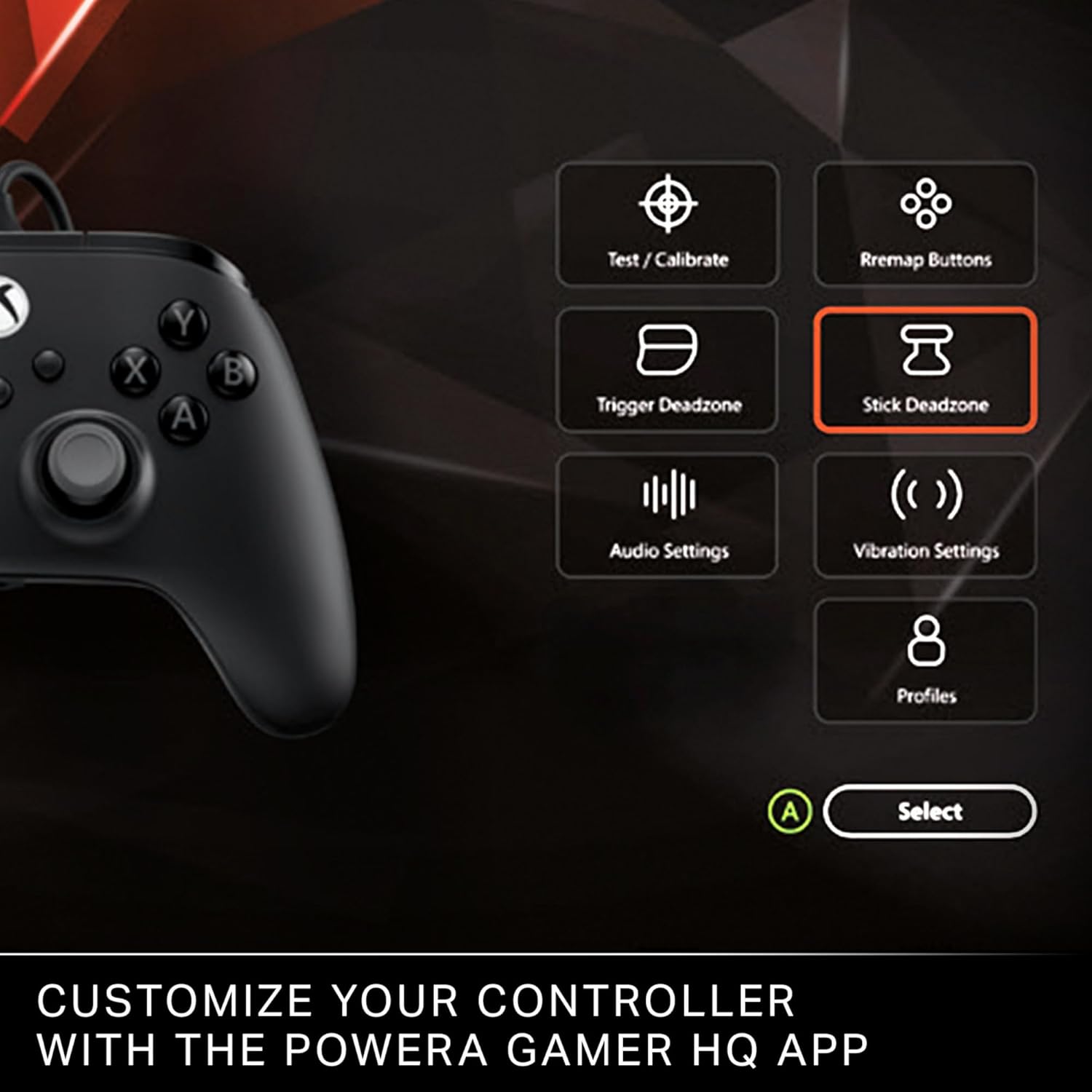
Figure 8: Customize your controller settings using the PowerA Gamer HQ App.
Itoju
- Ninu: Lo asọ, asọ ti o gbẹ lati nu si isalẹ oludari nigbagbogbo. Fun idoti alagidi, die-die dampen awọn asọ pẹlu omi. Yẹra fun lilo awọn kẹmika lile tabi awọn afọmọ abrasive.
- Ibi ipamọ: When not in use, store the controller in a cool, dry place away from direct sunlight and extreme temperatures. Avoid wrapping the cable too tightly around the controller to prevent damage.
- Itọju USB: The extra-long USB-C cable is designed for durability, but avoid excessive bending, twisting, or pulling on the cable, especially near the connectors.
Laasigbotitusita
- Alakoso Ko Dahun:
- Ensure the USB-C cable is securely connected to both the controller and the console/PC.
- Try connecting the controller to a different USB port on your console/PC.
- Tun console rẹ tabi PC bẹrẹ.
- If on PC, ensure the necessary drivers are installed or try reinstalling them via the PowerA Gamer HQ App or Windows Device Manager.
- Buttons or Sticks Not Functioning Correctly:
- Check if any Advanced Gaming Buttons are accidentally mapped to an unintended function. Reset AGBs if necessary (refer to "Operating Instructions").
- Calibrate the thumbsticks and triggers using the PowerA Gamer HQ App to address any dead zone or sensitivity issues.
- Ensure the Quick-Twist Thumbsticks are securely seated in their desired height setting.
- No Rumble Feedback:
- Verify that rumble feedback is enabled in your game's settings and in the PowerA Gamer HQ App.
- Some games may not fully support Impulse Trigger compatibility.
Awọn pato
| Ẹya ara ẹrọ | Ẹ̀kúnrẹ́rẹ́ |
|---|---|
| Nọmba awoṣe | XBGP0439-01 |
| Ibamu | Xbox Series X|S, Xbox One, Windows 10/11 PC |
| Asopọmọra | Ti firanṣẹ (USB-C) |
| USB Ipari | 10 ẹsẹ (mita 3) |
| Awọn ọpá atanpako | Quick-Twist Adjustable Height, Hall Effect Modules |
| Awọn bọtini Mappable | 2 Advanced Gaming Buttons |
| Idahun Haptic | Dual Rumble Motors, Impulse Triggers |
| Jack ohun | 3.5 mm Stereo Headset Jack |
| Awọn iwọn | 6.14 x 4.21 x 2.56 inches |
| Iwọn | 10.2 iwon |
| Olupese | Agbara |
| Ilu isenbale | China |
| Ojo ifisile | Oṣu Kẹta Ọjọ 25, Ọdun 2025 |
Atilẹyin ọja ati Support
PowerA Advantage Plus Wired Controller comes with a 2-odun Atilẹyin ọja Limited. For warranty claims or technical support, please visit the official PowerA webojula tabi kan si wọn onibara iṣẹ.
For additional information and a downloadable PDF user manual, please refer to the following link:
Ṣe igbasilẹ Itọsọna olumulo (PDF)
O tun le ri alaye ati atilẹyin diẹ sii lori PowerA Store on Amazon.
Ọja Pariview Fidio
Video 1: Official launch video showcasing the features of the PowerA Advantage Plus Wired Controller for Xbox. This video highlights the Quick-Twist Thumbsticks, Hall Effect Modules, and Advanced Gaming Buttons.


