1. Ifihan
Thank you for choosing the Angrox Voice Remote Control. This remote is specifically designed as a replacement for Philips Google Smart TVs, offering enhanced functionality including voice control and dedicated shortcut buttons for popular streaming services. Please read this manual carefully to ensure proper setup and operation.

Aworan: Iwaju ati ẹgbẹ view of the Angrox Voice Remote Control, showcasing apẹrẹ ergonomic rẹ ati ipilẹ bọtini.
2. Eto
2.1 Fifi sori batiri
The remote requires two (2) AAA batteries (not included). Ensure correct polarity when inserting the batteries.
- Remove the battery cover on the back of the remote by sliding it downwards.
- Insert two AAA batteries, matching the positive (+) and negative (-) terminals as indicated inside the battery compartment.
- Rọpo ideri batiri nipa gbigbe pada si aaye titi yoo fi tẹ ni aabo.

Image: A three-step diagram illustrating how to remove the battery cover, insert two AAA batteries, and replace the cover.
2.2 Sisopọ pẹlu TV rẹ
Before using the remote, it must be paired with your Philips Google Smart TV. This remote supports both infrared and Bluetooth technology for optimal performance.
- Ensure your Philips Google Smart TV is powered on.
- Hold down the "VOL-" button and the "Mic" (Google Assistant) button simultaneously for 5 seconds.
- The remote will initiate the pairing process. All pairing transactions occur in the background, and no further setup is typically required once the pairing is successful.

Image: A hand holding the remote, with an arrow pointing from the 'VOL-' and 'Mic' buttons to a TV screen, illustrating the pairing process.

Image: A visual guide showing the remote and a TV screen with on-screen instructions for pairing, emphasizing holding the VOL- and Mic buttons.
2.3 Àwọn Àwòrán TV Tó Báramu
This voice replacement remote is compatible with the following Philips Google Smart TV series:
- 7000 jara: 75PUL7552/F7, 65PUL7552/F7, 55PUL7552/F7, 50PUL7552/F7, 43PUL7652/F7
- 7600 jara: 65PUL7672/F7, 55PUL7672/F7, 50PUL7672/F7, 43PUL7672/F7

Image: The remote control centered between two Philips Google Smart TVs, with lists of compatible 7000 and 7600 series models.
3. Awọn ilana Iṣiṣẹ
3.1 Bọtini Awọn iṣẹ Pariview
Familiarize yourself with the various buttons and their functions on your Angrox remote control:
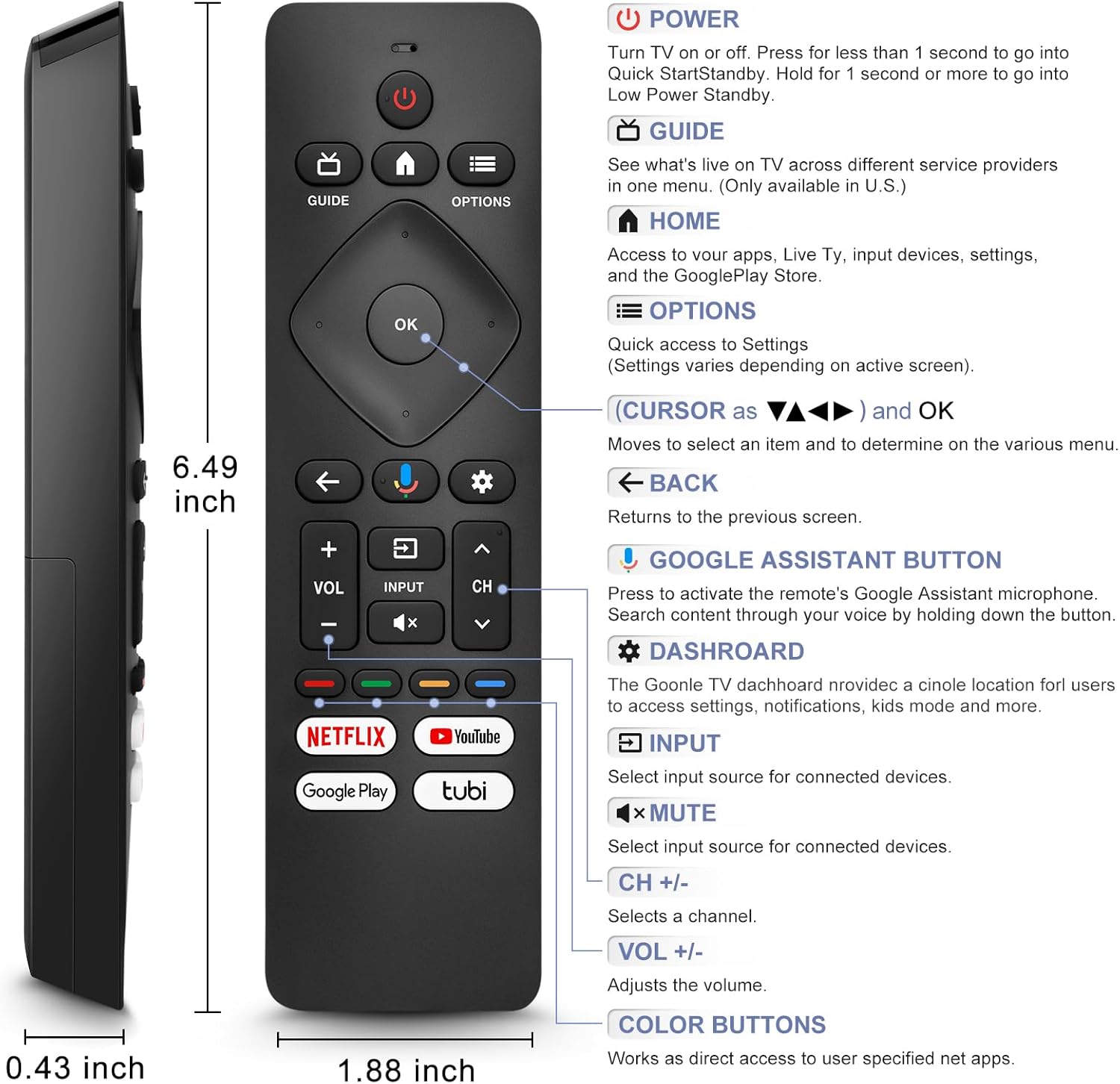
Image: A detailed diagram of the remote control with labels and descriptions for each button, including Power, Guide, Home, Options, Cursor/OK, Back, Google Assistant, Dashboard, Input, Mute, Volume, Channel, and Color Buttons.
- Agbara: Press to turn TV on or off. Hold for 1 second for Quick Start Standby, or longer for Low Power Standby.
- Itọsọna: Access live TV service providers (availability may vary by region).
- Ile: Access apps, Live TV, input devices, settings, and the Google Play Store.
- Awọn aṣayan: Quick access to settings (settings vary based on active screen).
- Cursor (Up/Down/Left/Right) & OK: Lilọ kiri awọn akojọ aṣayan ki o jẹrisi awọn aṣayan.
- Pada: Pada si iboju ti tẹlẹ.
- Bọtini Iranlọwọ Google: Press and hold to activate the remote's microphone for voice search.
- Dasibodu: Access the Google TV dashboard for settings, notifications, and kids mode.
- Iṣawọle: Yan orisun titẹ sii fun awọn ẹrọ ti a ti sopọ.
- Pa ẹnu mọ́: Mute or unmute the TV audio.
- VOL +/-: Ṣatunṣe ipele iwọn didun.
- CH +/-: Select the next or previous channel.
- Awọn bọtini awọ: Provide direct access to user-specified net apps.
3.2 Iṣẹ́ Wiwa Ohun
The integrated voice function allows for easier and more intuitive interaction with your smart TV. Simply press and hold the Google Assistant button and speak your command or query.
- Tẹ mọlẹ Bọtini Iranlọwọ Google (àmì gbohùngbohùn).
- Sọ kedere sinu gbohungbohun latọna jijin.
- Tu bọtini naa silẹ nigbati o ba pari sisọ.
Examples of voice commands include: "What's the weather today?", "Turn down the volume", "Open YouTube", or searching for specific content.
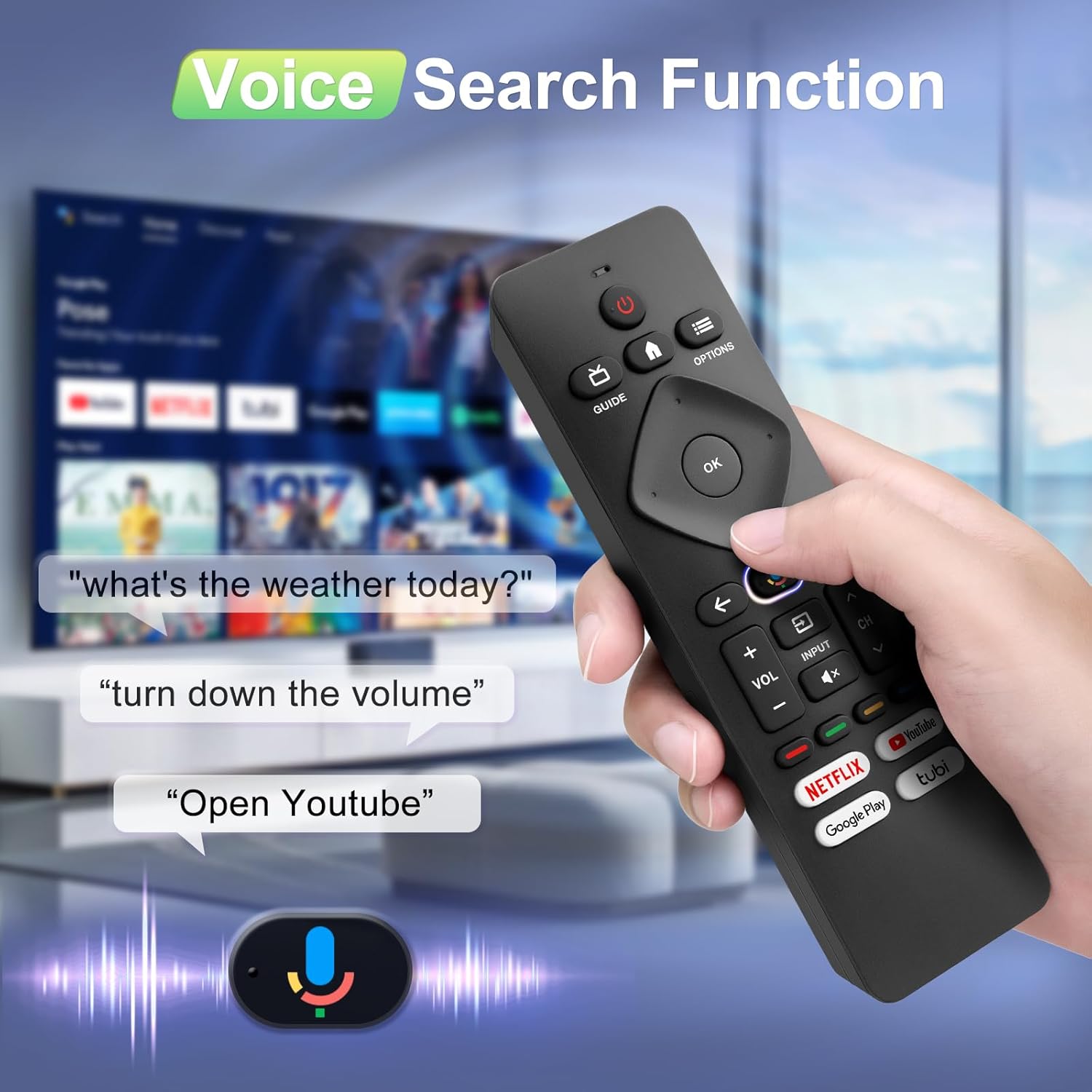
Image: A hand holding the remote, with speech bubbles showing example voice commands like "what's the weather today?" and "Open Youtube", demonstrating the voice search capability.
3.3 Awọn bọtini Ọna abuja
The remote features four dedicated shortcut buttons for quick access to popular streaming channels:
- Netflix
- YouTube
- Google Play
- Tubi
Pressing these buttons will directly launch the respective application on your TV, provided they are installed and configured.

Image: The remote control highlighting the four dedicated shortcut buttons for Netflix, YouTube, Google Play, and Tubi, with their respective logos.
4. Itọju
Lati rii daju igbesi aye gigun ati iṣẹ to dara julọ ti iṣakoso isakoṣo latọna jijin, tẹle awọn itọnisọna itọju wọnyi:
- Ninu: Fi aṣọ rírọrùn, gbígbẹ, nu remote náà. Má ṣe lo àwọn ohun èlò ìfọmọ́ omi tàbí àwọn ohun èlò ìpara.
- Rirọpo Batiri: Replace batteries when the remote's response becomes sluggish or it stops functioning. Always replace both batteries at the same time with new ones.
- Ibi ipamọ: Tọju isakoṣo latọna jijin ni itura, aye gbigbẹ kuro lati orun taara ati awọn iwọn otutu to gaju.
- Yago fun awọn isọ silẹ: Daabobo latọna jijin lati ipa ti ara, bi awọn silė le ba awọn paati inu jẹ.
5. Laasigbotitusita
Tí o bá ní ìṣòro pẹ̀lú ìṣàkóso latọna jijin rẹ, jọ̀wọ́ wo àwọn ìdáhùn tí ó wọ́pọ̀ wọ̀nyí:
- Latọna jijin Ko Dahun:
- Ṣayẹwo boya awọn batiri ti wa ni fi sii bi o ti tọ pẹlu polarity ọtun.
- Rọpo awọn batiri atijọ pẹlu awọn batiri AAA tuntun.
- Rii daju pe ko si awọn idena laarin isakoṣo latọna jijin ati olugba IR ti TV.
- Iṣẹ ohun Ko Ṣiṣẹ:
- Ensure the remote is properly paired with your TV via Bluetooth. Refer to Section 2.2.
- Make sure you are pressing and holding the Google Assistant button while speaking.
- Ṣàyẹ̀wò àwọn ètò TV rẹ láti rí i dájú pé ìṣàkóso ohùn ti ṣiṣẹ́.
- Buttons Unresponsive or Sticky:
- Clean the remote surface, especially around the buttons, to remove any dirt or debris.
- If buttons remain unresponsive after cleaning and battery replacement, the remote may require replacement.
- Short Remote Distance:
- The remote supports infrared and Bluetooth. Ensure no physical obstructions are blocking the signal.
- The remote is designed for optimal performance within 10 meters (approximately 33 feet) and is available up to 12 meters (approximately 39 feet).
6. Awọn pato
| Brand | Angrox |
| Nọmba awoṣe | URMT26CND002 |
| Awọn ẹrọ ibaramu | Philips Google Smart TVs (7000 & 7600 Series) |
| Asopọmọra Technology | Infrared, Bluetooth |
| Pataki Awọn ẹya ara ẹrọ | Ergonomic, Voice Search, Shortcut Buttons |
| Orisun agbara | Awọn batiri 2 x AAA (kii ṣe pẹlu) |
| Iwọn Nkan | 2.39 iwon (nipa 67.7 giramu) |
| Package Mefa | 6.73 x 1.93 x 1.02 inches |
| Bọ́tínì tó le pẹ́ tó | Tested for 5,000-8,000 clicks per button |
7. Atilẹyin ọja ati Support
Angrox is committed to providing excellent after-sale service. We focus on the compatibility and quality of our replacement remotes. If you have any questions or concerns regarding your order or the product, please do not hesitate to contact us directly. Our professional after-sale service team is available to assist you.
For support, please refer to the contact information provided with your purchase or visit the Angrox store on Amazon.
