Ọrọ Iṣaaju
This manual provides detailed instructions for the TECKNET Wired RGB Keyboard, model TK-KB037. Please read this manual thoroughly before using the product to ensure proper operation and maintenance.

Figure 1: TECKNET Wired RGB Keyboard (Model TK-KB037)
1. Eto
1.1 Package Awọn akoonu
- TECKNET Wired RGB Keyboard (Model TK-KB037)
- Afowoyi Olumulo (iwe-ipamọ yii)
1.2 Nsopọ Keyboard
The TECKNET Wired RGB Keyboard features a simple plug-and-play design, requiring no additional drivers for most operating systems.
- Locate an available USB-A port on your computer (PC, Laptop, Desktop, Raspberry Pi 3/4).
- Insert the USB connector of the keyboard into the USB-A port.
- Ẹ̀rọ ìṣiṣẹ́ rẹ yóò dá keyboard náà mọ̀ láìfọwọ́sí, yóò sì ṣetán fún lílò.

Figure 2: Connecting the USB cable to a computer.
Ibamu: Compatible with Windows 2000/XP/7/8/10, Vista, Raspberry Pi 3/4, and Mac OS. Note that multimedia keys may have limited functionality on Mac OS.

Figure 3: Operating system compatibility overview.
2. Awọn ilana Iṣiṣẹ
2.1 Quiet and Comfortable Typing
Kọ́bọ́ọ̀dù náà ní ẹ̀rọ tó kéré jùlọfile membrane keys designed for soft keystrokes and reduced typing noise, suitable for quiet environments.

olusin 4: Low-profile keycaps for quiet typing.
2.2 Ergonomic Design and Adjustable Tilt
The full-size 104-key layout includes adjustable tilt legs and anti-slip pads, allowing you to customize the typing angle for comfort during extended use.

Figure 5: Adjustable tilt legs for ergonomic comfort.
2.3 RGB Backlight Iṣakoso
The keyboard features 7 different lighting colors, 4 brightness levels (High/Medium/Low/Off), and 2 lighting modes (Static or Breathing).
- To change lighting color: Press FN + * (asterisk key).
- Láti ṣàtúnṣe ìmọ́lẹ̀: Tẹ FN + + (plus key) to increase, or FN + - (minus key) to decrease.
- To switch between Static and Breathing modes: Press FN + Aami Bulb Light bọtini.

Olusin 6: Examples of 7-color RGB backlighting.

Figure 7: Three levels of adjustable backlight brightness.
2.4 Multimedia Awọn ọna abuja
Utilize the 12 FN+F key combinations for quick access to various functions:
| Apapo bọtini | Išẹ |
|---|---|
| FN + F1 | Erọ orin |
| FN + F2 | Iwọn didun isalẹ |
| FN + F3 | Iwọn didun soke |
| FN + F4 | Pa ẹnu mọ́ |
| FN + F5 | Duro Sisisẹsẹhin |
| FN + F6 | Ti tẹlẹ Track |
| FN + F7 | Ṣiṣẹ / Sinmi |
| FN + F8 | Next Track |
| FN + F9 | Ẹrọ aṣawakiri ti Intanẹẹti |
| FN + F10 | Onibara Imeeli |
| FN + F11 | Titiipa Kọmputa |
| FN + F12 | Ẹrọ iṣiro |

Figure 8: FN key multimedia shortcuts.
3. Itọju
3.1 Spill-Resistant Design
The keyboard is built with a spill-resistant conductive film to protect against accidental water splashes. In case of a spill, promptly wipe the liquid clean from the keyboard surface.
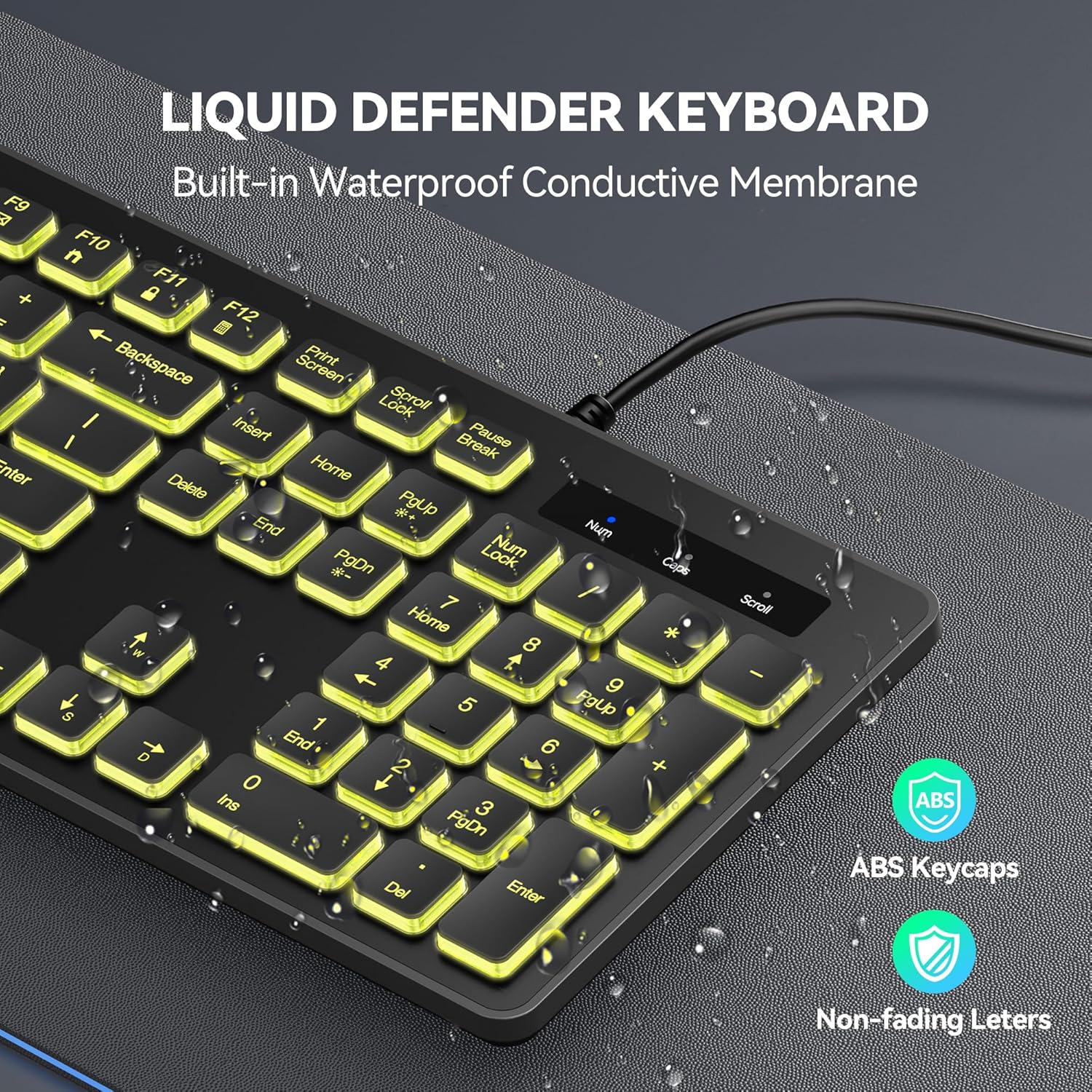
Figure 9: Spill-resistant keyboard design.
3.2 Gbogbogbo Cleaning
To clean the keyboard, use a soft, damp cloth. Avoid using harsh chemicals or abrasive cleaners, as these may damage the surface or key legends.
4. Laasigbotitusita
4.1 Keyboard Ko fesi
- Ensure the USB cable is securely connected to a working USB-A port on your computer.
- Try connecting the keyboard to a different USB-A port.
- Tun kọmputa rẹ bẹrẹ.
- Ṣe idanwo keyboard lori kọnputa miiran lati pinnu boya ọrọ naa wa pẹlu keyboard tabi kọnputa naa.
4.2 Backlight Ko Ṣiṣẹ tabi ti ko tọ
- Rí i dájú pé keyboard so pọ̀ dáadáa.
- Lo FN + + or FN + - lati ṣatunṣe imọlẹ.
- Lo FN + * lati yika nipasẹ awọn awọ.
- Lo FN + Aami Bulb Light to change lighting modes.
4.3 Multimedia Keys Not Functioning on Mac OS
As noted in the compatibility section, some multimedia keys may have limited functionality when used with Mac OS. This is due to differences in operating system key mapping and is not a product defect.
5. Awọn pato
| Ẹya ara ẹrọ | Ẹ̀kúnrẹ́rẹ́ |
|---|---|
| Nọmba awoṣe | TK-KB037 |
| Brand | AKOSO |
| Asopọmọra Technology | USB-A (Ti firanṣẹ) |
| Apejuwe Keyboard | Ẹ̀yà ara |
| Ifilelẹ bọtini | Full-size, 104 keys |
| Imọlẹ afẹyinti | 7-Color RGB, 4 Brightness Levels, 2 Modes (Static/Breathing) |
| Pataki Awọn ẹya ara ẹrọ | Backlit, Spill-Resistant, Adjustable Tilt Legs, Multimedia Shortcuts |
| Awọn ẹrọ ibaramu | PC (Windows 2000/XP/7/8/10, Vista), Raspberry Pi 3/4, Mac OS |
| Ọja Mefa | 17.3"L x 5.2"W x 1.1"H (43.9 x 13.2 x 2.8 cm) |
| Iwọn Nkan | 0.634 iwon (nipa 18 giramu) |
6. Atilẹyin ọja
Each TECKNET product provides a lifetime warranty (registered only). If you are not satisfied with your product or service, please contact TECKNET customer support.
7. Atilẹyin
For technical support, warranty claims, or further assistance, please visit the official TECKNET website or contact their customer service directly. Refer to the product packaging or the TECKNET webojula fun awọn julọ lọwọlọwọ alaye olubasọrọ.
O tun le ṣàbẹwò awọn Ile itaja TECKNET lori Amazon fun alaye ọja diẹ sii ati awọn orisun atilẹyin.
Ọja Pariview Fidio
Fidio 1: Ipariview of the TECKNET wired backlit keyboard, demonstrating its features such as plug-and-play setup, adjustable legs, quiet typing, RGB lighting modes, and spill resistance.


