1. Ifihan
This manual provides comprehensive instructions for the DAREU EK87PROTKL Wireless Mechanical Gaming Keyboard and the DAREU A950 4K Polling Rate Wireless Gaming Mouse. Please read this manual carefully before using the products to ensure proper setup and operation. Keep this manual for future reference.
2. Keyboard Features Overview (EK87PROTKL)
- Gasket Mount & PCB Single Key Slotting: Features a gasket structure with a 1.2mm thick FR4 PCB and single key slotted design for enhanced resilience, stability, and a softer, more responsive feel. Six-layer padding reduces noise and provides a focused, crisp sound.
- Isopọ-Ipo Mẹta: Supports Bluetooth 5.1, 2.4GHz wireless, and USB-C wired connections. Connects to up to five devices simultaneously.
- Gbona-Swappable: Equipped with a hot-swappable PCB supporting almost all 3-pin or 5-pin mechanical switches on the market. Comes with pre-lubed Cloud linear switches.
- South-Facing RGB Lighting: Offers up to 26 backlight modes and 16.8 million colors. Brightness and speed are adjustable via the driver software.
- Igbesi aye batiri gigun: Features a 4000mAh battery, providing up to 45 days of playtime in lights-off mode.

Figure 2.1: Keyboard Gasket Structure Diagram. This image details the layered construction of the keyboard, highlighting components that contribute to its sound and feel.

Figure 2.2: Keyboard Tri-Mode Connection. This image illustrates the three available connection methods and how to switch between them using Fn key combinations.

Figure 2.3: Keyboard RGB Lighting Controls. This image shows various RGB lighting modes and the Fn key combinations for adjusting brightness and color.
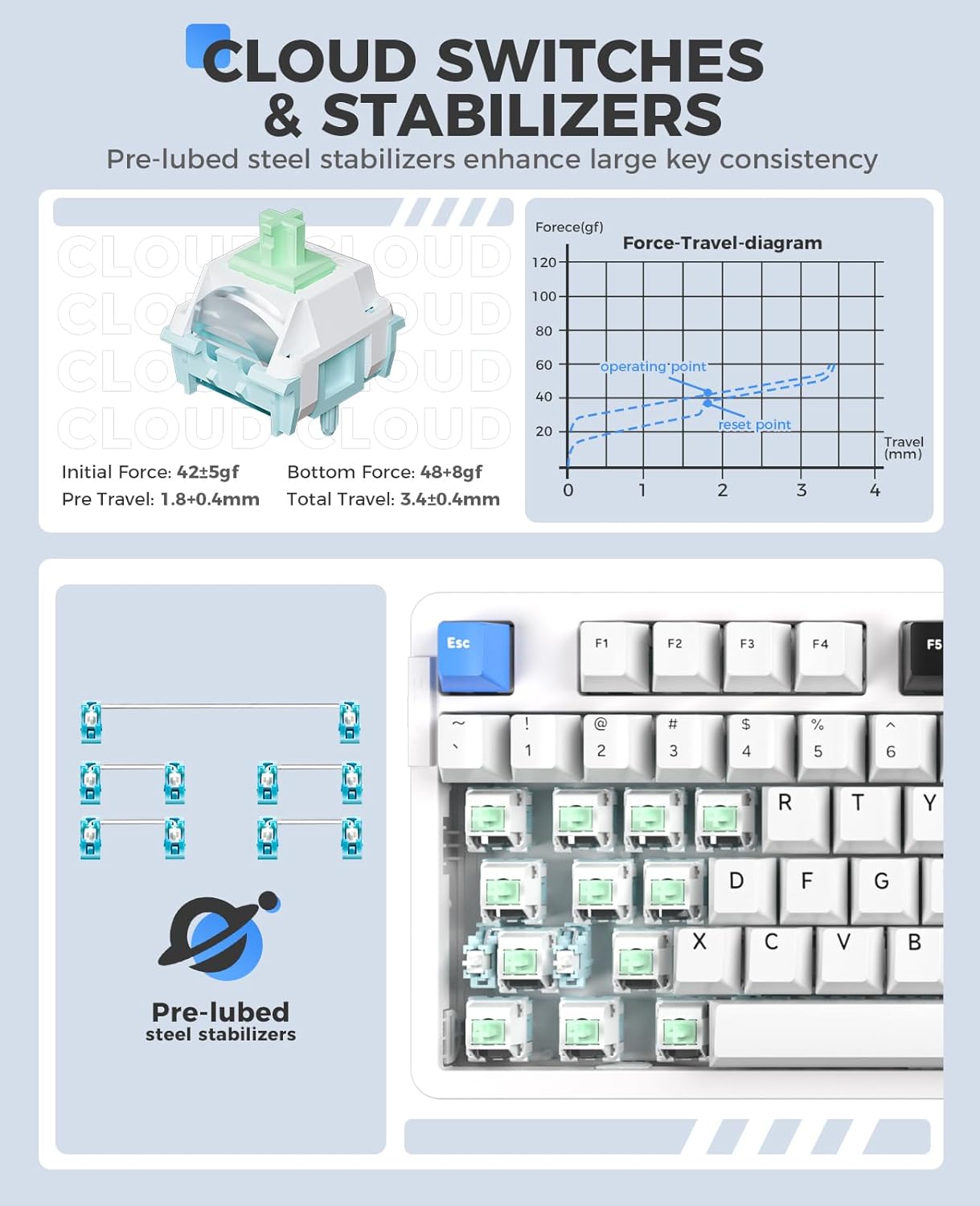
Figure 2.4: Cloud Switches and Stabilizers. This image details the characteristics of the pre-lubed Cloud linear switches and steel stabilizers.

Figure 2.5: Hot-Swappable PCB Socket. This image illustrates the hot-swappable design, allowing users to easily change switches.
3. Mouse Features Overview (A950)
- Oṣuwọn Idibo 4K: Equipped with a 4KHz receiver, sending signals to the computer in 0.25ms, which is four times faster than standard gaming mice.
- PAW 3395 Optical Sensor: Features a high-precision PAW 3395 sensor with up to 26000 DPI, 650 IPS tracking speed, and 50G acceleration for accurate tracking.
- Awọn iyipada Kailh Black GM8.0: Utilizes durable Kailh black GM8.0 mouse switches, rated for 80 million clicks.
- Tri-Mode Connection & Programmable: Supports multiple connection methods and offers programmable buttons via software.
- Apẹrẹ iwuwo fẹẹrẹ: Weighs 54g for comfortable and agile use.
- Gbigba agbara yiyara: 300mAh battery with 30-minute fast charging to reach 90% power. Provides approximately 37 days of use in BT5.1 mode and 6 days in 2.4G mode (based on 4 hours of connection per day).

Figure 3.1: Mouse 4K Report Rate. This image shows the mouse and its 4K receiver, emphasizing the high report rate for responsiveness.

Figure 3.2: Mouse PAW3395 Optical Sensor. This image focuses on the mouse's sensor capabilities, including its high DPI and tracking speed.

Figure 3.3: Mouse Fast Charging Technology. This image provides details on the mouse's battery life and quick charging feature.
4. Awọn ilana iṣeto
4.1 Keyboard (EK87PROTKL)
- Asopọ onirin: Connect the keyboard to your computer using the provided USB-C cable. The keyboard will be automatically recognized.
- 2.4GHz Asopọ Alailowaya:
- Wa olugba USB 2.4GHz.
- Pulọọgi olugba sinu ibudo USB ti o wa lori kọnputa rẹ.
- Turn on the keyboard and switch it to 2.4GHz mode (refer to the keyboard's mode switch or Fn key combination). The keyboard should connect automatically.
- Bluetooth 5.1 Asopọ:
- Ensure the keyboard is in Bluetooth mode (refer to the keyboard's mode switch or Fn key combination, typically Fn + 1/2/3).
- Lori kọmputa tabi ẹrọ rẹ, lọ si awọn eto Bluetooth ki o wa awọn ẹrọ titun.
- Select "DAREU EK87PROTKL" from the list of available devices to pair.
- The keyboard can store up to three Bluetooth connections. Switch between them using fn+1, fn+2, tabi fn+3.
4.2 Mouse (A950)
- Asopọ onirin: So asin pọ mọ kọmputa rẹ nipa lilo okun USB-C ti a pese. Asin yoo ṣiṣẹ lẹsẹkẹsẹ.
- 2.4GHz Asopọ Alailowaya:
- Plug the 4K USB receiver into an available USB port on your computer.
- Turn on the mouse and switch it to 2.4GHz mode. The mouse should connect automatically.
- Asopọ Bluetooth:
- Ensure the mouse is in Bluetooth mode.
- Lori kọmputa tabi ẹrọ rẹ, lọ si awọn eto Bluetooth ki o wa awọn ẹrọ titun.
- Select "DAREU A950" from the list of available devices to pair.
- Gbigba agbara: Connect the mouse to a computer USB port using the USB-C cable for charging. The mouse supports fast charging.
5. Awọn ilana Iṣiṣẹ
5.1 Keyboard (EK87PROTKL)
- Iṣakoso Imọlẹ RGB:
- Fn + Ọfà oke: Mu imọlẹ pọ si.
- Fn + Ọfà isalẹ: Din imọlẹ.
- Fn + { : Yi awọ ẹhin pada.
- Fn + } : Yi ipo ina ẹhin pada.
- Operating System Switch: Lo fn+1 (fun Windows) tabi fn+2 (for Mac) to switch between operating system layouts.
- Software Awakọ: For advanced customization of RGB lighting, macros, and key assignments, download and install the official DAREU driver software from the DAREU webojula.
5.2 Mouse (A950)
- Atunse DPI: The mouse typically has a dedicated DPI button or can be adjusted via software. Refer to the DAREU driver software for precise DPI settings.
- Awọn bọtini eto: Utilize the DAREU driver software to customize button functions, create macros, and adjust other performance settings.
6. Itọju
6.1 Gbogbogbo Cleaning
- Disconnect both the keyboard and mouse from your computer before cleaning.
- Lo asọ asọ, ti ko ni lint die-die dampened with water or a mild cleaning solution to wipe down the surfaces.
- For the keyboard, use compressed air to remove dust and debris from between the keycaps.
- Avoid using harsh chemicals, abrasive cleaners, or spraying liquids directly onto the devices.
6.2 Keyboard Switch Replacement
- Ensure the keyboard is disconnected from power.
- Use a keycap puller to carefully remove the desired keycap.
- Use a switch puller to gently grip and pull the switch vertically out of the PCB.
- Ṣètò àwọn pinni ti switch mekaniki tuntun ti pin mẹta tabi marun-un pẹlu awọn ihò lori PCB.
- Tẹ̀ switch tuntun náà dáadáa títí tí yóò fi tẹ. Rí i dájú pé ó jókòó dáadáa, kò sì tẹ̀.
- Rọpo bọtini bọtini.
7. Laasigbotitusita
7.1 Keyboard Issues
| Isoro | Owun to le Solusan |
|---|---|
| Kííbọọ̀dù kò dáhùn (tí a fi wáyà ṣe) | Check USB-C cable connection. Try a different USB port or cable. |
| Kííbọọ̀dù kò sopọ̀ mọ́ ara wọn (2.4GHz) | Ensure the keyboard is in 2.4GHz mode. Re-insert the USB receiver. Try a different USB port. Ensure the keyboard battery is charged. |
| Keyboard ko sopọ (Bluetooth) | Ensure the keyboard is in Bluetooth pairing mode (Fn + 1/2/3). Forget the device on your computer and re-pair. Ensure the keyboard battery is charged. |
| Imọlẹ RGB ko ṣiṣẹ / ti ko tọ | Adjust brightness/mode using Fn key combinations. Check settings in the DAREU driver software. Ensure the keyboard battery is charged. |
| Awọn bọtini ko forukọsilẹ | Check if the switch is properly seated. If hot-swappable, try re-seating or replacing the switch. |
7.2 Mouse Issues
| Isoro | Owun to le Solusan |
|---|---|
| Asin ko dahun (firanṣẹ) | Check USB-C cable connection. Try a different USB port or cable. |
| Mouse not connecting (2.4GHz) | Ensure the mouse is in 2.4GHz mode. Re-insert the 4K USB receiver. Try a different USB port. Ensure the mouse battery is charged. |
| Mouse not connecting (Bluetooth) | Ensure the mouse is in Bluetooth pairing mode. Forget the device on your computer and re-pair. Ensure the mouse battery is charged. |
| Asin kọsọ asise tabi ko gbigbe | Clean the optical sensor. Ensure the mouse pad or surface is clean and suitable. Check DPI settings. |
| Asin ko gba agbara | Ensure the USB-C cable is properly connected. Try a different USB port or charging cable. Use a computer USB port for charging, not a wall adapter. |
8. Awọn pato
8.1 DAREU EK87PROTKL Keyboard
- Eto: Gasket Mount, PCB Single Key Slotting
- PCB: FR4 material, 1.2mm thick, hot-swappable (3/5 pin switches)
- Awọn iyipada: Pre-lubed Cloud Linear Switch
- Àwọn olùdúróṣinṣin: Pre-lubed Steel Stabilizers
- Asopọmọra: Bluetooth 5.1 / 2.4GHz Wireless / USB-C Wired (Tri-Mode)
- Batiri: 4000mAh
- Imọlẹ: South-Facing RGB, 26 modes, 16.8 million colors
- Awọn bọtini: 87 keys, N-key rollover (all keys conflict-free)
8.2 DAREU A950 Mouse
- Sensọ: PAW 3395 opitika sensọ
- Oṣuwọn Idibo: 4KHz (pẹ̀lú olugba 4K)
- DPI: Titi di 26000 DPI
- Iyara Ipasẹ: Ọdun 650 IPS
- Isare: 50G
- Awọn iyipada: Kailh Black GM8.0 (80 million clicks)
- Ìwúwo: 54g
- Asopọmọra: Bluetooth / 2.4GHz Wireless / USB-C Wired (Tri-Mode)
- Batiri: 300mAh, 30-minute fast charging (90% power)
9. Atilẹyin ọja ati Support
DAREU products come with a standard manufacturer's warranty. For specific warranty terms and conditions, please refer to the warranty card included with your product or visit the official DAREU website. For technical support, troubleshooting assistance, or driver downloads, please visit the DAREU official support page or contact DAREU customer service.
DAREU Osise Webojula: www.dareu.com


