1. Ọja Ipariview
This manual provides instructions for the Doohoeek Wireless Illuminated Keyboard Case, designed to enhance the functionality and protection of your compatible iPad device. This keyboard case features a multi-touch trackpad, illuminated keys, and a rechargeable battery, offering a versatile and portable solution for productivity.
Ibamu:
- iPad Air 13 (2025 M3 / 2024 M2)
- iPad Pro 12.9 Inch (6th, 5th, 4th, 3rd Generation)

Aworan 1.1: The Doohoeek Keyboard Case with an iPad Air 13 installed, showcasing the keyboard and trackpad. The case provides comprehensive protection while allowing full access to device features.

Aworan 1.2: Visual representation of compatible iPad models, including iPad Air 13 M3/M2 2025/2024 and various generations of iPad Pro 12.9 Inch. Ensure your iPad model matches the listed compatibility.
2. Eto Itọsọna
2.1 Package Awọn akoonu
Before proceeding, please verify that all components are present:
- 1 x Keyboard Case for iPad Air 13 / iPad Pro 12.9 Inch
- 1 x Okun Ngba agbara USB
- 1 x Itọsọna olumulo (iwe yii)
2.2 Ngba agbara si Keyboard
Káàbọ́ọ̀dù náà ní bátìrì tí a lè gba agbára sínú rẹ̀. Fún iṣẹ́ tó dára jùlọ, gba agbára kíábọ́ọ̀dù náà kí o tó lò ó fún ìgbà àkọ́kọ́.
- Locate the charging port on the keyboard (typically on the side).
- Connect the provided USB charging cable to the keyboard's charging port.
- So opin keji okun USB pọ mọ adapter agbara USB deede (ko si ninu rẹ) tabi ibudo USB kọmputa kan.
- Ina ifihan agbara yoo tan imọlẹ. Gbigba agbara ni kikun maa n gba wakati mẹrin si mẹfa.
- Once fully charged, the indicator light may change color or turn off. The keyboard offers approximately 300 hours of standby time without backlight on a single charge.
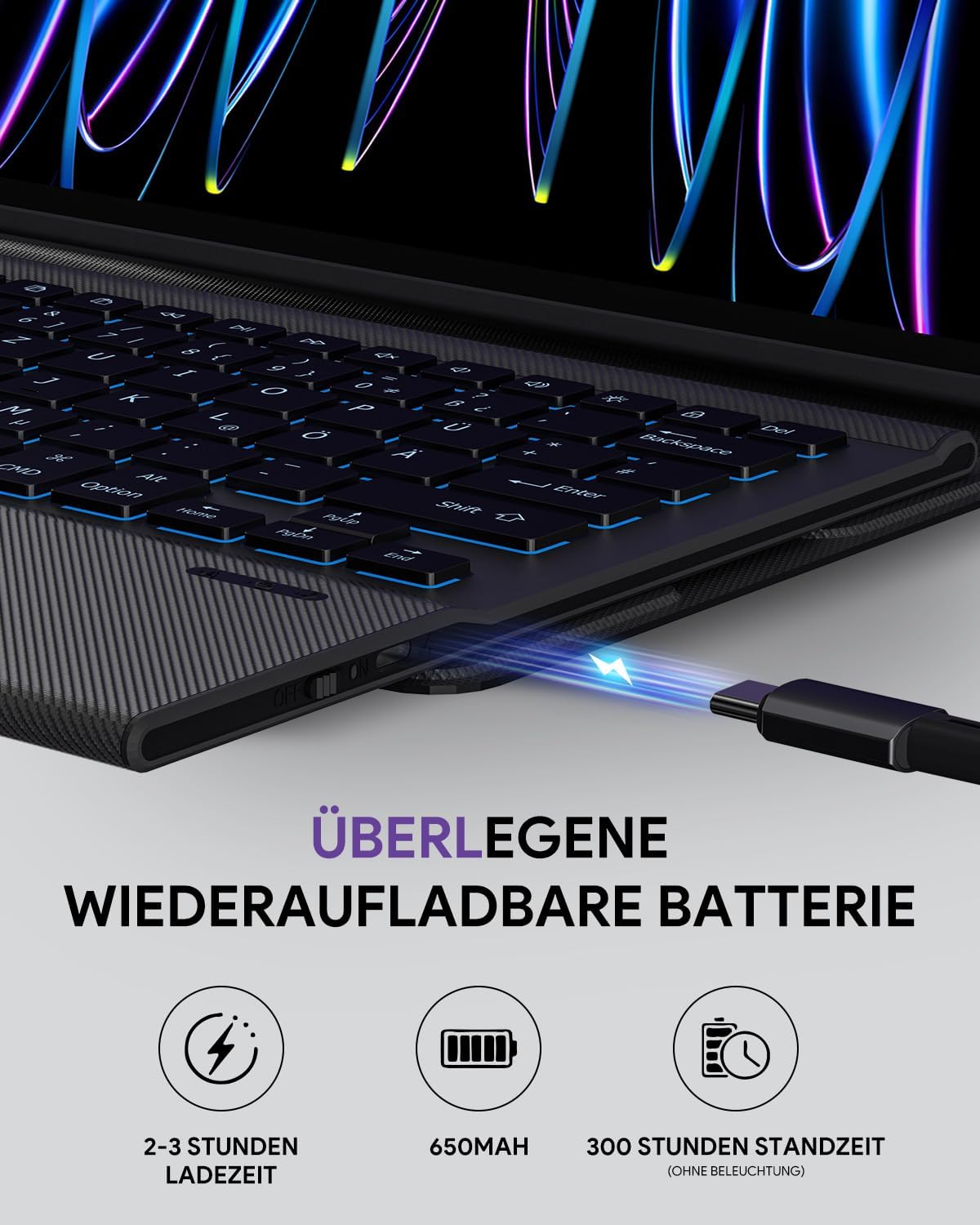
Aworan 2.1: The keyboard's charging port connected to a USB cable, indicating the charging process. The battery provides extended usage time.
2.3 Fifi iPad rẹ sori ẹrọ
Carefully place your iPad into the protective case:
- Align your iPad with the cut-outs of the case.
- Gently press the iPad into the case, ensuring all edges are securely fitted.
- Verify that all ports, buttons, and cameras are accessible and unobstructed.

Aworan 2.2: Detail of the compact case design, showing the secure fit for the iPad and the integrated pen holder. The case is designed for protection and convenience.
2.4 Sisopọ Bluetooth
To connect the keyboard to your iPad via Bluetooth:
- Ensure the keyboard is charged and turn on the keyboard's power switch (usually located on the side).
- Lori iPad rẹ, lọ si Eto > Bluetooth.
- Tan Bluetooth. iPad rẹ yoo bẹrẹ wiwa awọn ẹrọ nitosi.
- Lori awọn keyboard, tẹ awọn Sopọ button (or a combination like Fn + C, refer to keyboard markings if different) to enter pairing mode. The Bluetooth indicator light on the keyboard will flash.
- On your iPad, select "Doohoeek Keyboard" (or a similar name) from the list of available devices.
- Tẹ̀lé gbogbo àṣẹ lórí ìbòjú láti parí iṣẹ́ ìsopọ̀ náà. Ìmọ́lẹ̀ àmì tó wà lórí keyboard yóò dáwọ́ dúró nígbà tí a bá ti so ó pọ̀ dáadáa.
3. Awọn ilana Iṣiṣẹ
3.1 Keyboard Awọn iṣẹ
The keyboard features a QWERTZ layout and several special functions:
- Iṣakoso ina Back: The keyboard offers 7 different backlight colors and 3 adjustable brightness levels. Use the dedicated backlight key (often represented by a light bulb icon) or a function key combination (e.g., Fn + Light Bulb) to cycle through colors and adjust brightness.
- Scissor-Switch Keys: The keys utilize a scissor-switch mechanism for a comfortable and responsive typing experience.

Aworan 3.1: The illuminated keyboard displaying various backlight colors and brightness settings. Users can customize the lighting to suit their environment.
3.2 Multi-Touch Trackpad
The integrated multi-touch trackpad allows for precise navigation and gesture control on your iPad, similar to a laptop. It includes anti-palm mistouch technology to prevent accidental inputs during typing.
- Lilọ kiri ipilẹ: Gbe kọsọ naa nipa gbigbe ika rẹ kọja paadi orin.
- Tẹ: Tẹ mọlẹ lori trackpad tabi tẹ pẹlu ika kan.
- Yi lọ: Lo ìka méjì láti yí lọ sókè tàbí sí ìsàlẹ̀.
- Sun-un: Pọ pẹlu ika meji lati sun sinu tabi ita.
- Other Gestures: Refer to iPadOS settings for additional multi-touch gestures supported by your iPad.

Aworan 3.2: The multi-touch trackpad in use, demonstrating various gestures for navigation and control on the iPad screen. The anti-palm mistouch feature is also highlighted.
3.3 Adijositabulu Viewing Awọn igun
The case features a kickstand that allows for three adjustable viewing angles, providing flexibility for typing, drawing, or media consumption.
- The keyboard is magnetically attached and can be removed from the case for standalone use or to adjust the viewing angle more freely.

Aworan 3.3: The keyboard case demonstrating its three adjustable viewing angles (110°, 120°, 130°), allowing users to find the most comfortable position for their tasks. The removable keyboard feature is also illustrated.
4. Itọju
To ensure the longevity and optimal performance of your keyboard case:
- Ninu: Lo asọ, damp cloth to wipe the exterior of the case and keyboard. Avoid harsh chemicals or abrasive materials. For the keyboard keys, a soft brush or compressed air can remove debris.
- Ibi ipamọ: When not in use for extended periods, store the keyboard case in a cool, dry place. Ensure the keyboard is turned off to conserve battery life.
- Idaabobo: While the case offers protection, avoid dropping the device or exposing it to extreme temperatures or liquids.
5. Laasigbotitusita
If you encounter issues with your Doohoeek Keyboard Case, refer to the following common solutions:
- Keyboard ko sopọ nipasẹ Bluetooth:
- Rii daju pe keyboard ti wa ni titan ati gbigba agbara ni kikun.
- Rí i dájú pé Bluetooth ti ṣiṣẹ́ lórí iPad rẹ.
- Gbagbe ẹrọ inu awọn eto Bluetooth ti iPad rẹ ki o gbiyanju lati tun so pọ.
- Rii daju pe bọtini itẹwe wa ni ipo sisopọ (itọka imọlẹ ina).
- Tun bẹrẹ mejeeji iPad ati keyboard.
- Awọn bọtini ko dahun:
- Ṣàyẹ̀wò bóyá keyboard náà ti so pọ̀ nípasẹ̀ Bluetooth.
- Ensure the keyboard battery is not depleted.
- Nu eyikeyi idoti kuro labẹ awọn bọtini.
- Trackpad ko ṣiṣẹ:
- Rí i dájú pé keyboard ti sopọ̀ mọ́ra.
- Check iPadOS settings for trackpad functionality and gestures.
- Nu oju ipa ọna naa mọ.
- Imọlẹ ẹhin ko ṣiṣẹ tabi dinku:
- Rii daju pe o ti gba agbara fun keyboard.
- Use the backlight control key to adjust brightness and cycle through colors.
If problems persist, please contact customer support as detailed in the Warranty and Support section.
6. Awọn pato
| Ẹya ara ẹrọ | Ẹ̀kúnrẹ́rẹ́ |
|---|---|
| Brand | Doohoeek |
| Awọn ẹrọ ibaramu | iPad Air 13 (2025 M3/2024 M2), iPad Pro 12.9 (6th/5th/4th/3rd Gen) |
| Asopọmọra Technology | Bluetooth |
| Apejuwe Keyboard | Multi Functional, QWERTZ Layout |
| Pataki Awọn ẹya ara ẹrọ | Backlit (7 colors, 3 levels), Portable, Rechargeable, Multi-Touch Trackpad, Quiet Scissor-Switch Keys, Removable Keyboard, Adjustable Kickstand |
| Agbara Batiri | 650 mAh |
| Akoko gbigba agbara | 2-3 wakati |
| Akoko Iduro | Approx. 300 hours (without backlight) |
| Ohun elo | Ṣiṣu |
| Awọn irinše to wa | Okun USB |
| Package Mefa | 32.5 x 25.4 x 3.4 cm |
| Iwọn | 1.08 kg |
7. Atilẹyin ọja ati Support
The Doohoeek Keyboard Case comes with a 2-odun atilẹyin ọja lati ọjọ ti o ra.
For any questions, technical assistance, or warranty claims, please contact Doohoeek customer support through the Amazon platform where the product was purchased. Provide your order details and a clear description of the issue for prompt assistance.


