1. Ifihan
Welcome to the TABWEE T80 Tablet user manual. This guide provides comprehensive instructions to help you get the most out of your new Android 15 tablet. The T80 is designed for a seamless and powerful user experience, featuring advanced AI capabilities, a vibrant display, and robust performance for both work and entertainment.
Awọn ẹya pataki:
- Ètò Ìṣiṣẹ́ Android 15: Experience the latest features and security enhancements.
- Gemini AI 2.0: Enhanced AI for smarter interactions and controls.
- 10.5-inch HD+ IPS Display: Enjoy clear and vibrant visuals with a wide viewigun igun.
- Iṣe Alagbara: Equipped with a 2.0GHz CPU, 12GB RAM, and 64GB ROM (expandable up to 2TB via TF card).
- Batiri pipẹ: 6000mAh mega battery for extended use.
- Ilọsiwaju Asopọmọra: Supports 5G WiFi and Bluetooth 5.0.
- 5MP Google Lens Camera: For clear photos and smart scene recognition.

Figure 1.1: The TABWEE T80 Tablet, showcasing awọn oniwe-aso oniru ati ifihan.
2. Eto
2.1 Unboxing ati Ni ibẹrẹ idiyele
Carefully remove your TABWEE T80 Tablet from its packaging. Before first use, it is recommended to fully charge the device using the provided USB-C cable and power adapter. The charging port is located on the side of the tablet.
2.2 Agbara Lori ati Iṣeto ni ibẹrẹ
- Press and hold the Power button (located on the side) until the TABWEE logo appears on the screen.
- Tẹle awọn itọnisọna loju iboju lati yan ede rẹ, sopọ si nẹtiwọki Wi-Fi, ki o si ṣeto akọọlẹ Google rẹ.
- Review and accept the terms and conditions to complete the setup process.

olusin 2.1: An loriview of the TABWEE T80's core specifications and features.
3. Ṣiṣẹ tabulẹti
3.1 Àwọn Ẹ̀yà Android 15
Your TABWEE T80 runs on the latest Android 15, offering enhanced user experience, improved privacy, and smart features.
Split-Screen Combo
The split-screen feature allows you to run two applications simultaneously, enhancing multitasking and productivity. You can easily save app pairs for quick access.
Video 3.1: Demonstrates how to use the split-screen feature to run two applications concurrently on the TABWEE T80 tablet.
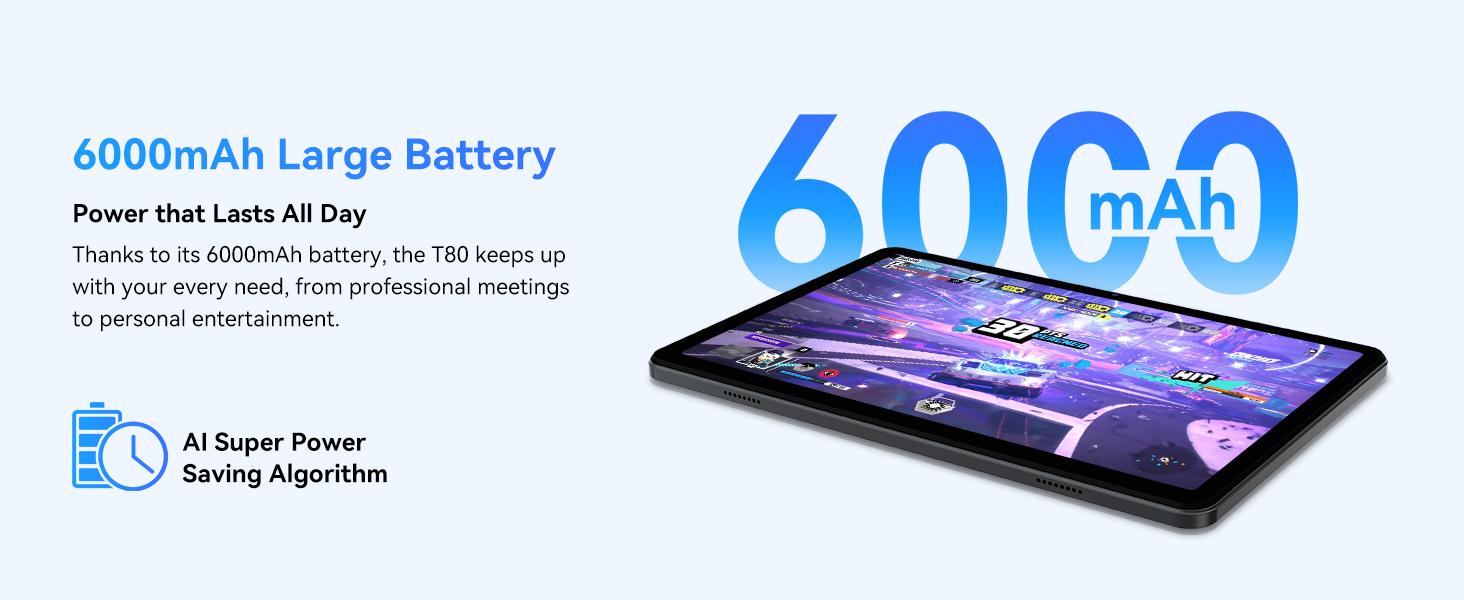
Figure 3.1: Visual representation of the split-screen functionality, allowing for efficient multitasking.
Desktop Customization and Widgets
Personalize your home screen by dragging and grouping apps freely. You can also add various widgets, such as the calendar, to quickly access information and tasks.
Video 3.2: Illustrates how to customize your desktop layout and add widgets for quick access to information.
Ìpamọ Iṣakoso
Android 15 offers enhanced privacy controls, allowing you to manage app permissions and secure your data. You can block app access to sensitive information like location.
Video 3.3: Shows how to manage privacy settings and control app access to your data on the TABWEE T80.
Parental Controls with Gemini AI
Utilize Gemini AI parental controls to manage screen time, automatically lock games during homework, and ensure a safe digital environment for children.
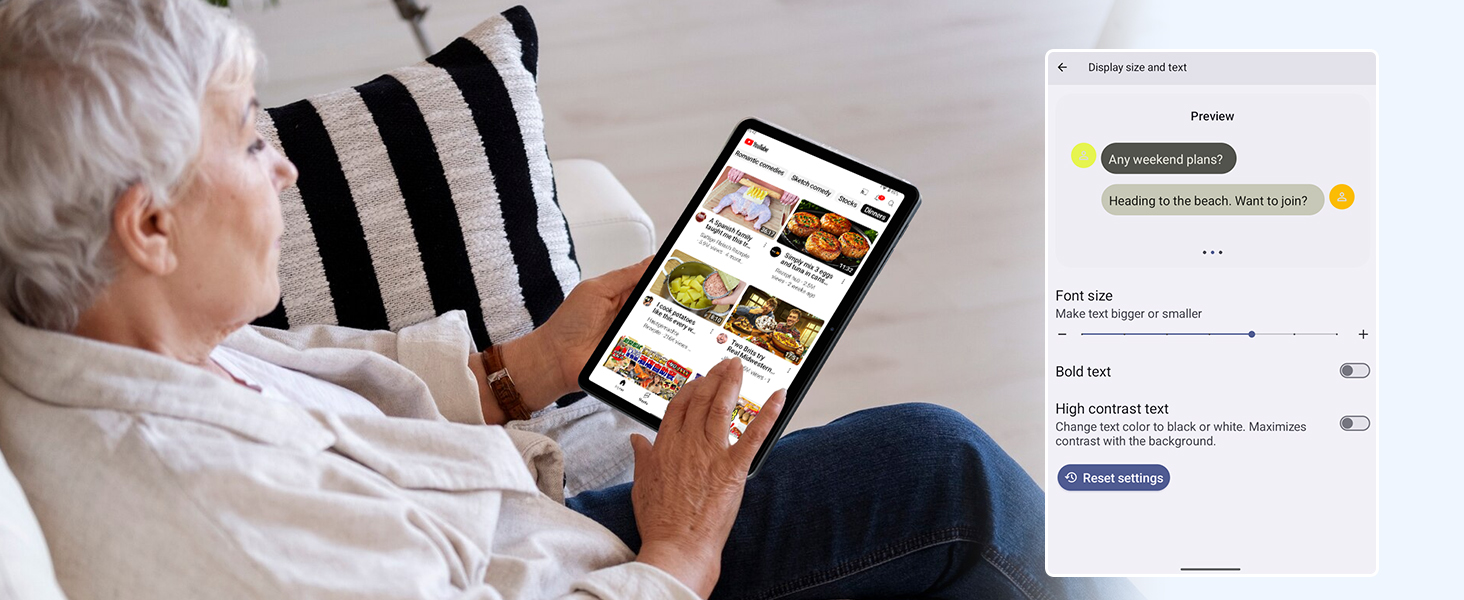
Figure 3.2: The Digital Wellbeing interface, demonstrating options for managing screen time and parental controls.
3.2 Ifihan ati Visuals
The 10.5-inch HD+ IPS display provides a clear and immersive viewing experience with a 1280x800 resolution and 84.9% screen-to-body ratio. It's ideal for watching videos, browsing, and reading.

Figure 3.3: Details of the tablet's display, highlighting its resolution and IPS full view awọn agbara.
3.3 Išẹ ati Ibi ipamọ
Powered by a 2.0GHz Unisoc T310 CPU and 12GB RAM (expandable via software memory extension), the T80 ensures smooth multitasking and responsive performance. With 64GB of internal storage and support for up to 2TB TF cards, you have ampaaye fun gbogbo rẹ fileàwọn ohun èlò, àwọn àpù, àti àwọn ohun èlò mídíà.

Figure 3.4: Illustration of the tablet's processing power and memory, enabling seamless multitasking and productivity.
3.4 batiri Life
The 6000mAh mega battery provides extended usage, offering up to 8 hours of video streaming, 6 hours of gaming, or 30 hours of music playback. Smart power-saving modes further optimize battery longevity.

Figure 3.5: Depiction of the tablet's large 6000mAh battery and its USB-C charging port.
3.5 kamẹra Awọn ẹya ara ẹrọ
The T80 features a 5MP Google Lens enabled camera. This allows for scene recognition, night mode optimization, and useful functions like text translation and object identification.

olusin 3.6: An loriview of the tablet's camera and its integration with Google Lens for smart functions.
4. Itọju
To ensure the longevity and optimal performance of your TABWEE T80 Tablet, follow these maintenance guidelines:
- Ninu: Lo asọ ti ko ni lint lati nu iboju ati ara. Yago fun awọn ohun elo abrasive tabi awọn kemikali lile.
- Awọn imudojuiwọn sọfitiwia: Máa ṣàyẹ̀wò kí o sì fi àwọn àtúnṣe ètò náà sí i déédéé láti jàǹfààní àwọn ẹ̀yà tuntun, àwọn àtúnṣe ààbò, àti àwọn àtúnṣe iṣẹ́.
- Itọju Batiri: Avoid extreme temperatures. Do not let the battery fully drain frequently. For long-term storage, charge the battery to about 50%.
- Isakoso Ibi ipamọ: Lokọọkan ko ṣe pataki files ati awọn lw lati gba aaye ibi-itọju laaye ati ṣetọju iṣẹ ṣiṣe dan.
- Idaabobo: Gbero lilo ọran aabo ati aabo iboju lati daabobo lodi si awọn isọbu ati awọn nkan.
5. Laasigbotitusita
This section addresses common issues you might encounter with your TABWEE T80 Tablet.
5.1 Ẹrọ Ko Nṣiṣẹ Tan-an
- Ṣayẹwo Batiri: Ensure the tablet has sufficient charge. Connect it to the charger and wait a few minutes before attempting to power on again.
- Atunto lile: Press and hold the Power button for about 10-15 seconds until the device restarts.
5.2 Wi-Fi Asopọmọra Oran
- Yipada Wi-Fi: Turn Wi-Fi off and then on again in Settings.
- Tun olulana bẹrẹ: Agbara lati lo olulana Wi-Fi rẹ.
- Gbagbe Nẹ́tíwọ́ọ̀kì: Go to Wi-Fi settings, forget the problematic network, and then reconnect.
5.3 o lọra Performance
- Pade Awọn ohun elo abẹlẹ: Pa awọn ohun elo ti ko lo ti nṣiṣẹ ni abẹlẹ.
- Ko kaṣe kuro: Regularly clear app caches in Settings > Apps.
- Free Up Storage: Paarẹ ti ko wulo files or uninstall rarely used apps.
- Tun ẹrọ bẹrẹ: A simple restart can often resolve temporary slowdowns.
5.4 Apps Crashing or Not Responding
- Force Stop App: Go to Settings > Apps, select the problematic app, and choose 'Force Stop'.
- Clear App Data/Cache: In the same app settings, try clearing its cache or data (note: clearing data will reset the app to its default state).
- Tun ohun elo sori ẹrọ: Uninstall and then reinstall the app from the Google Play Store.
6. Awọn pato
Detailed technical specifications for the TABWEE T80 Tablet:
| Ẹya ara ẹrọ | Sipesifikesonu |
|---|---|
| Brand | TABWEE |
| Orukọ awoṣe | T80 |
| Eto isesise | Android 15 |
| Iwon iboju | 10.5 inches |
| Ipinnu iboju | 1280 x 800 awọn piksẹli |
| isise | 2.0 GHz Unisoc T310 |
| Iranti (Ramu) | 12 GB |
| Ibi ipamọ (ROM) | 64 GB |
| Expandable Ibi ipamọ | Kaadi TF to 2TB |
| Ẹyìn WebKame.awo-ori Ipinnu | 5 MP |
| Alailowaya Iru | 802.11n, 802.11b, 802.11a, 802.11ac, 802.11g (5G WiFi) |
| Bluetooth | Bluetooth 5.0 |
| Agbara Batiri | 6000mAh |
| Apapọ batiri Life | 550 Hours (Standby) |
| Iwọn Nkan | 1.1 poun (isunmọ 523 giramu) |
| Ọja Mefa | 9.5 x 6.4 x 0.3 inches |
| Àwọ̀ | Grẹy |
7. Atilẹyin ọja ati Support
TABWEE is committed to quality and customer satisfaction. Your T80 Tablet comes with comprehensive support to ensure a worry-free experience.
7.1 atilẹyin ọja Alaye
The TABWEE T80 Tablet is backed by a 2-odun atilẹyin ọja. This warranty covers manufacturing defects and ensures free repair service for eligible issues. Please retain your proof of purchase for warranty claims.
7.2 Onibara Support
For any questions, technical assistance, or warranty claims, please contact our dedicated support team:
- 24/7 Online Call Support: Available for immediate assistance.
- Atilẹyin Imọ-ọjọ igbesi aye: Expert help whenever you need it.
- Hassle-Free Service: Assistance available through the TABWEE Official Flagship Store.
We are dedicated to providing prompt and effective solutions to all your inquiries.

Figure 7.1: Our dedicated customer support team is ready to assist you.