1. Ifihan
This manual provides comprehensive instructions for the installation, operation, and maintenance of your MokerLink 10G Easy Web Managed Switch. Please read this manual thoroughly before using the device to ensure proper functionality and to prevent damage.
Package Awọn akoonu
- 10G Managed Switch
- Okun agbara
- Itọsọna olumulo
2. Ọja Ipariview
The MokerLink 10G Easy Web Managed Switch is designed to provide high-speed network connectivity with advanced management features. It offers a versatile port configuration and robust performance for various network environments.

olusin 1: Iwaju view of the MokerLink 10G Easy Web Managed Switch, showing the power input, 2.5G Ethernet ports, 10G RJ45 port, and 10G SFP port.
Key Awọn ẹya ara ẹrọ
- 2.5G and 10G Ports: Equipped with 4x2.5Gbps Ethernet ports (supporting 2.5G/1000M) and 1x10Gbps Ethernet RJ45 port (supporting 10G/5G/2.5G/1000M). Includes 1x10G SFP Port for optical fiber transmission.
- Rọrun Web Isakoso: Supports Layer 2 management features such as QoS, ACL, Link Aggregation (LACP), Loop Detection, VLAN configuration, IP-MAC-VLAN Port Binding, Port Mirroring/Isolation/Rate-limit/Security, Storm Control, Spanning Tree, diagnosis/Ping, and SNMP. Configurations are saved and persistent after reboot. Can also function as an unmanaged switch without configuration.
- 60Gbps Bandwidth: Offers a switching capacity of 60Gbps, with two 10G ports providing a cost-effective solution for high-speed network links.
- Apẹrẹ Ọrẹ olumulo: Features auto MDI/MDIX and auto-negotiation rate. Durable metal casing and fanless design ensure quiet, stable operation and low energy consumption. Power and port LED indicators clearly display status.
- Awọn ohun elo to pọ: Desktop/wall-mounting design suitable for home entertainment, offices, 8K video streaming, gaming PCs, NAS, PCIe adapters, servers, and WiFi APs.

Figure 2: Visual representation of the switch's key features including 2.5G ports, 10G uplinks, web management, L2 features, and fanless design.

Figure 3: Diagram illustrating 2.5G and 10G speeds and compatibility with different Ethernet cable categories (CAT5e, CAT6, CAT6A).

Nọmba 4: Alaye view of the switch's ports, including DC input, PWR LED, 2.5Gbps ports (1-4), 10Gbps RJ45 port (5), and 10Gbps SFP+ port (6), along with a reset button and performance metrics.
3. Eto
Follow these steps to set up your MokerLink 10G Easy Web Yipada ti iṣakoso:
- Yọ Ẹrọ naa kuro: Farabalẹ yọ iyipada ati gbogbo awọn ẹya ẹrọ kuro ninu apoti.
- Yan Ibi kan: Place the switch on a stable, flat surface or mount it on a wall using appropriate hardware (not included). Ensure adequate ventilation around the device.
- So agbara: Connect the provided power cable to the DC 12V input port on the switch and then plug it into a power outlet. The PWR LED indicator will light up.
- So awọn ẹrọ Nẹtiwọọki pọ:
- Connect your 2.5G compatible devices (e.g., gaming PCs, NAS) to ports 1-4 using Ethernet cables.
- Connect your 10G compatible devices or uplink to a router/server to port 5 (10G RJ45) or port 6 (10G SFP+) using appropriate Ethernet or fiber optic cables/modules.
- Jẹrisi Awọn isopọ: Check the Link/Act LEDs for each connected port. A solid green or yellow light indicates a successful connection, and a blinking light indicates data transmission.

Figure 5: Illustration of connecting various devices like NAS, AP, gaming PC, and 8K video sources to the switch using CAT5e, CAT6, or CAT6a cables, and SFP modules for 10Gbps connections.
4. Operating Instructions (Web Isakoso)
The MokerLink 10G Easy Web Managed Switch offers a user-friendly web interface for configuration and monitoring. If no specific configuration is required, the switch operates as an unmanaged device.
Iwọle si awọn Web Ni wiwo
- Ensure your computer is connected to one of the switch's Ethernet ports.
- Ṣii a web ẹrọ aṣawakiri (fun apẹẹrẹ, Chrome, Firefox).
- Enter the default IP address of the switch: 192.168.2.1
- Wọle nipa lilo awọn iwe-ẹri aiyipada:
- Orukọ olumulo: abojuto
- Ọrọigbaniwọle: abojuto
- Upon successful login, you will access the web management interface. Remember to save any configuration changes and reboot the device for them to take effect.

Àwòrán 6: Àwòrán ìfàmìsí ojú-ìwòrán ti web management interface, showing device information and port status, with default login credentials highlighted.
Key L2 Management Features
Awọn web interface allows you to configure various Layer 2 features:
- Didara Iṣẹ (QoS): Prioritize network traffic for critical applications (e.g., video, voice) to ensure smooth performance.
- Akojọ Iṣakoso Wiwọle (ACL): Filter network traffic based on defined rules for enhanced security.
- Link Aggregation Control Protocol (LACP): Combine multiple physical links into a single logical link to increase bandwidth and provide redundancy.
- Ṣiṣawari yipo: Automatically detect and prevent network loops that can cause broadcast storms and network instability.
- Iṣeto VLAN: Create Virtual Local Area Networks to segment your network, improving security and performance.
- Port Mirroring/Isolation/Rate-limit/Security: Configure individual port settings for monitoring, traffic separation, bandwidth control, and access security.
- Iṣakoso iji: Prevent network performance degradation caused by excessive broadcast, multicast, or unknown unicast traffic.
- Ilana Igi gigun (STP): Prevent network loops in redundant topologies.
- SNMP: Monitor network devices and manage network performance.

Figure 7: Diagram illustrating various L2 management features such as Port Mirroring, LACP, QoS, VLAN, IGMP, EEE, and Storm Control.
5. Connectivity and Applications
The MokerLink 10G Easy Web Managed Switch is designed for seamless integration into various network setups, enhancing performance for demanding applications.
Awọn ẹrọ ibaramu
- Awọn kọmputa tabili
- Kọǹpútà alágbèéká
- Awọn console ere
- Àwọn ẹ̀rọ Ìpamọ́ Tí a So Mọ́ Nẹ́tíwọ́ọ̀kì (NAS)
- Awọn olupin
- Awọn ẹrọ atẹwe
- Awọn kamẹra IP
- WiFi Access Points (APs)
- PCIe Adapters
Awọn oju iṣẹlẹ elo
This switch is well-suited for environments requiring high-bandwidth and low-latency connections:
- Idaraya Ile: Stream 8K video content and enjoy online gaming without lag.
- Small and Home Offices: Facilitate fast data transfer and reliable connectivity for multiple workstations and servers.
- Awọn ibudo iṣẹ: Enable instant transfer of large files for video editing, graphic design, and other data-intensive tasks.
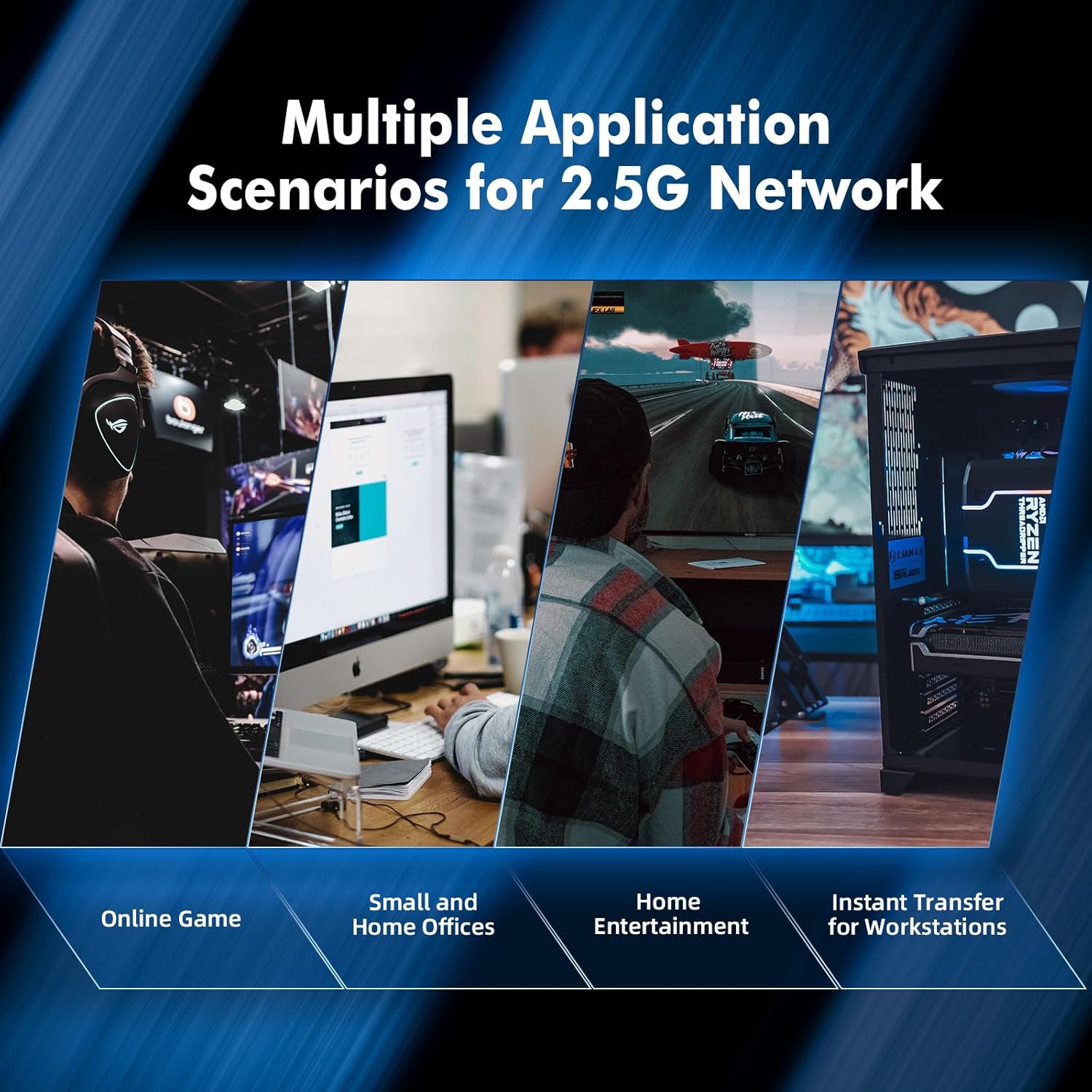
Olusin 8: Examples of multiple application scenarios for 2.5G networks, including online gaming, small and home offices, home entertainment, and instant transfer for workstations.
6. Awọn pato
| Ẹya ara ẹrọ | Apejuwe |
|---|---|
| Brand | MokerLink |
| Nọmba awoṣe | 4*2.5G,10G RJ45,10G SFP Managed |
| Ni wiwo Iru | SFP, RJ45 |
| Nọmba ti Ports | 6 (4x2.5G RJ45, 1x10G RJ45, 1x10G SFP) |
| Data Gbigbe Oṣuwọn | Gigabit 60 fun iṣẹju-aaya kan (Agbara iyipada) |
| Àwọ̀ | Dudu |
| Iwọn Nkan | 1.11 iwon |
| Package Mefa | 6.97 x 4.89 x 2.92 inches |
| Awọn irinše to wa | 10G Managed Switch, Power Cable, User Manual |
| Awọn ẹrọ ibaramu | Camera, Desktop, Gaming Console, Laptop, Printer, Server |
7. Itọju
The MokerLink 10G Easy Web Managed Switch is designed for minimal maintenance due to its robust construction and fanless operation.
- Ninu: Use a soft, dry cloth to clean the exterior of the switch. Avoid using liquid or aerosol cleaners.
- Afẹfẹ: Although fanless, ensure the ventilation slots on the sides of the device are not obstructed to allow for proper heat dissipation.
- Awọn ipo Ayika: Operate the switch within recommended temperature and humidity ranges to ensure longevity.
- Awọn imudojuiwọn famuwia: Periodically check the MokerLink official webAaye fun eyikeyi awọn imudojuiwọn famuwia ti o wa lati rii daju iṣẹ ṣiṣe ati aabo to dara julọ.
8. Laasigbotitusita
If you encounter issues with your MokerLink 10G Easy Web Managed Switch, refer to the following common troubleshooting steps:
- Ko si Agbara:
- Ensure the power cable is securely connected to the switch and a working power outlet.
- Ṣayẹwo boya ohun ti nmu badọgba agbara n ṣiṣẹ daradara.
- Ko si Asopọmọra / LED aṣayan iṣẹ-ṣiṣe:
- Verify that the Ethernet or fiber optic cable is securely connected to both the switch port and the connected device.
- Rii daju pe ẹrọ ti a ti sopọ ti wa ni titan ati pe o nṣiṣẹ ni deede.
- Try a different cable or port to rule out cable or port issues.
- Iyara Nẹtiwọọki o lọra:
- Ensure you are using appropriate cables (CAT6A for 10G, CAT5e/CAT6 for 2.5G/1G) for your desired speed.
- Check the Link/Act LED color to confirm the negotiated speed (refer to Figure 4 for LED indications).
- Verify that your connected devices support the desired speeds (2.5G or 10G).
- Ko le Wiwọle Web Ni wiwo:
- Confirm your computer's IP address is in the same subnet as the switch (e.g., 192.168.2.x).
- Ensure you are using the correct default IP address (192.168.2.1) and login credentials (admin/admin).
- If you have forgotten the password or made incorrect configurations, perform a factory reset by pressing and holding the reset button for 6 seconds (refer to Figure 4).
9. Atilẹyin ọja ati Support
MokerLink products are designed for reliability and performance. For specific warranty details, please refer to the warranty card included with your product or visit the official MokerLink website. For technical support, product registration, or to download the latest drivers and firmware, please visit the MokerLink support page or contact their customer service.