1. Ifihan
This manual provides detailed instructions for the setup, operation, maintenance, and troubleshooting of your SGIN 17.3 Inch Laptop Computer (Model M17S). Please read this manual thoroughly before using your laptop to ensure proper functionality and to maximize its lifespan. Keep this manual for future reference.

Figure 1.1: SGIN 17.3 Inch Laptop Computer Overview
The SGIN M17S laptop is designed for a wide range of applications, including study, work, entertainment, and internet browsing, offering a balance of performance and portability.
2. Package Awọn akoonu
Verify that all items listed below are included in your package. If any items are missing or damaged, please contact SGIN customer support.
- SGIN 17.3 Inch Laptop Computer (M17S) x 1
- Power Adapter/Charger x 1
- Ilana olumulo x 1
3. Awọn ẹya ara ẹrọ Ọja Loriview
3.1 Ifihan
The laptop features a 17.3-inch Full HD (1920x1080) IPS screen. This display technology provides sharp, clear text and vivid colors, along with wide viewing awọn igun.

Figure 3.1: High-Definition IPS Display
3.2 isise
Equipped with an Intel Core i3-5005U processor, operating at 2.4GHz Turbo Boost. This dual-core, four-thread processor is designed for efficient multitasking and handling various workloads.

Figure 3.2: Intel Core i3-5005U Processor
3.3 Iranti ati Ibi ipamọ
The laptop comes with 4GB DDR4 RAM and a 128GB SSD for fast boot times and application loading. Storage can be expanded with an additional SSD (up to 1TB) and a MicroSD card (up to 512GB).

Àwòrán 3.3: Ìṣètò Ìrántí àti Ìpamọ́
3.4 Batiri
A 8000 mWh (60Wh) lithium-ion battery provides extended usage time, with an estimated 8 hours of typical use on a single charge.

Figure 3.4: Long-Lasting Battery
3.5 Awọn ibudo ati Asopọmọra
Kọǹpútà alágbèéká nfunni ni ọpọlọpọ awọn ebute oko oju omi fun isọpọ wapọ:
- Awọn ibudo USB 3.2 (x2)
- HDMI Port (for external monitors/projectors)
- Iru-C Port
- Jack agbekọri 3.5mm
- MicroSD Kaadi Iranti
- Input Agbara DC
Wireless connectivity includes 5G Wi-Fi (802.11ac) and Bluetooth 4.2.

Figure 3.5: Available Ports
3.6 Ohùn àti Webkamẹra
The laptop includes stereo speakers and a digital microphone for audio input and output. A 0.3MP webcam is integrated for video calls and conferencing.

Àwòrán 3.6: Ohùn àti Webkamẹra Awọn ẹya ara ẹrọ
4. Getting Started (Setup Guide)
4.1 Ṣiṣii silẹ
Carefully remove the laptop and all accessories from the packaging. Retain the packaging materials for future transport or storage.
4.2 Ngba agbara si Batiri naa
Before first use, fully charge the laptop battery. Connect the power adapter to the DC-in port on the laptop and then plug the adapter into a power outlet. The charging indicator light will illuminate.
4.3 First Power On and Initial Setup
Press the power button to turn on the laptop. The system will guide you through the initial Windows 11 setup process. This includes selecting your region, language, connecting to a Wi-Fi network, and setting up your user account.
5. Ipilẹ isẹ
5.1 Power On/Off/Sleep
- Agbara Tan: Tẹ bọtini agbara ti o wa lori dekini keyboard.
- Agbara Pa: Tẹ bọtini Ibẹrẹ, lẹhinna Power, ki o si yan 'Pa'.
- Ipo orun: Click the Start button, then Power, and select 'Sleep', or close the laptop lid.
5.2 Lilo Keyboard ati Touchpad
The laptop features a full-size keyboard with a numeric keypad and a multi-touch touchpad. Refer to Windows 11 settings for customizing touchpad gestures and keyboard shortcuts.
5.3 Nsopọ si Wi-Fi
Lati sopọ si nẹtiwọki alailowaya:
- Tẹ aami Wi-Fi ninu atẹ eto (igun apa ọtun isalẹ ti iboju).
- Yan nẹtiwọki ti o fẹ lati inu akojọ.
- Enter the network password if prompted, then click 'Connect'.
5.4 Connecting Bluetooth Devices
Lati so ẹrọ Bluetooth pọ:
- Go to 'Settings' > 'Bluetooth & devices'.
- Rí i dájú pé Bluetooth ti wa ni 'Tan'.
- Tẹ 'Fi ẹrọ kun' ki o si yan 'Bluetooth'.
- Choose your device from the list and follow the on-screen pairing instructions.
5.5 Using External Displays (HDMI)
Connect an external monitor or projector to the laptop's HDMI port. Press Bọtini Windows + P to select display mode (e.g., Duplicate, Extend, Second screen only).
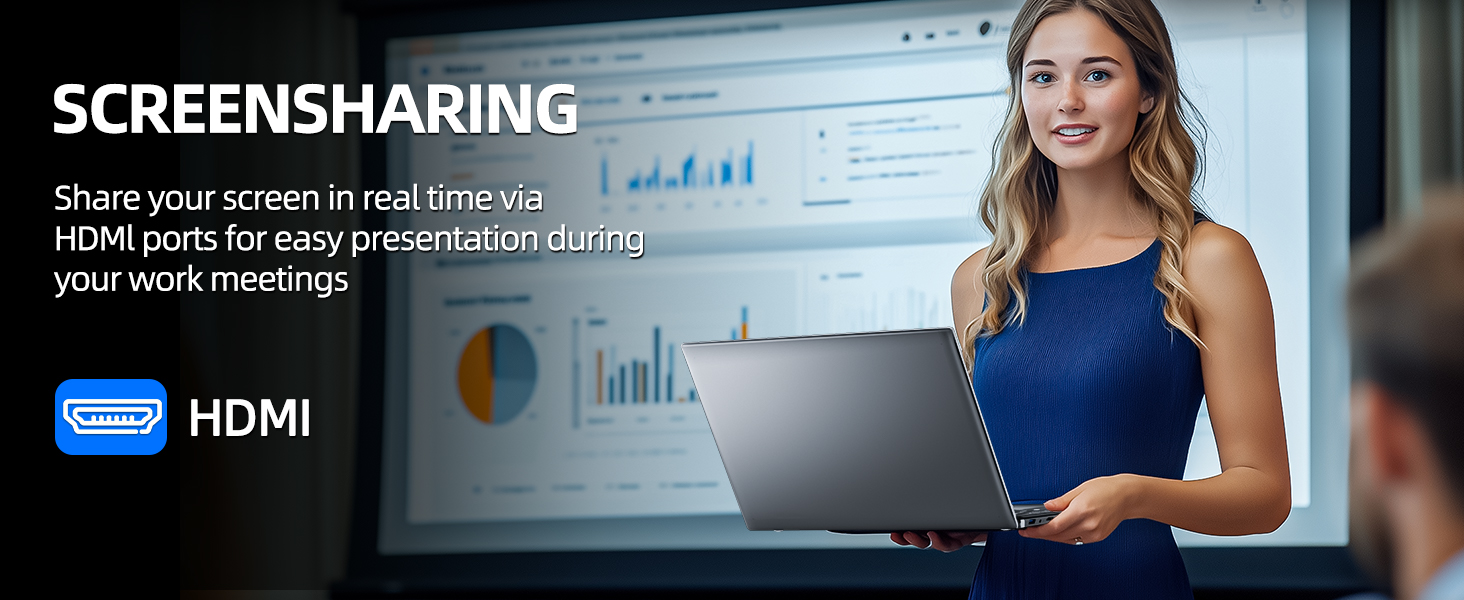
Figure 5.1: Screen Sharing via HDMI
5.6 Using USB Devices
Connect USB devices such as external hard drives, keyboards, or mice to the available USB 3.2 ports. The laptop will automatically detect and install necessary drivers.
6. Ibi ipamọ ati Memory Management
6.1 Imugboroosi Ibi ipamọ
Your SGIN laptop supports storage expansion:
- Additional SSD: An extra slot is available for installing an M.2 SSD, supporting up to 1TB. Consult a qualified technician for installation.
- Kaadi MicroSD: Insert a MicroSD card into the dedicated slot for up to 512GB of additional storage.
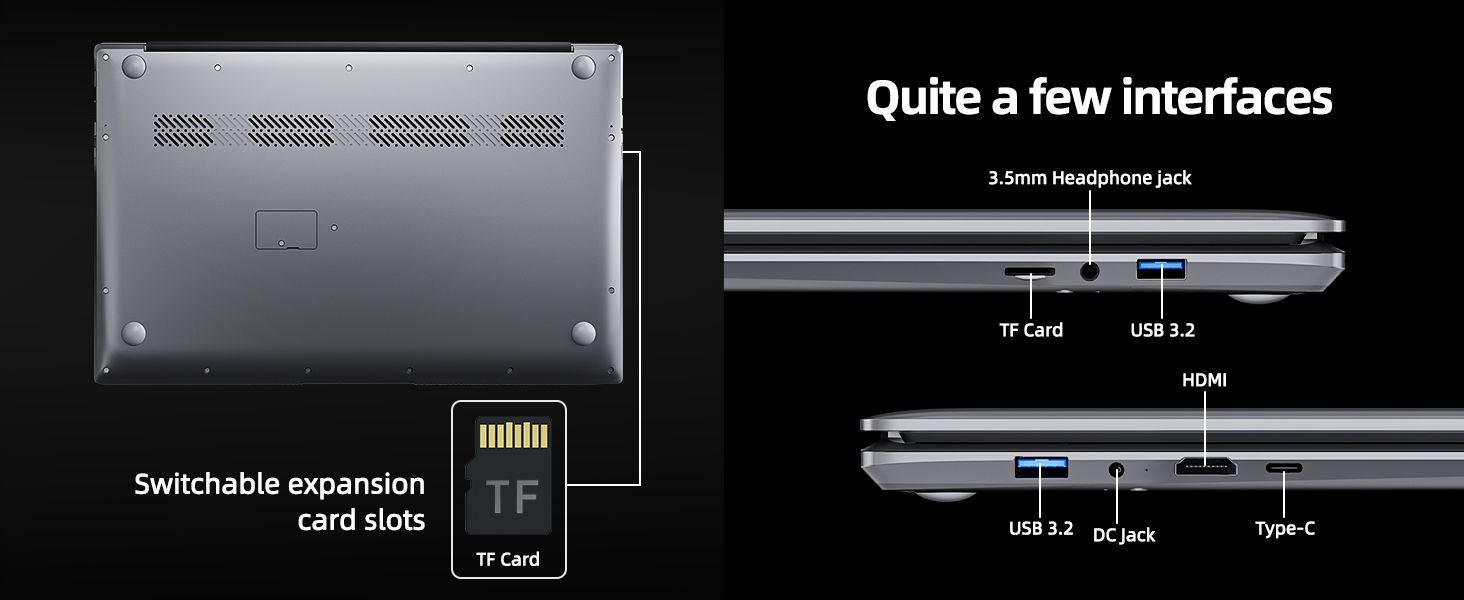
Figure 6.1: Expansion Card Slots
7. Itọju batiri
7.1 Awọn Itọsọna gbigba agbara
Always use the original SGIN power adapter provided with your laptop. Avoid using third-party chargers that may not meet the required specifications.
7.2 Iṣapeye Igbesi aye batiri
Lati fa igbesi aye batiri sii:
- Adjust screen brightness to a comfortable but lower level.
- Close unused applications and browser tabs.
- Yọ awọn ohun elo ita kuro nigbati o ko ba lo wọn.
- Enable Windows Battery Saver mode.
- Yago fun awọn iwọn otutu to gaju.
8. Itọju ati Itọju
8.1 Ninu Kọǹpútà alágbèéká
Lo asọ asọ, ti ko ni lint die-die dampti a fi omi ṣan tabi olutọpa iboju lati nu ifihan naa. Fun keyboard ati ẹnjini, lo asọ ti o gbẹ. Yago fun awọn kẹmika lile tabi awọn ohun elo abrasive.
8.2 Software imudojuiwọn
Regularly check for and install Windows updates to ensure system stability, security, and optimal performance. Go to 'Settings' > 'Windows Update'.
8.3 Gbogbogbo mimu
Handle your laptop with care. Avoid dropping it or exposing it to liquids, extreme temperatures, or direct sunlight. Do not place heavy objects on the laptop.
9. Laasigbotitusita
This section addresses common issues you might encounter with your SGIN laptop.
| Isoro | Owun to le Fa | Ojutu |
|---|---|---|
| Laptop won't turn on | Low battery; Power adapter issue; Hardware malfunction | Ensure battery is charged. Check power adapter connection. Try a different outlet. If problem persists, contact support. |
| Wi-Fi ko sopọ | Wi-Fi disabled; Incorrect password; Router issue | Ensure Wi-Fi is enabled in settings. Verify password. Restart router and laptop. |
| O lọra išẹ | Too many applications running; Low storage space; Malware | Close unnecessary programs. Free up disk space. Run a virus scan. Consider adding more RAM or upgrading SSD if frequently slow. |
| Ko si ohun | Volume muted; Incorrect audio output; Driver issue | Check volume levels and mute status. Ensure correct output device is selected. Update audio drivers. |
| Webkamẹra ko ṣiṣẹ | Privacy settings; Driver issue; Application access | Check Windows privacy settings for camera access. Update webcam drivers. Ensure the application has permission to use the camera. |
10. Imọ ni pato
Detailed specifications for the SGIN M17S Laptop Computer:
| Ẹya ara ẹrọ | Sipesifikesonu |
|---|---|
| Orukọ awoṣe | M17S |
| Iduro iboju Iwon | 17.3 inches |
| Ipinnu iboju | 1920 x 1080 pixels (IPS Full HD) |
| isise | Intel Core i3-5005U (2.4 GHz, 2 Cores, 4 Threads) |
| Àgbo | 4 GB DDR4 |
| Dirafu lile | 128 GB SSD |
| Olupilẹṣẹ Graphics | Ti ṣepọ |
| Alailowaya Iru | 802.11ac (5G WiFi) |
| Bluetooth | Bluetooth 4.2 |
| Eto isesise | Windows 11 Ile |
| Iwọn Nkan | 5.89 iwon |
| Ọja Mefa | 17.3 x 10 x 0.6 inches |
| Batiri | 8000 mWh Lithium Ion (60Wh) |
| Àwọ̀ | Dudu |
| Pataki Ẹya | Memory Card Slot (MicroSD) |
11. Atilẹyin ọja ati Support
Your SGIN laptop includes a 1-year comprehensive after-sales warranty covering essential components. For technical assistance, warranty claims, or any product-related inquiries, please contact SGIN customer service. Our professional customer service team aims to respond within 12 hours.
For more information and support, please visit the official SGIN webaaye tabi tọka si awọn alaye olubasọrọ ti a pese pẹlu apoti ọja rẹ.


