Ọrọ Iṣaaju
This manual provides essential information for setting up, operating, maintaining, and troubleshooting your Philips Ambilight 43PUS9000 4K QLED Smart TV. Please read these instructions carefully before using your television.
The Philips 43PUS9000 features a 43-inch 4K QLED display, Ambilight technology, the P5 Perfect Picture Engine, Titan OS for smart TV functionalities, and supports Dolby Vision and Dolby Atmos sound.
Ṣeto
1. Unpacking ati Ṣiṣayẹwo Awọn akoonu
Carefully remove the TV from its packaging. Ensure all components are present. If any items are missing or damaged, contact your retailer.
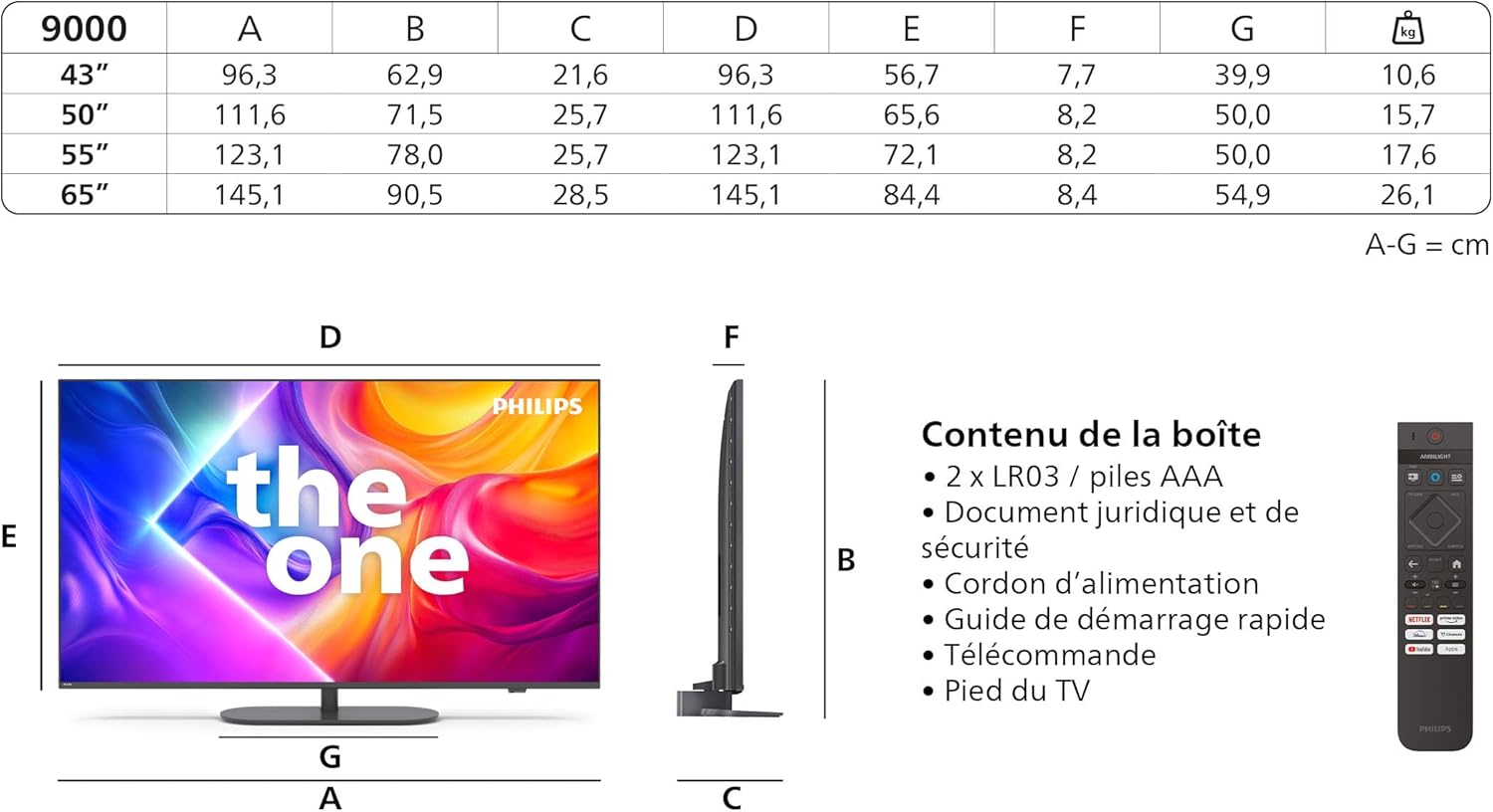
Image: Contents of the box, including the TV, remote, batteries, power cable, manual, and stand.
Awọn eroja to wa:
- Uniti TV
- Iṣakoso latọna jijin pẹlu awọn batiri AAA meji
- Okun agbara
- Duro
- Olumulo Afowoyi & Kaadi atilẹyin ọja
2. Iduro Apejọ
Follow the instructions provided in the quick start guide to securely attach the TV stand. Ensure all screws are tightened properly to prevent the TV from tipping.
3. Nsopọ Awọn ẹrọ
Before connecting any cables, ensure the TV and all devices are powered off.

Image: Rear connection ports including HDMI, USB, and Triple Tuner inputs.
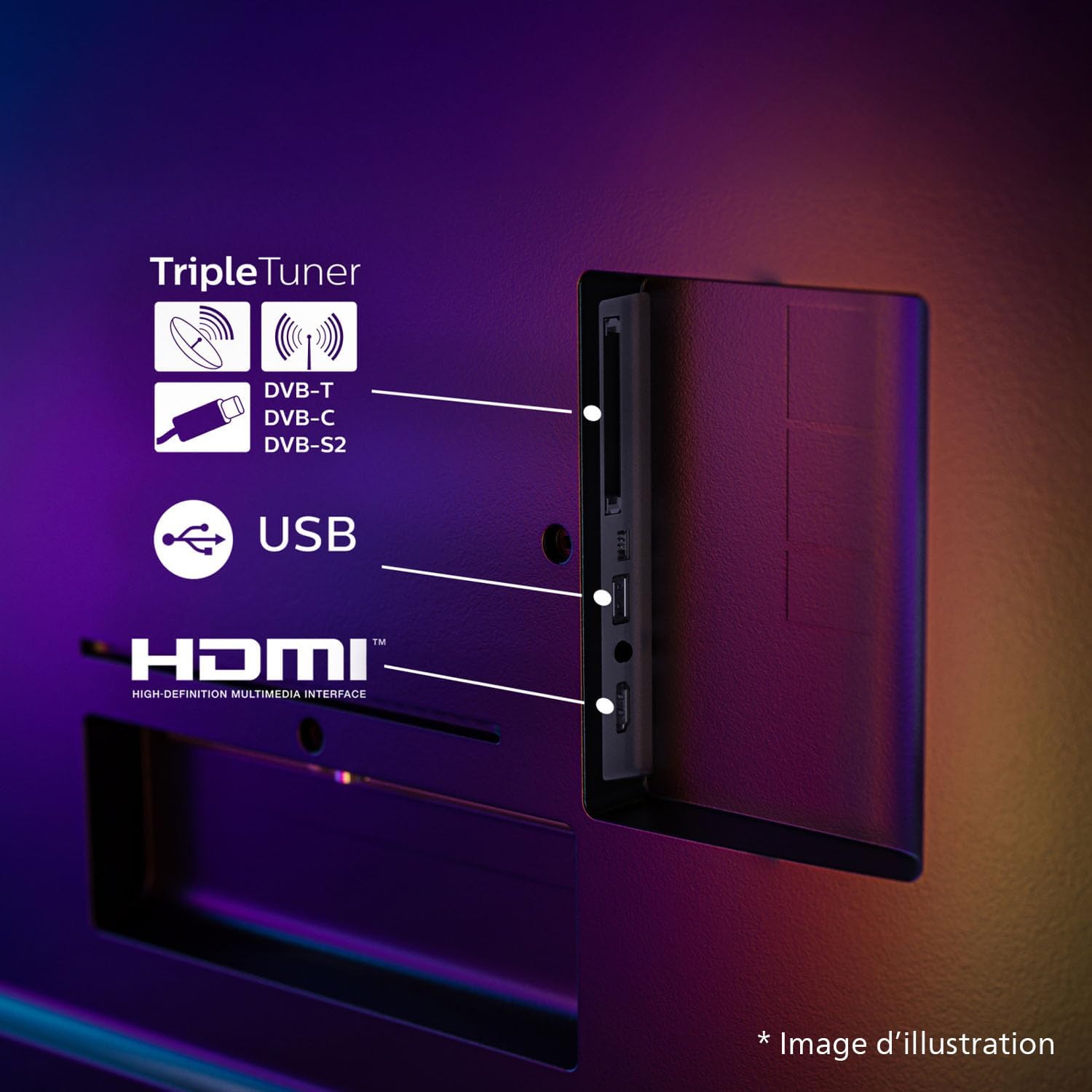
Image: Diagram of side and bottom connection ports.
- Agbara: So okun agbara pọ si TV ati lẹhinna si iṣan ogiri.
- HDMI: Use HDMI ports for high-definition devices like Blu-ray players, game consoles, or set-top boxes. This TV has 4 HDMI ports.
- USB: Connect USB devices such as external hard drives or USB sticks to the 2 USB ports for media playback.
- Nẹtiwọọki: Connect an Ethernet cable for a wired internet connection, or use the built-in Wi-Fi for wireless connectivity.
- Eriali/Satẹlaiti: Connect your TV antenna or satellite dish cable to the appropriate input for DVB-T, DVB-C, or DVB-S2 signals.
- Ohun Dijita Jade: Sopọ̀ mọ́ ètò ohùn ìta fún ohun tó dára síi.
4. First Time Oṣo
After connecting all necessary cables, plug in the TV and press the power button on the remote control. The TV will guide you through the initial setup process, which typically includes:
- Aṣayan ede
- Asopọ nẹtiwọki (Wi-Fi tabi Ethernet)
- Ṣiṣayẹwo ikanni
- Gbigba awọn ofin ati ipo fun awọn ẹya Smart TV
Ṣiṣẹ
1. Awọn iṣẹ Iṣakoso latọna jijin
The remote control allows you to navigate the TV's menus, change channels, adjust volume, and access smart TV features. Refer to the quick start guide for a detailed layout of the remote control buttons.
2. Ambilight Feature
Imọ-ẹrọ Ambilight ṣe awọn awọ lati iboju si ogiri lẹhin TV, ṣiṣẹda immersive kan viewing experience. You can customize Ambilight settings in the TV menu to match your preferences, including brightness, color mode, and responsiveness.
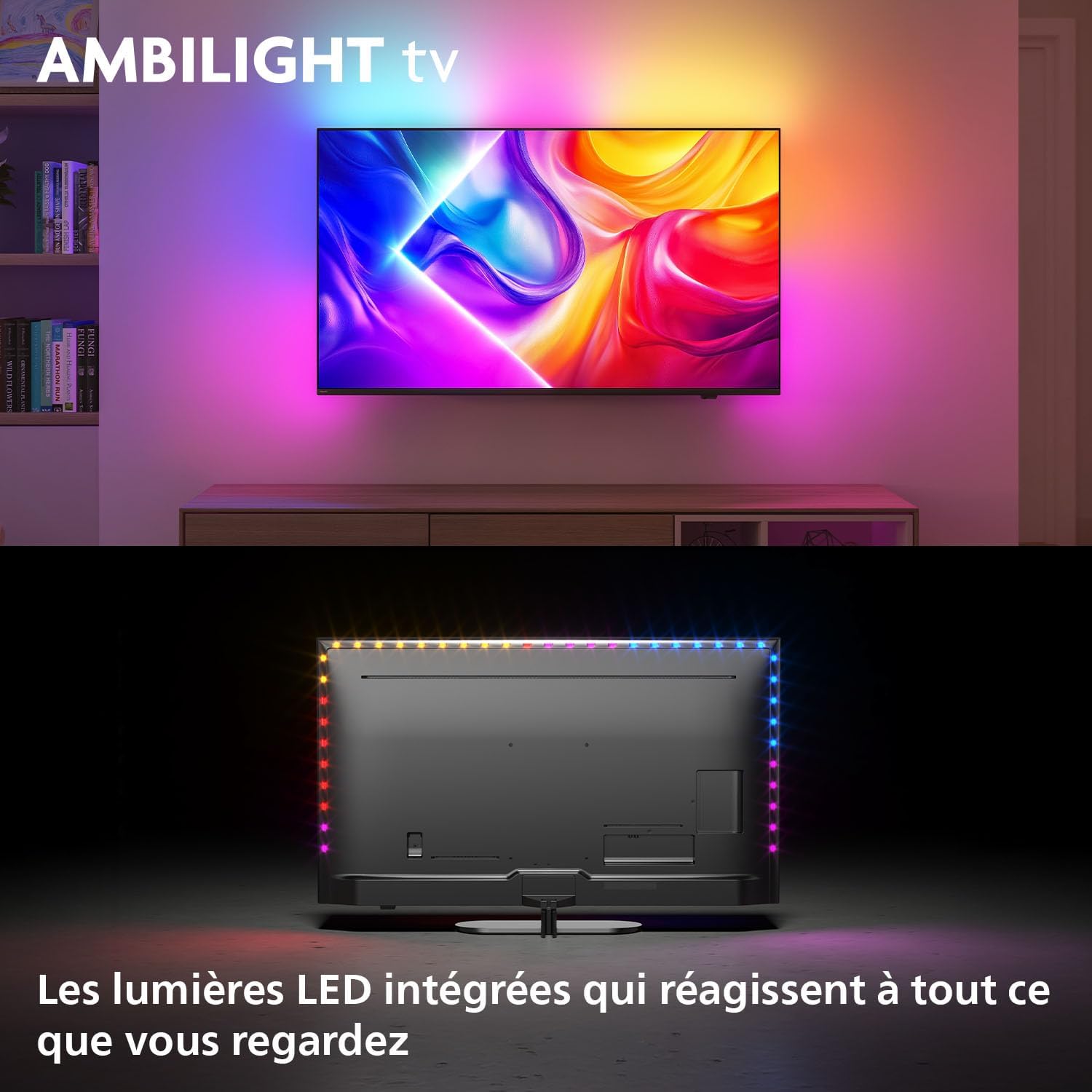
Image: Ambilight TV in operation, showing ambient lighting extending beyond the screen.
3. Picture Settings (P5 Perfect Picture Engine, QLED, HDR)
The P5 Perfect Picture Engine optimizes picture quality by enhancing sharpness, color, contrast, and motion. The QLED display technology provides vibrant colors and high brightness. This TV supports various HDR formats for improved contrast and detail in compatible content.

Image: 4K QLED display technology with HDR10+.
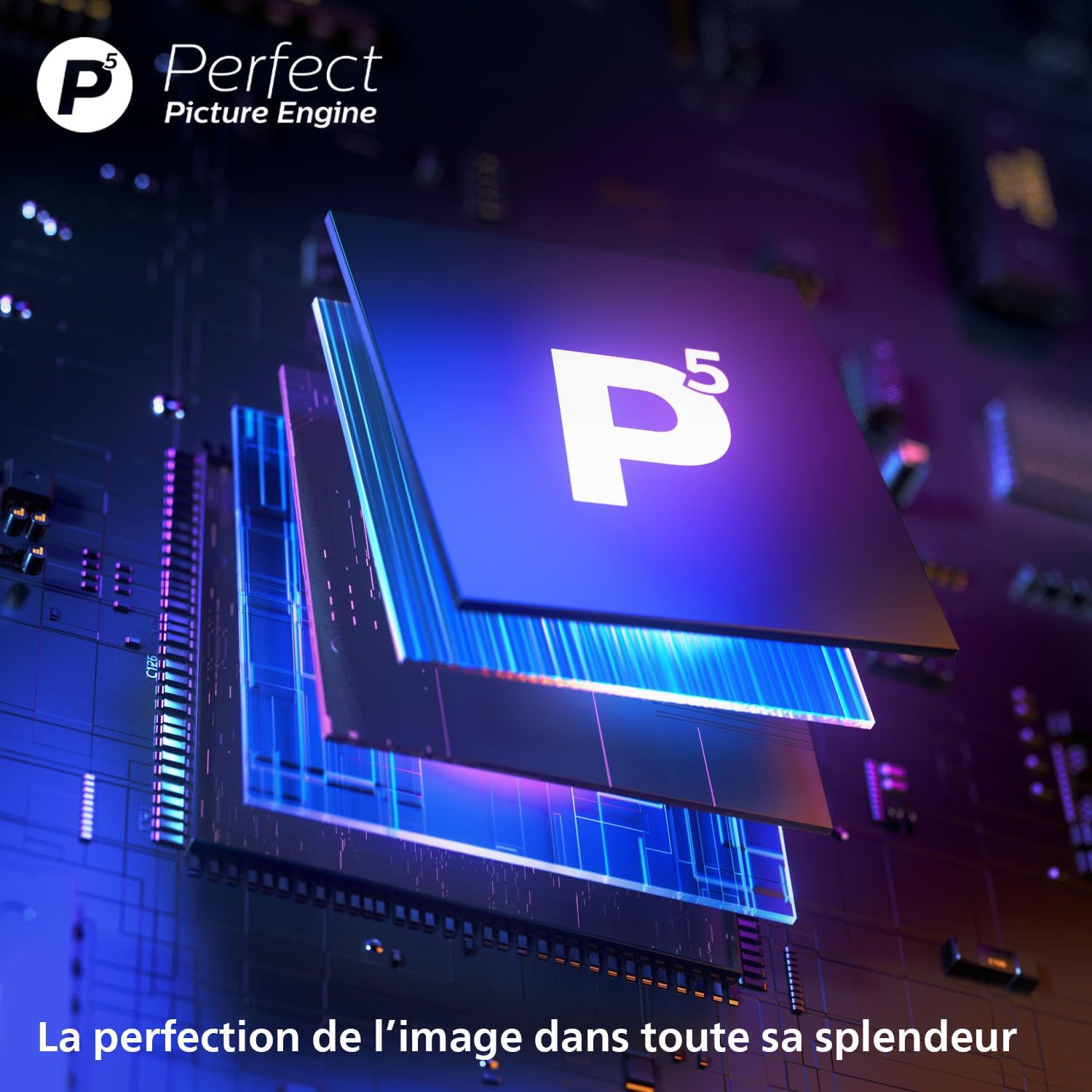
Image: P5 Perfect Picture Engine.
4. Ètò Ohùn (Dolby Atmos)
The TV features Dolby Atmos support, providing immersive audio that moves around and above you. Adjust sound modes and equalizer settings in the audio menu to optimize your listening experience.
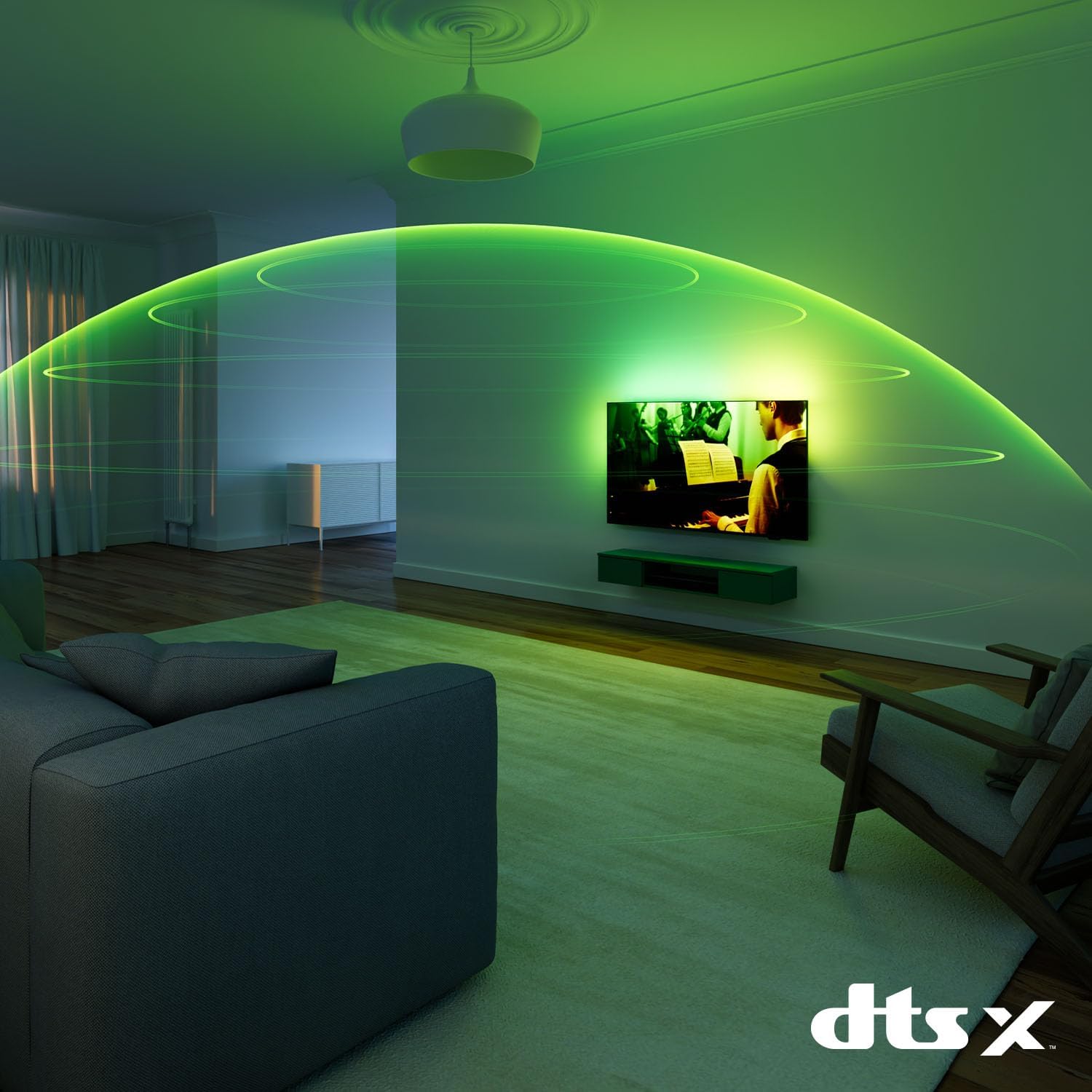
Image: Immersive audio experience.
5. Àwọn Ẹ̀yà Telifíṣọ̀n Onímọ̀ọ́nú (Titan OS)
The Titan OS platform provides access to various streaming services and applications. Navigate through the home screen to find content, manage apps, and customize your viewing experience. The TV supports popular streaming platforms.
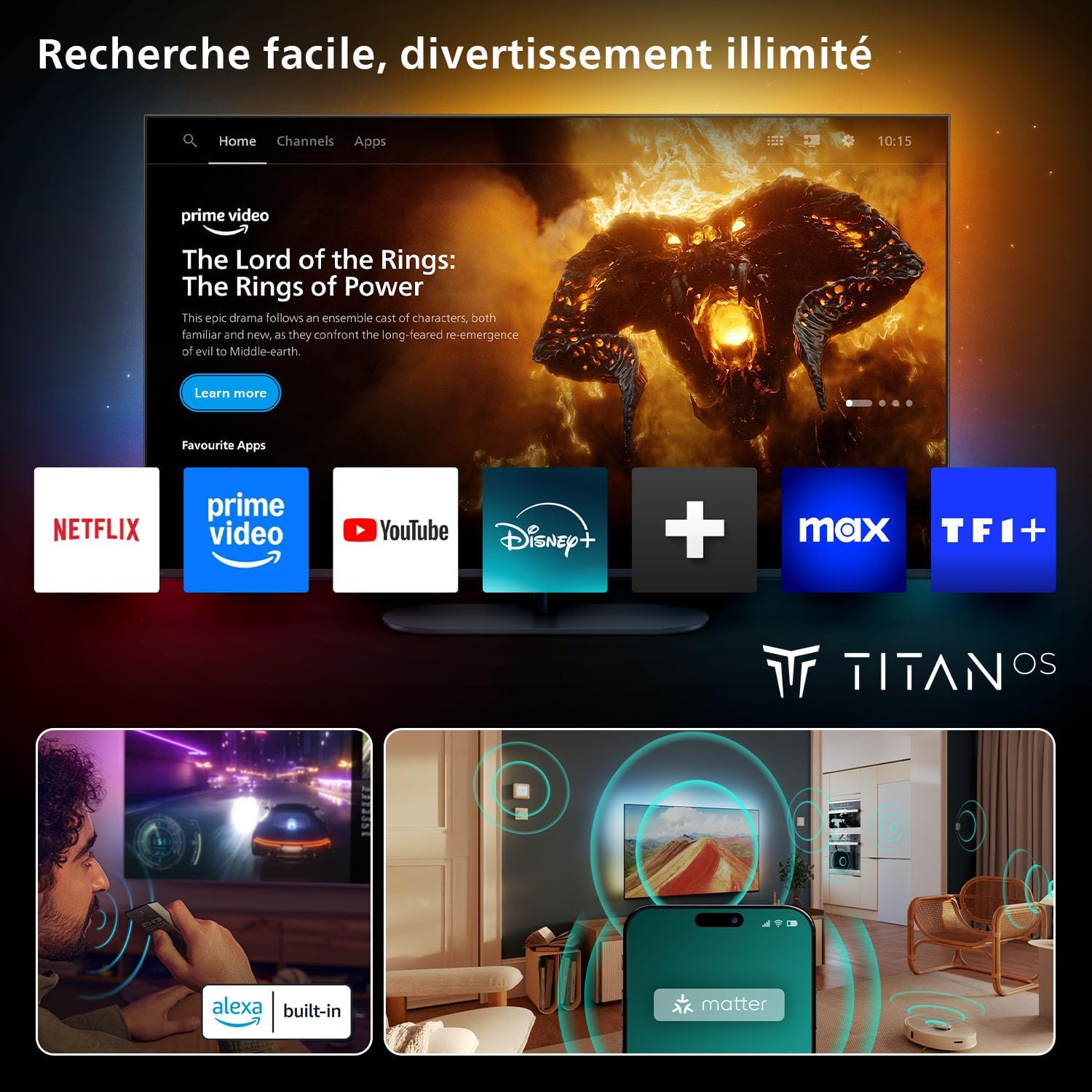
Image: Titan OS Smart TV interface.
6. Iṣakoso ohun
This TV integrates with Google Home and Alexa, allowing you to control the TV using voice commands. Ensure your TV is connected to the internet and linked to your voice assistant account.

Image: Google Home and Alexa voice control integration.
7. ayo Awọn ẹya ara ẹrọ
For gamers, the TV offers a 144 Hz refresh rate, Variable Refresh Rate (VRR), and AMD FreeSync Premium support, ensuring smooth and responsive gameplay.

Image: Gaming features including 144Hz, VRR, and AMD FreeSync Premium.
Itoju
1. Ninu TV
- Yọọ TV nigba gbogbo ṣaaju ṣiṣe mimọ.
- Lo aṣọ rirọ, ti ko ni awọ lati nu iboju naa pẹlu rọra. Fun awọn aami lile, fi diẹ silẹ.ampen awọn asọ pẹlu omi tabi a specialized iboju regede.
- Clean the TV frame and stand with a soft, dry cloth. Avoid using abrasive cleaners or solvents.
2. Software imudojuiwọn
Periodically check for software updates through the TV's settings menu. Updates can improve performance, add new features, and fix bugs. Ensure your TV is connected to the internet to receive updates.
Laasigbotitusita
Ti o ba pade awọn ọran pẹlu TV rẹ, tọka si awọn iṣoro ti o wọpọ ati awọn ojutu wọnyi:
- Ko si Agbara: Ensure the power cable is securely connected to both the TV and the wall outlet. Check if the power outlet is functioning.
- Ko si Aworan/Ohun: Verify that the correct input source is selected. Check all cable connections (HDMI, antenna). If using external devices, ensure they are powered on.
- Awọn oran Isopọ nẹtiwọki: If experiencing frequent disconnections or error codes (e.g., SP_0), try restarting your router and the TV. For wired connections, ensure the Ethernet cable is properly connected. For Wi-Fi, re-enter the password if necessary.
- Remote Control Unresponsive/Lag: Replace the batteries in the remote control. Ensure there are no obstructions between the remote and the TV's IR sensor. If the TV itself is slow to respond, a power cycle (unplugging and replugging) may resolve the issue.
- Didara Aworan Ko dara: Ṣatunṣe awọn eto aworan (imọlẹ, itansan, didasilẹ, awọ). Rii daju pe orisun akoonu jẹ didara ga.
If the problem persists, consult the full electronic manual or contact Philips customer support.
Awọn pato
| Ẹya ara ẹrọ | Sipesifikesonu |
|---|---|
| Brand | FILIPS |
| Nọmba awoṣe | 43PUS9000/12 |
| Iwon iboju | 43 inches |
| Eto isesise | Titan OS |
| Ifihan ọna ẹrọ | LED (QLED) |
| Ipinnu | 4K |
| Oṣuwọn sọtun | 144 Hz |
| Awọn isopọ | HDMI, Wi-Fi, Bluetooth, Ethernet, USB, Optical |
| Nọmba ti USB Ports | 2 |
| Pataki Awọn ẹya ara ẹrọ | AMD FreeSync, Ambilight, Ambient Light Sensor, Game Mode, Automatic Volume Leveler |
| Awọn ẹrọ ibaramu | Headphones, Game Console, Speaker, Laptop, Smartphone |
| Awọn iwọn Ọja (D x W x H) | 21.6 x 96.2 x 62.9 cm |
Image: TV dimensions table.

Image: Recommended viewawọn ijinna.
Atilẹyin ọja
This product comes with a manufacturer's warranty of 2 years. Please refer to the warranty card included in the packaging for detailed terms and conditions.
Atilẹyin
For further assistance, technical support, or to download the full electronic user manual, please visit the official Philips support website. You can also find FAQs and contact information there.


