1. Ti pariview
The DREAME D20 Pro Plus is an advanced 2-in-1 robot vacuum and mop designed for comprehensive home cleaning. It features powerful suction, intelligent navigation, and automated maintenance to simplify your cleaning routine.
- Ifamọ ti o lagbara: Equipped with 13,000Pa Vormax suction power to effectively clean dust and debris from various surfaces.
- DuoBrush Technology: Features a HyperStream detangling DuoBrush designed to efficiently capture pet hair and reduce tangling.
- 2-in-1 Vacuum & Mop: Offers simultaneous vacuuming and mopping with a 500ml dust box and a 350ml clean water tank with 32 adjustable moisture levels.
- Lilọ kiri Smart: Utilizes LDS Navigation and Smart Pathfinder technology for precise mapping, obstacle avoidance, and thorough corner cleaning with an extendable side brush.
- Sofo ara-ẹni: The auto-empty base station with a 5L dust bag provides up to 150 days of hands-free dust collection.
- Igbesi aye batiri ti o gbooro sii: Powered by a 5,200mAh battery, offering up to 285 minutes of runtime.
- Voice & App Control: Compatible with the Dreamehome app, Alexa, Apple Siri, and Google Home for convenient control.

Figure 1: Key features of the DREAME D20 Pro Plus Robot Vacuum and Mop.
2. Ohun ti o wa ninu Apoti
Upon unboxing your DREAME D20 Pro Plus, ensure all components are present:
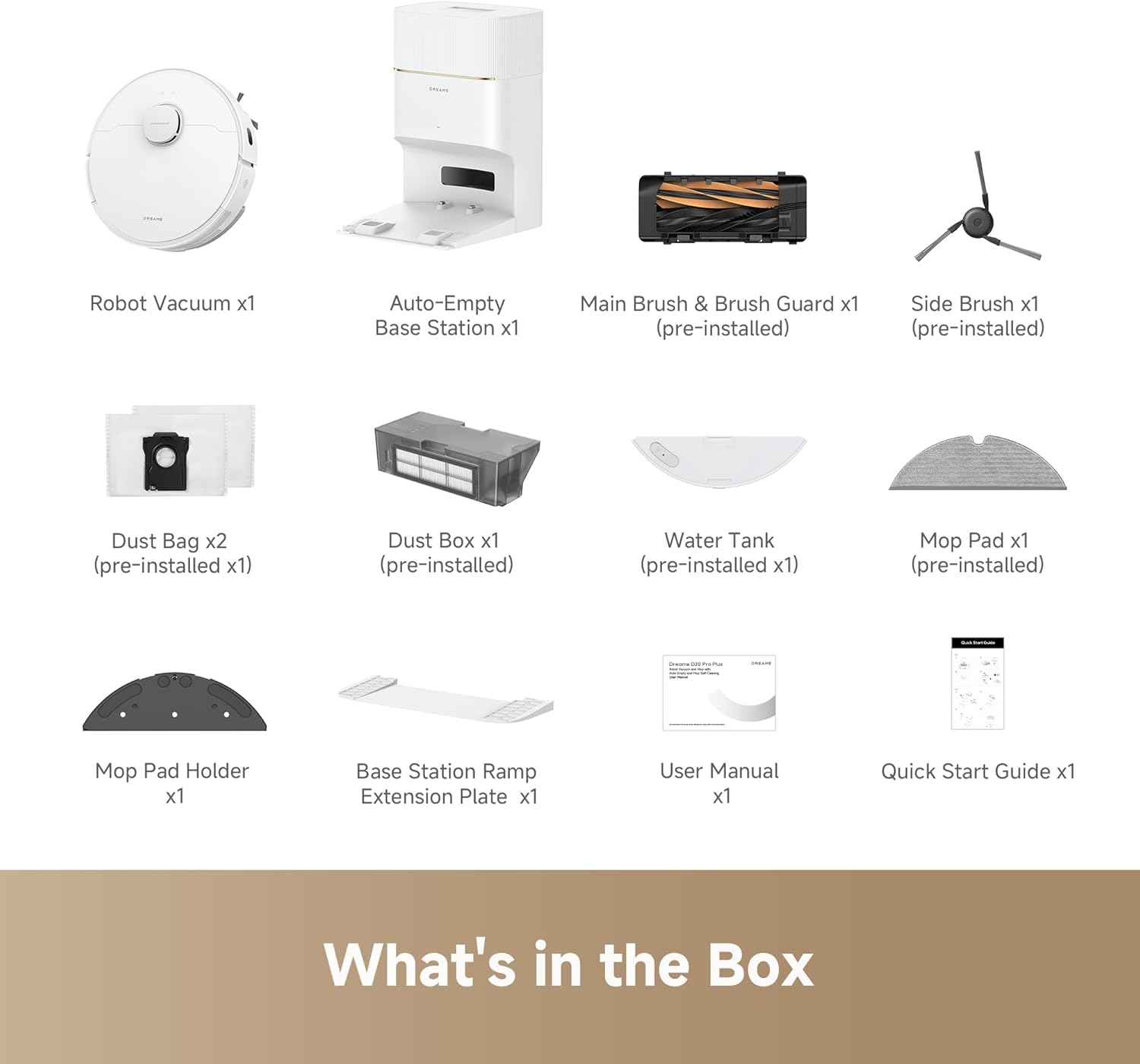
Figure 2: All components included in the DREAME D20 Pro Plus package.
- Rọ́bọ́ọ̀tì afẹ́fẹ́ (x1)
- Auto-Empty Base Station (x1)
- Main Brush & Brush Guard (pre-installed)
- Side Brush (pre-installed)
- Dust Bag (x2, 1 pre-installed)
- Dust Box (x1, pre-installed)
- Water Tank (x1, pre-installed)
- Mop Pad (x1, pre-installed)
- Mop Pad Holder (x1)
- Ibusọ Ibusọ Ramp Extension Plate (x1)
- Itọsọna olumulo (x1)
- Itọsọna Ibẹrẹ ni kiakia (x1)
3. Eto
3.1 Initial Placement and Charging
Place the auto-empty base station against a wall in an open area, ensuring sufficient space around it for the robot to maneuver. Connect the power cord to the base station and plug it into a power outlet. Place the robot vacuum onto the charging contacts of the base station. Ensure the robot is powered on and charging before proceeding.

Figure 3: The robot vacuum charging on its auto-empty base station, illustrating extended battery life.
3.2 App Oṣo ati Wi-Fi Asopọ
To unlock the full potential of your DREAME D20 Pro Plus, download the 'Dreamehome' app from your device's app store (iOS or Android). Follow the in-app instructions for initial setup and Wi-Fi connection.
Video 1: Detailed guide on setting up the Dreame D20 Plus with the mobile application, including Wi-Fi connection steps.
Pataki: Ensure your mobile device is connected to a 2.4GHz Wi-Fi network during the setup process, as the robot only supports this frequency.
3.3 Ibẹrẹ maapu
After successful app setup, initiate the mapping process. The robot will navigate your home to create a detailed map using its LDS Navigation and Smart Pathfinder technology. This map is crucial for efficient cleaning and allows for customized cleaning plans.

Figure 4: The robot utilizing smart mapping and obstacle avoidance for efficient navigation.
4. Awọn ilana Iṣiṣẹ
4.1 Àwọn Ìgbékalẹ̀ àti Ìtòlẹ́sẹẹsẹ Ìmọ́tótó
The Dreamehome app provides extensive control over your robot's cleaning operations:
- Ipo mimọ: Choose between Vacuum Only, Mop Only, or Vacuum & Mop simultaneously.
- Agbara mimu: Adjust suction to Quiet, Standard, Turbo, or Max settings. An additional Max+ mode is available for single-use intensive cleaning.
- Wetness Level: For mopping, select from Slightly Dry, Moist, or Wet to suit different floor types and cleaning needs.
- Cleaning Route: Choose between Quick, Standard, or Intensive cleaning routes.
Video 2: A comprehensive guide to adjusting map settings and cleaning preferences within the Dreamehome app.
4.2 Customized Cleaning
Leverage the generated map to customize your cleaning:
- Room Partitioning: Divide or merge rooms on the map for targeted cleaning.
- Ground Environment: Specify floor materials (tile, wood, carpet) for optimized cleaning. The robot can automatically boost suction on carpets.
- Àwọn Agbègbè Tí Kò Ní Ọ̀nà àti Àwọn Ògiri Àwòrán: Set virtual boundaries to prevent the robot from entering specific areas or to protect delicate items.
- Virtual Threshold/Ramp: Define areas with thresholds or ramps to ensure smooth navigation.
- Cleaning Sequence: Arrange the order in which rooms are cleaned.
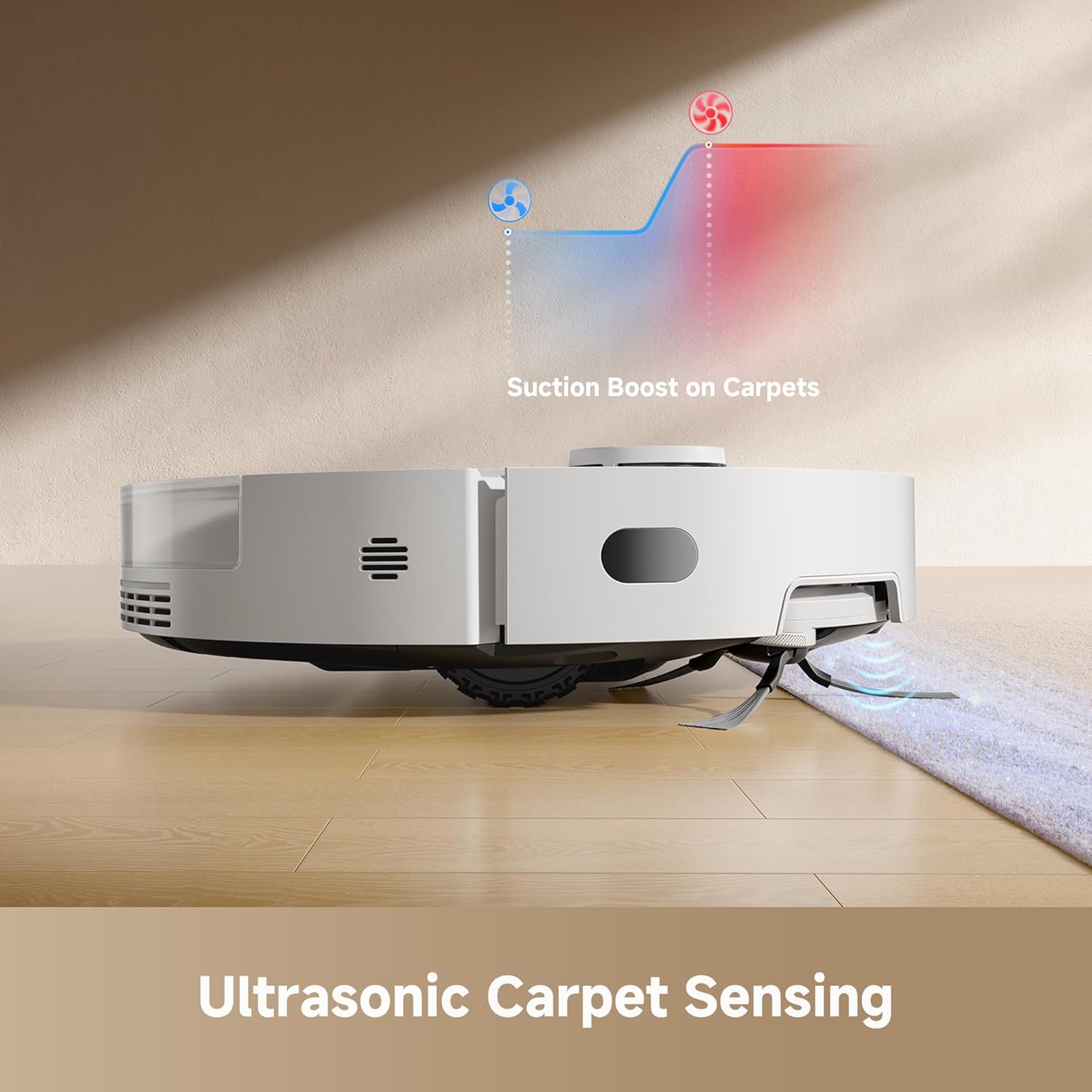
Figure 5: The robot's ultrasonic carpet sensing feature, which automatically boosts suction on carpets.
4.3 Iṣakoso ohun
Integrate your robot with smart home assistants for hands-free control:
- Awọn oluranlọwọ ti o ni atilẹyin: Alexa, Apple Siri, Google Home.
- Awọn aṣẹ: Use voice commands to start/stop cleaning, send the robot back to its base, or check its status.
5. Itọju
Regular maintenance ensures optimal performance and longevity of your DREAME D20 Pro Plus.
5.1 Rírọ́pò Àpò Eruku
The auto-empty base station uses a 5L dust bag that can hold debris for up to 150 days. Replace the dust bag when the app indicates it is full or when you notice reduced suction performance.
Video 3: Instructions on how to properly change the dust bag in the auto-empty base station.
5.2 fẹlẹ Cleaning
The HyperStream detangling DuoBrush is designed to minimize hair tangles. Periodically inspect and clean the main brush and side brush to remove any accumulated hair or debris. Use the cleaning tool provided to cut and remove tangled hair.
Video 4: Demonstrates the auto-detangle feature of the DuoBrush and ramp design for obstacle navigation.
5.3 Filter and Mop Pad
- Àlẹmọ: The filter should be replaced approximately every 150 operating hours to maintain optimal filtration and prevent dust from escaping.
- Paadi Mop: Replace the mop pad as needed, depending on usage and wear.
6. Laasigbotitusita
If you encounter issues with your DREAME D20 Pro Plus, refer to the following solutions:
6.1 Restarting the Robot
If the robot is unresponsive or behaving unexpectedly, a simple restart can often resolve the issue. Press and hold the power button on the robot for a few seconds until it powers off, then press it again to turn it back on.
Video 5: A step-by-step guide on how to restart your Dreame D20 Plus robot vacuum.
6.2 Atunto ile-iṣẹ
A factory reset will restore the robot to its original settings, deleting all saved maps and preferences. This can be useful for persistent issues or when preparing the device for a new user.
Video 6: Instructions on how to perform a factory reset on the Dreame D20 Plus.
6.3 Wi-Fi Asopọ oran
If the robot fails to connect to Wi-Fi, ensure your router is broadcasting a 2.4GHz signal. The robot is not compatible with 5GHz networks. Keep the robot and your phone close to the router during setup.
7. Awọn pato
| Ẹya ara ẹrọ | Ẹ̀kúnrẹ́rẹ́ |
|---|---|
| Brand | ALA |
| Orukọ awoṣe | D20 Pro Plus |
| Pataki Awọn ẹya ara ẹrọ | Advanced Custom Cleaning, Anti-Collision, Automatic Dust Collection, Obstacle Avoidance, Smart Mapping |
| Àwọ̀ | Funfun |
| Ọja Mefa | 17.65"L x 13.78"W x 17.8"H |
| Àlẹmọ Iru | Katiriji |
| Igbesi aye batiri | 180 minutes (up to 285 minutes in Vac & Mop Mode) |
| Voltage | 110 Volt (AC) |
| Agbara Apoti eruku | 500 milimita |
| Omi ojò Agbara | 350 milimita |
| Orisun agbara | Agbara Batiri |
| Ọna Iṣakoso | App, Ohùn |
| Fọọmù ifosiwewe | Yika |
| UPC | 810142561211 |
| Iwọn Nkan | 23.4 iwon |
| Nọmba Awoṣe Nkan | RLD43SD |
| Awọn batiri | Awọn batiri 1 9V nilo (pẹlu) |
| Dada iṣeduro | Hard Floor, Carpet, Wood, Tile |
8. Atilẹyin ọja ati Support
DREAME offers a comprehensive service policy for your D20 Pro Plus Robot Vacuum and Mop:
- Atilẹyin ọja: Enjoy up to a 3-year product warranty.
- Pada: Benefit from 30-day hassle-free returns.
- Atilẹyin Onibara: Dedicated customer support is available for any inquiries or assistance.


