1. Ifihan
This user manual provides comprehensive instructions for the setup, operation, and maintenance of your Mortal Q8 Android 14 4K TV Stick. The Mortal Q8 transforms any television with an HDMI port into a smart entertainment system, offering access to a wide range of streaming services and applications in 4K Ultra HD resolution. Please read this manual carefully before using the device to ensure optimal performance and safety.
2. Package Awọn akoonu
Daju pe gbogbo awọn nkan wa ninu apo rẹ:
- Mortal Q8 Android 14 4K TV Stick
- Remote Control with Voice Command
- Okun Agbara USB
- HDMI Extension Cable (if included)
- Afowoyi Olumulo (iwe-ipamọ yii)
3. Ọja Ipariview
The Mortal Q8 TV Stick is a compact device designed for seamless streaming. It features an HDMI connector for direct plug-in to your TV and is controlled by an ergonomic remote with integrated voice command capabilities.

Figure 3.1: Mortal Q8 Android TV Stick and its accompanying remote control. The stick is black with a blue indicator light, and the remote is black with dedicated buttons for popular streaming services and a Google Assistant button.
3.1 Key Awọn ẹya ara ẹrọ
- Ètò Ìṣiṣẹ́ Android 14: Provides a fluid and modern user interface with access to the Google Play Store.
- 4K Ultra HD Streaming: Supports high-resolution video playback for a detailed viewiriri iriri.
- WiFi 6 Connectivity: Offers faster speeds and improved network stability for uninterrupted streaming.
- Chromecast ti a dapọ: Allows easy casting of content from mobile devices to your television.
- Voice Control Remote: Ergonomic remote with a dedicated voice command button for intuitive navigation and search.
- Awọn ohun elo ti a ti fi sii tẹlẹ: Direct access to popular streaming platforms such as Netflix, Prime Video, and YouTube.

Figure 3.2: The Mortal Q8 TV Stick and remote, highlighting key features like Android 14, 4K video decoding, WiFi 6, and Bluetooth 5.0. Icons for Netflix, YouTube, Google Play, Prime Video, and TikTok are also shown.
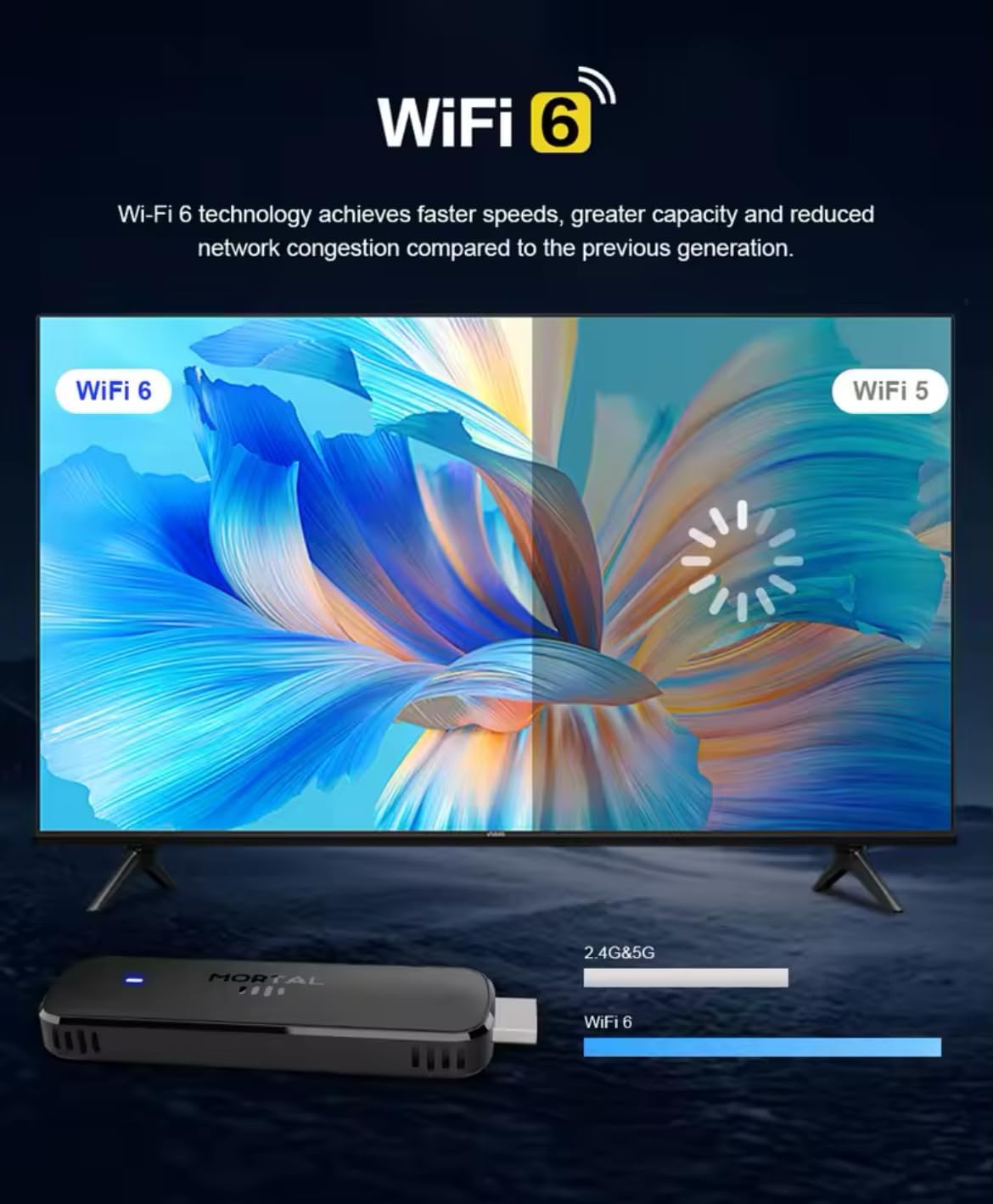
Figure 3.3: Illustration demonstrating the enhanced speed and stability of WiFi 6 technology compared to WiFi 5, with the Mortal Q8 TV Stick supporting dual-band 2.4G/5G connectivity.
4. Eto Itọsọna
Follow these steps to set up your Mortal Q8 TV Stick:
- Connect the TV Stick: Plug the Mortal Q8 TV Stick directly into an available HDMI port on your television. If space is limited, use the HDMI extension cable (if provided).
- Agbara Ẹrọ: Connect the USB power cable to the TV Stick and then to a USB port on your TV or a wall adapter (not always included). Ensure the device receives sufficient power.
- Yan Iṣawọle HDMI: Turn on your television and use your TV remote to select the correct HDMI input source where the Mortal Q8 is connected.
- So Iṣakoso Latọna jijin pọ:
- Fi awọn batiri AAA meji (ko si ninu wọn) sinu iṣakoso latọna jijin.
- Follow the on-screen instructions to pair the remote with your TV Stick. This usually involves holding down specific buttons on the remote until a pairing confirmation appears.
- Isopọ nẹtiwọki:
- Once the device boots up, navigate to the Wi-Fi settings.
- Select your home Wi-Fi network from the list and enter the password. The Mortal Q8 supports WiFi 6 for optimal performance.
- Wíwọlé Àkọọ́lẹ̀ Google: Sign in with your Google account to access the Google Play Store and synchronize your settings and applications.
- Awọn imudojuiwọn eto: Check for and install any available system updates to ensure your device has the latest features and security patches.
5. Awọn ilana Iṣiṣẹ
5.1 Lilọ kiri ni wiwo
Use the directional pad and select button on your remote control to navigate through the Android TV interface. The home button will always return you to the main screen.

Figure 5.1: The Mortal Q8 TV Stick connected to a television, showing the Android TV home screen with various streaming applications like Kodi, HBO Go, Hulu, Netflix, Prime Video, and YouTube.
5.2 Using Voice Control (Google Assistant)
The remote control features a dedicated button for Google Assistant. Press this button and speak into the remote to:
- Wa fun movies, TV shows, or videos.
- Open applications (e.g., "Open YouTube").
- Control playback (e.g., "Pause," "Play," "Fast forward").
- Ask questions or get information.

Figure 5.2: An illustration of using the "Ok Google" voice command feature on the Mortal Q8 TV Stick remote to open applications like YouTube, with the response displayed on the TV screen.
5.3 ṣiṣan akoonu
Access your favorite streaming services directly from the home screen or by downloading new apps from the Google Play Store. The Mortal Q8 supports 4K Ultra HD resolution for compatible content.

Figure 5.3: The Mortal Q8 TV Stick and remote in front of a television displaying vibrant 4K Ultra HD content, emphasizing the device's capability to deliver high-resolution visuals.
5.4 Lilo Chromecast ti a ṣe sinu
The integrated Chromecast feature allows you to cast content from your compatible mobile devices (phones, tablets) or computers directly to your television screen. Look for the Cast icon ▶ in supported applications on your mobile device.

Figure 5.4: An image illustrating the Chromecast built-in feature of the Mortal Q8 TV Stick, showing content being streamed from a smartphone to the television screen.
6. Itọju
- Ninu: Use a soft, dry cloth to clean the TV Stick and remote control. Do not use liquid cleaners or abrasive materials.
- Ibi ipamọ: Nigbati o ko ba wa ni lilo fun awọn akoko ti o gbooro sii, tọju ẹrọ naa ni itura, aye gbigbẹ kuro lati orun taara ati awọn iwọn otutu to gaju.
- Awọn imudojuiwọn sọfitiwia: Ṣayẹwo nigbagbogbo fun ati fi awọn imudojuiwọn eto sori ẹrọ lati rii daju iṣẹ ṣiṣe ati aabo to dara julọ.
7. Laasigbotitusita
| Isoro | Owun to le Solusan |
|---|---|
| Ko si agbara/Ẹrọ ti ko tan | Ensure the USB power cable is securely connected to both the TV Stick and a power source. Try a different USB port or wall adapter. |
| Ko si ifihan agbara loju iboju TV | Verify the TV Stick is fully inserted into the HDMI port. Select the correct HDMI input source on your television. Try a different HDMI port. |
| Isakoṣo latọna jijin ko dahun | Check the batteries and replace them if necessary. Ensure the remote is paired with the TV Stick (refer to setup instructions). Remove any obstructions between the remote and the device. |
| Awọn oran asopọ Wi-Fi | Restart your Wi-Fi router. Re-enter the Wi-Fi password on the TV Stick. Ensure the device is within range of your router. |
| Awọn ohun elo lọra tabi jamba | Close unused applications. Clear the cache of the problematic app in settings. Restart the TV Stick. Ensure sufficient storage space is available. |
8. Awọn pato
| Ẹya ara ẹrọ | Ẹ̀kúnrẹ́rẹ́ |
|---|---|
| Orukọ awoṣe | Q8 |
| Eto isesise | Android 14.0 |
| Ipinnu | 4K Ultra HD |
| Asopọmọra | WiFi 6 (2.4G/5G Dual-band), Bluetooth 5.0, HDMI, USB |
| Pataki Awọn ẹya ara ẹrọ | Chromecast Built-in, Voice Control (Google Assistant) |
| Awọn iṣẹ Intanẹẹti atilẹyin | Google Play, HBO Go, Hulu, Kodi, Netflix, Prime Video, YouTube |
| Adarí Iru | Isakoṣo latọna jijin |
| Fọọmù ifosiwewe | Stick |
| Àwọ̀ | Dudu |
| Awọn ẹrọ ibaramu | Monitor, Projector, Television, HDMI Screen |

Figure 8.1: A visual summary of the Mortal Q8 TV Stick's specifications, including 2GB+8GB memory, 4K video decoding, Allwinner H313 Quadcore processor, Android 14, and 2.4G/5.8G Dual WiFi.
9. Atilẹyin ọja ati Support
For warranty information and technical support, please refer to the documentation provided with your purchase or contact the retailer. Keep your proof of purchase for warranty claims.


