1. Ọja Ipariview
The DAYTECH WiFi Caregiver Call Bell System is designed to provide reliable and real-time assistance for individuals requiring care, such as the elderly, patients, or children. This system ensures that caregivers, whether in the same household or remotely, are immediately notified when assistance is needed. It combines a physical receiver unit with a wearable SOS button and integrates with a smartphone application for enhanced monitoring and control.
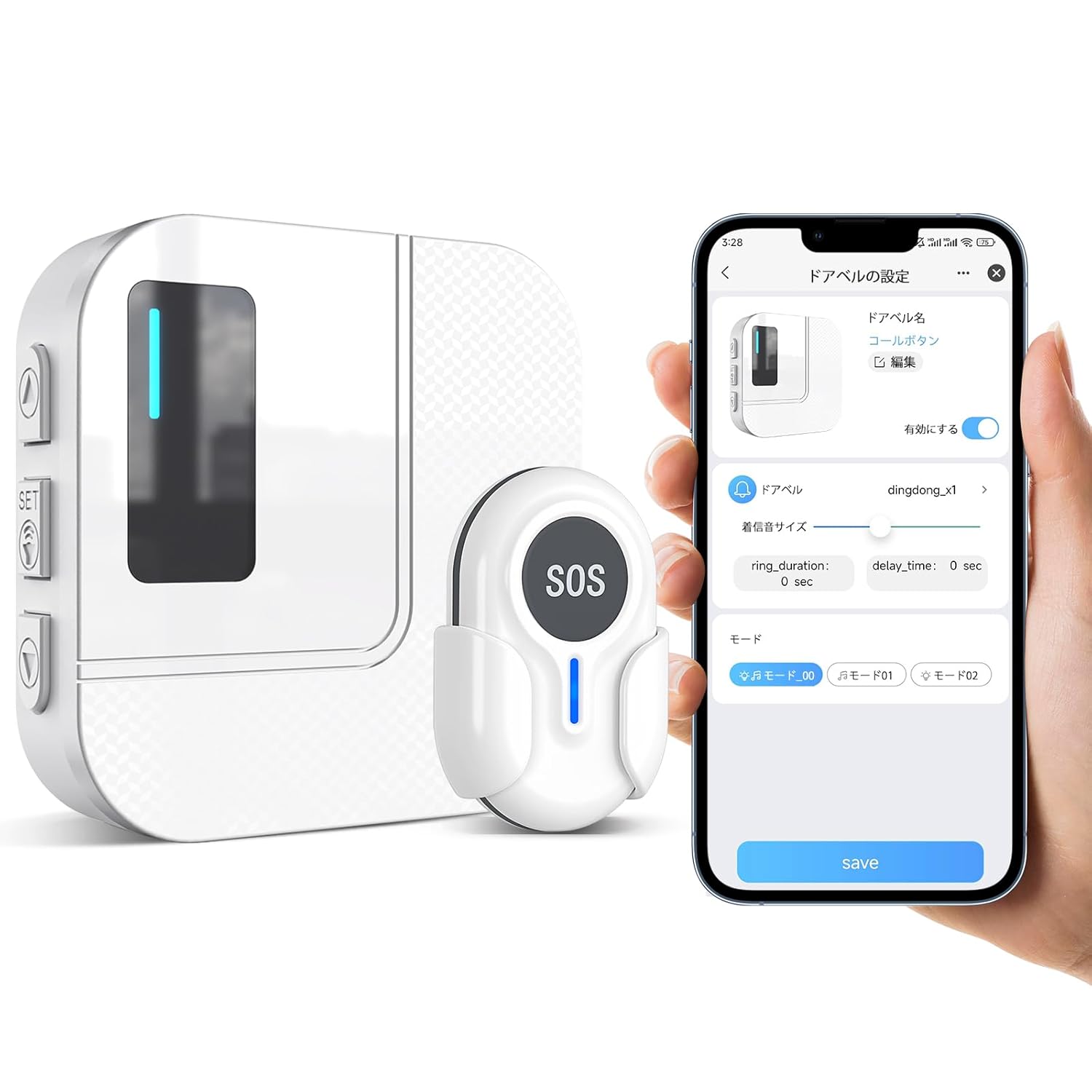
Figure 1: Main components of the DAYTECH WiFi Caregiver Call Bell System, including the receiver, SOS button, and a smartphone showing the Tuya Smart app interface.
2. System irinše
- Olugba Gbigba: The main unit that plugs into a power outlet. It emits an audible alert and flashes an LED light upon receiving a signal from the SOS button. It connects to your home's 2.4GHz WiFi network.
- SOS Button (Transmitter): A compact, wearable device that sends an alert signal to the receiver unit and connected smartphones when pressed. It can be worn as a wristband or hung around the neck. Features a low battery indicator.
- Ohun elo Tuya Smart: A dedicated smartphone application (available for iOS and Android) that allows for remote monitoring, system configuration, and receiving notifications from the call bell system.
- Awọn ẹya ara ẹrọ: Includes double-sided tape for mounting the SOS button.

Figure 2: The SOS button can be worn around the neck or mounted on a wall using screws or the included double-sided tape for convenient access.
3. Eto Itọsọna
3.1 Ni ibẹrẹ Oṣo
- Agbara Lori Olugba: Plug the receiver unit into a standard electrical outlet. The LED indicator on the receiver will light up.
- Install Tuya Smart App: Download the "Tuya Smart" application from your smartphone's app store (Google Play Store for Android or Apple App Store for iOS).
- Ṣẹda akọọlẹ kan: Open the Tuya Smart app and register for a new account or log in if you already have one.
3.2 Connecting the Receiver to the App
Ensure your smartphone is connected to a 2.4GHz WiFi network. The system does not support 5GHz networks during the pairing process. If your router uses 5GHz, temporarily switch to 2.4GHz for pairing, then you can switch back.
- Tẹ Ipo Sisopọ: On the receiver unit, press and hold the "SET" button for 5-8 seconds until the LED indicator starts blinking rapidly. This indicates it's in pairing mode.
- Fi Ẹrọ sinu App: In the Tuya Smart app, tap "Add Device" or the "+" icon.
- Yan Iru Ẹrọ: Choose "Security & Sensor" or "Others" and then select "Caregiver Call Bell" or a similar option.
- Confirm Pairing Mode: Follow the in-app prompts to confirm the receiver's LED is blinking rapidly.
- Tẹ ọrọ igbaniwọle WiFi sii: Input your 2.4GHz WiFi network password when prompted.
- Sopọ: The app will attempt to connect to the receiver. Once connected, the receiver's LED will stop blinking and remain solid, and the app will confirm successful pairing.

Figure 3: Visual guide for connecting the receiver unit to the Tuya Smart application on your smartphone.
3.3 Pairing SOS Button with Receiver
The SOS button is typically pre-paired with the receiver. If not, or if you are adding additional buttons:
- Tẹ Ipo Ẹkọ sii: On the receiver unit, briefly press the "SET" button once. The LED indicator will light up steadily.
- Press SOS Button: Within 5 seconds, press the SOS button on the transmitter. The receiver will chime or flash to confirm successful pairing.
- Jáde Ipò Ẹ̀kọ́: The receiver will automatically exit learning mode after a few seconds, or you can press the "SET" button again.
4. Awọn ilana Iṣiṣẹ
4.1 Initiating an Alert
- To send an alert, simply press the large "SOS" button on the transmitter.
- Upon pressing, the transmitter sends a signal to the receiver unit and simultaneously to all linked smartphones via the Tuya Smart app.
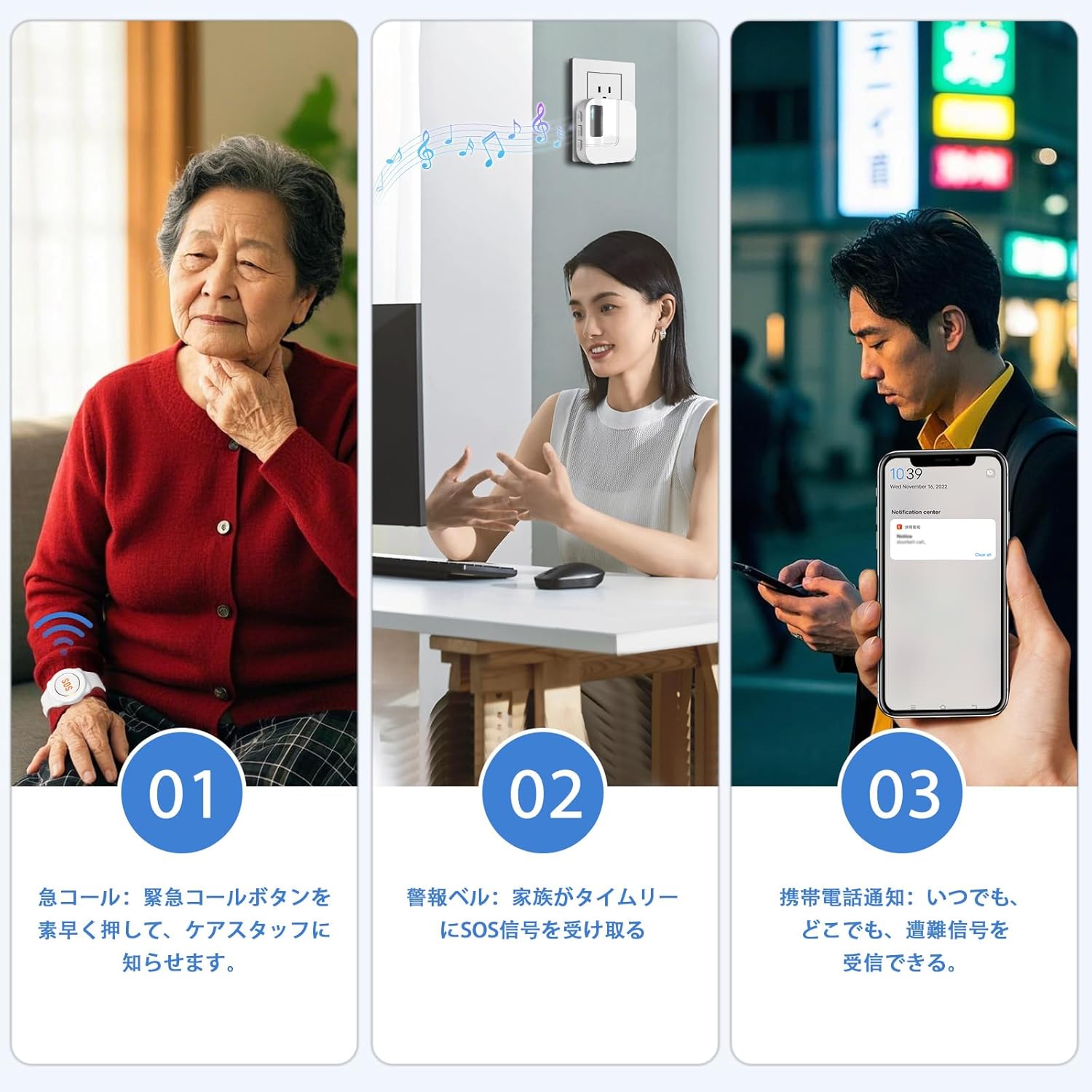
Figure 4: The alert process: (1) Pressing the SOS button, (2) Receiver unit alerts, (3) Smartphone notification.
4.2 Receiving Alerts
- Olugba Gbigba: The receiver will emit an audible chime and its LED light will flash.
- Ohun elo Foonuiyara: All smartphones linked to the system via the Tuya Smart app will receive a push notification. This notification is real-time and works even when you are away from home, provided your smartphone has an internet connection (WiFi or mobile data).

Figure 5: The mobile app allows for remote alert notifications, enabling caregivers to respond even when away from home.
4.3 App Functions (Tuya Smart)
- Aṣayan ohun orin ipe: Choose from 38 different ringtones for the receiver unit.
- Atunse iwọn didun: Adjust the receiver's alert volume (5 levels available, including mute).
- Iṣakoso ẹrọ: Add or remove additional SOS buttons or other compatible devices.
- Eto iwifunni: Configure app notifications, including "Do Not Disturb" mode.
- Pipin idile: Share device access with multiple family members, allowing everyone to receive alerts and manage settings.

Figure 6: The Tuya Smart app provides comprehensive control over the call bell system, including ringtone and volume settings.
5. Itọju
5.1 Battery Replacement (SOS Button)
The SOS button is powered by a CR2032 coin cell battery. When the battery is low, the LED indicator on the SOS button will flash to notify you. Replace the battery promptly to ensure continuous operation.
- Ṣii Casing: Use a small screwdriver to carefully open the back casing of the SOS button.
- Yọ Batiri atijọ kuro: Gently remove the old CR2032 battery.
- Fi Batiri Tuntun sii: Fi batiri CR2032 titun sii pẹlu ẹgbẹ rere (+) ti nkọju si oke.
- Pade Casing: Securely close the back casing.

Figure 7: Instructions for replacing the CR2032 battery in the SOS button.
5.2 Ninu
- Wipe the receiver unit and SOS button with a soft, dry cloth.
- Do not use abrasive cleaners or immerse the devices in water.
6. Laasigbotitusita
6.1 Receiver Not Connecting to WiFi
- Check WiFi Frequency: Ensure your router is broadcasting a 2.4GHz WiFi signal. The device does not support 5GHz networks for initial pairing. If your router is dual-band, temporarily disable the 5GHz band or ensure your phone is connected to the 2.4GHz band during setup.
- Isunmọ olulana: Place the receiver closer to your WiFi router during the setup process.
- Atunbere olulana: Try restarting your WiFi router.
- App Reinstallation: Uninstall and reinstall the Tuya Smart app.
- Iduroṣinṣin nẹtiwọki: Ensure your WiFi network is stable. Unstable networks can affect device addition.

Figure 8: Common troubleshooting steps for WiFi connectivity problems.
6.2 SOS Button Not Triggering Alert
- Ṣayẹwo Batiri: Verify the SOS button's battery. If the LED indicator is flashing, replace the battery.
- Pipọpọ: Ensure the SOS button is properly paired with the receiver unit. Refer to Section 3.3 for pairing instructions.
- Ibiti: Check if the SOS button is within the effective wireless transmission range of the receiver (up to 150m in open areas, 0-70m indoors with obstacles).

Figure 9: Wireless transmission range of the DAYTECH system, indicating varying distances depending on environmental factors.
6.3 No Smartphone Notifications
- Awọn igbanilaaye App: Ensure the Tuya Smart app has permission to send notifications on your smartphone.
- Isopọ Ayelujara: Verify your smartphone has an active internet connection (WiFi or mobile data).
- Eto App: Check notification settings within the Tuya Smart app to ensure they are enabled.
- Ohun elo abẹlẹ: For iOS, ensure "Background App Refresh" is enabled for the Tuya Smart app. For Android, ensure the app is not restricted by battery optimization settings.
7. Awọn pato
| Ẹya ara ẹrọ | Ẹ̀kúnrẹ́rẹ́ |
|---|---|
| Nọmba awoṣe | TY01-CC02 |
| Asopọmọra | 2.4GHz WiFi |
| SOS Button Battery | CR2032 Coin Cell (1 required) |
| Agbara olugba | AC Plug-in |
| Alailowaya Ibiti | Up to 150 meters (open area), 0-70 meters (indoor with obstacles) |
| Awọn iwọn olugba | Isunmọ 10.8 x 8.3 x 7.9 cm |
| Iwọn Ọja | Isunmọ. 160 g |
| Ibamu App | Tuya Smart (iOS ati Android) |
| Ringtone Options | 38 awọn orin aladun |
| Awọn ipele iwọn didun | 5 levels (including mute) |
8. Atilẹyin ọja ati Support
The DAYTECH WiFi Caregiver Call Bell System comes with an 18-month warranty from the date of purchase. This warranty covers manufacturing defects and malfunctions under normal use.
If you encounter any issues or require technical assistance, please contact DAYTECH customer support. Provide your model number (TY01-CC02) and a detailed description of the problem for prompt assistance.
For support, please visit the official DAYTECH store on Amazon or refer to the contact information provided with your product packaging.
Ile itaja ori ayelujara: DAYTECH Official Store on Amazon.co.jp


