Ọrọ Iṣaaju
This manual provides comprehensive instructions for the setup, operation, and maintenance of your ATTACK SHARK X68 HE Wired Magnetic Keyboard and X3 Wireless Gaming Mouse Combo. Please read this guide thoroughly to ensure optimal performance and longevity of your devices.
Ṣeto
Keyboard Connection (X68 HE)
- Locate the USB-C port on the ATTACK SHARK X68 HE keyboard.
- Connect the provided USB-C to USB-A cable to the keyboard and then to an available USB-A port on your computer.
- Awọn bọtini itẹwe yoo jẹ idanimọ laifọwọyi nipasẹ ẹrọ iṣẹ rẹ.
Mouse Connection (X3)
The ATTACK SHARK X3 mouse supports three connectivity modes: USB-C wired, 2.4GHz wireless, and Bluetooth.
- Ipo Alailowaya 2.4GHz:
- Locate the 2.4GHz USB receiver, typically stored in a compartment on the underside of the mouse.
- So olugba naa pọ mọ ibudo USB-A ti o wa lori kọmputa rẹ.
- Switch the mode selector on the mouse to '2.4G'. The mouse will connect automatically.
- Ipo Bluetooth:
- Switch the mode selector on the mouse to 'BT'.
- Lori kọmputa rẹ, lilö kiri si awọn eto Bluetooth ki o wa awọn ẹrọ titun.
- Select 'ATTACK SHARK X3' from the list to pair.
- Ipo Asopọ USB-C:
- Connect the provided USB-C cable to the mouse and then to an available USB-A port on your computer.
- Asin naa yoo ṣiṣẹ bi ẹrọ onirin ati gba agbara ni akoko kanna.
Fifi sori Software Driver
For advanced customization of both the keyboard and mouse, download the dedicated driver software from the official ATTACK SHARK website. This software allows for personalized settings, macros, and lighting effects.
ATTACK SHARK X68 HE Keyboard Features & Operation

Image: The ATTACK SHARK X68 HE keyboard and X3 mouse, showcasing the combo.
Àwọn Ìyípadà Oofa Hall
The X68 HE keyboard features Hall Effect magnetic switches, offering adjustable actuation points from 0.1mm to 3.4mm. This allows for precise control over keypress sensitivity. The keyboard boasts an 8000Hz polling rate and an ultra-responsive 0.125ms response time for rapid input registration.
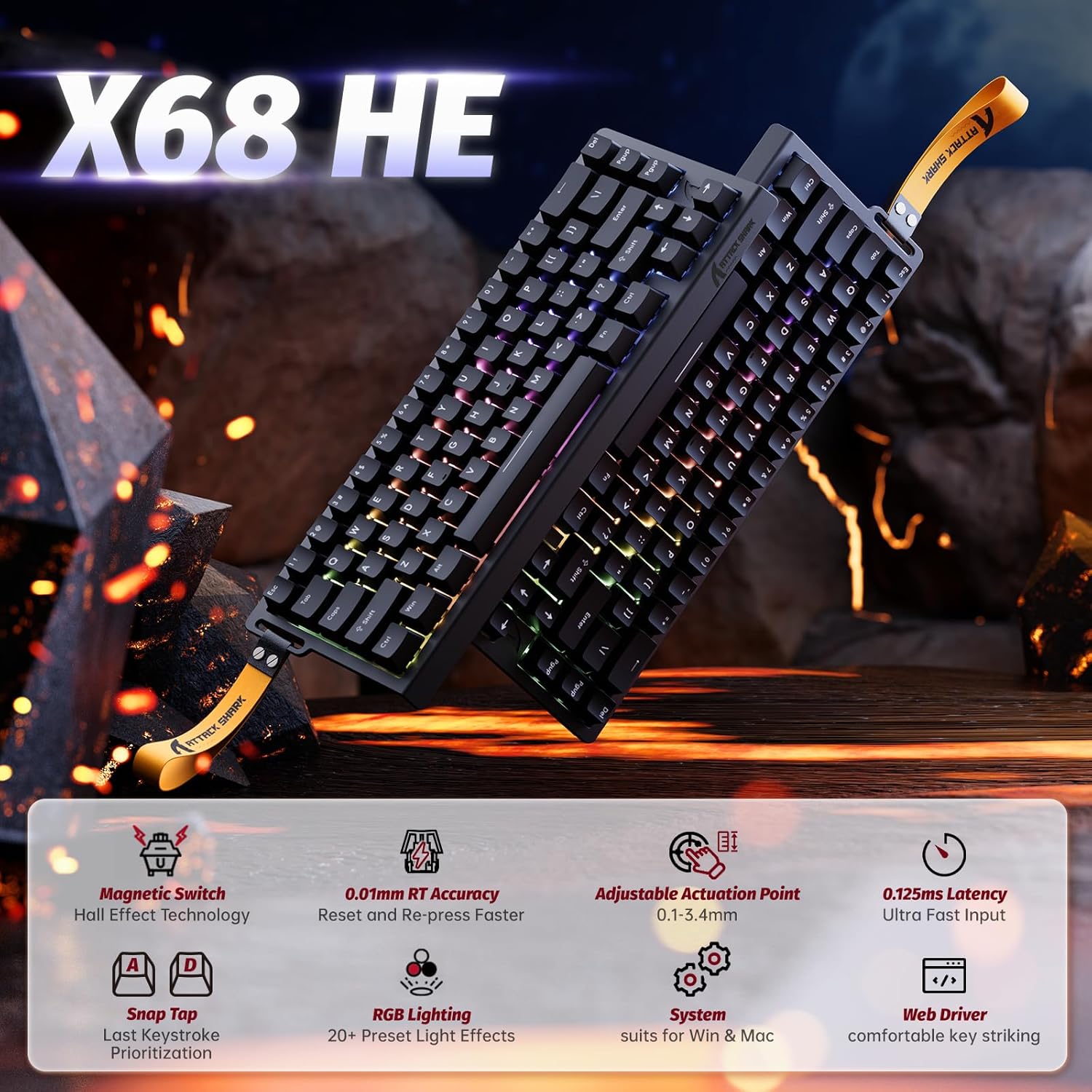
Image: Diagram highlighting key features of the X68 HE keyboard, including magnetic switches, 0.01mm RT accuracy, adjustable actuation, and 0.125ms latency.
Rapid Trigger (RT) & Dynamic Keystroke
With 0.01mm RT sensitivity and zero dead zone, the X68 HE ensures immediate response to key presses. The Snap Tap feature prioritizes the latest input between two keys, beneficial for quick directional changes in games. Dynamic Keystroke allows for up to four actions within a single keypress, enabling complex combos and macros.

Image: Visual representation of 0.01mm RT accuracy and 128KHz scan rate, demonstrating its impact on gaming performance in titles like Valorant, CSGO, APEX, and osu!.
Customization and RGB Lighting
The keyboard's advanced driver software allows for extensive customization. You can adjust the Hall Effect switches' actuation to your preferred sensitivity. The X68 HE features full RGB lighting with over 20 preset light effects. Individual key lighting can also be defined and personalized to match your setup.

Image: The X68 HE keyboard displaying various RGB lighting effects, with controls for brightness, speed, and color shown.
Keyboard Lighting Controls
- Fn + Oke/isalẹ: Adjust Backlit Brightness.
- Fn + Osi/Ọfà ọtun: Adjust Backlit Speed.
- Fn + \|: Switch Light Mode.
- Fn + Wọle: Switch Light Color.
- Fn + Backspace: Toggle Light On/Off.
Official Product Videos (Keyboard)
Fidio: Ipariview of the ATTACK SHARK X68 HE RT Mechanical Gaming Keyboard, highlighting its design, RGB lighting, and customizable features. Duration: 0:23.
Video: Demonstrates the X68 HE 8000Hz Rapid Trigger Gaming Keyboard's responsiveness and precision in gaming scenarios. Duration: 0:52.
ATTACK SHARK X3 Wireless Gaming Mouse Features & Operation

Aworan: A alaye view of the X3 wireless mouse, showcasing its lightweight design, PAW3395 sensor, BK3633 chip, Kailh GM8.0 switches, 3-mode connectivity, and 200-hour battery life.
PAW3395 Sensor & High DPI
The X3 wireless mouse is equipped with the high-performance PixArt PAW3395 sensor, offering up to 26,000 DPI. It features a 1000Hz polling rate and 50g acceleration, ensuring ultra-responsive and precise tracking for gaming and detailed tasks.

Image: The X3 mouse highlighting the PAW3395 sensor and its 49g lightweight design, emphasizing its performance capabilities.
Tri-Mode Connectivity & Battery Life
The X3 mouse offers versatile tri-mode connectivity: USB-C wired, 2.4GHz wireless, and Bluetooth. This allows for flexible switching across various devices and usage scenarios. Powered by a 300mAh battery, it provides up to 200 hours of continuous use on a single charge.

Image: Illustrates the three connection modes of the X3 mouse: Bluetooth, 2.4G wireless, and Type-C wired, detailing their benefits.
Lightweight Design & Grip Tape
Weighing just 49g, the X3 mouse is designed for faster and more precise control, facilitating quicker aim, rapid flicks, and smoother tracking. Included grip tape further enhances control and stability during intense gaming sessions.
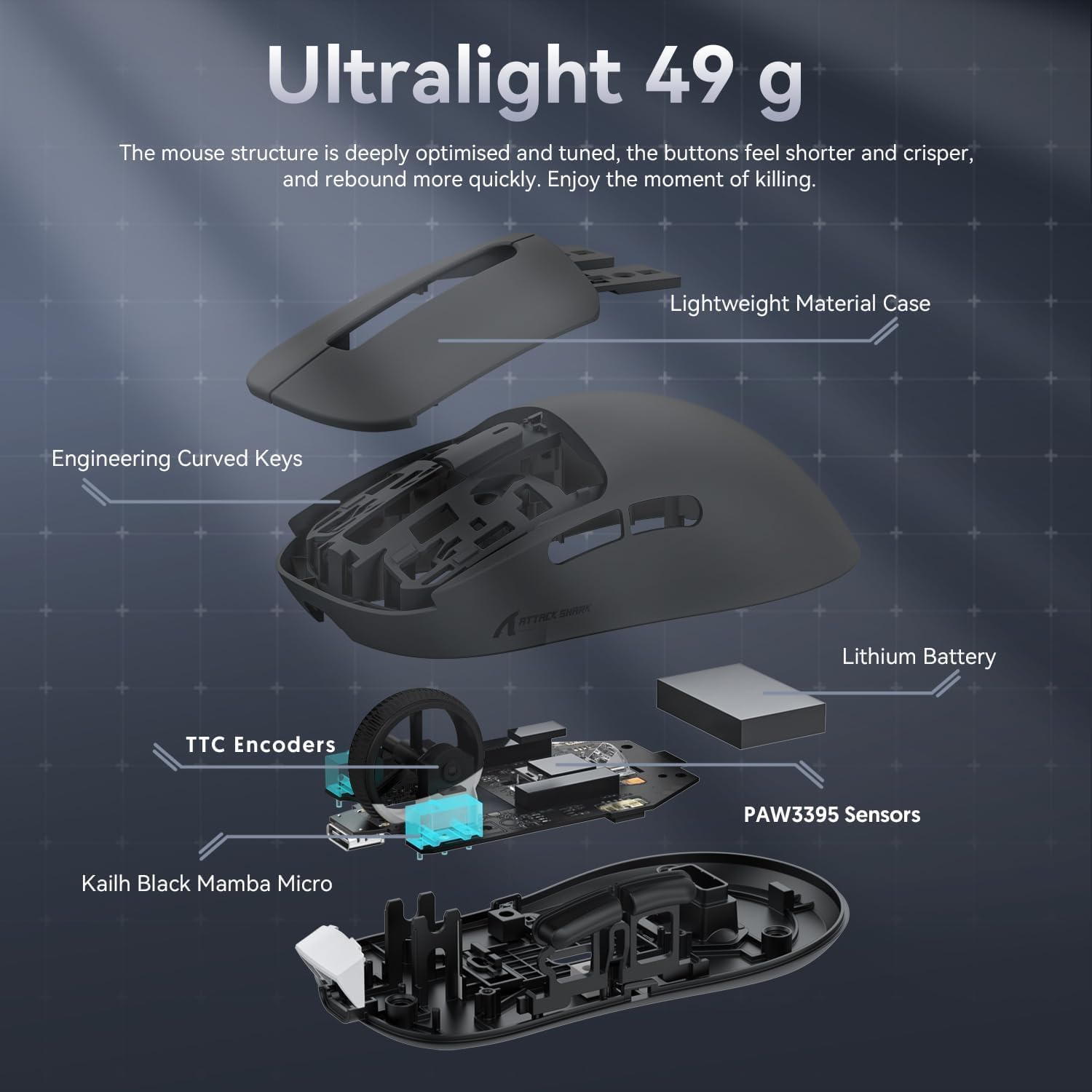
Aworan: Ohun exploded view of the X3 mouse, detailing its internal components and lightweight material case, emphasizing its 49g weight.
Customizable Driver & Macros
Utilize the advanced driver software to customize the X3 mouse. You can program up to 5 mouse buttons, fine-tune DPI settings, adjust the polling rate, and create complex macros for enhanced gameplay and productivity.
Awọn pato
| Ẹya ara ẹrọ | Ẹ̀kúnrẹ́rẹ́ |
|---|---|
| Brand | KOLU EYAN |
| Awoṣe Keyboard | X68 O |
| Mouse Awoṣe | X3 |
| Package Mefa | 14 x 7 x 4 inches |
| Iwọn Nkan | 2.6 iwon |
| Ọjọ Akọkọ Wa | Oṣu Karun ọjọ 6, Ọdun 2025 |
| Àwọ̀ | Dudu |
| Asopọmọra Technology | USB (Keyboard), USB-C, 2.4GHz, Bluetooth (Mouse) |
| Pataki Ẹya | Lightweight (Mouse) |
| Awọn ẹrọ ibaramu | Kọmputa ti ara ẹni |
| Keyboard Yipada | Àwọn Ìyípadà Oofa Hall |
| Oṣuwọn Idibo Keyboard | 8000Hz |
| Keyboard Actuation | A le ṣatunṣe 0.1mm si 3.4mm |
| Sensọ Asin | PixArt PAW3395 |
| Asin DPI | Titi di 26,000 |
| Mouse Idibo Oṣuwọn | 1000Hz |
| Asin iwuwo | 49g |
| Mouse batiri Life | Titi di wakati 200 |
Itoju
Gbogbogbo Cleaning
- Àtẹ bọ́tìnnì Use a soft, dry cloth to wipe down the keycaps and chassis. For deeper cleaning, use compressed air to remove dust and debris from between the keys. Avoid using harsh chemicals or abrasive materials.
- Asin: Pa dada nu pẹlu asọ, die-die damp cloth. Use a cotton swab to clean around the sensor and scroll wheel. Ensure no liquid enters the mouse.
Ibi ipamọ
When not in use for extended periods, store the keyboard and mouse in a cool, dry place away from direct sunlight and extreme temperatures. Disconnect all cables and store the USB receiver securely.
Laasigbotitusita
Àwọn Ìṣòro Kííbọọ̀dù
- Keyboard ko dahun: Ensure the USB-C cable is securely connected to both the keyboard and the computer. Try a different USB port.
- Imọlẹ RGB ko ṣiṣẹ: Check the lighting controls (Fn key combinations) or the driver software to ensure lighting is enabled and configured correctly.
- Awọn bọtini ti ko forukọsilẹ daradara: Ensure the driver software is up-to-date. If issues persist, try resetting the keyboard to factory settings (refer to driver software for instructions).
Àwọn Ìṣòro Asin
- Asin ko dahun (Ailowaya): Ensure the mouse is charged. Check that the 2.4GHz receiver is plugged in or Bluetooth is paired. Verify the mode selector switch is in the correct position.
- Asin ko dahun (Ti firanṣẹ): Rii daju pe okun USB-C ti sopọ ni aabo si mejeeji Asin ati kọnputa naa. Gbiyanju ibudo USB ti o yatọ.
- Titọpa aipe: Clean the mouse sensor. Ensure the mouse is used on a suitable surface (e.g., a mouse pad). Adjust DPI settings via the driver software or DPI button.
- Igbesi aye batiri ti ko dara: Ensure the mouse is fully charged before use. Reduce RGB lighting brightness or disable it if possible to conserve battery.
Atilẹyin ọja ati Support
Your ATTACK SHARK X68 HE Keyboard and X3 Wireless Gaming Mouse Combo is covered by a manufacturer's warranty. For specific warranty details, please refer to the warranty card included with your product or visit the official ATTACK SHARK website. For technical support, troubleshooting assistance, or any product-related inquiries, please contact ATTACK SHARK customer service through their official channels.


