1. Ifihan
Thank you for choosing the BOTSLAB G980H Pro 4K Dash Cam. This manual provides detailed instructions on how to install, operate, and maintain your dash camera system, including the hardwire kit and CPL filter. Please read this manual thoroughly before use to ensure proper functionality and safety.
2. Package Awọn akoonu
Jọwọ rii daju pe gbogbo awọn nkan ti a ṣe akojọ rẹ si isalẹ wa ninu package rẹ:
- BOTSLAB 4K+2K Dual Dash Cam (Front and Rear Units)
- Botslab Circular Polarizing Lens (CPL) Filter
- Hardwire Kit (Type C)
- Itọsọna olumulo
- Other standard accessories (e.g., mounting adhesive, cable clips)
3. Ọja Ipariview
The BOTSLAB G980H Pro is a high-performance dash camera system designed to capture crystal-clear footage of your journeys. It features a true 4K front camera and a 2K rear camera with 360° rotation capability, providing comprehensive coverage both outside and inside your vehicle.
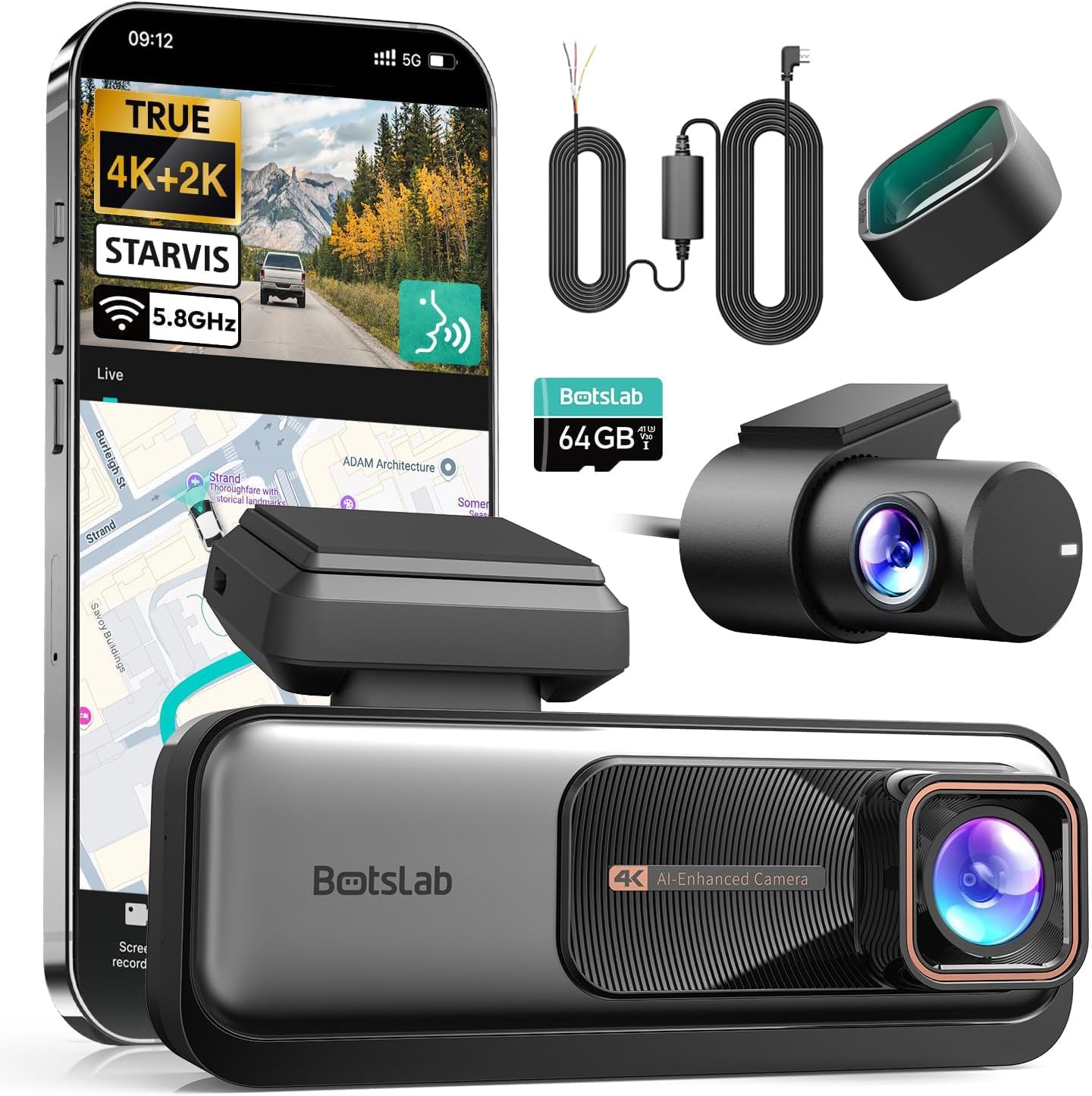
Aworan: Pariview of the BOTSLAB G980H Pro Dash Cam and its included components.

Image: The G980H Pro Dash Cam shown with a smartphone displaying the live view and map interface.
4. Eto ati fifi sori
Proper installation is crucial for optimal performance. This section guides you through the process of installing the dash cam and the hardwire kit.
4.1 Hardwire Kit Installation
The hardwire kit enables 24/7 parking mode functionality by providing continuous power to the dash cam even when the vehicle is off. It connects directly to your car's fuse box.
Aworan: Alaye view of the Hardwire Kit, highlighting the Type-C connector, power conversion box, and the ACC (yellow), VCC+ (red), and GND- (black) wires.
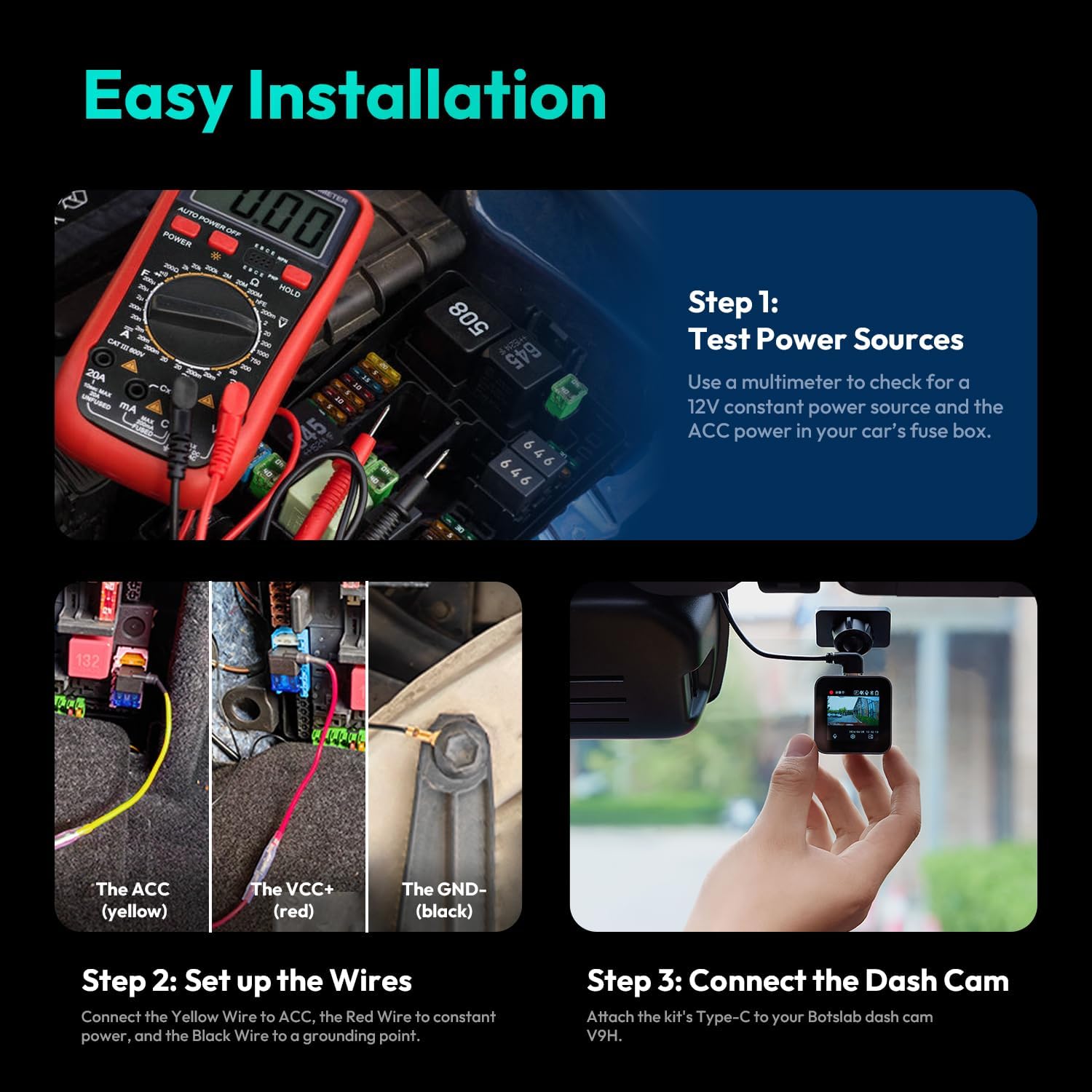
- Step 1: Test Power Sources. Use a multimeter to identify a 12V constant power source (for VCC+) and an ACC (Accessory) power source in your car's fuse box. The ACC power should only be active when the ignition is on.
- Step 2: Set Up the Wires. Connect the yellow wire (ACC) from the hardwire kit to the identified ACC fuse slot. Connect the red wire (VCC+) to the constant power fuse slot. Securely connect the black wire (GND-) to a grounding point on the vehicle's chassis, typically a metal bolt or screw.
- Step 3: Connect the Dash Cam. Attach the Type-C connector of the hardwire kit to the corresponding port on your BOTSLAB G980H Pro Dash Cam.

Image: Visual guide for the easy installation process of the hardwire kit, showing multimeter use, wire connections, and dash cam attachment.
4.2 Dash Cam Mounting
Mount the front dash cam on your windshield, ideally behind the rearview dígí, láti rí i dájú pé kò dí ọ lọ́wọ́ view. Mount the rear camera on the rear window. Ensure both cameras have a clear view ti opopona.
4.3 CPL Filter Installation
The CPL filter helps reduce glare and reflections from the windshield and road, improving video clarity. Gently attach the CPL filter to the front lens of the dash cam. Rotate the filter while observing the live view on the dash cam or app to find the optimal position for glare reduction.
5. Awọn ilana Iṣiṣẹ
This section details the key features and how to operate your G980H Pro Dash Cam.
5.1 Recording Quality and Camera Rotation
The front camera records in true 4K resolution, while the rear camera records in 2K resolution, providing exceptional detail. The rear camera can rotate 360° to monitor either the rear view or the vehicle's interior, making it versatile for various recording needs, including rideshare monitoring.

Image: Comparison of 4K front and 2K rear camera footage, demonstrating clarity for license plate recognition.
5.2 Eto Iranlọwọ Awakọ Onitẹsiwaju (ADAS)
The G980H Pro features an ADAS powered by AI NPU and BOTSLAB's AI algorithm, providing real-time safety alerts:
- Ìkìlọ̀ fún Ìkọlù Ẹlẹ́sẹ̀: Alerts you to pedestrians in your path.
- Vehicle Movement Alert: O sọ fun ọ nigbati ọkọ iwaju ba bẹrẹ gbigbe.
- Ikilọ Ilọkuro Lane: Alerts if you drift out of your lane.
- Driver Fatigue Warning: Prompts you to take a break if signs of fatigue are detected.

Image: Illustrations of various ADAS alerts, including front vehicle start, pedestrian proximity, too close warning, and lane departure.
5.3 Iṣakoso ohun
Operate your dash cam hands-free using voice commands. Supported commands include:
- "Tan iboju" / "Pa iboju"
- "Ya fọto"
- "Show front camera" / "Show rear camera"
- "Video start"
5.4 24/7 Parking Mode
When connected via the hardwire kit, the dash cam automatically enters parking mode after your car is turned off. It continues to monitor your vehicle for impacts or motion, providing protection against theft, vandalism, and hit-and-runs.
5.5 5.8GHz WiFi & GPS Integration
The built-in 5.8GHz WiFi allows for fast and reliable connection to the companion mobile app for real-time viewing, video playback, and settings adjustment. The integrated GPS module tracks your driving route and speed, which can be reviewed using the dedicated DV playback software on your computer.
6. Itọju
To ensure the longevity and optimal performance of your dash cam, follow these maintenance guidelines:
- Nu awọn lẹnsi naa mọ: Regularly wipe the camera lenses with a soft, lint-free cloth to ensure clear recordings.
- Iṣakoso Kaadi SD: Format the microSD card periodically (e.g., once a month) to prevent data corruption and ensure smooth recording. Use a high-quality, high-endurance microSD card.
- Awọn imudojuiwọn famuwia: Check the BOTSLAB official webaaye tabi ohun elo fun eyikeyi awọn imudojuiwọn famuwia ti o wa lati mu ilọsiwaju ṣiṣẹ ati ṣafikun awọn ẹya tuntun.
- Iwọn otutu: Yago fun ṣiṣafihan kamẹra dash si awọn iwọn otutu to gaju fun awọn akoko gigun.
7. Laasigbotitusita
If you encounter any issues with your dash cam, refer to the following common problems and solutions:
| Isoro | Owun to le Solusan |
|---|---|
| Kamẹra Dash ko ni agbara lori. | Check power connections. Ensure the hardwire kit is correctly installed and receiving power from the fuse box. |
| Gbigbasilẹ duro tabi di. | Format the microSD card. Ensure you are using a high-speed (Class 10 or U3) and high-endurance microSD card. Replace the card if it's old or damaged. |
| Poor video quality / Glare. | Clean the lenses. Adjust the CPL filter by rotating it to minimize glare. Ensure the windshield is clean. |
| ADAS alerts are inaccurate. | Ensure the dash cam is mounted correctly and has a clear, unobstructed view of the road. Calibrate ADAS settings via the mobile app if available. |
| Awọn oran asopọ Wi-Fi. | Ensure the dash cam's Wi-Fi is enabled. Restart both the dash cam and your mobile device. Try reconnecting through the app. |
8. Awọn pato
Key technical specifications of the BOTSLAB G980H Pro Dash Cam:
- Ipinnu Kamẹra iwaju: Otitọ 4K
- Ipinnu Kamẹra Tẹhin: 2K
- Yiyi Kamẹra Tẹhin: 360°
- Asopọmọra: 5.8GHz WiFi, Built-in GPS
- Awọn ẹya to ti ni ilọsiwaju: ADAS (Pedestrian Collision, Vehicle Movement, Lane Departure, Driver Fatigue Alerts), Voice Control, 24/7 Parking Mode
- Awọn ẹya ara ẹrọ to wa: Hardwire Kit, CPL Filter
- ASIN: B0F7RNZPB4
- Akọkọ Wa: Oṣu Karun ọjọ 7, Ọdun 2025
9. Atilẹyin ọja ati Support
Your BOTSLAB G980H Pro Dash Cam is covered by a standard return policy. For specific warranty details and technical support, please refer to the documentation provided with your purchase or contact the seller directly.
Ilana Pada: Ọja yii yẹ fun agbapada tabi rirọpo laarin awọn ọjọ 30 ti rira, labẹ ilana ipadabọ ti eniti o ta ọja naa.
Alaye Olutaja: For support and inquiries, please contact Botslab Security, the seller of this product.


