Ọrọ Iṣaaju
The QCOQ Air Tracker Tag is a Bluetooth item locator designed to help you find your personal belongings using Apple's Find My network. This manual provides comprehensive instructions for the setup, operation, and maintenance of your Air Tracker Tag.

Image: Three QCOQ Air Tracker Tags in blue, accompanied by keychains and lanyards, ready for attachment to various items.

Image: A collage showing the QCOQ Air Tracker Tag attached to various items such as luggage, a backpack, a bicycle, and a camcorder, demonstrating its versatile use for tracking personal belongings.
Package Awọn akoonu
Upon opening your QCOQ Air Tracker Tag package, you should find the following items:
- 3 x QCOQ Air Tracker Tags
- 3 x Blue Silicone Protective Cases with Hollow Design
- 3 x Black Lanyards
- 3 x Keychains
- 1 x Itọsọna olumulo
Ṣeto
Fifi sori Batiri ati Rirọpo
The QCOQ Air Tracker Tag uses a replaceable CR2032 coin cell battery. To install or replace the battery:
- Gently twist the two halves of the tracker counter-clockwise to open the casing.
- Fi batiri CR2032 sii pẹlu ẹgbẹ rere (+) ti nkọju si oke.
- Align the marks on both halves and twist clockwise to securely close the tracker.
Pairing with Apple Find My (iOS Only)
The QCOQ Air Tracker Tag is compatible exclusively with Apple iOS devices. Follow these steps to pair your tracker:
- On your iPhone, iPad, or Mac, open the Wa Mi app and ensure Bluetooth is enabled.
- In the Find My app, navigate to the Awọn nkan taabu. Fọwọ ba Add New Item, lẹhinna yan Ohun miiran Atilẹyin.
- Hold the button on your QCOQ Air Tracker Tag for approximately 2 seconds until you hear a 'Di' sound.
- Place the tracker close to your iOS device. The device will search for and detect the 'Diamond tag'.
- Fọwọ ba Sopọ, then follow the on-screen prompts, tapping Tesiwaju until the pairing process is complete.

Image: This image illustrates the three-step process for pairing your QCOQ Air Tracker Tag with your iPhone. Step 1 shows opening the Find My app and enabling Bluetooth. Step 2 shows selecting 'Add New Item' and then 'Other Supported Item'. Step 3 shows holding the tracker button for 2 seconds to hear a 'Di' sound, then searching for and connecting to 'Diamond tag' on your iPhone.
Awọn ilana Iṣiṣẹ
Wiwa Awọn Ohun ti o wa nitosi (Mu Ohùn ṣiṣẹ)
When your QCOQ Air Tracker Tag is within Bluetooth range, you can use the Find My app to make it emit a sound, helping you locate it quickly.
- Ṣii awọn Wa Mi app lori rẹ iOS ẹrọ.
- Select your QCOQ Air Tracker Tag lati awọn Awọn nkan akojọ.
- Fọwọ ba Mu Ohun ṣiṣẹ option. The tracker will emit a sound up to 100 dB to guide you to its location.
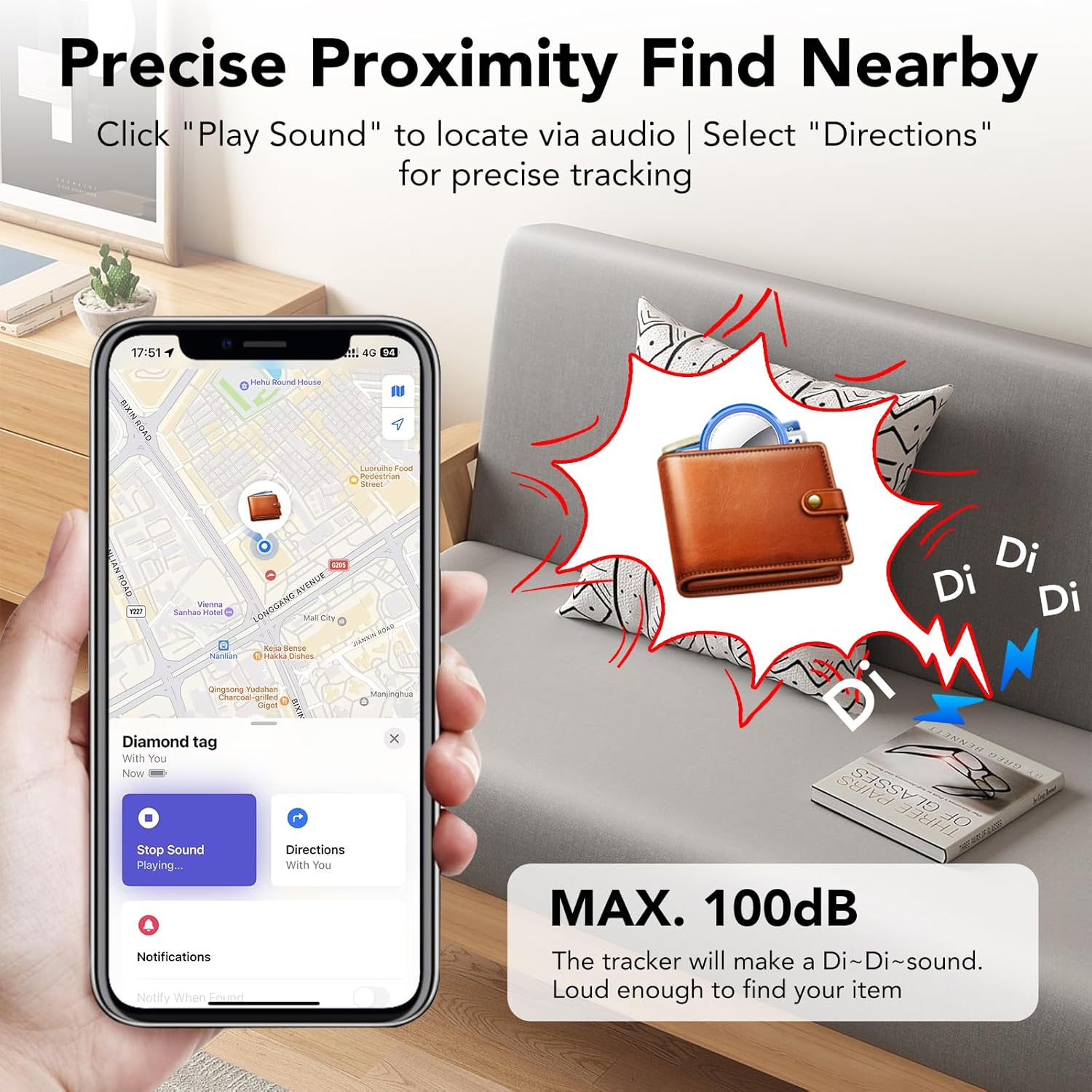
Image: This image demonstrates how to use the 'Play Sound' feature in the Find My app to locate a nearby item. An iPhone displays the Find My interface with the 'Play Sound' button, while a QCOQ Air Tracker Tag, attached to a wallet, is shown emitting sound waves, indicating its location.
Multi-regional Tracking
The QCOQ Air Tracker Tag leverages Apple's vast Find My network for tracking items even when they are out of your personal Bluetooth range. The location of your item is updated anonymously and securely by nearby Apple devices, providing regular localization in compliance with Apple's privacy standards.

Image: This image highlights key features of the QCOQ Air Tracker Tag, including compatibility with Siri, MFi certification, encrypted tracking with dual shields, and a replaceable battery. It also shows an iPhone displaying a map with the tracker's location and a QCOQ Air Tracker Tag attached to a set of keys, emphasizing its integration with Apple's Find My network.
Forget Alert
To prevent leaving your belongings behind, enable the 'Notify if forgotten' feature in the Find My app. Your iOS device will send a notification with the last known location if the item moves beyond Bluetooth range. You can also define a custom safety radius; if the tracker remains within this area, no alerts will be generated.

Image: This image shows an iPhone screen displaying a 'QCOQ's Key' left behind notification, indicating that the tracked item is no longer detected nearby. A QCOQ Air Tracker Tag is shown attached to a set of keys, illustrating the 'Forget Alert' feature in action.
Ipo ti sọnu
If your item is lost, activate 'Lost Mode' in the Find My app. You can enter your contact details (e.g., phone number or email). If someone finds your item and scans it with a compatible Apple device, they will see your contact information, making it easier for your item to be returned.

Image: This image depicts an iPhone displaying the 'Lost Mode Activated' screen within the Find My app. It shows information about the 'Diamond tag' (QCOQ Air Tracker Tag) including its serial number and owner details, with instructions for disabling tracking. A hand holds the QCOQ Air Tracker Tag next to the phone.
Pipin Išė
The QCOQ Air Tracker Tag supports a sharing function, allowing you to share the location of your item with up to 5 other users via the Find My app. All shared users will be able to see the updated location of the object. This feature requires iOS 17, iPadOS 17, macOS Sonoma (v14) or later.
Itoju
Batiri Rirọpo
Refer to the 'Battery Installation and Replacement' section under Setup for detailed instructions on how to replace the CR2032 battery.
Ninu
To clean your QCOQ Air Tracker Tag, gently wipe it with a soft, dry cloth. Avoid using harsh chemicals, abrasive cleaners, or submerging the device in water.
Laasigbotitusita
- Tracker Not Responding: Ensure the battery is correctly installed and has sufficient charge. Replace the CR2032 battery if necessary. Verify Bluetooth is enabled on your iOS device and that the tracker is within range.
- Ibi ti ko pe: Location accuracy relies on the Apple Find My network. In areas with fewer Apple devices, location updates may be less frequent. Ensure your iOS device has a stable internet connection for optimal performance.
- 'Left Behind' Alerts Not Working: Check that 'Notify if forgotten' is enabled in the Find My app settings for the specific tracker. Ensure you have not defined a safety radius that includes your current location, which would suppress alerts.
- Iṣoro Iṣọkan: Ensure the tracker is close to your iOS device during pairing. If issues persist, try restarting your iOS device and repeating the pairing steps.
Awọn pato
| Brand | QCOQ |
| Awoṣe | Olutọpa afẹfẹ Tag |
| Asopọmọra Technology | Bluetooth 5.3 |
| Ijade Agbọrọsọ | Titi di 100dB |
| Batiri Iru | CR2032 (Ti o le rọpo) |
| Ohun elo | Ṣiṣu |
| Awọn ẹrọ ibaramu | iOS devices (iPhone, iPad, Mac) |
| Ọna Iṣakoso | App (Apple Find My) |
| Sharing Function Requirements | iOS 17, iPadOS 17, macOS Sonoma (v14) or later |
Alaye Aabo
- Keep the QCOQ Air Tracker Tag and its small parts (especially the battery) out of reach of small children to prevent choking hazards.
- Má ṣe gbìyànjú láti tú tàbí ṣe àtúnṣe ẹ̀rọ náà ju bí ó ti yẹ kí ó rí bátírì.
- Yago fun ṣiṣafihan ẹrọ naa si awọn iwọn otutu to gaju, oorun taara, tabi ọrinrin.
- Sọ awọn batiri sọnu ni ibamu si awọn ilana agbegbe.
Atilẹyin ọja ati Support
The QCOQ Air Tracker Tag comes with a standard manufacturer's warranty. Please retain your proof of purchase for any warranty claims.
For customer support, technical assistance, or further inquiries, please refer to the contact information provided with your purchase or visit the official QCOQ webojula.


