1. Ifihan
This manual provides instructions for the VETEK 4K 64MP Camcorder, model NPX108-2. This device is designed for high-quality video recording and photography, featuring 4K Ultra HD video resolution at 60 frames per second (FPS) and 64-megapixel image resolution. It includes an 18X digital zoom, a 4.0-inch 270-degree rotating touchscreen, and WiFi connectivity. The camcorder is equipped with an external microphone, a handheld stabilizer, and a 2.4G wireless remote control to enhance your recording experience.
Awọn akoonu idii:
- VETEK 4K 64MP Camcorder
- DV-108 Battery (4500mAh)
- 64GB SD kaadi
- Okun USB
- 2.4G Alailowaya latọna jijin
- Amuduro Amusowo
- Hood lẹnsi
- Gbohungbohun ita
- LED Kun Light
- Itọsọna olumulo
- Apo kamẹra

2. Paati Paview
Familiarize yourself with the various parts and controls of your camcorder.

Awọn ibudo ati Awọn oju-ọna:

Awọn iṣakoso:

3. Ni ibẹrẹ Oṣo
3.1 Ngba agbara si Batiri naa
Insert the provided DV-108 battery into the camcorder. Connect the camcorder to a power source using the USB cable. The battery takes approximately 4-5 hours to fully charge and provides about 3 hours of continuous use.

3.2 Fi kaadi SD sii
Locate the SD card slot on the camcorder. Insert the provided 64GB SD card into the slot until it clicks into place. Ensure the card is inserted correctly to avoid damage.
3.3 Asopọmọra Awọn ẹya ẹrọ
- Gbohungbohun ita: Attach the external microphone to the hot shoe mount on top of the camcorder and connect its cable to the MIC port.
- Handheld Stabilizer: Secure the handheld stabilizer to the bottom tripod mount of the camcorder for improved stability during recording.
- Hood lẹnsi: Attach the lens hood to the front of the lens to protect it and reduce glare.
4. Awọn ilana Iṣiṣẹ
4.1 Agbara Tan / Pa
Press and hold the Power button to turn the camcorder on or off.
4.2 Recording Video and Taking Photos
Use the Mode button to switch between video recording and photo capture modes. Press the Quick Video button to start/stop video recording or the Quick Photo button to take a picture.


4.3 Digital Sún
The camcorder features an 18X digital zoom. Use the zoom controls (W/T buttons) on the camcorder or the handheld stabilizer to adjust the zoom level.

4.4 Fọwọkan iboju isẹ
The 4.0-inch 270-degree rotating touchscreen allows for easy navigation of menus, settings, and playback of recordings.
4.5 WiFi Asopọmọra
Connect the camcorder to your smartphone via WiFi using the XDV PRO app. This allows you to view recordings, control the camera remotely, and transfer files.


4.6 WebKame.awo-iṣẹ
Connect the camcorder to a computer using the USB cable and select "PC CAM" mode to use it as a webKamera fun awọn ipe fidio ati sisanwọle.


4.7 2.4G Remote Control
The included 2.4G wireless remote control allows you to operate the camcorder from up to 65 feet away in any direction.

4.8 Ita Gbohungbo
The external microphone utilizes X-Y Stereo Pickup Technology to effectively reduce background noise and improve audio quality. Adjust the sound sensitivity from -10dB to +20dB for optimal audio capture.

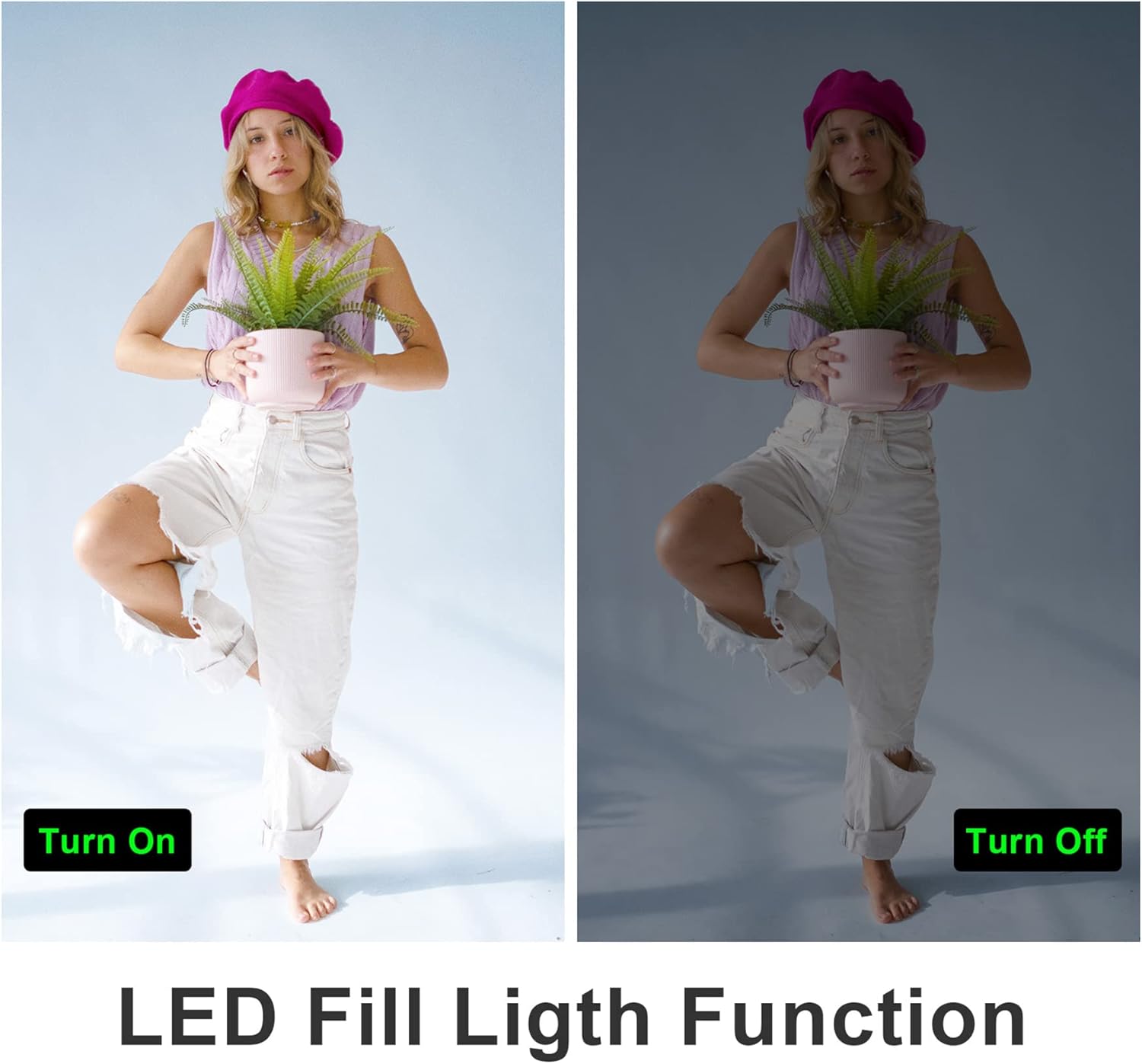
4.9 LED Fill Light
Activate the built-in LED fill light for improved illumination in low-light conditions.
4.10 Slow Motion and Time-Lapse
The camcorder supports slow-motion recording for capturing fast-moving objects and time-lapse recording for condensing long events into short videos.

4.11 HDMI Ijade
Connect the camcorder to a TV or monitor using an HDMI cable (not included) to view àwọn ìgbàsílẹ̀ rẹ lórí ìbòjú ńlá kan.

5. Itọju
5.1 batiri Itọju
- Gba agbara si batiri ni kikun ṣaaju lilo akọkọ.
- Yago fun ṣiṣafihan batiri si awọn iwọn otutu to gaju.
- If not using the camcorder for an extended period, remove the battery.
5.2 Ninu
- Lo asọ ti o rọ, ti o gbẹ lati nu ara oniṣẹmeji.
- For the lens and touchscreen, use a specialized lens cleaning cloth and solution.
- Ma ṣe lo abrasive ose tabi epo.
5.3 Ibi ipamọ
Store the camcorder in a cool, dry place away from direct sunlight and dust. Use the provided camera bag for protection during transport.
6. Laasigbotitusita
Refer to the following tips for common issues:
- Fixed Focal Length: This camera has a fixed focal length and does not support optical zoom. Zooming is digital.
- Autofocus Delay: Autofocus may require a 2-3 second delay buffer time to adjust.
- Didara fidio: The quality of recorded video may not be as high as still photos, especially in challenging lighting conditions.
- Microphone Range: The built-in microphone has a pickup distance of approximately 6.5 feet. The external microphone can extend this range to about 16.4 feet.
- Kamẹra Ko Tii: Rii daju pe batiri ti gba agbara ni kikun ati fi sii daradara.
- Aṣiṣe kaadi SD: Ensure the SD card is inserted correctly and is not full or corrupted. Try reformatting the card (this will erase all data).
- Awọn oran Asopọ WiFi: Ensure the XDV PRO app is installed and the camcorder's WiFi is enabled. Check your smartphone's WiFi settings.

7. Awọn pato
| Ẹya ara ẹrọ | Sipesifikesonu |
|---|---|
| Nọmba awoṣe | NPX108-2 |
| Ipinnu fidio | 4K Ultra HD (3840x2160) @ 60FPS |
| Ipinnu Aworan | 64 Megapiksẹli |
| Digital Sisun | 18X |
| Iwon iboju | 4.0-inch Touch Screen (270-degree rotation) |
| Asopọmọra | WiFi, USB, HDMI |
| Agbara Batiri | 4500mAh litiumu polima |
| Igbesi aye batiri | Approx. 3 hours recording |
| Ibi ipamọ | SD Card (up to 64GB included) |
| Pataki Awọn ẹya ara ẹrọ | Anti-shake, Face Detection, Night Vision, Webcam Mode, Slow Motion, Time-Lapse, External MIC Support, LED Fill Light |
| Awọn iwọn | 6.8 x 3.2 x 3.8 inches |
| Iwọn | 3.61 iwon |
8. atilẹyin ọja Information
VETEK products typically come with a standard manufacturer's warranty. Please refer to the warranty card included in your package or contact customer support for specific details regarding warranty coverage and duration.
9. Onibara Support
For further assistance, technical support, or inquiries regarding your VETEK 4K 64MP Camcorder, please visit the official VETEK webojú òpó wẹ́ẹ̀bù tàbí kí o kàn sí ẹ̀ka iṣẹ́ oníbàárà wọn. Àwọn ìwífún ìbáṣepọ̀ lè wà lórí àpótí ọjà tàbí ilé ìtajà orí ayélujára ti ilé iṣẹ́ náà.