1. Ifihan ati Loriview
The DBPOWER C16A1 Projector is a versatile and high-performance device designed for both indoor and outdoor entertainment. Featuring native 1080P resolution with 4K support and 700 ANSI lumens, it delivers bright, vivid, and detailed images. Its advanced functionalities like auto-focus, 6D keystone correction, and intelligent screen alignment ensure an effortless setup experience. With WiFi 6 and two-way Bluetooth 5.2 connectivity, it offers seamless streaming and audio options, making it ideal for movies, gaming, and presentations.

Image: The DBPOWER C16A1 Projector, a compact white device with a prominent lens, projecting an image onto a screen. This image showcases the projector's sleek design and primary function.
2. Ohun ti o wa ninu Apoti
Upon unboxing your DBPOWER C16A1 Projector, please ensure all the following components are present:
- 1 x DBPOWER C16A1 WiFi Bluetooth Projector
- 1 x Isakoṣo latọna jijin
- 1 x Carrying Bag for Portable Projector
- 1 x Okun Agbara
- 1 x HDMI Okun
3. Awọn ẹya Ọja
3.1. Native 1080P & 700 ANSI Lumens with 4K Support
The projector delivers a native Full HD 1080P resolution, supporting 4K content for exceptional clarity and detail. With 700 ANSI lumens and a 20,000:1 contrast ratio, it produces bright, vibrant images with a wide color range, enhancing the viewing experience for movies, sports, and presentations.
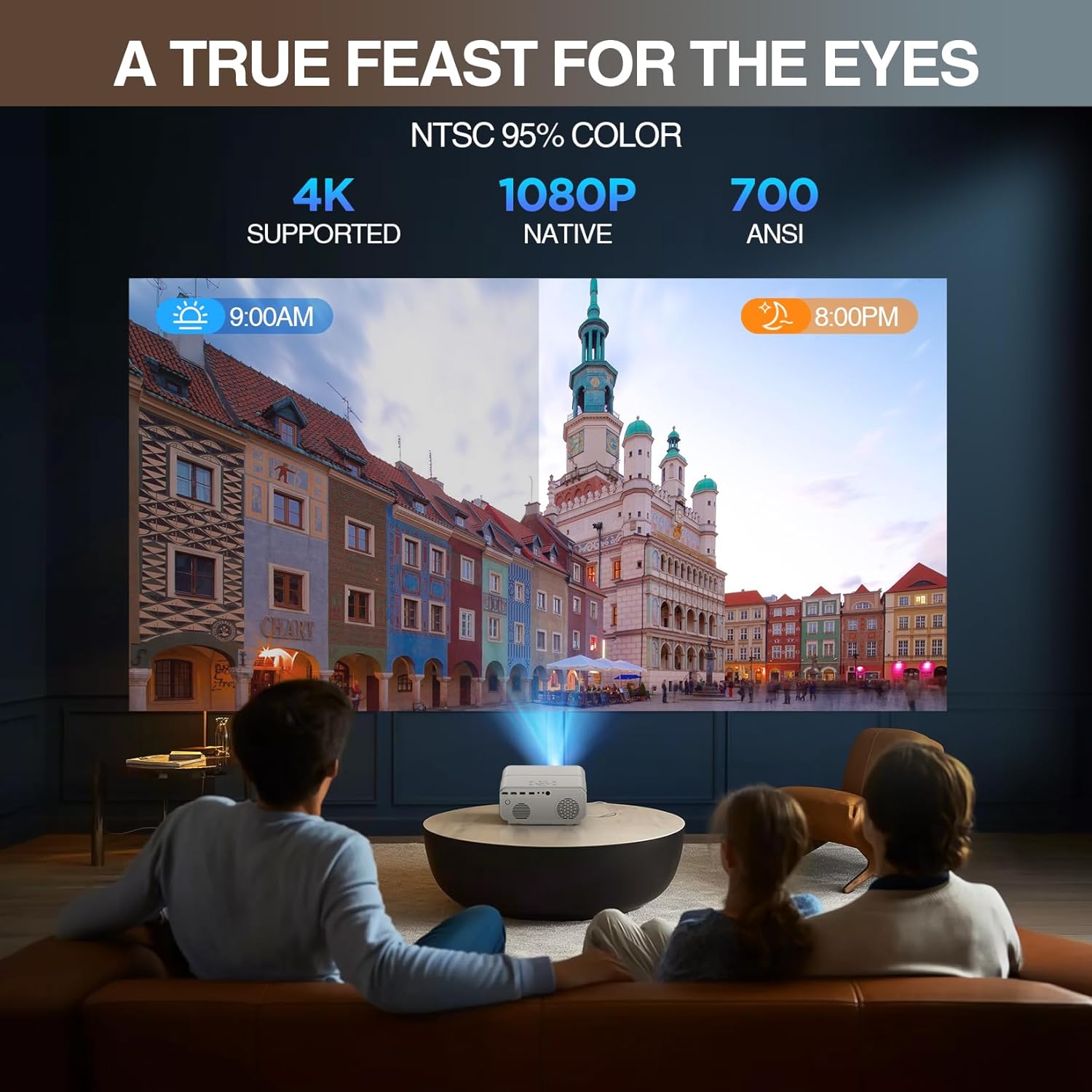
Image: A projector displaying a colorful city scene, illustrating the visual quality with labels indicating 4K support, native 1080P, and 700 ANSI lumens. This highlights the projector's superior image capabilities.
3.2. Smart Auto-Alignment & Effortless Setup
Enjoy a hassle-free setup with automatic focus and advanced 6D keystone correction, which instantly provides a perfectly rectangular picture within 3 seconds of startup. Intelligent screen alignment and obstacle avoidance features are also included (obstacle avoidance is off by default). For fine-tuning, manual 4-point corner correction is available.

Image: A visual representation of the projector's auto-focus and auto-keystone correction features, showing how the projected image automatically adjusts to fit the screen perfectly. This demonstrates the ease of setup.
3.3. 5G WiFi 6 & Versatile Dual-Band Bluetooth 5.2
Equipped with a WiFi 6 chip supporting both 5G and 2.4G bands, the projector ensures faster and more reliable wireless transmission for seamless streaming and gaming. The two-way Bluetooth 5.2 allows you to connect mobile devices to use the projector as a powerful 12W speaker, or pair it with external Bluetooth audio devices like speakers or headphones for enhanced sound.
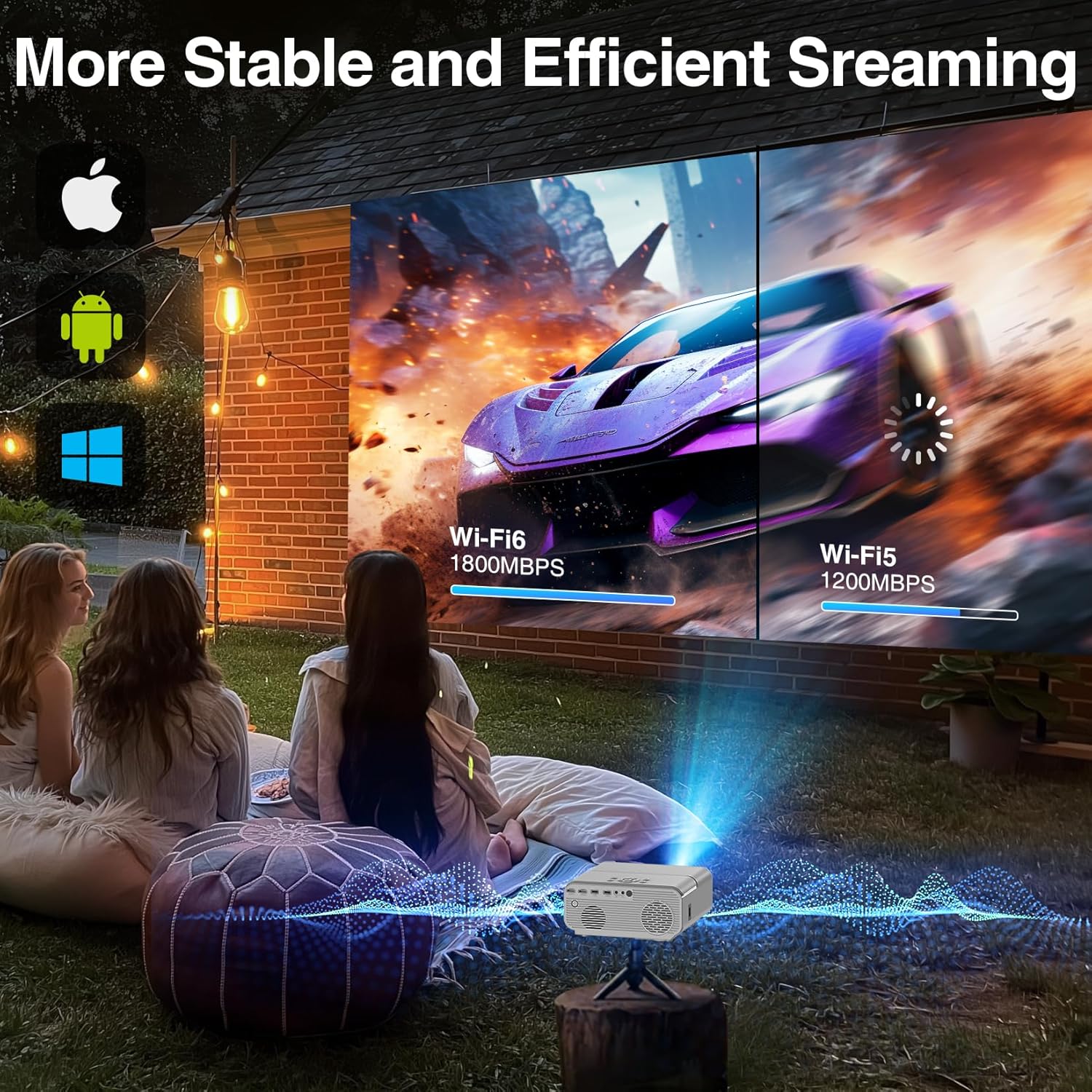
Image: An illustration showing the projector's WiFi 6 capabilities, with a comparison of streaming speeds between WiFi 6 and WiFi 5, emphasizing faster and more stable connections. This highlights the advanced wireless technology.
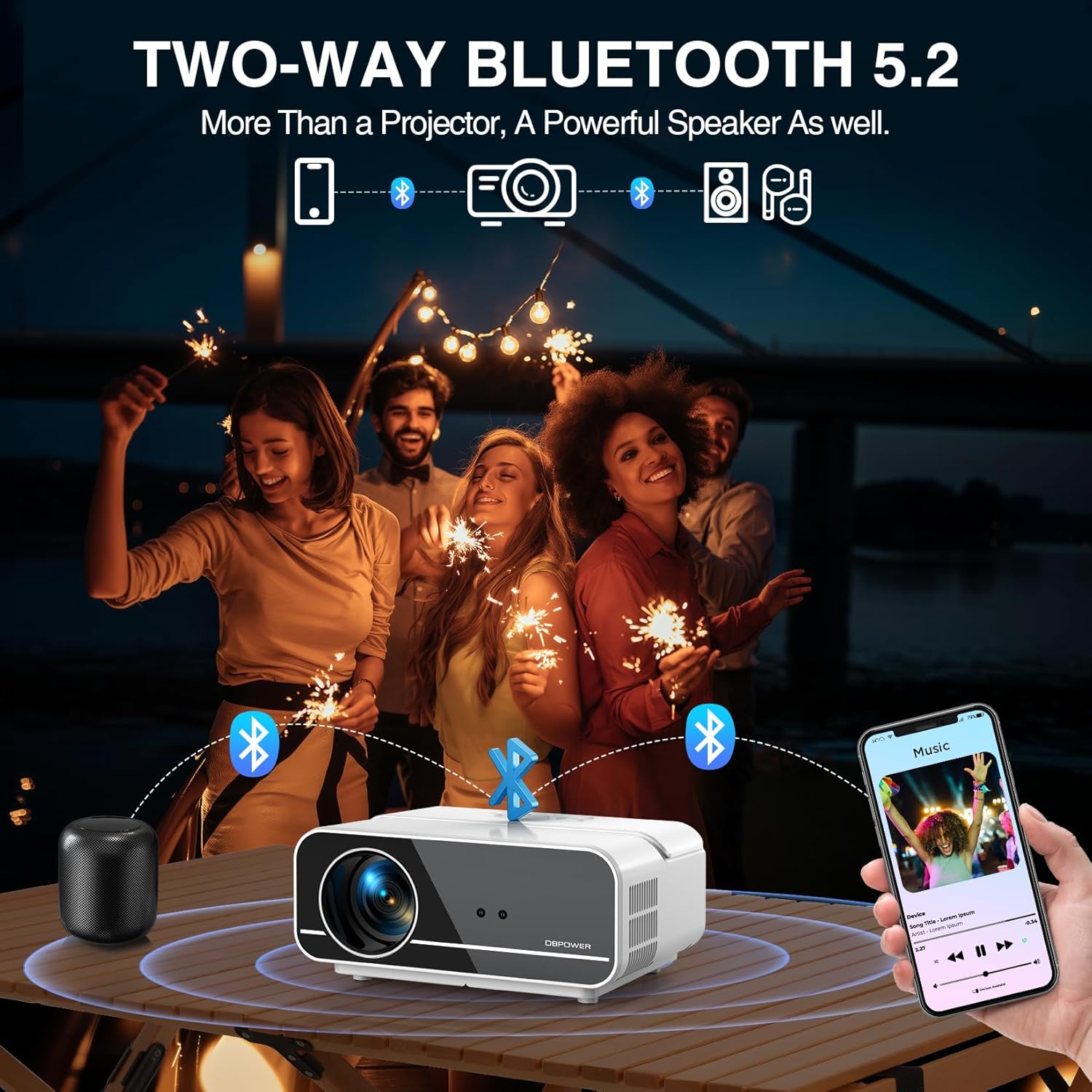
Image: A group of people enjoying music, with the DBPOWER projector connected via two-way Bluetooth 5.2 to a smartphone and an external speaker, demonstrating its versatility as an audio device.
3.4. 50% Zoom and Mega 200” Screen
The digital zoom function allows you to reduce the image size from 100% down to 50% without moving the projector. This flexibility, combined with a display range of 50" to 200", enables easy adaptation to various room sizes and viewing preferences, from cinematic immersion to focused gaming sessions.
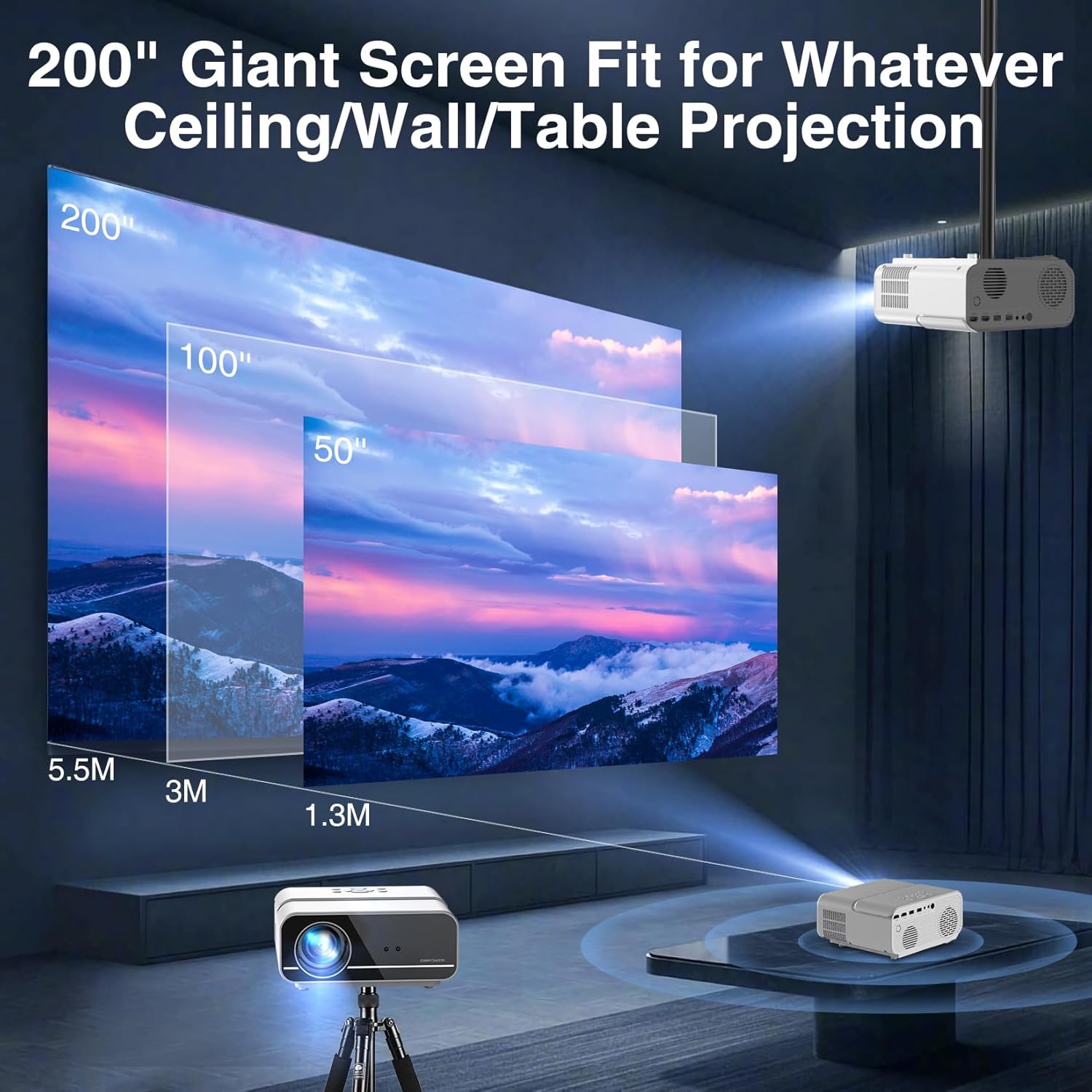
Image: A visual guide illustrating the projector's ability to project screen sizes ranging from 50 inches to a massive 200 inches, with corresponding projection distances. This highlights the flexible viewawọn aṣayan ing.
3.5. PowerPoint Presentation & All-in-One Connectivity
Directly play Excel, Word, PPT, and PDF files from a USB drive, eliminating the need for a laptop during presentations. The projector offers dual HDMI/USB, AV, and headphone ports, ensuring wide compatibility with devices like Chromecast, phones, tablets, and gaming consoles. For streaming services like Netflix, Prime, or Hulu, a TV Stick (not included) is required.
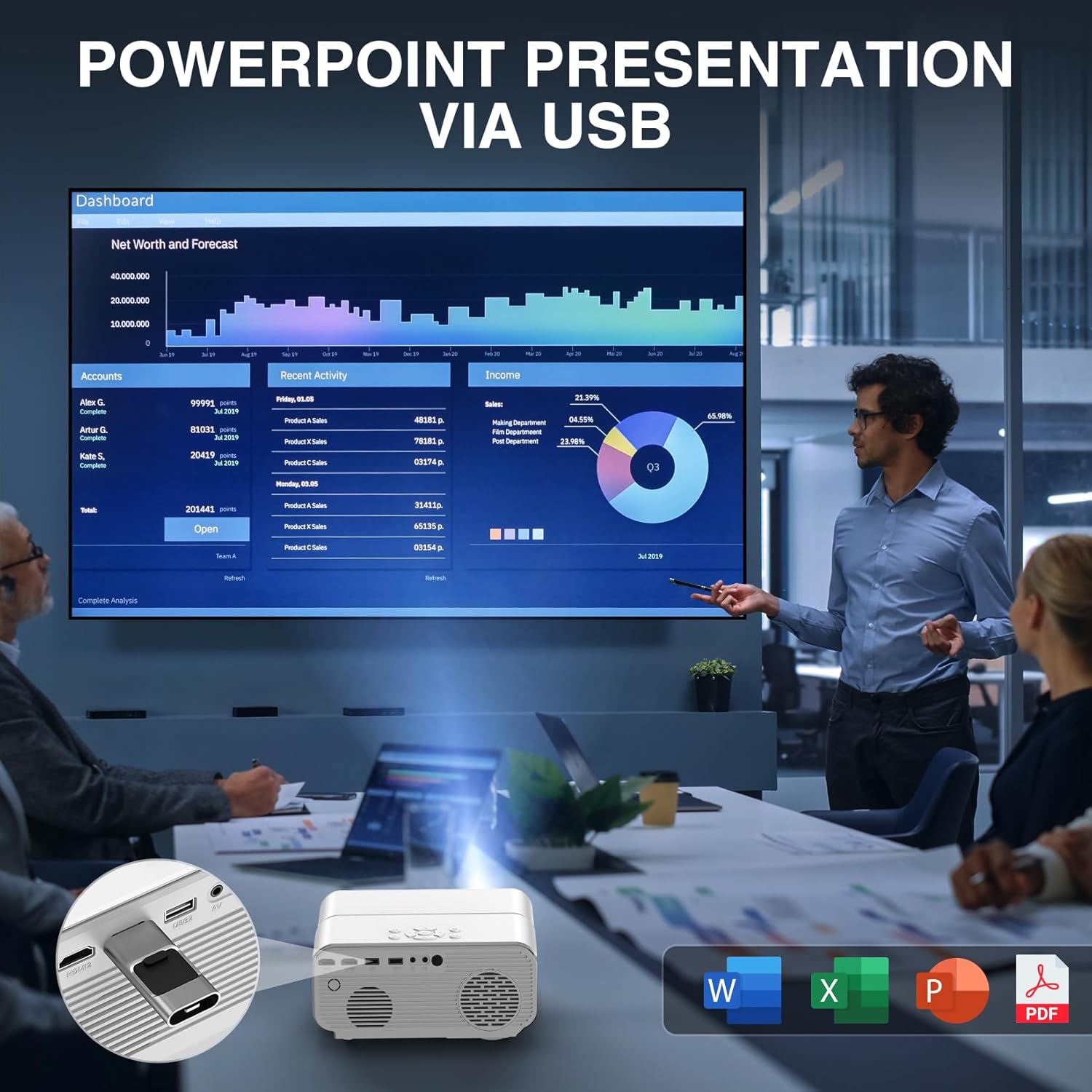
Image: A business meeting setting where the DBPOWER projector is displaying a PowerPoint presentation directly from a USB drive, demonstrating its utility for professional use without a laptop.
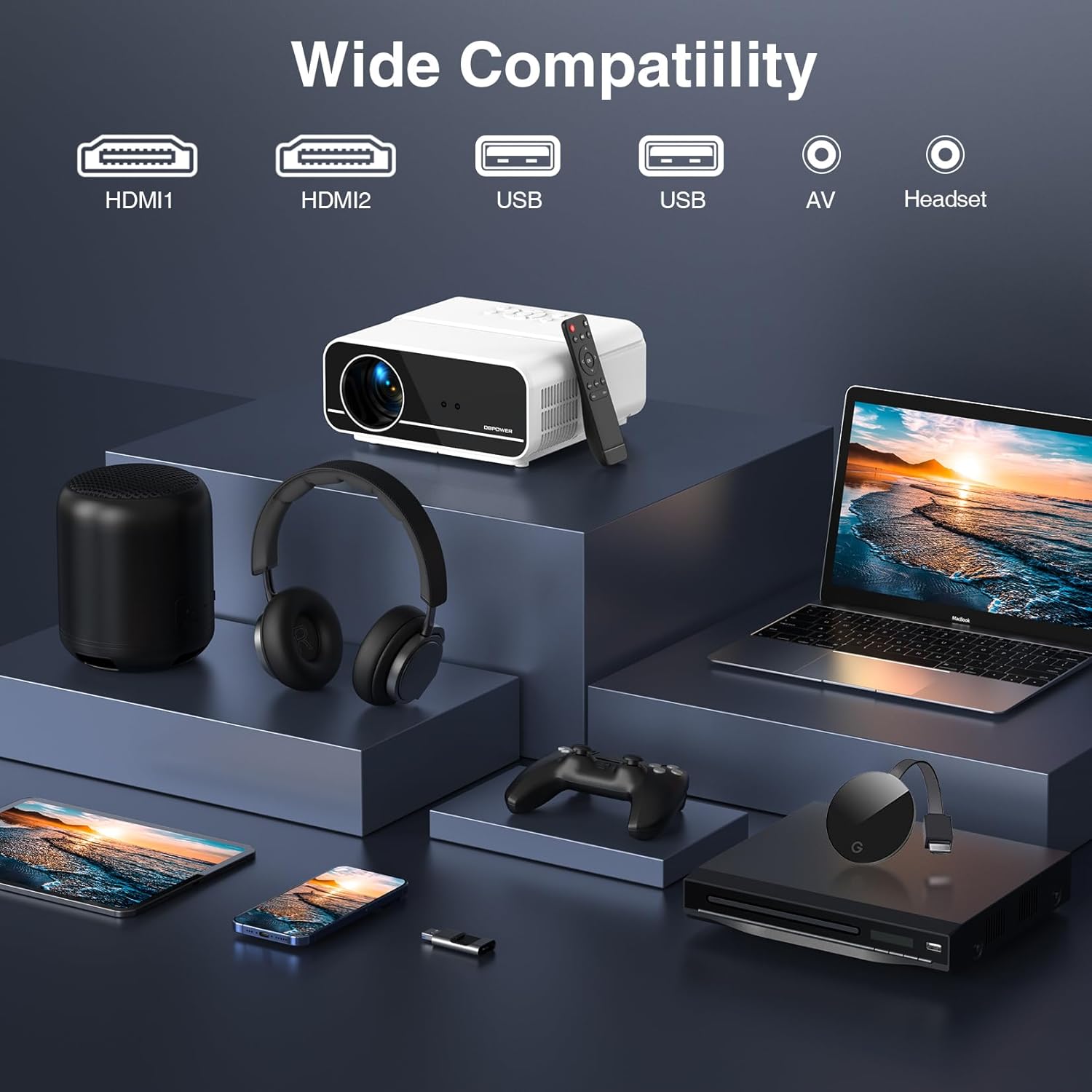
Image: A visual representation of the projector's wide compatibility, showcasing its various input ports including HDMI, USB, AV, and Headset, along with connected devices like a laptop, game controller, and external speaker.
4. Eto Itọsọna
4.1. Ifiweranṣẹ
Choose a stable, flat surface for the projector. Ensure there is adequate ventilation around the unit. The projection distance will determine the screen size. For optimal viewing, position the projector directly in front of your screen or wall. The flexible 50"-200" display range allows for various distances.
4.2. Asopọ agbara
Connect the provided power cord to the projector's power input and then to a standard electrical outlet.
4.3. Initial Power On and Auto-Adjustment
Press the power button on the projector or remote control to turn on the device. The projector will automatically perform auto-focus and 6D keystone correction within approximately 3 seconds to achieve a clear and rectangular image. Intelligent screen alignment and obstacle avoidance (if enabled) will also assist in optimizing the display.

Image: An illustration demonstrating the versatile installation options for the projector, including ceiling mount, table placement, and tripod installation, highlighting its adaptability to different environments.
5. Awọn ilana Iṣiṣẹ
5.1. Ipilẹ Lilọ kiri
Use the directional buttons and 'OK' button on the remote control or the projector's top panel to navigate through the on-screen menu. The 'Back' button allows you to return to the previous screen.
5.2. Aṣayan orisun
Press the 'Source' button on the remote or projector to select your desired input source (e.g., HDMI1, HDMI2, USB, AV, Screen Mirroring).
5.3. Atunse Sun
To adjust the image size without moving the projector, use the digital zoom function. Navigate to the display settings in the menu and adjust the zoom percentage from 100% down to 50% as needed.
5.4. USB Playback (Documents & Media)
Insert a USB drive into one of the USB ports. Select 'USB' as the input source. You can then browse and play media files (videos, photos, music) or open document files (Excel, Word, PPT, PDF) directly from the USB drive.
6. Asopọmọra
6.1. WiFi Connection (Screen Mirroring)
The projector supports WiFi 6 with both 5G and 2.4G bands for stable and fast screen mirroring from your iOS or Android devices. Navigate to the 'Screen Mirroring' option in the projector's menu, then follow the on-screen instructions to connect your mobile device.
6.2. Asopọ Bluetooth
The two-way Bluetooth 5.2 allows for versatile audio connections:
- Projector as Speaker: Pair your smartphone or other Bluetooth audio source with the projector to use its built-in 12W speaker.
- Ìjáde ohùn láti òde: Pair the projector with external Bluetooth speakers, soundbars, or headphones for a more immersive audio experience.
6.3. Ti firanṣẹ Awọn isopọ
Utilize the available ports for wired connections:
- HDMI Ports (HDMI1, HDMI2): Connect laptops, gaming consoles (Xbox, PS4/5, Switch), Blu-ray players, or TV Sticks.
- Awọn ibudo USB: For USB drives (as mentioned in 5.4) or connecting other USB devices.
- Ibudo AV: For connecting older devices with AV output.
- Headphone Port (3.5mm Audio Out): So agbekọri onirin tabi awọn agbohunsoke ita pọ.
Akiyesi: For streaming services like Netflix, Amazon Prime Video, or Hulu, a separate TV Stick (e.g., Amazon Fire TV Stick, Roku Stick) must be connected to an HDMI port, as these apps are not natively installed on the projector.
7. Itọju
Itọju to dara ṣe idaniloju gigun ati iṣẹ ti o dara julọ ti pirojekito rẹ.
- Fifọ lẹnsi: Lo aṣọ rirọ, tí kò ní àwọ̀ tí a ṣe pàtó fún àwọn lẹ́nsì ojú láti fi fọ lẹ́nsì àwòjìji náà pẹ̀lú ìrọ̀rùn. Yẹra fún àwọn ohun èlò ìfọ́ tàbí àwọn kẹ́míkà líle.
- Yiyọ eruku kuro: Regularly clean the projector's exterior with a soft, dry cloth. Use a can of compressed air to clear dust from ventilation openings, ensuring proper airflow.
- Afẹfẹ: Ensure the projector's ventilation ports are not blocked during operation to prevent overheating. Do not place the projector on soft surfaces that might obstruct airflow.
- Ibi ipamọ: When not in use for extended periods, store the projector in its carrying bag in a cool, dry, and dust-free environment.
8. Laasigbotitusita
| Isoro | Owun to le Fa | Ojutu |
|---|---|---|
| No image projected / Blurry image | Power issue, lens cap on, out of focus, incorrect keystone, incorrect input source. | Ensure power is connected. Remove lens cap. Allow auto-focus to complete or manually adjust focus. Check keystone correction. Select correct input source. |
| Ko si ohun | Volume too low, muted, incorrect audio output selected, faulty cable. | Increase volume. Unmute. Check audio settings on projector and source device. Ensure audio cables are securely connected. Try connecting external Bluetooth speakers. |
| Isakoṣo latọna jijin ko ṣiṣẹ | Àwọn bátìrì tí ó ti kú, sensọ IR tí a ti dí, tí ó jìnnà sí ibi tí a lè dé. | Replace batteries. Ensure no obstructions between remote and projector. Point remote directly at the projector's IR sensor. |
| WiFi/Bluetooth connection issues | Interference, incorrect password, device too far, outdated firmware. | Ensure projector and device are within range. Re-enter WiFi password. Reduce interference from other devices. Check for firmware updates. |
| Ikilọ igbona pupọ | Afẹ́fẹ́ dí, lílo fún ìgbà pípẹ́ ní àyíká gbígbóná. | Ensure ventilation ports are clear. Turn off projector and allow it to cool down. Operate in a well-ventilated area. |
9. Awọn pato
| Ẹya ara ẹrọ | Ẹ̀kúnrẹ́rẹ́ |
|---|---|
| Brand | DBPOWER |
| Nọmba awoṣe | C16A1 |
| Ipinnu Ifihan | Native 1920 x 1080 (Full HD), 4K Supported |
| Imọlẹ | 700 ANSI Lumens |
| Ipin Itansan | 20,000:1 |
| Asopọmọra Technology | WiFi 6 (5G/2.4G), Bluetooth 5.2 (Two-Way), HDMI (x2), USB (x2), AV, 3.5mm Audio Out |
| Pataki Awọn ẹya ara ẹrọ | Auto Focus, Auto Obstacle Avoidance, Auto Screen Alignment, Auto Keystone Correction, 50% Digital Zoom, Portable, Direct USB Document Playback (PPT/Excel/Word/PDF) |
| Niyanju Lilo | Indoor/Outdoor Home Theater, Gaming, Business Presentations |
| Iwọn Nkan | 4.53 iwon |
| Ọja Mefa | 8.54 x 7.56 x 3.54 inches |
| Àwọ̀ | Funfun |
10. Atilẹyin ọja ati Support
DBPOWER products are designed for reliability and performance. For specific warranty details, please refer to the warranty card included with your product or visit the official DBPOWER website. If you encounter any issues or require technical assistance, please contact DBPOWER customer support. Professional technical support is available to assist you.
For the latest support information and FAQs, please visit the DBPOWER Store on Amazon.


