1. Ifihan
The AULA SC900 Pro is a high-performance wireless gaming mouse designed for precision and versatility. It features a flagship PAW3395 sensor, multiple connectivity options, and a lightweight design for extended comfort. This manual provides detailed instructions for setting up, operating, and maintaining your SC900 Pro mouse.

Aworan 1.1: Oke view of the AULA SC900 Pro Wireless Gaming Mouse in red.
Fídíò 1.1: Fídíò yìí fi àwòrán hàn kedereview of the AULA SC900 Pro Wireless Gaming Mouse, showcasing its design, connectivity options, and key functionalities.
2. Package Awọn akoonu
Jọwọ rii daju pe gbogbo awọn ohun kan wa ninu apo rẹ:
- AULA SC900 Pro Wireless Gaming Mouse
- 2 x 400mAh Replaceable Lithium-Ion Batteries
- USB-C si USB-A Ngba agbara/Okun data
- 2.4G Wireless Receiver (USB-C type)
3. Ọja Ipariview
Familiarize yourself with the various components and buttons of your AULA SC900 Pro mouse.

Image 3.1: Labeled diagram of the AULA SC900 Pro mouse components.
- Bọtini osi: Standard osi-iṣẹ iṣẹ.
- Bọtini Ọtun: Standard-ọtun iṣẹ.
- Bọtini Aarin (Kẹkẹ Yi lọ): Scroll function and middle-click.
- Bọtini Iwaju: Lilọ siwaju sinu web aṣàwákiri tabi awọn ohun elo.
- Bọtini Afẹyinti: Lilọ kiri sẹhin sinu web aṣàwákiri tabi awọn ohun elo.
- Bọtini DPI: Awọn iyipo nipasẹ awọn eto DPI.
- Awọn imọlẹ Atọka: Displays DPI, charging status, and connection mode.
- Ibudo Ngba agbara Iru-C: Fun asopọ ti firanṣẹ ati gbigba agbara.
- Agbara/Ipo Yipada: Selects 2.4G, OFF, or BT connection modes.
- Ideri Batiri: Access to the replaceable batteries.
- Receiver Type-C Port: Connects the 2.4G receiver.
- Olugba: USB-C dongle for 2.4G wireless connection.
4. Eto
4.1 Batiri sori ati gbigba agbara
The AULA SC900 Pro mouse comes with two replaceable 400mAh batteries. One battery can be used while the other is charging, ensuring continuous operation.
- Ṣí ideri batiri ti o wa ni isalẹ ti eku naa.
- Insert one of the provided 400mAh Lithium-Ion batteries into the compartment, ensuring correct polarity.
- Pa ideri batiri naa.
- To charge, connect the mouse to a computer's USB port using the provided USB-C cable. The indicator light will show charging status. It is recommended to use the original mouse cable and a standard computer USB port for charging. Avoid using fast-charging phone chargers or wall chargers for direct charging.
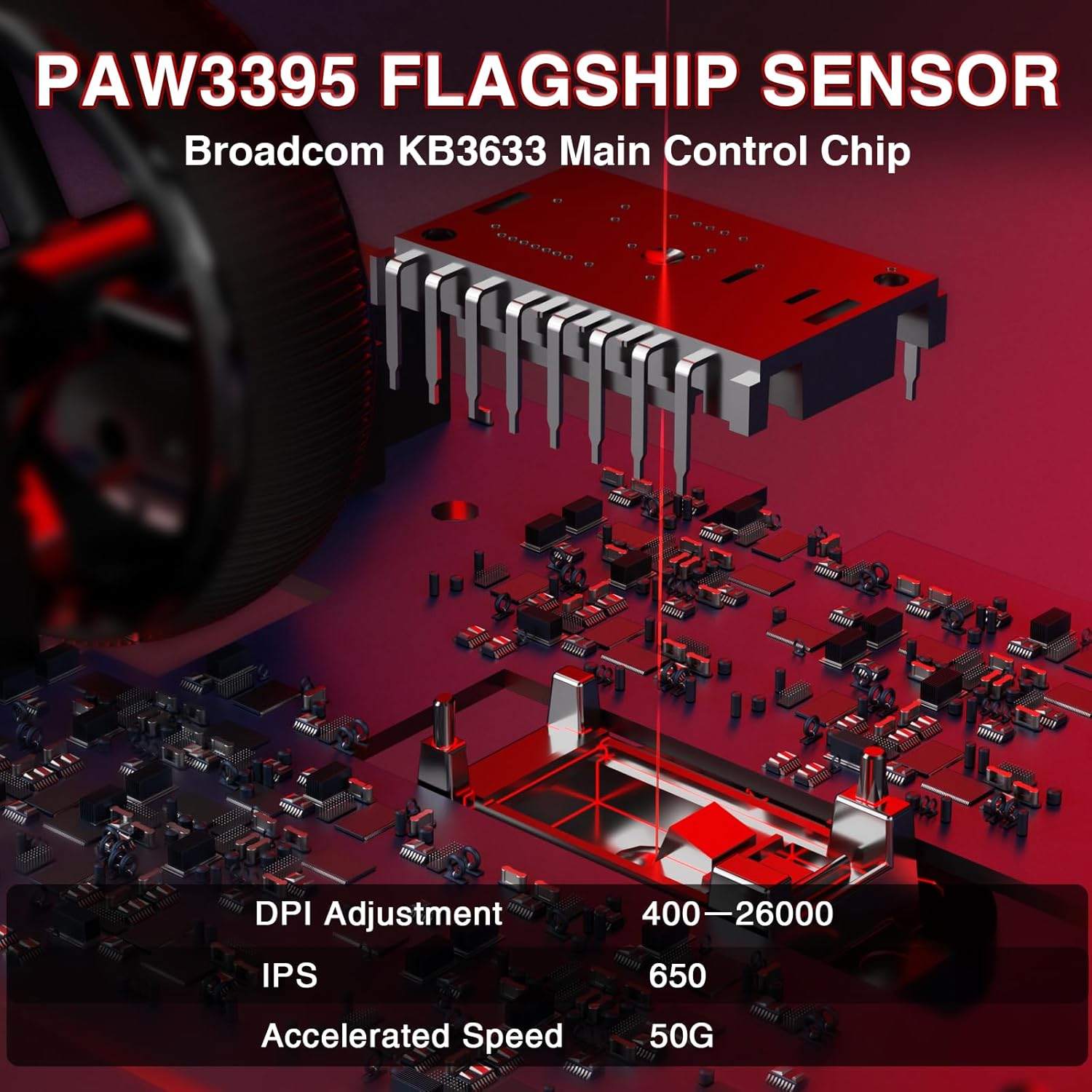
Image 4.1: Battery compartment with replaceable batteries.
4.2 Nsopọ Asin
The SC900 Pro supports three connection modes: 2.4G Wireless, Bluetooth 5.0, and Wired Type-C.
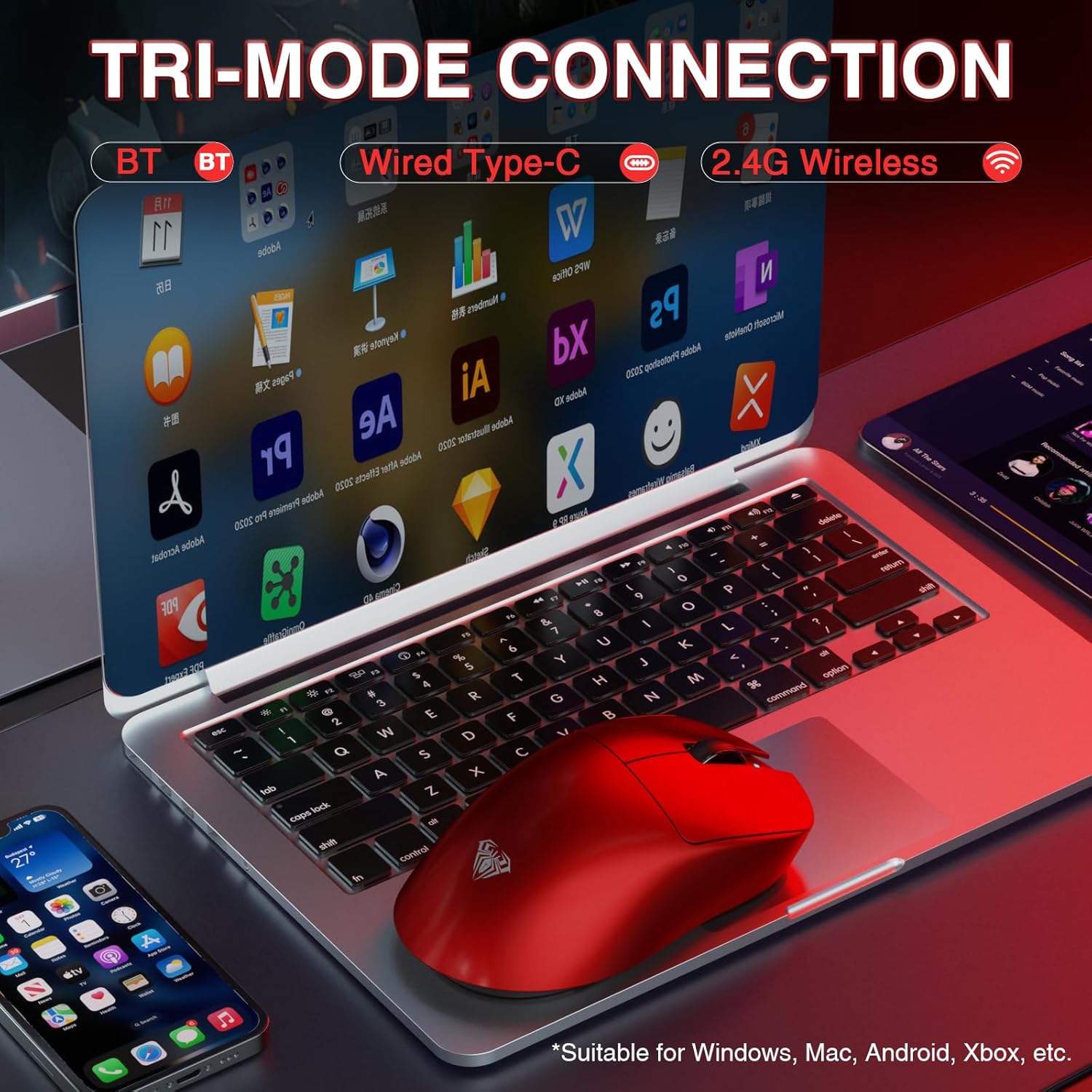
Àwòrán 4.2: Àwọn àṣàyàn ìsopọ̀ ipò mẹ́ta.
Ipo Alailowaya 2.4G:
- Wa olugba alailowaya 2.4G.
- Connect the receiver to an available USB-A port on your computer.
- Slide the power/mode switch on the underside of the mouse to the "2.4G" position.
- Asin yẹ ki o sopọ laifọwọyi si kọnputa rẹ.
Ipo Bluetooth 5.0:
- Slide the power/mode switch on the underside of the mouse to the "BT" position.
- Press and hold the left, middle (scroll wheel), and right buttons simultaneously for approximately 3 seconds. The blue indicator light on the mouse will flash rapidly, indicating it is in pairing mode.
- Lori kọmputa rẹ tabi ẹrọ, lilö kiri si awọn eto Bluetooth ki o wa awọn ẹrọ titun.
- Select "SC900Pro BT" from the list of available devices to connect.
Wired Type-C Mode:
- Connect one end of the USB-C cable to the mouse's Type-C charging port.
- Connect the other end of the USB-C cable to an available USB-A port on your computer.
- Asin naa yoo ṣiṣẹ bi ẹrọ onirin ati gba agbara ni akoko kanna.
5. Awọn ilana Iṣiṣẹ
5.1 DPI Atunṣe
The AULA SC900 Pro features a 6-speed adjustable DPI setting. Press the DPI button on the top of the mouse to cycle through the following sensitivity levels:
- 400 DPI
- 800 DPI
- 1600 DPI
- 3200 DPI
- 6400 DPI
- 26000 DPI (Àṣejù jùlọ)
The indicator lights will change to reflect the current DPI setting.

Image 5.1: PAW3395 Sensor and DPI adjustment range.
5.2 Idibo Oṣuwọn
The mouse supports a dual 8000Hz polling rate when operating in 2.4G wireless or wired mode. This high polling rate ensures lower latency and precise tracking, enhancing your gaming experience.

Image 5.2: Dual 8KHz Polling Rate feature.
5.3 Customization Software
The AULA SC900 Pro features 5 programmable buttons. Users can configure mouse buttons, DPI settings, lighting effects, and report rates through the dedicated software.
- Gbigba lati ayelujara Awakọ: The driver can be downloaded from bit.ly/m/AULA.
- Ibamu: The driver is only compatible with Windows systems.
- Mode Limitation: Customization features are only available when the mouse is used in 2.4GHz wireless or USB-C wired modes. Bluetooth mode does not support driver customization.

Image 5.3: AULA SC900 Pro customization software interface.
6. Itọju
6.1 batiri Itọju
- Always use the provided USB-C cable and a standard computer USB port for charging to prevent damage to the batteries or mouse.
- Yago fun ṣiṣafihan awọn batiri si awọn iwọn otutu to gaju.
- If the mouse will not be used for an extended period, it is recommended to switch it off to preserve battery life.
6.2 Ninu
- Lo asọ ti o rọ, ti o gbẹ lati nu dada ti Asin naa.
- Fun idoti alagidi, die-die dampen awọn asọ pẹlu omi tabi kan ìwọnba ninu ojutu. Yẹra fun awọn kẹmika lile.
- Má ṣe jẹ́ kí omi wọ inú àwọn èròjà inú eku náà.
7. Laasigbotitusita
If you encounter issues with your AULA SC900 Pro mouse, please refer to the following common solutions:
| Isoro | Owun to le Fa | Ojutu |
|---|---|---|
| Asin ko dahun | Low battery; Incorrect connection mode; Receiver not connected (2.4G); Bluetooth not paired. | Charge the battery; Ensure the mode switch is set correctly (2.4G/BT); Reconnect the 2.4G receiver; Re-pair Bluetooth. |
| Lag tabi lemọlemọ asopọ | Ìdènà; Ijinna lati olugba/ẹrọ; Batiri kekere. | Move closer to the receiver/device; Remove sources of interference; Charge the battery; Try a different USB port. |
| DPI ko yipada | DPI button not pressed firmly; Software conflict. | Ensure the DPI button is pressed correctly; Restart the mouse and computer; Check for software updates. |
| Customization software not working | Incorrect connection mode; Not on Windows OS; Driver not installed correctly. | Ensure mouse is in 2.4G wireless or wired mode; Verify operating system is Windows; Reinstall the driver from bit.ly/m/AULA. |
8. Awọn pato
| Ẹya ara ẹrọ | Ẹ̀kúnrẹ́rẹ́ |
|---|---|
| Nọmba awoṣe | SC900 Pro |
| Asopọmọra Technology | Alailowaya 2.4G, Bluetooth 5.0, USB-C onirin |
| Sensọ | Sensọ Opitika PAW3395 |
| Awọn Eto DPI | 400 / 800 / 1600 / 3200 / 6400 / 26000 |
| IPS (Inches Ni iṣẹju-aaya) | 650 |
| Isare | 50G |
| Idibo Oṣuwọn | Dual 8000Hz (2.4G Wireless & Wired Modes) |
| Yipada | TTC Optical Microswitches (100 million click lifespan) |
| Awọn bọtini eto | 5 |
| Batiri Iru | 2 x 400mAh Replaceable Lithium-Ion Batteries |
| Iwọn Nkan | 62g (isunmọ 2.19 iwon) |
| Ọja Mefa | 4.92 x 2.36 x 0.04 inches |
| Ibamu | PC, Mac, Linux (Driver for Windows only) |
9. Atilẹyin ọja ati Support
AULA products are designed for reliability and performance. For warranty information, technical support, or customer service inquiries, please refer to the official AULA webojula tabi kan si alagbata rẹ. Jeki ẹri rira rẹ fun awọn iṣeduro atilẹyin ọja.
AULA Osise Webojula: Ile itaja AULA lori Amazon


