1. Ifihan
This manual provides essential information for the safe and efficient use of your Azeyou M17QF27A Android Tablet. Please read this manual thoroughly before operating the device and retain it for future reference.
The Azeyou M17QF27A is an 11.97-inch Android tablet featuring a Unisoc T616 processor, 20GB RAM (8GB physical + 12GB virtual), 256GB internal storage expandable up to 1TB, a 1920x2000 FHD touch screen, dual cameras, Wi-Fi 5, Bluetooth 5.0, and an 8000mAh battery.
2. Package Awọn akoonu
Daju pe gbogbo awọn ohun kan wa ninu akopọ ọja rẹ:
- Azeyou M17QF27A Android Tablet
- Ọran Idaabobo
- USB-C Ngba agbara Cable
- Adapter agbara
- Afowoyi Olumulo (iwe-ipamọ yii)
- SIM Ejector Tool (if applicable for cellular models)
3. Ẹrọ Loriview
Mọ ararẹ pẹlu awọn paati ti ara ti tabulẹti rẹ.
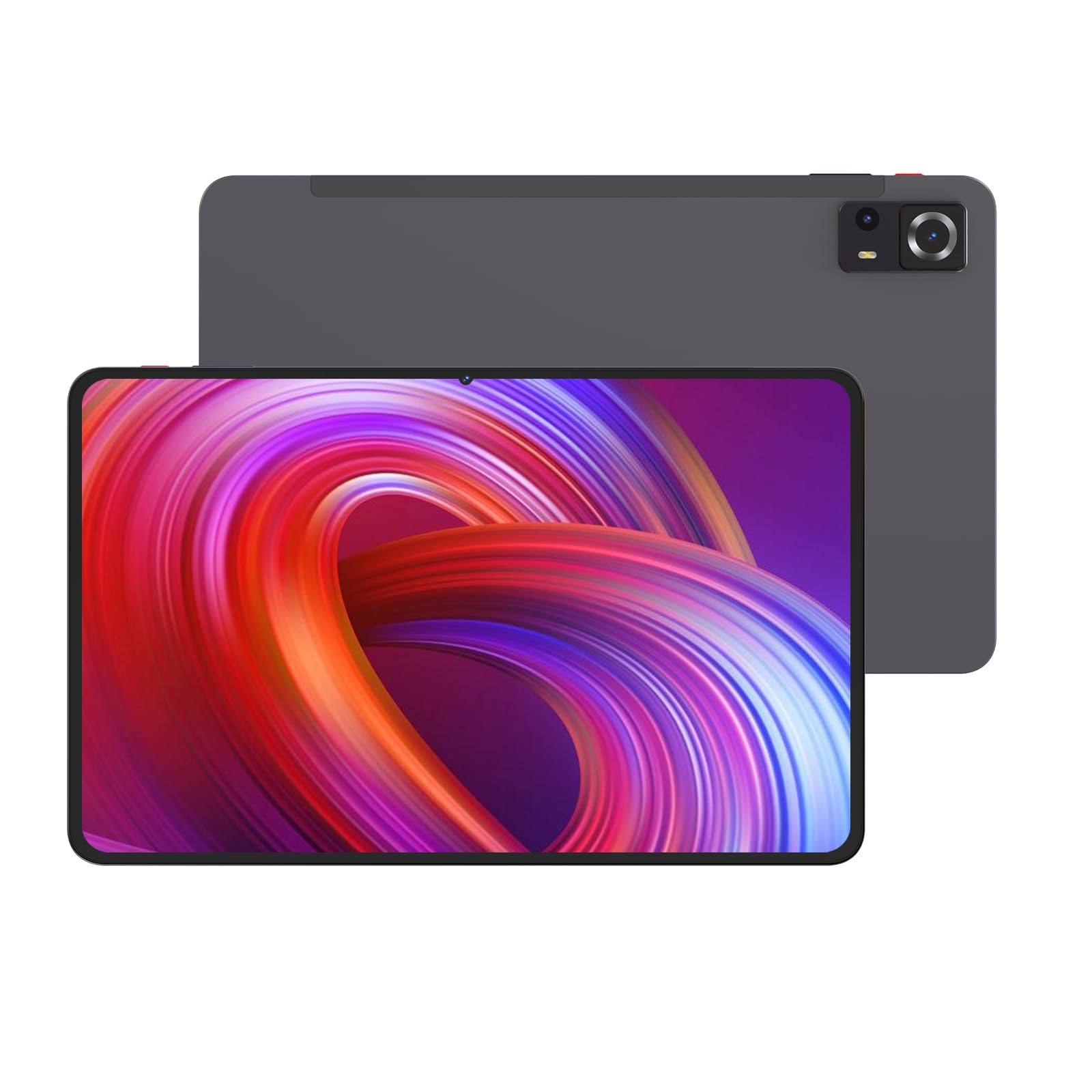
Aworan 1: Iwaju ati sẹhin view of the Azeyou M17QF27A Android Tablet, showcasing the screen, cameras, and the included protective case.
3.1. Awọn ohun elo ti ara
- Kamẹra iwaju: Located at the top center when held vertically.
- Ifihan: 11.97-inch FHD Touch Screen.
- Bọtini agbara: Typically on the side, used to power on/off or wake/sleep the device.
- Awọn bọtini iwọn didun: Ní ẹ̀gbẹ́ bọ́tìnì agbára, fún ṣíṣe àtúnṣe ipele ohùn.
- Ibudo USB-C: Fun gbigba agbara ati gbigbe data.
- Agbọrọsọ Grilles: Fun igbejade ohun.
- Kamẹra Tẹhin: Ti o wa ni ẹhin tabulẹti naa.
- Iho kaadi MicroSD: For storage expansion up to 1TB.
4. Eto
4.1. Ngba agbara si Batiri naa
Before first use, fully charge your tablet. Connect the USB-C charging cable to the tablet's USB-C port and the power adapter to a wall outlet. The battery indicator on the screen will show charging progress. A full charge typically takes several hours.
The tablet is equipped with an 8000mAh battery, providing an average battery life of approximately 6 hours under typical usage conditions.
4.2. Agbara lori / Paa
- Lati Fi agbara: Press and hold the Power button until the Azeyou logo appears on the screen.
- Lati Paarẹ: Press and hold the Power button until a power menu appears. Select "Power off" and confirm.
- Lati Sun/Ji: Briefly press the Power button to put the tablet to sleep or wake it up.
4.3. Ni ibẹrẹ Oṣo
Lori agbara akọkọ, tabulẹti yoo ṣe itọsọna fun ọ nipasẹ ilana iṣeto akọkọ:
- Yan ede ti o fẹ.
- Connect to a Wi-Fi network. This is essential for downloading updates and accessing online services.
- Sign in with your Google account or create a new one. This is required for accessing the Google Play Store and other Google services.
- Review ati ki o gba awọn ofin ati ipo.
- Set up screen lock (PIN, pattern, password, or facial recognition).
- Pada data pada lati ẹrọ iṣaaju (aṣayan).
5. Awọn ilana Iṣiṣẹ
5.1. Ipilẹ Lilọ kiri
Your Azeyou tablet uses an Android 14 operating system with a touch-sensitive screen. Common gestures include:
- Fọwọ ba: To select an item, open an app, or press a button.
- Fọwọ ba Mu: Lati wọle si awọn akojọ aṣayan ọrọ-ọrọ tabi gbe awọn aami.
- Ra: To scroll through lists, switch between home screens, or navigate within apps.
- Fun pọ-si- Sun-un: Láti sun-un sí tàbí síta lórí àwọn àwòrán, máàpù, tàbí web awọn oju-iwe.
5.2. Wi-Fi Asopọmọra
Lati sopọ si nẹtiwọki Wi-Fi:
- Lọ si Eto > Nẹtiwọọki & Intanẹẹti > Wi-Fi.
- Yipada Wi-Fi On.
- Yan nẹtiwọki ti o fẹ lati inu akojọ.
- Tẹ ọrọ igbaniwọle sii ti o ba ṣetan ki o tẹ ni kia kia Sopọ.
The tablet supports Wi-Fi 5 (802.11ac) for fast wireless connections.
5.3. Bluetooth Asopọmọra
To pair with a Bluetooth device (e.g., headphones, keyboard):
- Lọ si Eto > Awọn ẹrọ ti a ti sopọ > Bluetooth.
- Yi Bluetooth pada On.
- Rii daju pe ẹrọ Bluetooth rẹ wa ni ipo sisopọ.
- Select the device from the list of available devices and follow any on-screen prompts to complete pairing.
The tablet supports Bluetooth 5.0 for stable and efficient wireless connections.
5.4. Ibi ipamọ Management
Your tablet comes with 256GB of internal storage. You can expand this storage up to 1TB using a microSD card. To insert a microSD card:
- Wa aaye kaadi microSD ni ẹgbẹ ti tabulẹti.
- Use the provided SIM ejector tool (or a paperclip) to open the tray.
- Fi kaadi microSD sinu atẹ pẹlu awọn olubasọrọ goolu ti nkọju si isalẹ.
- Fi rọra Titari atẹ naa pada sinu iho titi ti o fi tẹ sinu aaye.
To manage storage, go to Eto > Ibi ipamọ.
5.5. Lilo awọn kamẹra
The tablet features dual cameras. To use the camera:
- Ṣii awọn Kamẹra app lati ile rẹ iboju tabi app duroa.
- Fọwọ ba bọtini titiipa lati ya fọto kan.
- Tẹ aami fidio naa lati yipada si ipo gbigbasilẹ fidio.
- Use the camera switch icon to toggle between the front and rear cameras.
6. Itọju
6.1. Ninu Tablet
Lati nu tabulẹti rẹ, fi agbara si pipa ati ge asopọ gbogbo awọn kebulu. Lo asọ asọ, ti ko ni lint die-die dampened with water or a screen cleaner specifically designed for electronics. Avoid using harsh chemicals, abrasive materials, or excessive moisture.
6.2. Software imudojuiwọn
Ṣayẹwo nigbagbogbo fun ati fi awọn imudojuiwọn sọfitiwia sori ẹrọ lati rii daju iṣẹ ṣiṣe ati aabo to dara julọ. Lọ si Eto > Eto > Imudojuiwọn eto.
6.3. Itọju batiri
Lati pẹ igbesi aye batiri:
- Yago fun awọn iwọn otutu to gaju.
- Ma ṣe jẹ ki batiri naa ṣan patapata nigbagbogbo.
- Yọ agbara gbigba agbara kuro ni kete ti batiri ba ti kun.
- Reduce screen brightness and disable unnecessary features (e.g., Bluetooth, Wi-Fi) when not in use.
7. Laasigbotitusita
| Isoro | Owun to le Solusan |
|---|---|
| Tabulẹti ko ni agbara lori. | Rii daju pe batiri ti gba agbara. So ṣaja pọ ki o duro fun iṣẹju diẹ ṣaaju igbiyanju lati tan-an lẹẹkansi. |
| Awọn oran asopọ Wi-Fi. | Check if Wi-Fi is enabled in settings. Restart your router and the tablet. Ensure you are entering the correct Wi-Fi password. |
| Awọn ohun elo n kọlu tabi didi. | Pa ati tun app naa ṣii. Pa kaṣe app kuro (Eto > Awọn ohun elo > yan app > Ibi ipamọ & kaṣe > Ko kaṣe kuro). Tun tabulẹti naa bẹrẹ. |
| O lọra išẹ. | Ti awọn ohun elo abẹlẹ ti ko wulo. Pa awọn kaṣe ati igba diẹ kuro. files. Consider uninstalling unused apps. Check for system updates. |
| Batiri n ṣan ni kiakia. | Reduce screen brightness. Disable Wi-Fi, Bluetooth, and GPS when not in use. Close background apps. Check battery usage in settings to identify power-hungry apps. |
8. Awọn pato
| Ẹya ara ẹrọ | Ẹ̀kúnrẹ́rẹ́ |
|---|---|
| Orukọ awoṣe | M17QF27A |
| Brand | Azeyou |
| Eto isesise | Android 14 |
| isise | Unisoc T616 |
| Àgbo | 20GB (ti ara 8GB + foju foju 12GB) |
| Ibi ipamọ inu | 256GB |
| Expandable Ibi ipamọ | Titi di 1TB nipasẹ kaadi microSD |
| Iwon iboju | 11.97 inches |
| Ipinnu Iboju ti o pọju | 1920x2000 Pixels FHD |
| Awọn kamẹra | Dual Camera (Front and Rear) |
| Alailowaya Asopọmọra | Wi-Fi 5 (802.11ac), Bluetooth 5.0 |
| Agbara Batiri | 8000mAh |
| Apapọ batiri Life | O fẹrẹ to awọn wakati 6 |
| Awọn iwọn (LxWxH) | 10.94 x 6.81 x 0.3 inches |
| Iwọn Nkan | 2.36 iwon |
| Àwọ̀ | Metal-Grey |
9. Atilẹyin ọja ati Support
For warranty information and technical support, please refer to the warranty card included in your package or visit the official Azeyou webojula. Tọju iwe-ẹri rira rẹ bi ẹri rira fun awọn iṣeduro atilẹyin ọja.
For further assistance, you may contact Azeyou customer service through the contact details provided on their official support page.


