Ọrọ Iṣaaju
This manual provides essential instructions for the proper setup, operation, and maintenance of your Losfom Z11 4K Body Camera. Please read this manual thoroughly before using the device to ensure optimal performance and longevity. The Losfom Z11 is a compact, wearable camera designed for high-quality audio and video recording, featuring 4K resolution, night vision, and dual battery support.
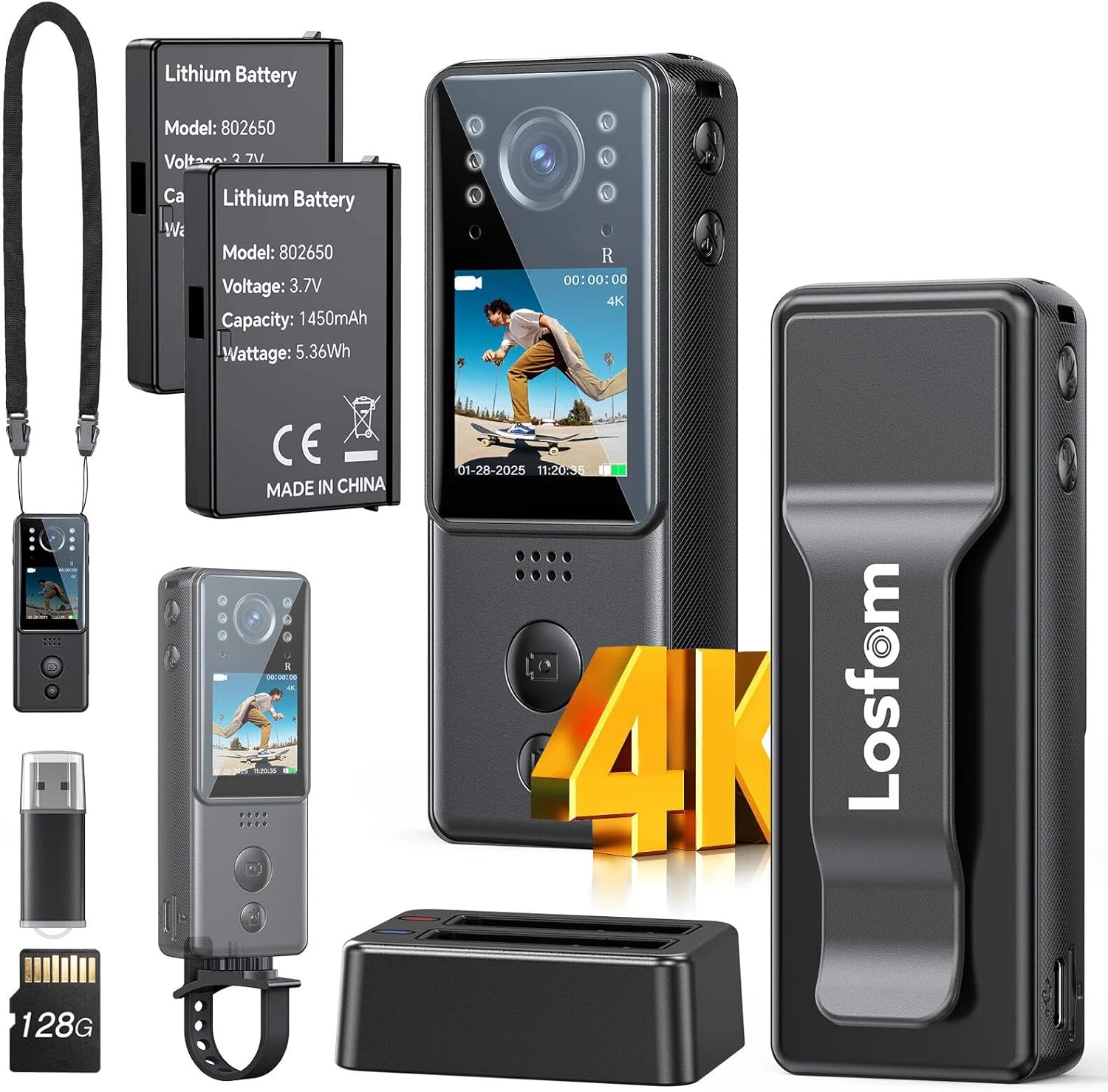
Ohun ti o wa ninu Apoti
- Losfom Z11 4K Body Camera
- Two 1400mAh Rechargeable Batteries (one pre-installed)
- Ibi iduro gbigba agbara
- Bike Oke
- Lanyard
- Okun Ngba agbara USB
- Micro SD Card (capacity may vary by package)
Ṣeto
1. Awọn batiri gbigba agbara
The Losfom Z11 comes with two 1400mAh rechargeable batteries. One battery is typically pre-installed in the camera, and a spare is provided. Use the included charging dock to charge both batteries simultaneously.
- Insert the batteries into the designated slots on the charging dock.
- Connect the USB charging cable to the charging dock and a power source (e.g., USB wall adapter, computer USB port).
- The indicator lights on the dock will show the charging status. Once fully charged, remove the batteries.


2. Fi Micro SD Kaadi sii
The camera requires a Micro SD card for storing recordings. A card is typically included with your purchase.
- Locate the Micro SD card slot on the side of the camera.
- Gently insert the Micro SD card into the slot until it clicks into place. Ensure the card is inserted in the correct orientation.
- Láti yọ ọ́ kúrò, tẹ káàdì náà sínú rẹ̀ pẹ̀lú pẹ̀lẹ́pẹ̀lẹ́ títí yóò fi yọ jáde.
3. Asopọmọra Awọn ẹya ẹrọ
The Losfom Z11 offers various wearing and mounting options for different scenarios.
- Agekuru Pada: Attach the camera to your uniform, shirt pocket, or belt for hands-free recording.
- Ọrun Lanyard: Wear the camera around your neck for easy access and portability.
- Àgbékalẹ̀ Kẹ̀kẹ́: Use the included mount to secure the camera to bicycle handlebars for outdoor activities.


Awọn ilana Iṣiṣẹ
1. Agbara Tan / Paa
- To power on, press and hold the Power button until the screen illuminates.
- Lati fi agbara pa, tẹ mọlẹ Bọtini Agbara titi ti ẹrọ yoo fi ku.
2. Gbigbasilẹ fidio ati Yiya Awọn fọto
The camera features dedicated buttons for video and photo capture.
- Gbigbasilẹ fidio: Press the Video button once to start recording. Press it again to stop. The screen will indicate recording status.
- Yiya fọto: Press the Photo button once to take a still image.


3. Night Iran
The camera is equipped with 6 IR lights for enhanced night vision capabilities, allowing for clear recordings in low-light or total darkness.
- Refer to the on-screen menu or dedicated button (if available) to activate or deactivate night vision mode.
- Ensure no obstructions block the IR lights for optimal performance.

4. Adjusting Camera Angle
The camera features a 180° rotating lens, allowing you to adjust the recording angle as needed. Gently pivot the top section of the camera to achieve the desired view.
5. Tunviewing ati Gbigbe Files
O le tunview recordings directly on the camera's 1.3-inch LCD screen or transfer them to a computer for larger viewing ati ibi ipamọ.
- On-Device Review: Use the navigation buttons below the screen to browse and play back recorded videos and photos.
- File Gbe: Connect the camera to your computer using the provided USB cable. The camera will appear as a removable disk drive. You can then copy files directly from the Micro SD card to your computer. Alternatively, remove the Micro SD card and insert it into a card reader connected to your computer.

Itoju
- Itọju Batiri: To prolong battery life, avoid fully discharging the batteries frequently. Store them in a cool, dry place when not in use.
- Ninu: Use a soft, dry cloth to clean the camera body and lens. Avoid using harsh chemicals or abrasive materials.
- Ibi ipamọ: Store the camera in a protective case or pouch to prevent scratches and damage. Keep it away from extreme temperatures and humidity.
Laasigbotitusita
| Oro | Owun to le Solusan |
|---|---|
| Kamẹra ko ṣiṣẹ. | Ensure batteries are fully charged and correctly inserted. Try using the spare battery. |
| Ko le ṣe igbasilẹ fidio/ya awọn fọto. | Check if a Micro SD card is inserted and has sufficient free space. Ensure the camera is not in playback mode. |
| Didara fidio ti ko dara. | Ensure the lens is clean. Check recording resolution settings (set to 4K for best quality). Ensure adequate lighting or activate night vision if in low light. |
| Files not transferring to computer. | Verify the USB cable connection. Try a different USB port or computer. Ensure the camera is powered on when connected. |
Awọn pato
| Ẹya ara ẹrọ | Ẹ̀kúnrẹ́rẹ́ |
|---|---|
| Brand | Losfom |
| Nọmba awoṣe | Z11 |
| Ipinnu Yaworan fidio | 4K |
| Fọto sensọ Technology | CMOS |
| Flash Memory Iru | Micro SD |
| Iwon iboju | 1.3 inches |
| Pataki Awọn ẹya ara ẹrọ | HD Resolution, Portable, 6 IR Night Vision Lights, Dual Batteries |
| Iwọn Nkan | 1.2 iwon |
| Package Mefa | 5.91 x 3.86 x 2.72 inches |
| Awọn batiri | 2 A batteries required (1400mAh Lithium) |
| Fidio Yaworan kika | MOV |
| Atilẹyin Audio kika | AAC |
| Asopọmọra Technology | Ti firanṣẹ |
Atilẹyin ọja ati Support
For warranty information, technical support, or service inquiries, please refer to the official Losfom webojula tabi kan si wọn onibara iṣẹ taara. Tọju iwe-ẹri rira rẹ bi ẹri rira fun eyikeyi awọn ibeere atilẹyin ọja.