1. Alaye Aabo
Please read this manual carefully before using the product to ensure proper operation and to avoid damage. Keep this manual for future reference.
- Do not operate the device while driving. Adjust settings only when the vehicle is safely parked.
- Ensure the dash cam does not obstruct your view ti opopona tabi dabaru pẹlu awọn iṣakoso ọkọ.
- Use only original accessories provided with the product.
- Yago fun ṣiṣafihan ẹrọ naa si awọn iwọn otutu to gaju tabi oorun taara fun awọn akoko gigun.
- Pa ẹrọ naa kuro ninu omi ati ọrinrin.
2. Package Awọn akoonu
Jẹrisi pe gbogbo awọn ohun kan wa ninu package:
- Mirror Dash Camera Unit
- Kamẹra ẹhin
- Ṣaja ọkọ ayọkẹlẹ
- Okun gbigba agbara (USB-C)
- Modulu GPS
- 64GB Micro SD Kaadi
- Ọpa fifi sori ẹrọ (Ọpa Pry)
- Itọsọna olumulo
- Mounting Straps (for mirror)
- Adhesive Pads and Screws (for rear camera)

Image: All components included in the QOZ V969 Mirror Dual Dash Camera package.
3. Eto ati fifi sori
3.1 Installing the Mirror Dash Camera
- Attach the mirror dash camera to your existing rearview mirror using the provided rubber straps. Ensure it is securely fastened and does not obstruct your view.
- Adjust the integrated front camera lens to capture the desired view ti opopona wa niwaju.

Image: The mirror dash camera is designed to clip securely over your vehicle's existing rearview digi.
3.2 Fifi Kamẹra Ru
- Mount the rear camera at the back of your vehicle, typically above the license plate or inside the rear window. Use the provided adhesive pads and screws for secure attachment.
- Route the rear camera cable to the front of the vehicle, tucking it along the headliner and A-pillar trim using the installation tool to conceal the wiring.
- Connect the rear camera cable to the designated port on the mirror dash camera.
- Connect the red wire from the rear camera cable to your vehicle's reverse light power wire. This enables the display to automatically switch to the rear camera view nigbati ifasilẹ awọn.

Image: Wiring diagram for connecting the rear camera to the main unit and the vehicle's reverse light for automatic activation.
3.3 Connecting Power and GPS
- Insert the 64GB Micro SD card into the designated slot on the mirror dash camera.
- Connect the GPS module to its port on the mirror dash camera. Position the GPS module on the dashboard or near the windshield for optimal signal reception.
- Plug the car charger into your vehicle's 12V power outlet (cigarette lighter).
- Connect the USB-C charging cable from the car charger to the mirror dash camera.

Image: The dash camera package includes a 64GB SD card and a GPS module for route and speed tracking.
4. Awọn ilana Iṣiṣẹ
4.1 Agbara Tan / Pa
Kame.awo-ori dash yoo tan laifọwọyi ati bẹrẹ gbigbasilẹ nigbati ina ọkọ rẹ ba wa ni titan. Yoo pa a laifọwọyi nigbati ina ba wa ni pipa.
4.2 10" IPS Touch Screen Interface
The 10-inch IPS touch screen provides a wide viewing angle and vivid color accuracy. Swipe left/right to switch between front camera view, ru kamẹra view, or a split-screen display showing both simultaneously. Swipe up/down on the screen to adjust the camera's vertical viewigun igun.
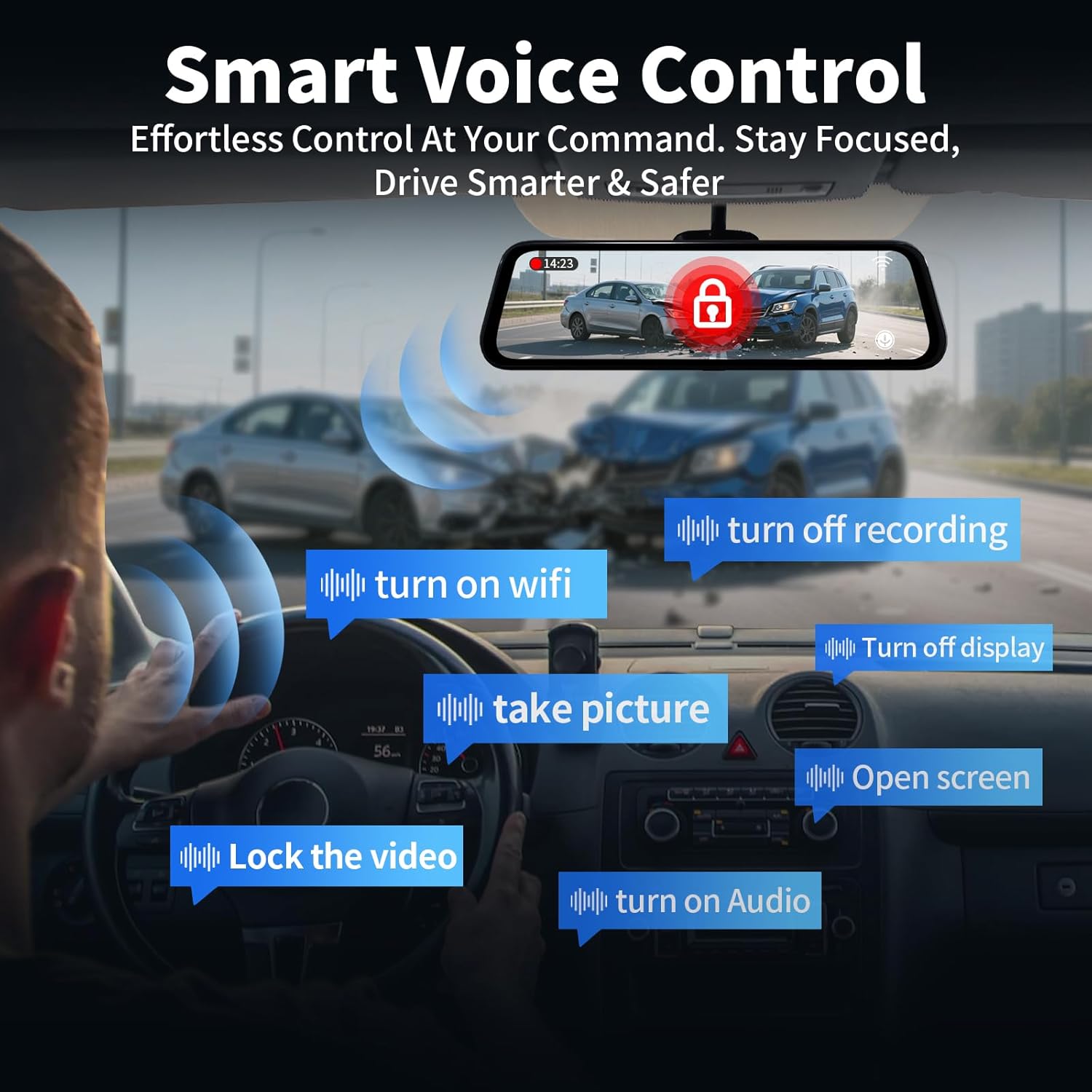
Image: The 10-inch IPS touch screen offers a clear and responsive interface for managing camera views ati awọn eto.
4.3 Iṣakoso ohun
Kame.awo-ori dash n ṣe atilẹyin awọn pipaṣẹ ohun fun iṣẹ ti ko ni ọwọ. Lo awọn aṣẹ wọnyi:
- "Turn off screen" / "Turn on screen"
- "Show front camera" / "Show rear camera" / "Show both cameras"
- "Tii fidio naa"
- "Ya aworan"
- "Turn on audio" / "Turn off audio"
- "Turn on Wi-Fi" / "Turn off Wi-Fi"
- "Pa gbigbasilẹ"
- "Ṣi ibojú"

Image: Voice control allows for hands-free operation of key dash cam functions, enhancing driving safety.
Video: Demonstration of voice control features for the QOZ 4K+2.5K Mirror Dash Cam.
4.4 Built-in Wi-Fi & APP Control
Connect the dash cam to your smartphone via Wi-Fi using the dedicated app (available on iOS and Android). Through the app, you can view gbe footage, playback recorded videos, manage settings, and download files directly to your device. This allows for easy sharing of travel experiences.
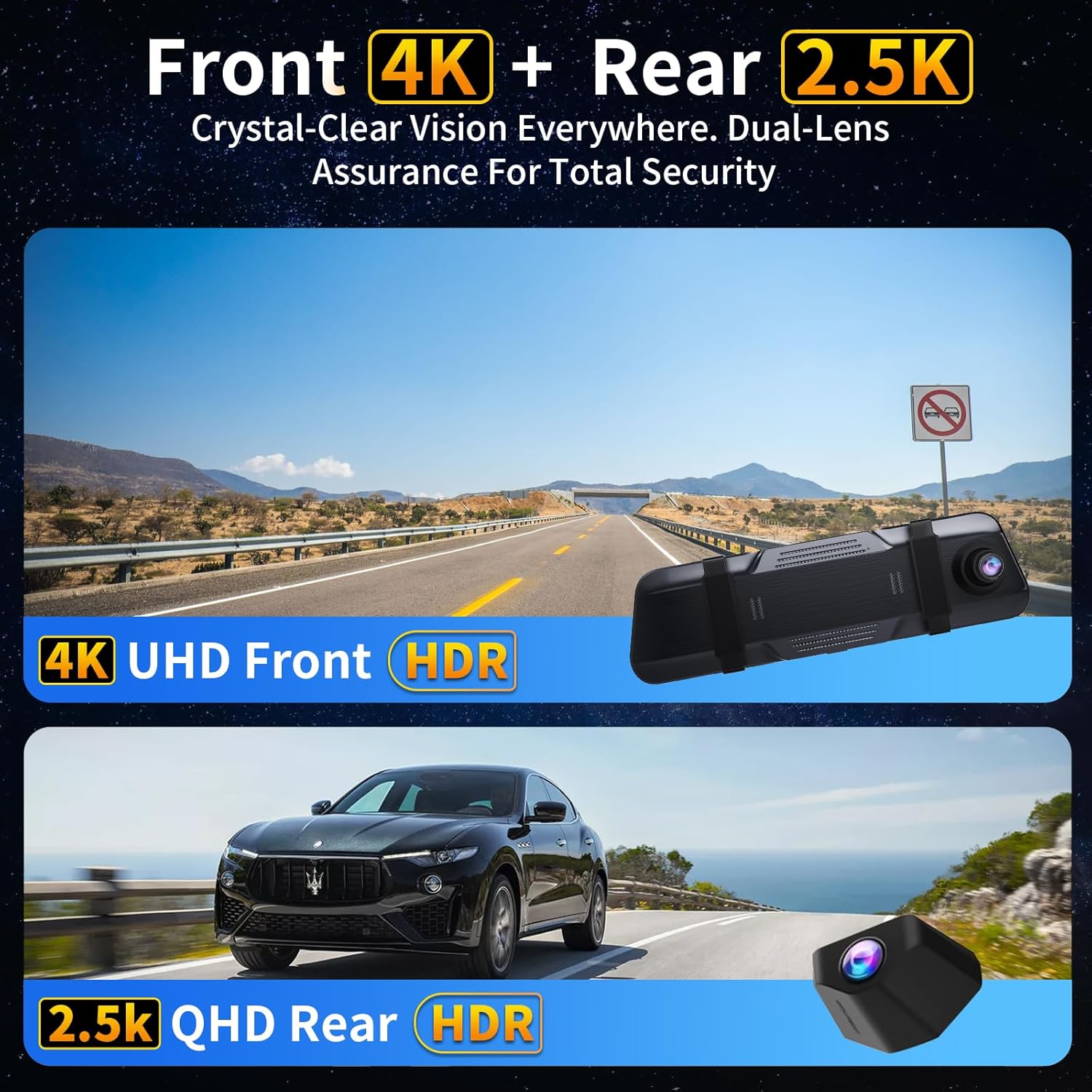
Image: The dash camera connects to a smartphone app via 5.8GHz Wi-Fi for viewing, playback, and management.
4.5 Loop Gbigbasilẹ
The dash cam continuously records video in segments (e.g., 1, 2, or 5 minutes). When the SD card is full, the oldest unlocked files are automatically overwritten to ensure uninterrupted recording. Locked files ti wa ni idaabobo lati a kọ.
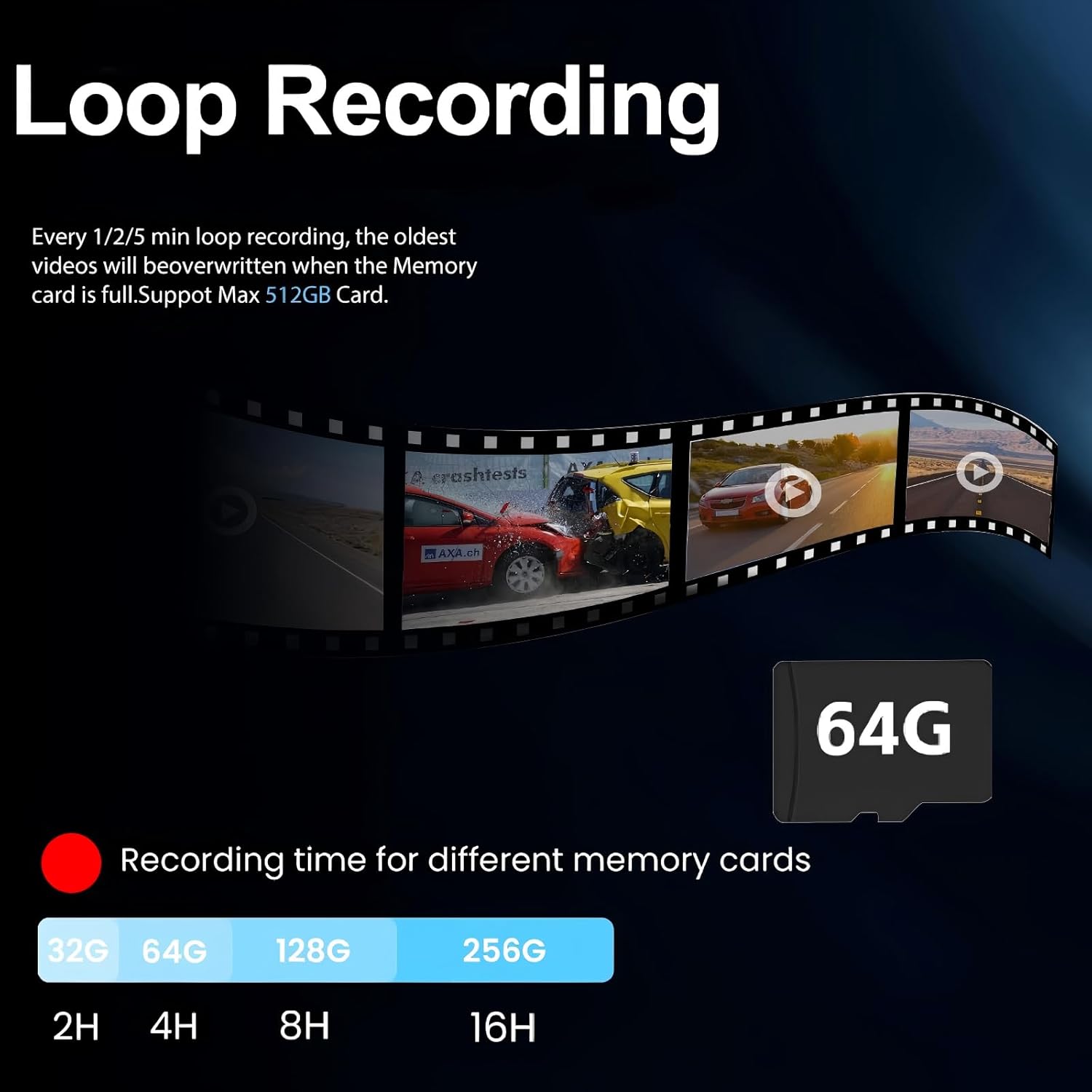
Image: Loop recording ensures continuous video capture by overwriting the oldest files nigbati kaadi iranti ba ti kun.
4.6 G-Sensor (Emergency Recording)
The built-in G-Sensor detects sudden impacts or collisions. When triggered, it automatically locks the current video segment, preventing it from being overwritten by loop recording. These locked files serve as crucial evidence in case of an accident.

Image: The G-Sensor automatically locks video footage upon detecting a collision, securing important evidence.
Atẹle Ibi Itura 4.7 24H
Pẹlu ohun elo waya lile ti a yan (ASIN: B0DCYYLL6T, sold separately), the dash cam can monitor your vehicle 24 hours a day. It detects collisions, vandalism, or suspicious activity while parked and automatically saves critical video clips to the memory card.

Image: The 24-hour parking monitor provides continuous surveillance, requiring an optional hardwire kit.
4.8 WDR & Super Night Vision
The Wide Dynamic Range (WDR) technology balances exposure in varying light conditions, preventing overexposure in bright areas and underexposure in dark areas. Super Night Vision enhances clarity in low-light environments, ensuring sharp details like license plates are captured 24/7.
Image: WDR and Super Night Vision technologies ensure clear and detailed recordings in various lighting conditions, day or night.
4.9 Adjustable Rear Cam Display
The rear camera display can be adjusted to adapt to different installation methods and vehicle types. Options include vertical flip and mirror flip to ensure the correct orientation of the rear view.

Image: The adjustable rear camera display allows for various viewing orientations, including vertical and mirror flips.
5. Itọju
- Eto Kaadi SD: Regularly format the Micro SD card (at least once a month) to ensure optimal performance and prevent data corruption. This can usually be done through the dash cam's settings menu.
- Ninu: Lo aṣọ rírọrùn tí ó gbẹ láti nu ibojú àti lẹ́ńsì kámẹ́rà. Yẹra fún lílo àwọn ohun ìfọṣọ tàbí àwọn ohun olómi.
- Awọn imudojuiwọn famuwia: Ṣayẹwo awọn olupese ká webaaye lorekore fun awọn imudojuiwọn famuwia lati rii daju pe ẹrọ rẹ ni awọn ẹya tuntun ati awọn atunṣe kokoro.
6. Laasigbotitusita
- "SD Card Full" Error: If you encounter this message, ensure loop recording is enabled. If it persists, format the SD card. If the issue continues, the SD card may be faulty and require replacement.
- Kame.awo-ori Dash Ko Nṣiṣẹ Lori: Check the car charger connection and ensure the vehicle's 12V power outlet is functioning.
- Didara fidio ti ko dara: Ensure camera lenses are clean. Check the recording resolution settings (set to 4K front and 2.5K rear for optimal quality).
- GPS Ko Titele: Ensure the GPS module is properly connected and placed in an area with clear sky view.
7. Awọn pato
| Orukọ awoṣe | V969-Voice Control Mirror Dash Cam |
| Ọja Mefa | 10 x 1 x 4 inches |
| Iwọn Nkan | 1.98 iwon |
| Ipinnu Yaworan fidio | 4K Front + 2.5K Rear |
| Aaye Ti View | 170 Degrees (Front) + 150 Degrees (Rear) |
| Asopọmọra Technology | Wi-Fi (5.8GHz) |
| Pataki Awọn ẹya ara ẹrọ | App Control, Built-In Display, Built-In GPS, Night Vision, Parking Monitor, Voice Control, Loop Recording, G-Sensor, WDR |
| Awọn irinše to wa | Car Charger, Charging Cable, Installation Tool, User Manual, 64GB Card, GPS Module |
8. Atilẹyin ọja ati Support
For warranty information, technical support, or any inquiries regarding your QOZ V969 Mirror Dual Dash Camera, please contact the manufacturer directly. Refer to the contact information provided in the product packaging or on the official QOZ webojula.


