Ọrọ Iṣaaju
This manual provides detailed instructions for the installation, operation, and maintenance of your VIOFO A329S 3-Channel Dash Cam. Please read this manual thoroughly before using the device to ensure proper functionality and safety.
Package Awọn akoonu
Daju pe gbogbo awọn nkan ti a ṣe akojọ rẹ si isalẹ wa ninu package rẹ:
- A329S 3CH Dash Cam
- CPL-600 Filter (Included in this bundle)
- HK4/HK6 Hardwire Kit (Note: This kit is required for advanced parking modes and may be included in specific bundles or sold separately.)
- Type-C SSD Cable (Note: This cable is for connecting an external SSD, which is sold separately. The cable itself may be included in specific bundles or sold separately.)
- Kamẹra ẹhin
- Fisheye Cabin Camera
- Ṣaja ọkọ ayọkẹlẹ
- Okùn Kámẹ́rà Ẹ̀yìn (6m)
- Fisheye Cabin Camera Cable (1m)
- Spare Mount Sticky Pads (Set) x 1
- Windshield Static Stickers x 3
- Ọpa Yiyọ Gee
- Sitika Ikilọ
- Lẹhin-Tita Service Kaadi
- Quick Bẹrẹ Itọsọna
- Itọsọna olumulo

An image displaying all components included in the VIOFO A329S 3-Channel Dash Cam package, such as the main dash cam unit, front, cabin, and rear cameras, cables, CPL filter, and mounting accessories.
Ọja Pariview
The VIOFO A329S is a high-performance 3-channel dash camera system designed to record video from the front, interior cabin, and rear of your vehicle. It features advanced STARVIS 2 sensors for superior image quality, Wi-Fi 6 connectivity for fast file transfers, and various parking modes for continuous surveillance.

Ipariview image of the VIOFO A329S dash cam system, showing the front camera unit, cabin camera, and rear camera, highlighting key features like 4K+2K+2K recording, STARVIS 2, Wi-Fi 6, and SSD storage support.
Key Awọn ẹya ara ẹrọ
- 4K Front + 2K Interior Fisheye + 2K Rear Recording: Captures comprehensive video coverage with high resolution.
- 3 Channel with STARVIS 2 Sensors: Utilizes advanced Sony STARVIS 2 sensors (IMX678 for front, IMX675 for rear and cabin) for enhanced low-light performance and dynamic range.
- Impact Detection Power Saving Parking Mode: Minimizes battery drain while providing instant recording upon impact detection. Requires optional hardwire kit.
- Next-Gen Wi-Fi 6 Technology: Offers faster data transfer speeds (up to 30MB/s) for quick video downloads and app control.
- Support Up to 4TB SSD or 512GB microSD: Flexible storage options for extended recording times.
- Accurate GPS Logger: Records location, speed, and time data.
- Iṣakoso ohun Smart: Allows hands-free operation for common functions.
- Circular Polarizing Lens (CPL): Reduces reflections on the windshield for clearer video.
- Dual Ultra-Slim Coaxial Cables: Facilitates easier and cleaner installation with reduced interference.
- Loop Recording & Auto Emergency Lock: Ensures continuous recording and protects critical footage from overwriting.

An image summarizing the key features of the VIOFO A329S dash cam, including 4K+2K+2K recording, 210-degree ultra-wide cabin camera, Wi-Fi 6, impact detection parking mode, hybrid parking recording, 3 Sony STARVIS 2 sensors, 3-channel HDR, voice control, external SSD storage, and ultra-precise GPS.
Eto ati fifi sori
Proper installation is crucial for optimal performance of your VIOFO A329S dash cam. Follow these steps carefully.
1. Prepare the Windshield
Clean the area on your windshield where the dash cam will be mounted. Apply the provided static stickers to the windshield first, then attach the dash cam mount to the static sticker. This allows for easier removal without leaving residue.
2. Install the Front Camera
- Attach the front camera to its mount.
- Peel off the protective film from the adhesive pad on the mount.
- Firmly press the mount onto the static sticker on your windshield, ensuring a clear view ti opopona.
- Adjust the lens angle to capture the road ahead, with the horizon line in the middle of the frame.

A alaye view of the VIOFO A329S front dash camera unit, showing its compact design and lens, ready for windshield mounting.
3. Install the Cabin Camera
- Connect the cabin camera to the main front unit using the provided 1m coaxial cable.
- Mount the cabin camera on the windshield or dashboard, ensuring it has a clear view of the vehicle's interior.
- Route the cable neatly along the headliner and A-pillar using the trim removal tool.
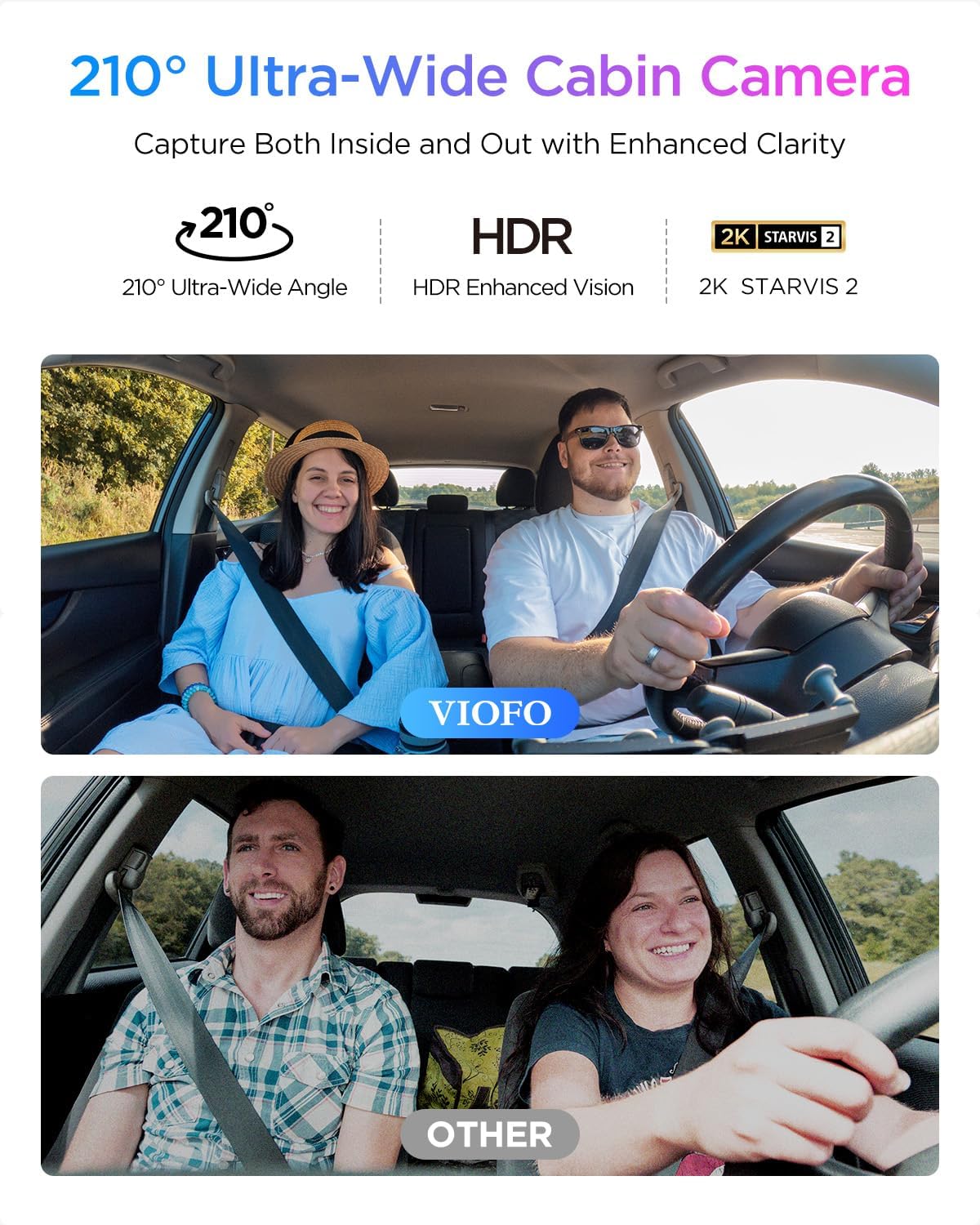
An image showing the VIOFO A329S cabin camera capturing the interior of a vehicle, demonstrating its 210-degree ultra-wide angle view.
4. Fi Kamẹra Rear sori ẹrọ
- Connect the rear camera to the main front unit using the provided 6m coaxial cable.
- Gbe kamẹra ẹhin sori oju ferese ẹhin, ni idaniloju kan ko o view ti opopona sile.
- Route the cable neatly along the headliner, C-pillar, and trim.

A diagram illustrating the optimal placement of the front, cabin, and rear cameras for the VIOFO A329S 3-channel dash cam system, showing their respective fields of view.
5. Asopọ agbara
- Plug the car charger into your vehicle's 12V/24V power outlet.
- Connect the Type-C end of the power cable to the main dash cam unit.
- Mu okun ina naa daadaa lati yago fun idilọwọ rẹ view tàbí dí ìwakọ̀ lọ́wọ́.
- Pataki: Do not use a mobile phone charger or cable to power the dash cam, as this may cause damage or malfunction.

A diagram showing the correct cable connections for the VIOFO A329S dash cam system, including power input from the car charger, and connections for the front, cabin, and rear cameras.
6. Fi kaadi iranti sii
Ensure the dash cam is powered off. Insert a high-endurance microSD card (up to 512GB) into the designated slot. Alternatively, an external SSD (up to 4TB) can be connected via the Type-C SSD cable. Akiyesi: A microSD card and external SSD storage are not included and must be purchased separately. For optimal performance, VIOFO industrial high endurance microSD cards are recommended.

An image showing the microSD card slot on the side of the VIOFO A329S dash cam, with a VIOFO 512GB microSD card being inserted.

An image illustrating the VIOFO A329S dash cam connected to an external SSD via a Type-C cable, demonstrating its support for high-capacity SSD storage up to 4TB.
7. CPL Filter Installation
The included CPL (Circular Polarizing Lens) filter can be attached to the front camera lens to reduce reflections and glare from the windshield, improving video clarity.

A comparison image showing video footage with and without a CPL filter, demonstrating how the Circular Polarizing Lens effectively reduces reflections on the windshield for clearer recordings. The image also shows how the CPL filter attaches to the front camera.
Isẹ
1. Ipilẹ Gbigbasilẹ
Once powered on, the dash cam will automatically begin recording. The recording indicator light will flash. Videos are saved in segments to the memory card.
- Gbigbasilẹ Loop: The dash cam records continuously, overwriting the oldest files nigbati kaadi iranti ba ti kun.
- G-Sensọ (Titiipa pajawiri): Tí ìkọlù tàbí ìkọlù bá ṣẹlẹ̀ lójijì, sensọ G tí a ṣe sínú rẹ̀ yóò ti fídíò tó wà lọ́wọ́lọ́wọ́ pa láìfọwọ́sí. file, tí ó ń dènà kí a má baà tún kọ ọ́ síta.

An image depicting the VIOFO A329S dash cam screen showing an emergency lock icon, illustrating the loop recording and auto emergency lock features that protect critical video footage.
2. Pa Ipo
The A329S offers various parking modes to monitor your vehicle when parked. An optional VIOFO HK4 or HK6 hardwire kit is required to enable these features and prevent battery drain. Please check your package contents or purchase separately if not included.
- Ipo Ṣiṣawari Ipa: The camera remains in a low-power state and starts recording instantly when an impact is detected.
- Hybrid Parking Recording: Combines time-lapse recording (1fps) with impact detection. If an impact occurs during time-lapse, it switches to event recording.
- Normal Parking Mode: Includes Super Night Vision (SNV), Low Bitrate Recording, and Auto Event Detection for continuous surveillance.

An image illustrating the VIOFO A329S dash cam's power-saving parking mode, highlighting features like low power consumption, longer-lasting protection, and quick start recording upon impact detection. The image shows the dash cam mounted in a car, monitoring a parking lot.

An image explaining the Hybrid Parking Recording feature of the VIOFO A329S, showing a comparison between normal parking recording and impact detection parking recording.

An image detailing the Normal Parking Mode options for the VIOFO A329S, including Super Night Vision (SNV), Low Bitrate Recording, and Auto Event Detection, with visual examples.
3. Wi-Fi Asopọmọra & App Iṣakoso
The A329S features Wi-Fi 6 for fast connection to the VIOFO smartphone app. This allows you to:
- View gbe footage.
- Download recorded videos quickly (up to 30MB/s for a 1-minute 4K video in under 10 seconds).
- Yi awọn eto pada.
- Ṣe imudojuiwọn famuwia.
Download the VIOFO app from your device's app store.
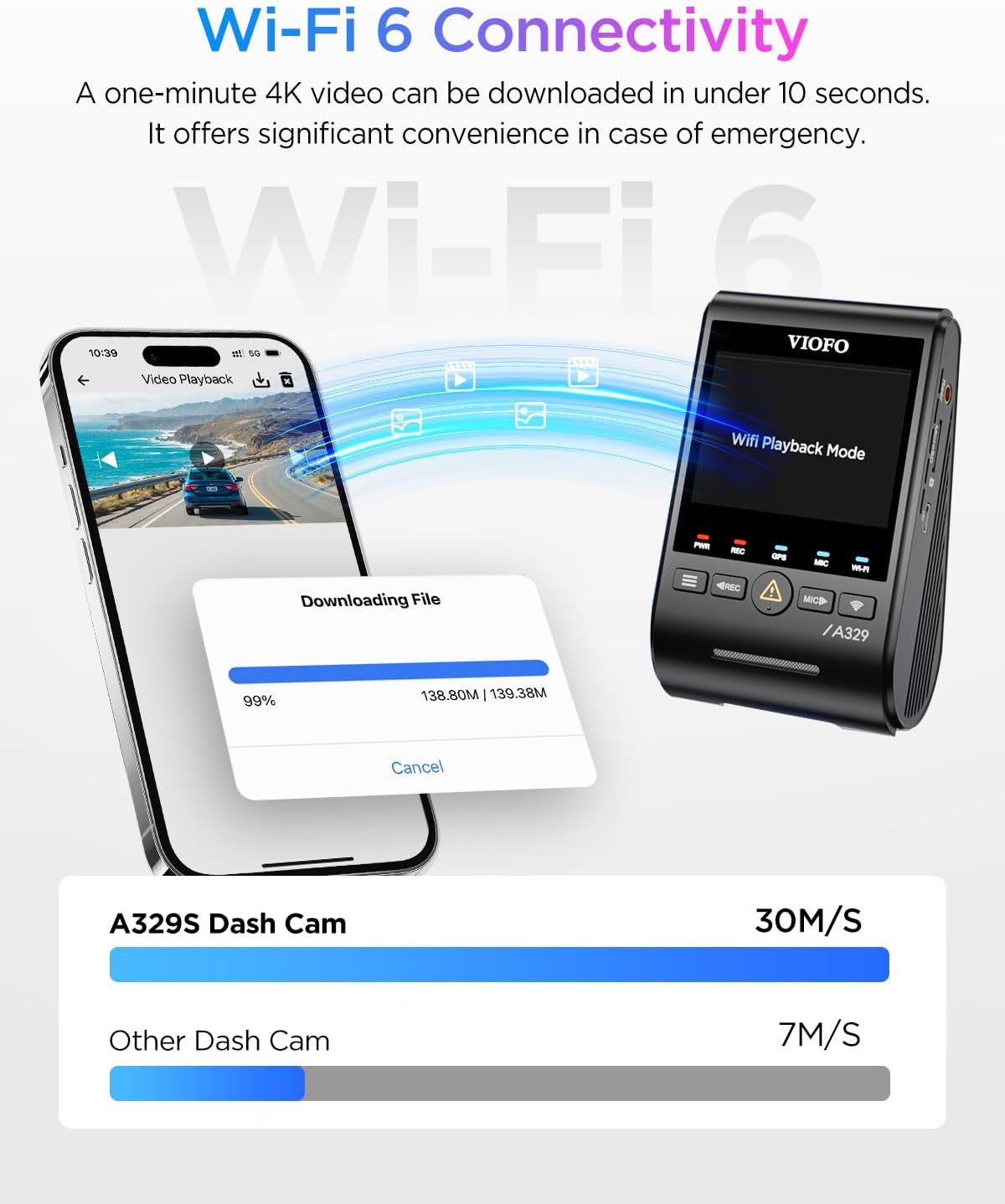
An image demonstrating the Wi-Fi 6 Dual Band connectivity of the VIOFO A329S dash cam, showing a smartphone downloading video files from the dash cam at high speeds.
4. GPS Iṣẹ
The built-in GPS module records your vehicle's location, speed, and time data. This information can be viewed when playing back videos using the VIOFO app or PC player.

An image illustrating the accurate GPS tracking feature of the VIOFO A329S, showing a car driving on a scenic road with GPS coordinates, speed, and time overlaid, and a laptop displaying the video playback with map integration.
5. Iṣakoso ohun
Control your dash cam hands-free with simple voice commands. This feature allows you to:
- "Ya fọto"
- "Turn on Wi-Fi"
- "Tii fidio naa"
The camera also provides voice notifications for settings changes or memory card errors.

An image demonstrating the smart voice control feature of the VIOFO A329S, showing a driver issuing commands like 'Take photo,' 'Turn on Wi-Fi,' and 'Lock the video' to the dash cam.
6. Video Export and Management
The A329S allows flexible multi-view video export, enabling you to combine footage from different cameras as needed without editing. You can download files directly to your phone via Wi-Fi 6 or use the upgraded USB 3.0 port for faster transfers to a computer.

An image illustrating the flexible multi-view video export feature of the VIOFO A329S, showing how footage from the front, interior, and rear cameras can be combined and shared easily.

An image showing the VIOFO A329S dash cam connected to a smartphone via a USB 3.0 cable, highlighting the ultra-fast video download capability to phones.
Itoju
1. Iṣakoso kaadi iranti
- Iṣeto: Regularly format your microSD card (at least once a month) within the dash cam's settings to ensure optimal performance and prevent data corruption.
- Rọpo: Replace high-endurance microSD cards every 6-12 months, depending on usage, as they have a limited lifespan due to continuous writing cycles.
2. Awọn imudojuiwọn famuwia
Periodically check the VIOFO official website for the latest firmware updates. Firmware updates can improve performance, add new features, and fix bugs. Follow the instructions provided with the firmware download carefully.
3. Ninu
Gently clean the camera lenses with a soft, lint-free cloth. Avoid using harsh chemicals that could damage the lens coating.
Laasigbotitusita
| Isoro | Owun to le Solusan |
|---|---|
| Kamẹra Dash ko ni agbara lori. | Ensure the car charger is properly connected to a working 12V/24V outlet. Check the power cable for damage. Try a different power source if available. |
| Recording stops or files ti bajẹ. | Format the microSD card regularly. Ensure you are using a high-endurance microSD card. Replace the microSD card if it is old or frequently causes issues. |
| Awọn oran asopọ Wi-Fi. | Ensure Wi-Fi is enabled on the dash cam and your smartphone. Move closer to the dash cam. Restart both the dash cam and your phone. |
| Poor video quality (blurry, glare). | Clean the camera lenses. Ensure the CPL filter is correctly installed and adjusted. Check if the protective film has been removed from the lens. |
| Ipo ibi idaduro ko ṣiṣẹ. | Verify that the optional HK4/HK6 hardwire kit is correctly installed and connected. Check parking mode settings in the dash cam menu. |
| GPS kii ṣe atẹle ipo/iyara. | Rii daju pe kamẹra dash ni oye view of the sky. Check GPS settings in the menu. Allow a few minutes for the GPS signal to acquire. |
Awọn pato
| Ẹya ara ẹrọ | Ẹ̀kúnrẹ́rẹ́ |
|---|---|
| Orukọ awoṣe | A329S |
| Ipinnu Yaworan fidio | Front: 4K@30fps, Rear: 2K@30fps, Cabin: 2K@30fps |
| Awọn sensọ aworan | Front: STARVIS 2 IMX678, Rear & Cabin: STARVIS 2 IMX675 |
| Asopọmọra Technology | Wi-Fi 6 (Dual Band), USB 3.0 |
| Pataki Awọn ẹya ara ẹrọ | Impact Detection Parking Mode, Next-Gen Wi-Fi 6 Technology, GPS, Voice Control, 3-Channel HDR |
| Atilẹyin ipamọ | microSD card up to 512GB, External SSD up to 4TB |
| Àwọ̀ | Dudu |
| Ọkọ Iṣẹ Iru | Car, Van, Minivan |
| Awọn irinše to wa | A329S 3CH Dash Cam, CPL-600 Filter, HK4/HK6 Hardwire Kit (bundle dependent), Type-C SSD Cable (bundle dependent) |
| Awọn batiri To wa | Rara |
Atilẹyin ọja ati Support
For warranty information, technical support, or further assistance, please visit the official VIOFO website or contact VIOFO customer service directly. Keep your purchase receipt as proof of purchase for warranty claims.
Official VIOFO Store: VIOFO Store on Amazon


