1. Alaye Aabo
Please read all instructions carefully before using this monitor. Keep this manual for future reference.
- Má ṣe fi àtẹ̀gùn náà sí òjò tàbí ọrinrin láti dènà iná tàbí ìkọlù iná mànàmáná.
- Maṣe ṣii atẹle casing. Ko si awọn ẹya ti olumulo-iṣẹ ninu. Tọkasi gbogbo iṣẹ si oṣiṣẹ oṣiṣẹ.
- Gbe atẹle naa sori iduro, dada alapin lati ṣe idiwọ fun isubu.
- Rii daju pe fentilesonu to dara ni ayika atẹle naa. Ma ṣe dina awọn ṣiṣi atẹgun.
- Lo oluyipada agbara nikan ti a pese pẹlu atẹle naa.
- Ge asopọ agbara kuro ninu iho ti a ko ba lo iboju naa fun igba pipẹ.
2. Package Awọn akoonu
Daju pe gbogbo awọn nkan wa ninu apo rẹ:
- CRUA 34-inch Ultrawide Gaming Monitor
- Iduro Iduro (Ipilẹ ati Ọrun)
- Power Adapter ati Cable
- Okun HDMI
- DisplayPort (DP) USB
- Itọsọna olumulo
- Skru fun Imurasilẹ Apejọ
3. Eto
3.1 Nto Iduro
- Farabalẹ yọ atẹle naa kuro ninu apoti rẹ, jẹ ki o ni aabo lori ilẹ rirọ.
- Attach the stand neck to the monitor's rear panel using the provided screws.
- Connect the stand base to the stand neck and secure it with the designated screw.
- Place the assembled monitor on a stable desk.
The monitor stand allows for tilt adjustment to find your optimal viewigun igun.
3.2 Iṣagbesori odi (aṣayan)
This monitor supports VESA wall mounting (75x75mm). To wall mount:
- Yọ iduro naa kuro ninu iboju naa ti o ba ti so mọ tẹlẹ.
- Attach a compatible VESA 75x75mm wall mount bracket (not included) to the monitor's rear panel using appropriate screws.
- Tẹ̀lé àwọn ìlànà tí a pèsè pẹ̀lú ibi tí a gbé e kalẹ̀ fún ìfìdíkalẹ̀ tó ní ààbò.

Aworan: Ẹyin view of the monitor highlighting the 75x75mm wall mount area and various input ports.
3.3 Nsopọ si ẹrọ kan
Connect your computer or gaming console to the monitor using one of the available ports:
- Ifihan ifihan (DP 1.4): For optimal performance, especially for high refresh rates and FreeSync.
- HDMI (HDMI 1.4 x2): Compatible with most devices.
Connect the power adapter to the monitor's DC input and then plug it into a power outlet.
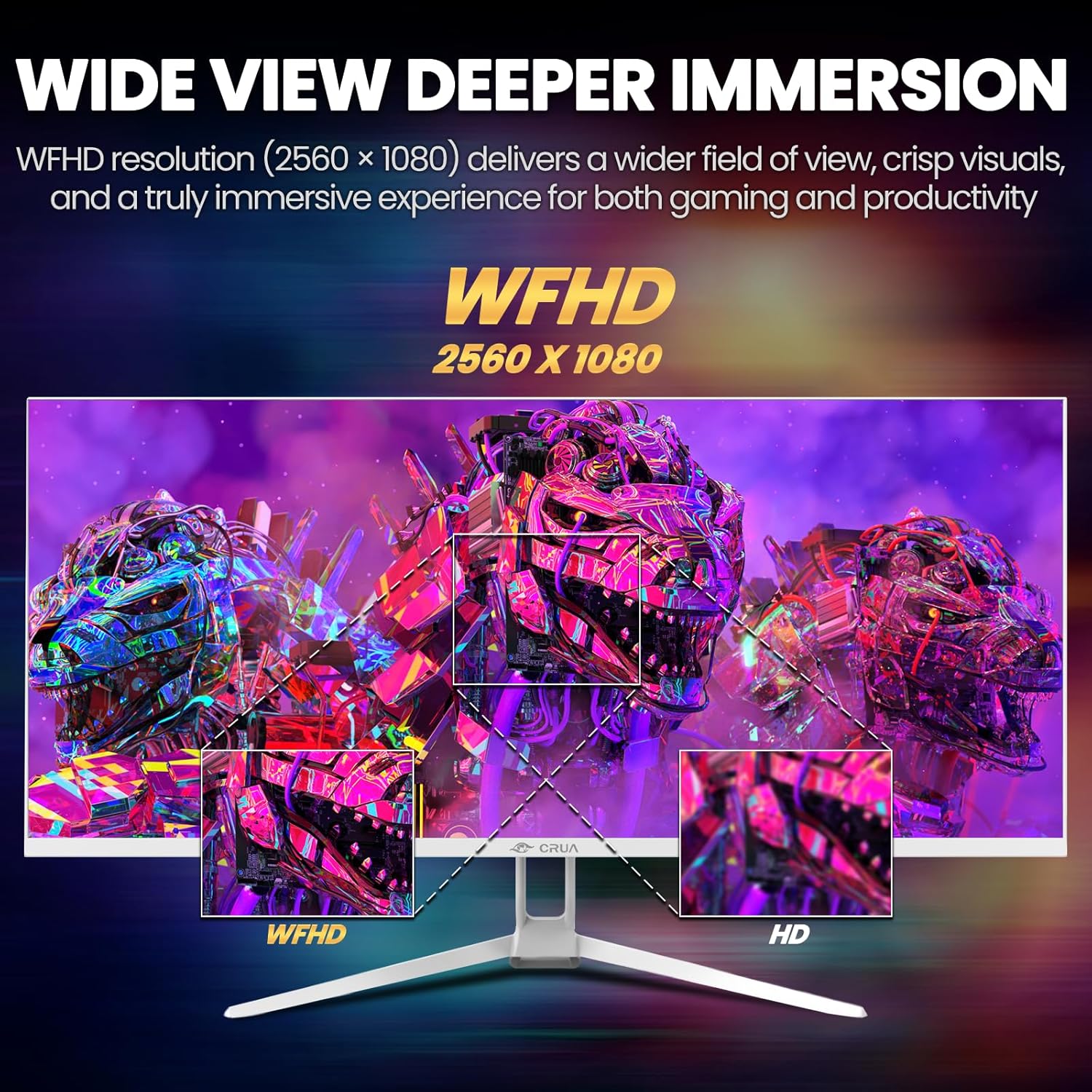
Image: A detailed diagram illustrating the monitor's connectivity options, including two HDMI 1.4 ports, one DisplayPort 1.4, an audio output, a USB charging port, and the DC power input.
4. Awọn ilana Iṣiṣẹ
4.1 Agbara Tan / Pa
Press the power button, typically located on the bottom or rear of the monitor, to turn it on or off. The power indicator light will illuminate when the monitor is on.
4.2 Lori-iboju Ifihan (OSD) Akojọ aṣyn
The OSD menu allows you to adjust various monitor settings. Access it by pressing the OSD menu button (often a joystick-like button or a set of dedicated buttons) on the monitor.
- Lilọ kiri: Use the OSD buttons or joystick to navigate through the menu options.
- Aṣayan: Tẹ bọtini yan lati tẹ akojọ aṣayan-ipin sii tabi jẹrisi eto kan.
- Jade: Use the exit button to go back or close the OSD menu.
4.3 Aworan Eto
Ṣàtúnṣe àwọn pàrámítà ojú fún ìpele tó dára jùlọ viewing:
- Imọlẹ: Ó ń ṣàkóso ìmọ́lẹ̀ gbogbogbòò ti ibojú náà.
- Iyatọ: Ṣe atunṣe iyatọ laarin ina ati awọn agbegbe dudu.
- Iwọn awọ: Selects preset color modes (e.g., Warm, Cool, User).
- Ajọ ina bulu: Reduces blue light emission to minimize eye strain during prolonged use.
- Ipin Ipin: Set to 21:9 for ultrawide content or other options as needed.

Image: The CRUA ultrawide monitor showcasing its 21:9 aspect ratio, demonstrating how it provides more horizontal screen space compared to a standard 16:9 display.
4.4 Eto ohun
The monitor includes built-in speakers. Adjust volume through the OSD menu or your connected device. An external audio output port is also available for headphones or external speakers.
4.5 AMD FreeSync
To enable AMD FreeSync for tear-free gaming, ensure your graphics card supports FreeSync and that it is enabled in your graphics card's control panel. Then, activate FreeSync within the monitor's OSD menu.

Image: A visual comparison demonstrating the effect of AMD FreeSync, showing a torn image when FreeSync is off and a smooth image when FreeSync is on, highlighting the 120Hz refresh rate.
5. Itọju
5.1 Ninu iboju
- Pa atẹle naa ki o yọọ okun agbara.
- Lo asọ rirọ, ti ko ni lint ni sere dampened pẹlu omi tabi a specialized iboju regede.
- Wipe the screen gently. Do not press hard or use abrasive cleaners.
5.2 Itọju Gbogbogbo
- Jeki atẹle naa kuro ni oorun taara, awọn orisun ooru, ati eruku ti o pọ ju.
- Yago fun gbigbe awọn nkan ti o wuwo sori atẹle tabi awọn kebulu rẹ.
- Do not spray cleaning liquids directly onto the monitor.
6. Laasigbotitusita
Ti o ba pade awọn ọran pẹlu atẹle rẹ, tọka si awọn iṣoro ti o wọpọ ati awọn ojutu wọnyi:
| Isoro | Owun to le Solusan |
|---|---|
| Ko si aworan loju iboju | Ensure power cable is securely connected and the monitor is turned on. Check video cable (HDMI/DP) connections to both monitor and computer. Select the correct input source via the OSD menu. |
| Aworan n tan tabi riru | Check video cable connections. Ensure your graphics card drivers are up to date. If using FreeSync, try disabling it temporarily to see if the issue persists. Adjust refresh rate in your computer's display settings. |
| Ko si ohun lati inu agbohunsoke | Increase volume via the OSD menu and your computer's sound settings. Ensure the correct audio output device is selected on your computer. Check if the audio cable (if used) is properly connected. |
| Awọn awọ han ti ko tọ | Reset picture settings to factory defaults via the OSD menu. Adjust color temperature and individual RGB values if available. |
If the problem persists after trying these solutions, please contact CRUA customer support.
7. Awọn pato
Key technical specifications for the CRUA 34-inch Ultrawide Gaming Monitor (Model CR340AU):
| Ẹya ara ẹrọ | Sipesifikesonu |
|---|---|
| Iwon iboju | 34 inches |
| Panel Iru | IPS |
| Ipinnu | 2560 x 1080 (WFHD) |
| Apakan Ipin | 21:9 |
| Oṣuwọn sọtun | 120Hz |
| Akoko Idahun | (Not specified in provided data, typical for IPS is 1-5ms GTG) |
| Imọlẹ | 350 cd/m² |
| Awọ Gamut | 120% sRGB |
| Ijinle Awọ | 8-bit (16.7 Mílíọ̀nù Àwọ̀) |
| Viewing Awọn igun | 178° (Ipetele/Iroro) |
| Amuṣiṣẹpọ Adaptive | AMD FreeSync |
| Asopọmọra | 2x HDMI 1.4, 1x DisplayPort 1.4, Audio Out, USB Charging, DC Power Input |
| Awọn Agbọrọsọ ti a ṣe sinu | Bẹẹni |
| Ògiri Ògiri | VESA 75x75mm |
| Ọja Mefa | 9.4 x 24.13 x 17.47 inches |
| Iwọn Nkan | 14.92 iwon |
8. Atilẹyin ọja ati Support
CRUA provides high-quality computer monitors and customer service. For any questions or support needs regarding your CRUA 34-inch Ultrawide Gaming Monitor, please contact CRUA customer support.
Refer to your purchase documentation or the official CRUA webAaye fun pato awọn ofin atilẹyin ọja ati alaye olubasọrọ.


