1. Ifihan
The Corsair VOID v2 MAX Wireless Gaming Headset delivers an immersive audio experience for PC, PlayStation, Nintendo Switch, and mobile devices. Featuring simultaneous 2.4GHz wireless and Bluetooth connectivity, custom-tuned 50mm drivers, Dolby Atmos Spatial Audio, and Sonarworks SoundID technology, this headset is designed for extended gaming sessions with up to 70 hours of battery life.

Ipariview of the Corsair VOID v2 MAX Wireless Gaming Headset, highlighting its wireless capabilities and multi-platform compatibility.
2. Package Awọn akoonu
Jẹrisi pe gbogbo awọn nkan wọnyi wa ninu package rẹ:
- Corsair VOID v2 MAX Wireless Gaming Headset
- Wireless USB Adapter (Dongle)
- USB-C si okun USB-A Ngba agbara
- Quick Start Guide / Safety Leaflet
The Corsair VOID v2 MAX headset shown alongside its retail packaging, indicating the contents.
3. Awọn iṣakoso ati Awọn ẹya ara ẹrọ
The VOID v2 MAX headset is equipped with intuitive controls and advanced features for an optimized gaming and audio experience.
Awọn ẹya pataki:
- Simultaneous Wireless Connectivity: Connect via low-latency 2.4GHz wireless for PC and consoles, and Bluetooth for mobile devices, or use both simultaneously.
- Ohun afetigbọ Dolby Atmos: Experience dynamic, directional audio for precise sound positioning.
- Awọn Awakọ 50mm Aṣa-atunṣe: Delivers high-fidelity soundscapes for impactful audio.
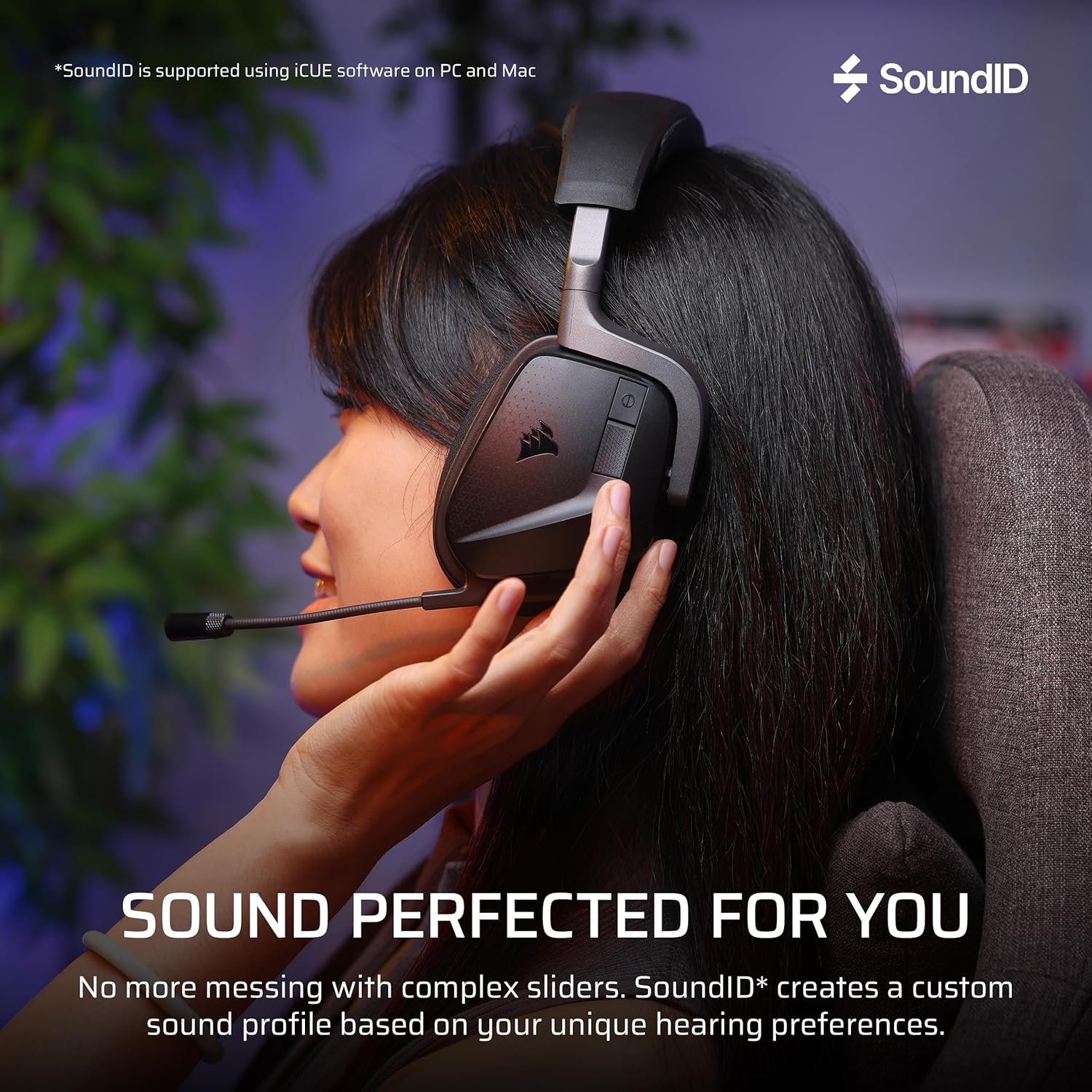
- Sonarworks SoundID Technology: Personalizes audio settings based on your hearing perception (PC/Mac via iCUE).
- Batiri Igba pipẹ: Up to 70 hours of battery life (2.4GHz wireless, RGB off) with fast charging.
- Crystal-Clear Microphone: Omni-directional microphone with NVIDIA Broadcast technology for noise reduction. Features flip-to-mute functionality.
- Apẹrẹ itunu: Memory foam ear cushions wrapped in breathable microfiber fabric on a lightweight frame.

A diagram illustrating the custom-tuned 50mm audio drivers within the headset, responsible for dynamic and high-fidelity sound.

Close-up of the crystal-clear omni-directional microphone, featuring NVIDIA Broadcast technology and flip-to-mute functionality.

Detail of the memory foam ear cushions, designed for comfort during long gaming sessions.
4. Eto
4.1 Ngba agbara si Agbekọri
Before first use, fully charge the headset. Connect the supplied USB-C to USB-A charging cable to the headset's USB-C port and a powered USB-A port on your computer or a wall adapter. The headset takes approximately 90 minutes for a full charge. A 15-minute charge provides up to 6 hours of battery life.
4.2 Connecting via 2.4GHz Wireless (PC, PlayStation, Nintendo Switch)
- Plug the wireless USB adapter into an available USB port on your PC, PlayStation console, or Nintendo Switch dock.
- Agbara lori agbekari nipa titẹ ati didimu bọtini agbara titi ti Atọka LED yoo tan imọlẹ.
- The headset should automatically connect to the wireless adapter. The LED on the adapter will turn solid white when connected.
- On PC, ensure the Corsair VOID v2 MAX is selected as the default audio input and output device in your sound settings. On consoles, adjust audio output settings as needed.
4.3 Connecting via Bluetooth (Mobile, PC, Switch)
- With the headset powered on, press and hold the Bluetooth button until the LED indicator blinks blue rapidly, indicating pairing mode.
- On your mobile device, PC, or Nintendo Switch, navigate to Bluetooth settings and select "Corsair VOID v2 MAX" from the list of available devices.
- Once paired, the headset LED will show a solid blue light.
4.4 iCUE Software Installation (PC/Mac)
For full customization, including Sonarworks SoundID, Dolby Atmos settings, equalizer adjustments, and RGB lighting control, download and install the Corsair iCUE software from the official Corsair webAaye (www.corsair.com/icue).

The headset demonstrating simultaneous 2.4GHz wireless and Bluetooth connectivity across multiple devices.
5. Awọn ilana Iṣiṣẹ
5.1 Agbara Tan / Pa
Tẹ mọlẹ bọtini agbara fun iṣẹju-aaya 3 lati tan agbekari tabi pa.
5.2 Iṣakoso iwọn didun
Use the volume roller on the headset to adjust the master volume. Push the roller to mute/unmute the microphone.
5.3 Gbohungbohun Lilo
The omni-directional microphone can be flipped up to mute and flipped down to unmute. When muted, the microphone LED will illuminate red. For optimal clarity, position the microphone approximately 1-2 inches from your mouth.
5.4 Dolby Atmos Spatial Audio
On compatible platforms (PC), Dolby Atmos Spatial Audio enhances directional sound. Ensure Dolby Atmos is enabled in your system's sound settings and within the iCUE software for the best experience.

Visual representation of Dolby Atmos Spatial Audio providing total audio immersion and precise directional accuracy.
5.5 Sonarworks SoundID
Utilize Sonarworks SoundID through the iCUE software on PC and Mac to create a personalized audio profile. This technology tailors headset settings based on your unique hearing perception and preferences.

An image depicting the Sonarworks SoundID feature, which allows for personalized sound profiles on PC and Mac.
6. Itọju
6.1 Ninu
- Fi aṣọ rirọ, gbigbẹ, ati ti ko ni awọ nu agbekọri naa.
- Ma ṣe lo awọn kẹmika ti o lewu, awọn nkan mimu mimọ, tabi awọn ohun ọṣẹ ti o lagbara.
- Fun awọn irọmu eti, rọra mu ese pẹlu die-die damp asọ ati gba laaye lati gbẹ patapata ṣaaju lilo.
6.2 Ibi ipamọ
Tọju agbekari naa ni itura, aye gbigbẹ kuro lati orun taara ati awọn iwọn otutu to gaju. Yago fun gbigbe awọn nkan ti o wuwo sori agbekari.
7. Laasigbotitusita
7.1 No Audio / Distorted Audio
- Ṣayẹwo Awọn isopọ: Ensure the wireless USB adapter is securely plugged in and the headset is powered on and connected.
- Awọn ipele Iwọn: Verify headset and system volume levels are not muted or set too low.
- Ẹrọ Aiyipada: On PC, confirm the Corsair VOID v2 MAX is set as the default playback device.
- iCUE software: Open iCUE and check for any conflicting settings or profiles. Ensure firmware is up to date.
- Tun-meji: Try re-pairing the headset with the wireless adapter or re-connecting via Bluetooth.
7.2 Gbohungbohun Ko Ṣiṣẹ
- Yọ gbohungbohun kuro: Ensure the microphone is flipped down and not muted via the volume roller.
- Ẹrọ Aiyipada: On PC, confirm the Corsair VOID v2 MAX is set as the default recording device.
- Eto elo: Check microphone settings within your communication or game application.
- iCUE software: Verify microphone settings and ensure NVIDIA Broadcast is configured correctly if used.
7.3 Asopọmọra Oran
- Ìjánu: Lọ kuro ni awọn ẹrọ alailowaya miiran (fun apẹẹrẹ, awọn olulana Wi-Fi, awọn foonu alailowaya) ti o le fa kikọlu.
- Ibiti: Ensure you are within the operational range of the wireless adapter or Bluetooth device (up to 30 feet for Bluetooth).
- Imudojuiwọn famuwia: Use iCUE to check for and install any available firmware updates for both the headset and the wireless adapter.
8. Awọn pato
| Ẹya ara ẹrọ | Ẹ̀kúnrẹ́rẹ́ |
|---|---|
| Orukọ awoṣe | VOID v2 MAX |
| Nọmba awoṣe | CA-9011388-WW |
| Asopọmọra Technology | Ailokun (2.4GHz, Bluetooth) |
| Ẹya Bluetooth | 5.3 |
| Bluetooth Ibiti | 30 Ẹsẹ |
| Audio Driver Iwon | 50 millimeters |
| Audio Driver Type | Aṣa Awakọ |
| Ifamọ | 116 dB |
| Igbesi aye batiri | Up to 70 Hours (2.4GHz wireless, RGB off) |
| Akoko gbigba agbara | Awọn iṣẹju 90 (agbara ni kikun) |
| Gbigba agbara yara | 15 min charge for 6 hours battery |
| Apẹrẹ Akọti | Lori-Eti |
| Ohun elo | Memory Foam (Ear Cups), Carbon (Frame) |
| Iwọn Nkan | 10.7 iwon (0.67 iwon) |
| Ọja Mefa | 4.13 x 6.71 x 7.6 inches |
| Awọn ẹrọ ibaramu | Desktops, Gaming Consoles (PC, PS5, PS4, Switch, Mobile) |
| Pataki Awọn ẹya ara ẹrọ | Dolby Atmos, Sonarworks SoundID, NVIDIA Broadcast (Mic), Fast Charging, Microphone Included, Surround Sound |

Information regarding the headset's impressive battery life of up to 70 hours and fast charging capabilities.
9. Atilẹyin ọja ati Support
Corsair products typically come with a manufacturer's warranty. Please refer to the warranty information provided with your product packaging or visit the official Corsair webAaye fun awọn ofin atilẹyin ọja alaye ni pato si agbegbe rẹ.
For technical support, driver downloads, firmware updates, and additional resources, please visit the Corsair support page:


