Ọrọ Iṣaaju
This manual provides detailed instructions for the safe and efficient use of your artfone G6 Pro 4G Senior Flip Phone. Please read this manual thoroughly before operating the device and keep it for future reference.

Image: The artfone G6 Pro 4G flip phone, showcasing its dual LCD screens and large keypad.
Ohun ti o wa ninu Apoti
Jẹrisi pe gbogbo awọn ohun kan wa ninu package:
- 1 x artfone G6 Pro Senior Flip Phone
- Batiri 1 x 1300 mAh
- 1 x Okun Ngba agbara USB
- 1 x Charging Head (Power Adapter)
- 1 x Ibi iduro gbigba agbara
- 1 x User Manual (English, German, French, Spanish, Italian)

Image: All components included in the artfone G6 Pro package: the phone, battery, USB cable, power adapter, charging dock, and user manual.
Ṣeto
1. Installing the SIM Card, Micro SD Card, and Battery
- Yọ ideri ẹhin foonu kuro.
- Insert your Nano SIM card(s) into the designated slot(s). Ensure the gold contacts face downwards.
- If desired, insert a Micro SD card (up to 64GB) into the Micro SD slot for expanded storage.
- Insert the 1300mAh battery, aligning the contacts correctly.
- Rọpo ideri ẹhin titi ti o fi tẹ ni aabo sinu aaye.
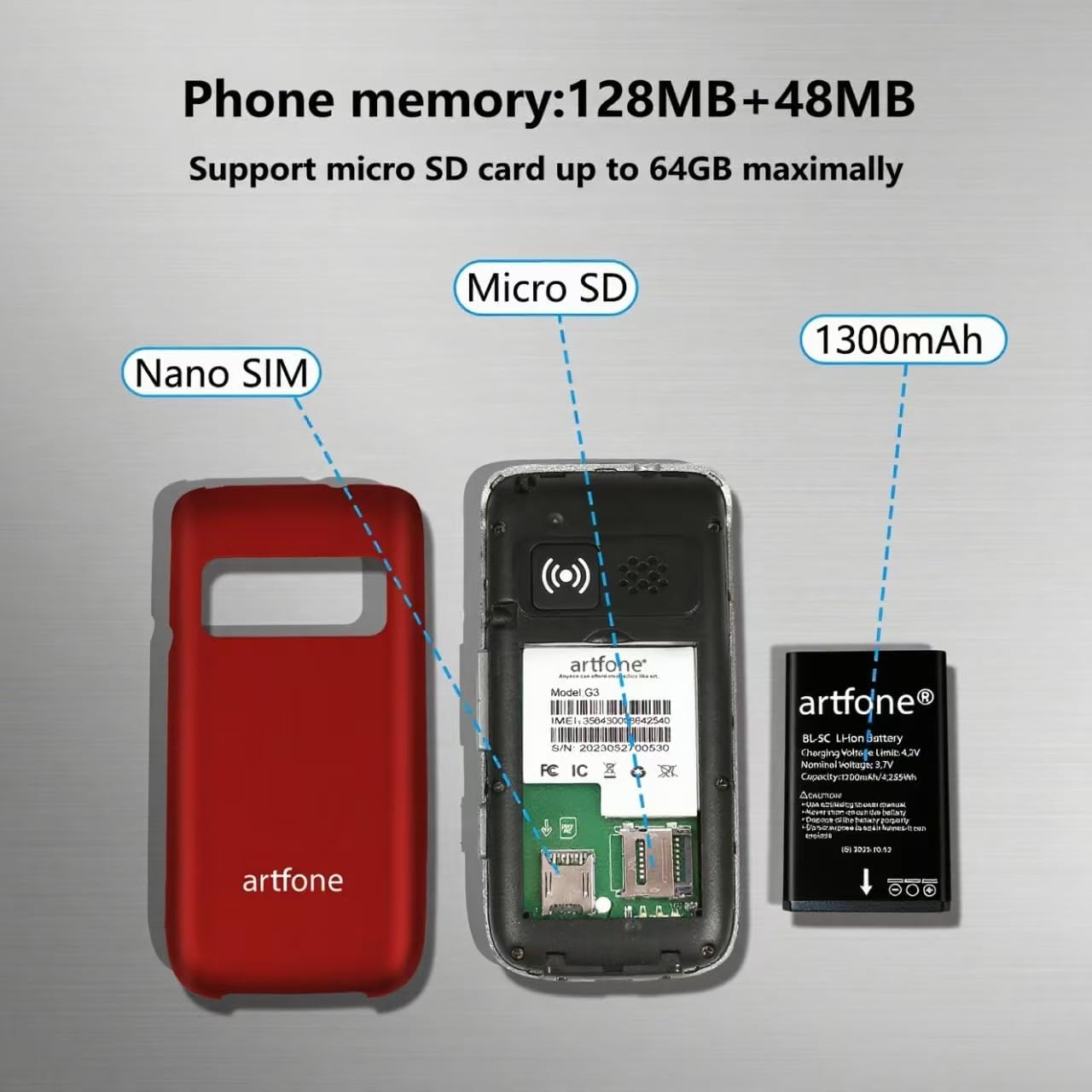
Aworan: Ohun exploded view of the artfone G6 Pro, showing the back cover removed, revealing slots for Nano SIM and Micro SD cards, and the 1300mAh battery.
2. Gbigba agbara akọkọ
Before first use, fully charge the phone. You can charge it using the provided charging dock or directly via the USB-C cable.
- Lilo Dock Gbigba agbara: Connect the USB cable to the charging head, then plug it into a power outlet. Place the phone into the charging dock. The phone will indicate charging status.
- Gbigba agbara taara: Connect the USB-C cable directly to the phone's charging port and the other end to the charging head, then plug into a power outlet.
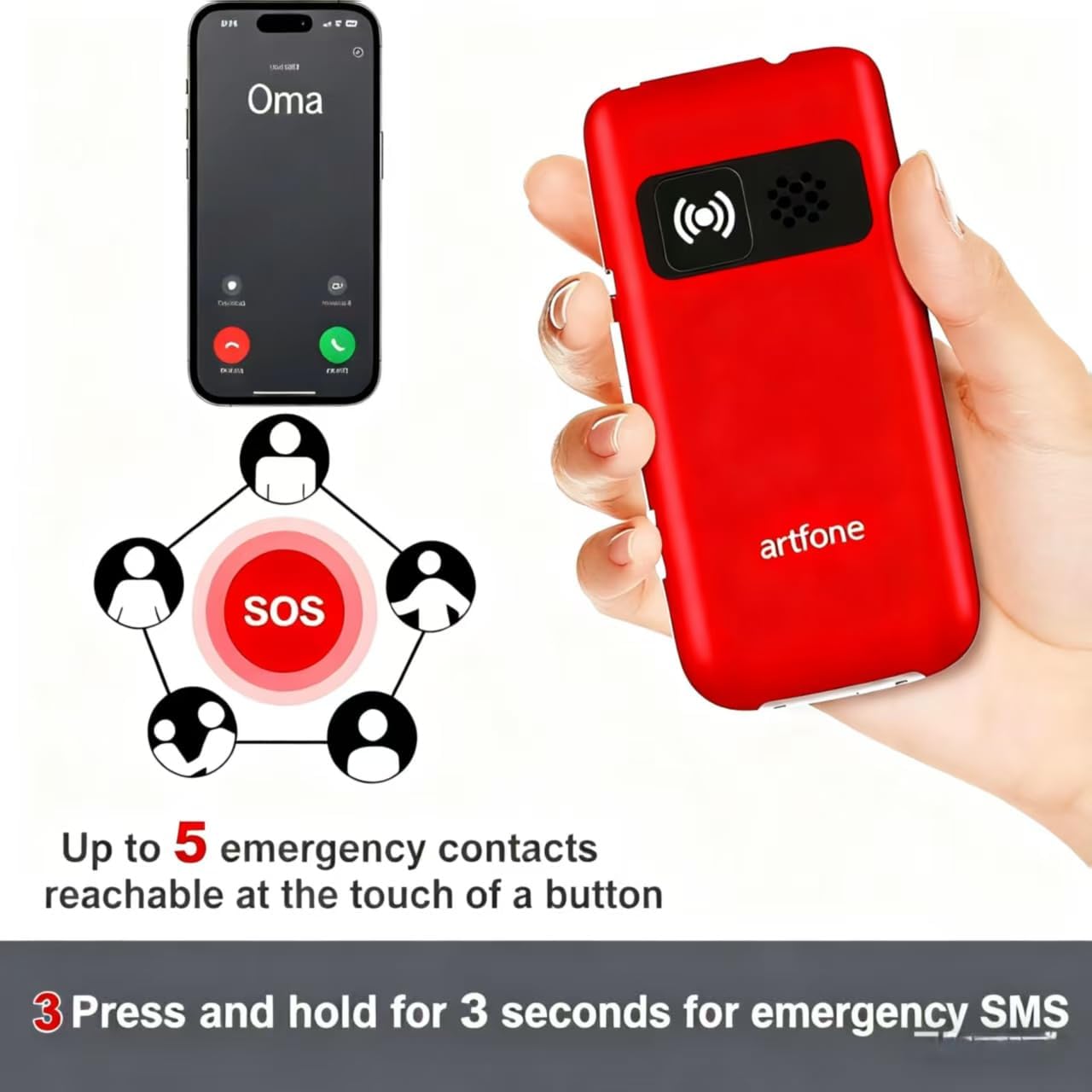
Image: The artfone G6 Pro phone placed in its charging dock, connected to a power source.
Awọn ilana Iṣiṣẹ
1. Agbara Tan / Paa
- Lati Fi agbara: Press and hold the red End Call/Power button (
 ) until the screen lights up.
 - Lati Paarẹ: Press and hold the red End Call/Power button until the power-off options appear, then select 'Power Off'.
2. Ṣiṣe ati Gbigba awọn ipe
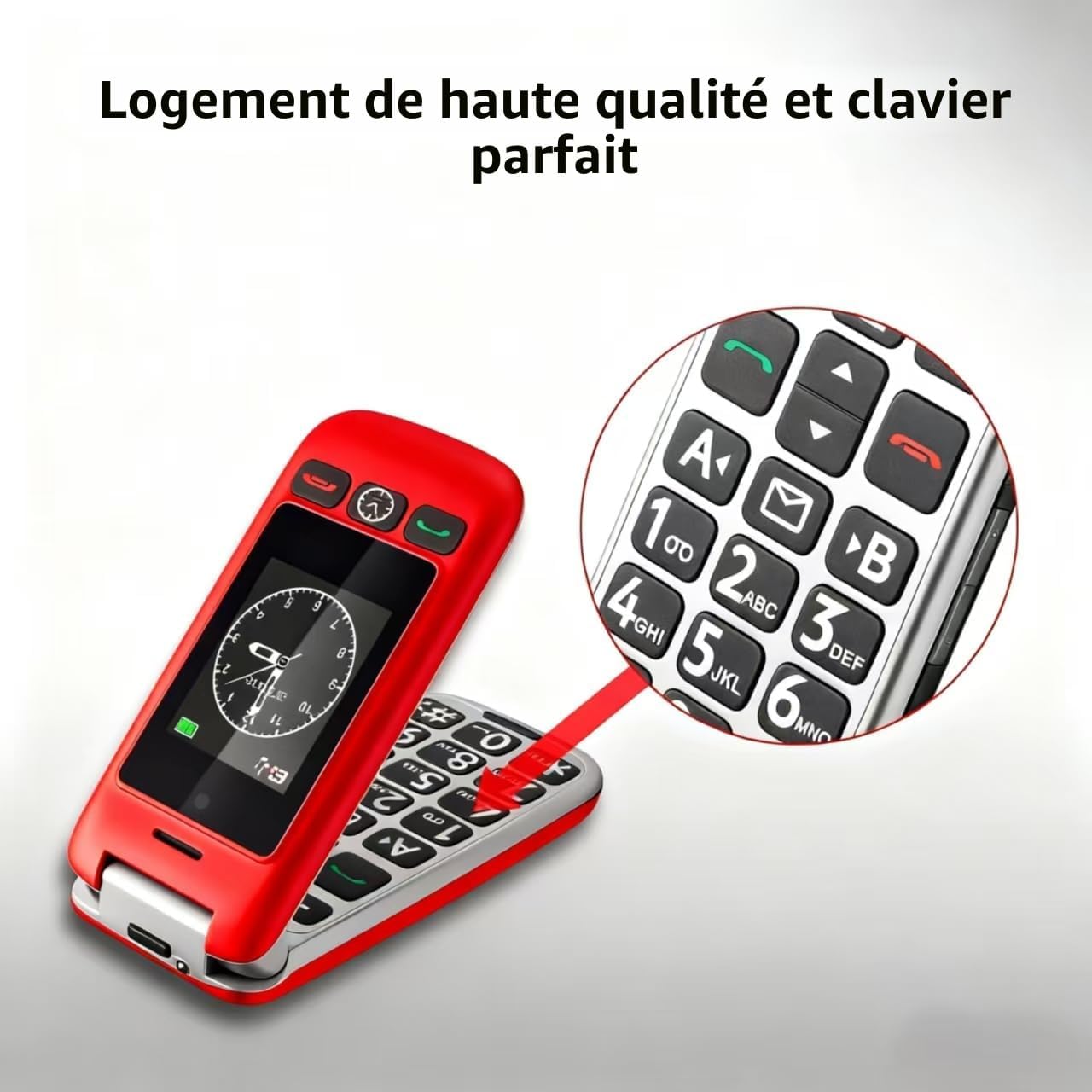
- Npe Ipe: Dial the number using the large keypad and press the green Call button ().
- Gbigba Ipe kan: Open the flip to answer, or press the green Call button. Close the flip or press the red End Call button to end a call.
- Iṣatunṣe Iwọn didun: Use the volume buttons on the side of the phone during a call.

Image: A close-up of the artfone G6 Pro's large, backlit keypad, designed for easy dialing.
3. Dual Screen Features
The artfone G6 Pro features a 2.4-inch internal screen and a 1.8-inch external screen.
- The external screen displays time, date, battery status, and caller ID without opening the phone.
- Press and hold the dedicated time announcement button (often located on the side or front) for 2 seconds to hear the current time spoken aloud.

Image: The artfone G6 Pro displaying the time on its external screen, with an illustration of the time announcement feature.
4. Iṣẹ́ pajawiri SOS
The SOS button provides quick access to emergency contacts.
- Setting SOS Numbers: Navigate to the 'SOS Settings' in the phone's menu to program up to 5 emergency contact numbers.
- Ṣiṣẹ SOS: In an emergency, press and hold the SOS button on the back of the phone for 3 seconds. The phone will automatically call the programmed numbers in sequence until one answers. It will also send an emergency SMS to these contacts.

Image: The artfone G6 Pro with its SOS button highlighted, illustrating how it connects to up to 5 emergency contacts.
5. Titẹ kiakia
Assign frequently called numbers to speed dial keys (A, B, 1-9) for quick access.
- Setting Speed Dial: Go to 'Settings' > 'Speed Dial' to assign contacts to specific keys.
- Lilo Titẹ kiakia: Press and hold the assigned key (e.g., 'A' or '1') to call the stored contact.
6. Miiran Awọn ẹya ara ẹrọ
- Kamẹra: Access the camera through the main menu to take basic photos.
- Redio FM: Plug in headphones (3.5mm jack) to use the FM radio function.
- Imọlẹ ina: Activate the flashlight via a dedicated side switch or through the menu.
- Atẹlu olumulo: The phone features a simple, user-friendly interface with clear icons for easy navigation.

Image: A visual representation of the artfone G6 Pro's menu, showing large, clear icons for Contacts, Tools, Message, SOS, Calendar, Settings, Internet, Multimedia, and Call logs.

Image: A composite image illustrating the flashlight, FM radio, and 3.5mm headphone jack features of the artfone G6 Pro.
Itoju
- Jeki foonu naa gbẹ. Ọrinrin le ba awọn iyika itanna jẹ.
- Do not expose the phone to extreme temperatures. High temperatures can shorten the life of electronic devices and warp or melt certain plastics.
- Má ṣe lo àwọn kẹ́míkà líle, àwọn ohun èlò ìfọmọ́, tàbí àwọn ohun ìfọṣọ tó lágbára láti fi nu fóònù náà. Fi ohun èlò ìfọṣọ wẹ̀ ẹ́ pẹ̀lú ohun èlò tó rọ, d.amp asọ.
- Fi ọwọ́ mú fóònù náà pẹ̀lẹ́pẹ̀lẹ́. Má ṣe ju sílẹ̀, má kàn án, tàbí mì ín. Bí a bá fi ọwọ́ líle mú un, ó lè ba àwọn pátákó ìṣiṣẹ́ inú àti àwọn ẹ̀rọ tó dára jẹ́.
- Only use original or certified compatible batteries, chargers, and accessories.
Laasigbotitusita
| Isoro | Owun to le Fa | Ojutu |
|---|---|---|
| Foonu ko ṣiṣẹ | Batiri naa kere tabi ko fi sori ẹrọ daradara. | Gba agbara si batiri. Rii daju pe o ti fi batiri sii daradara. |
| Ko le ṣe tabi gba awọn ipe wọle | Kò sí káàdì SIM, kò sí káàdì SIM tí a fi sí i dáadáa, tàbí kò sí àmì ẹ̀rọ ìbánisọ̀rọ̀. | Ensure SIM card is inserted correctly. Check network coverage. Contact your service provider. |
| Poor call quality / Low volume | Weak signal, speaker blocked, or volume too low. | Move to an area with better signal. Ensure speaker is not obstructed. Adjust call volume using side buttons. |
| Batiri n ṣan ni kiakia | Frequent use, background applications, or old battery. | Din imọlẹ iboju din. Pa awọn ohun elo ti ko lo. Gbiyanju lati rọpo batiri ti o ba ti darugbo. |
| Iṣẹ́ SOS kò ṣiṣẹ́ | SOS numbers not programmed or incorrect. | Verify and correctly program the emergency contact numbers in SOS settings. |
Ti iṣoro naa ba wa lẹhin igbiyanju awọn solusan wọnyi, jọwọ kan si atilẹyin alabara.
Awọn pato
- Awoṣe: artfone G6 Pro
- Imọ ọna nẹtiwọki: 4G, 3G, 2G
- Eto isesise: artfone Mocor RTOS
- Iboju akọkọ: 2.4 inches
- Iboju ita: 1.8 inches
- Iranti: 128MB + 48MB
- Ibi ipamọ ti o gbooro: Micro SD kaadi o to 64GB
- Iru Kaadi SIM: Nano SIM
- Batiri: 1300mAh Lithium-dẹlẹ
- Akoko Ọrọ: Titi di wakati 5-6
- Akoko Iduro: Titi di ọjọ mẹwa 10
- Asopọmọra: Bluetooth
- Ibudo gbigba agbara: USB Iru-C
- Awọn ẹya pataki: SOS Button, Large Keys, Dual Screen, Charging Dock, FM Radio, Flashlight, Camera
Atilẹyin ọja ati Support
Alaye atilẹyin ọja
The artfone G6 Pro comes with a 2-odun olupese ká atilẹyin ọja Láti ọjọ́ tí a rà á. Àtìlẹ́yìn yìí bo àwọn àbùkù nínú àwọn ohun èlò àti iṣẹ́ ọwọ́ lábẹ́ lílò déédéé. Kò bo ìbàjẹ́ tí ó wáyé nípasẹ̀ àìlòkulò, jàǹbá, àtúnṣe tí a kò gbà láyè, tàbí ìbàjẹ́ déédé.
Onibara Support
For technical assistance, warranty claims, or further inquiries, please refer to the contact information provided in your product packaging or visit the official artfone webojula. Jọwọ ni awoṣe ọja rẹ ati awọn alaye rira ti ṣetan nigbati o ba kan si atilẹyin.


