1. Ifihan
This manual provides detailed instructions for the installation, operation, and maintenance of your ANYFAR Decoder. This device is designed to integrate advanced features like Wireless CarPlay, Android Auto, Mirror Link, and camera support into compatible Mercedes-Benz vehicles equipped with the NTG 5.0/5.1 system.
Please read this manual thoroughly before installation and use to ensure proper functionality and to avoid damage to the product or your vehicle.
2. Alaye Aabo
- Installation should be performed by a qualified professional to prevent damage to the vehicle's electrical system or the decoder.
- Rii daju pe ina ọkọ ti wa ni pipa ati pe batiri naa ti ge asopọ ṣaaju ki o to bẹrẹ fifi sori ẹrọ.
- Do not attempt to disassemble or modify the decoder unit. This will void the warranty and may cause malfunction.
- Operate the device responsibly. Distracted driving can lead to accidents.
- Jeki ẹrọ naa kuro ni omi, ooru ti o pọju, ati imọlẹ orun taara.
3. Package Awọn akoonu
Daju pe gbogbo awọn nkan ti a ṣe akojọ rẹ si isalẹ wa ninu package rẹ:
- ANYFAR Decoder Unit
- Okun agbara
- LVDS OUT USB
- LVDS IN USB
- RCA & USB Cable
- Gbohungbohun ita
- Afowoyi Olumulo (iwe-ipamọ yii)

Image 3.1: Contents of the ANYFAR Decoder package, showing the main unit, power cable, LVDS cables, RCA/USB cable, and external microphone.
4. Ibamu Ọkọ
This ANYFAR Decoder is specifically designed for the following Mercedes-Benz vehicles equipped with the NTG 5.0/5.1 system:
- Awọn Ọdun Awoṣe: 2015-2018
- Compatible Classes: A, B, C, E, S, GLA, GLC, GLE, GLS
Pataki: Before installation, confirm your vehicle's NTG system version. This decoder is ko ni ibamu with NTG 4.0, 4.5, or 4.7 systems.

Image 4.1: A table detailing compatible Mercedes-Benz car models, years, and screen sizes for NTG 5.0 & 5.1 systems.

Image 4.2: Visual guide to identify compatible NTG 5.0/5.1 systems by comparing the original car radio homescreen menu picture with examples of incompatible NTG 4.0, 4.5, and 4.7 systems.
5. Itọsọna fifi sori ẹrọ
Installation of the ANYFAR Decoder involves integrating it with your vehicle's existing infotainment system. Professional installation is highly recommended.
5.1 Akojọ aṣyn fifi sori ẹrọ tẹlẹ
- Rii daju pe ọkọ ayọkẹlẹ ti duro lori ipele ipele kan pẹlu idaduro idaduro duro.
- Turn off the vehicle's ignition and remove the key.
- Ge asopọ batiri ọkọ lati yago fun awọn kukuru itanna.
- Gather necessary tools (e.g., trim removal tools, screwdrivers, wiring harness).
5.2 General Installation Steps (Consult a professional for specific vehicle instructions)
- Carefully remove the vehicle's head unit or display panel to access the rear connections.
- Connect the provided power cable to the vehicle's wiring harness and the ANYFAR Decoder.
- Connect the LVDS IN and LVDS OUT cables between the vehicle's display, the original head unit, and the ANYFAR Decoder. These cables typically intercept the video signal path.
- Connect the RCA & USB cable to the decoder for auxiliary audio input, USB drive playback, and optional camera inputs.
- Install the external microphone in a suitable location for optimal voice recognition (e.g., near the rearview dígí tàbí ọ̀wọ́n ìtọ́sọ́nà).
- Secure the ANYFAR Decoder unit in a safe, dry location within the dashboard, ensuring it does not interfere with other components.
- Tun batiri ọkọ pọ.
- Test the system before reassembling the dashboard.

Image 5.1: The ANYFAR Decoder unit, showing its compact design and various connection ports for integration into the vehicle's system.
6. Awọn ilana Iṣiṣẹ
6.1 Yíyípadà Láàárín Àwọn Ẹ̀rọ
To switch between your vehicle's original OEM car system and the ANYFAR CarPlay/Android Auto system, long-press the "Back" button on your car's central control knob or the designated button as per your vehicle's specific configuration.

Image 6.1: Illustration demonstrating the process of switching between the original car system and the integrated CarPlay/Android Auto interface by long-pressing a control button.
6.2 Alailowaya CarPlay & Android Auto
Once the ANYFAR system is active, your smartphone can connect wirelessly via Bluetooth and Wi-Fi for CarPlay or Android Auto functionality. Follow the on-screen prompts to pair your device. This enables access to navigation, music, calls, messaging, and voice assistants directly on your car's display.

Image 6.2: A car's infotainment screen displaying the main interface of the ANYFAR system, highlighting features like Bluetooth, CarPlay, Android Auto, and voice control.
6.3 Mirror Link & USB Playback
The Mirror Link feature allows you to mirror your smartphone's display onto the car screen. Connect your phone via USB or follow wireless mirroring instructions. The USB port also supports playback of videos and music from a USB drive, and can be used for phone charging.
6.4 Iṣakoso ohun
Utilize intelligent voice control for hands-free operation. Activate your phone's voice assistant (Siri for CarPlay, Google Assistant for Android Auto) to make calls, play music, get directions, and more. The external microphone ensures clear voice input.
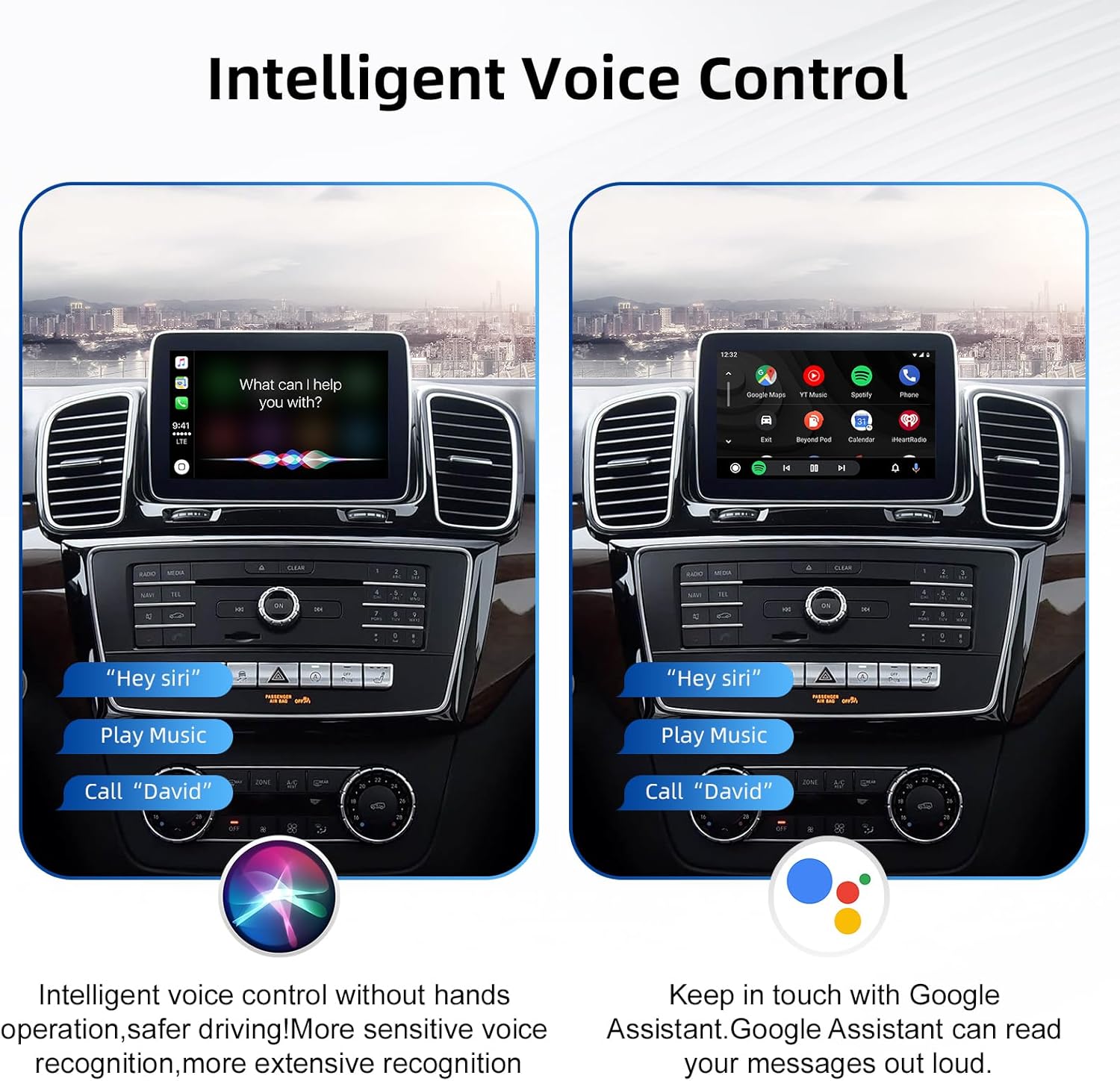
Image 6.3: The car screen demonstrating intelligent voice control, showing both Siri and Google Assistant interfaces responding to commands like "Play Music" and "Call David".
6.5 Retaining Original Car Controls
The ANYFAR Decoder is designed to integrate seamlessly, allowing you to retain full functionality of your original car controls, including the touchscreen, voice control, physical buttons, and central control knob. These controls will operate both the OEM system and the integrated CarPlay/Android Auto system.

Àwòrán 6.4: A view of the car's interior, illustrating how original controls like steering wheel buttons and the central control panel are retained and function with the new system.
6.6 Backup Camera Support
If an aftermarket backup camera or front camera is connected to the decoder, the camera feed will automatically display on the car screen when you shift into reverse gear.

Image 6.5: The car's display showing an optional aftermarket rear view camera feed, complete with parking guidelines.
7. Itọju
- Keep the decoder unit and cables free from dust and moisture.
- Do not use harsh chemicals or abrasive cleaners on the unit or connected screens. Use a soft, dry cloth for cleaning.
- Ensure all cable connections remain secure. Loose connections can lead to intermittent functionality.
- Regularly check for firmware updates from the manufacturer's official website (if applicable) to ensure optimal performance and compatibility.
8. Laasigbotitusita
| Isoro | Owun to le Fa | Ojutu |
|---|---|---|
| Ko si ifihan lẹhin fifi sori ẹrọ. | Incorrect wiring; loose connections; incompatible NTG system. | Verify all power and LVDS cables are securely connected. Confirm vehicle NTG system compatibility (refer to Section 4). Recheck installation steps. |
| CarPlay/Android Auto kò sopọ̀ mọ́ra láìsí aláilowaya. | Bluetooth/Wi-Fi not enabled on phone; incorrect pairing; interference. | Ensure Bluetooth and Wi-Fi are active on your smartphone. Delete previous pairings and re-pair the device. Move phone closer to the unit. |
| Audio quality issues (static, no sound). | Loose audio connections; incorrect audio source selection. | Check RCA audio connections. Ensure the correct audio input source is selected on your car's head unit (e.g., AUX). |
| Original car controls not working with the decoder system. | Incorrect wiring or configuration. | Recheck wiring connections related to control integration. Consult the installation guide or a professional. |
| Kámẹ́rà àtìlẹ́yìn kò hàn. | Camera not connected; incorrect camera input selected; faulty camera. | Ensure the camera is properly connected to the decoder's camera input. Verify the camera is functional. |
9. Awọn pato
| Brand | KANKANFAR |
| Awoṣe | RM-BZ2503F |
| Awọn ẹrọ ibaramu | Foonuiyara |
| Pataki Awọn ẹya ara ẹrọ | Wireless CarPlay, Wireless Android Auto, Mirror Link, USB Playback, Hands-Free Calls, Backup Camera Support, Retains Original Car Controls |
| Ipo Ijade Ohun | Sitẹrio |
| Asopọmọra Technology | USB, Bluetooth, Wi-Fi |
| Adarí Iru | Mechanical knob (via original car controls) |
| Awọn iwọn (isunmọ.) | 139mm x 92mm x 20mm (Decoder Body) |
| Ìwọ̀n (isunmọ́.) | 800 g (Parcel Weight) |
Image 9.1: A visual representation of the ANYFAR Decoder unit with its approximate dimensions (139mm x 92mm x 20mm) indicated.
10. atilẹyin ọja Information
Please refer to the warranty card included with your product or contact ANYFAR customer support for detailed warranty terms and conditions. The warranty typically covers manufacturing defects for a specified period from the date of purchase.
Àkíyèsí: Títú ọjà náà kúrò láìgbàṣẹ tàbí àtúnṣe rẹ̀ yóò sọ àtìlẹ́yìn náà di òfo.
11. Onibara Support
For technical assistance, troubleshooting not covered in this manual, or warranty inquiries, please contact ANYFAR customer support through the following channels:
- Webojula: Visit the official ANYFAR webaaye fun awọn orisun atilẹyin ati alaye olubasọrọ.
- Imeeli: Tọkasi apoti ọja rẹ tabi kaadi atilẹyin ọja fun adirẹsi imeeli iṣẹ alabara.


